
Imagine your website standing out with a unique look and feel that perfectly represents your brand. It’s possible, and you don’t need to be a coding genius to achieve it.
If you’re using WordPress, the good news is that customizing any theme is easier than you might think. You might have picked a theme that looks great at first glance, but it doesn’t quite feel like “you. ” That’s where customization comes in.
By tweaking the theme to suit your style, you can transform your site into a true reflection of your vision. In this guide, we’ll walk you through the steps to personalize any WordPress theme. Get ready to turn your site into an online masterpiece that not only attracts visitors but also keeps them engaged. Curious to find out how? Let’s dive in and unlock the potential of your WordPress theme!
Choosing The Right Theme
Free themes are easy on the wallet. They are great for beginners. But, they may lack unique features. Updates might not be frequent. Premium themes cost money. Yet, they come with more features. They offer better support and frequent updates. Designs are often more attractive.
Not all themes work with every plugin. Some themes might have issues. Check compatibility before choosing. Look for themes that say compatible with your plugins. This can save time and trouble later. A responsive design is also important. It looks good on all devices.
Credit: kinsta.com
Setting Up A Child Theme
Creating a child theme allows you to safely customize any WordPress theme. It keeps your changes separate from the original theme, ensuring updates won’t erase your customizations. This approach is ideal for maintaining design consistency and functionality across your WordPress site.
Why Use A Child Theme
Child themes are important for WordPress customization. They keep the main theme safe. Changes stay even after updates. Using a child theme is smart. It helps avoid losing work. Themes often update. A child theme saves your changes. Your site stays unique. You can experiment with styles. It is easier to fix mistakes. Learning becomes fun. Child themes are like a safety net.
Creating A Child Theme
Start by making a new folder. This folder goes in your themes directory. Name it wisely. Use a simple name like “my-child-theme”. Next, create a style.css file. Add information like the theme name and template. Link the child theme to the main theme. Then, create a functions.php file. Use this file to enqueue styles. Add code to call parent theme styles. Now, activate the child theme. Go to your WordPress dashboard. Click on Appearance, then Themes. Select your child theme. You are ready to customize!
Modifying Theme Styles
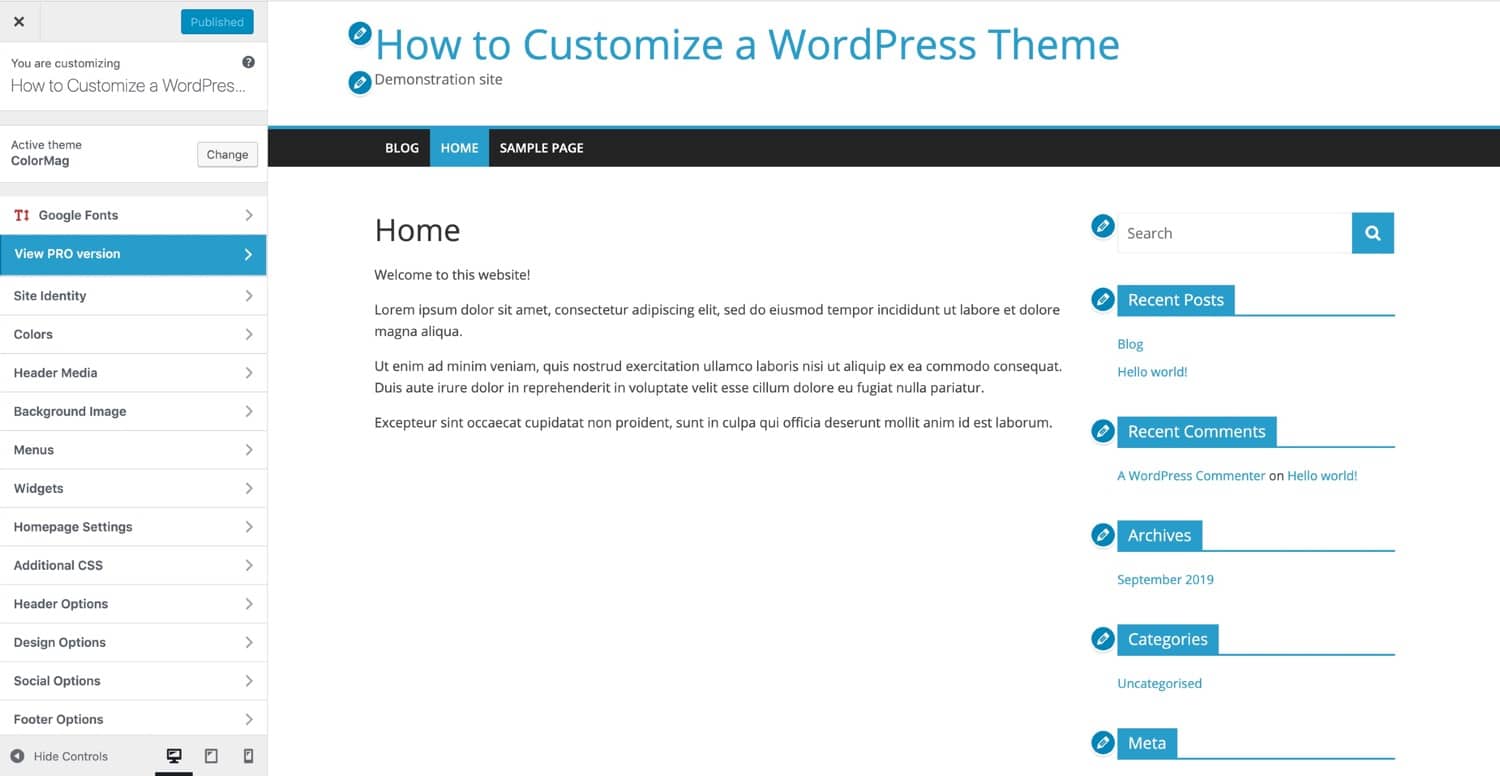
Custom CSS lets you change your site’s look. You can add colors or fonts. It helps your site stand out. You don’t need to know a lot. Simple lines of code can make a big impact. Many themes have a spot for Custom CSS. Find it in the WordPress dashboard. It’s under Appearance, then Customize. Add your code there and save. Your changes appear right away. If something goes wrong, you can fix it. Just remove the code and save again.
Page builders offer easy tools for design. Drag and drop to make changes. No need for coding skills. Many builders come with themes. They make styling fun and simple. You can change layouts with a few clicks. Adjust colors and fonts too. Builders often have a live preview. See changes as you make them. It’s like painting with a brush. Your creativity is the limit. Choose the right builder for your theme. Some popular ones are Elementor and Beaver Builder.
Credit: kinsta.com
Editing Theme Templates
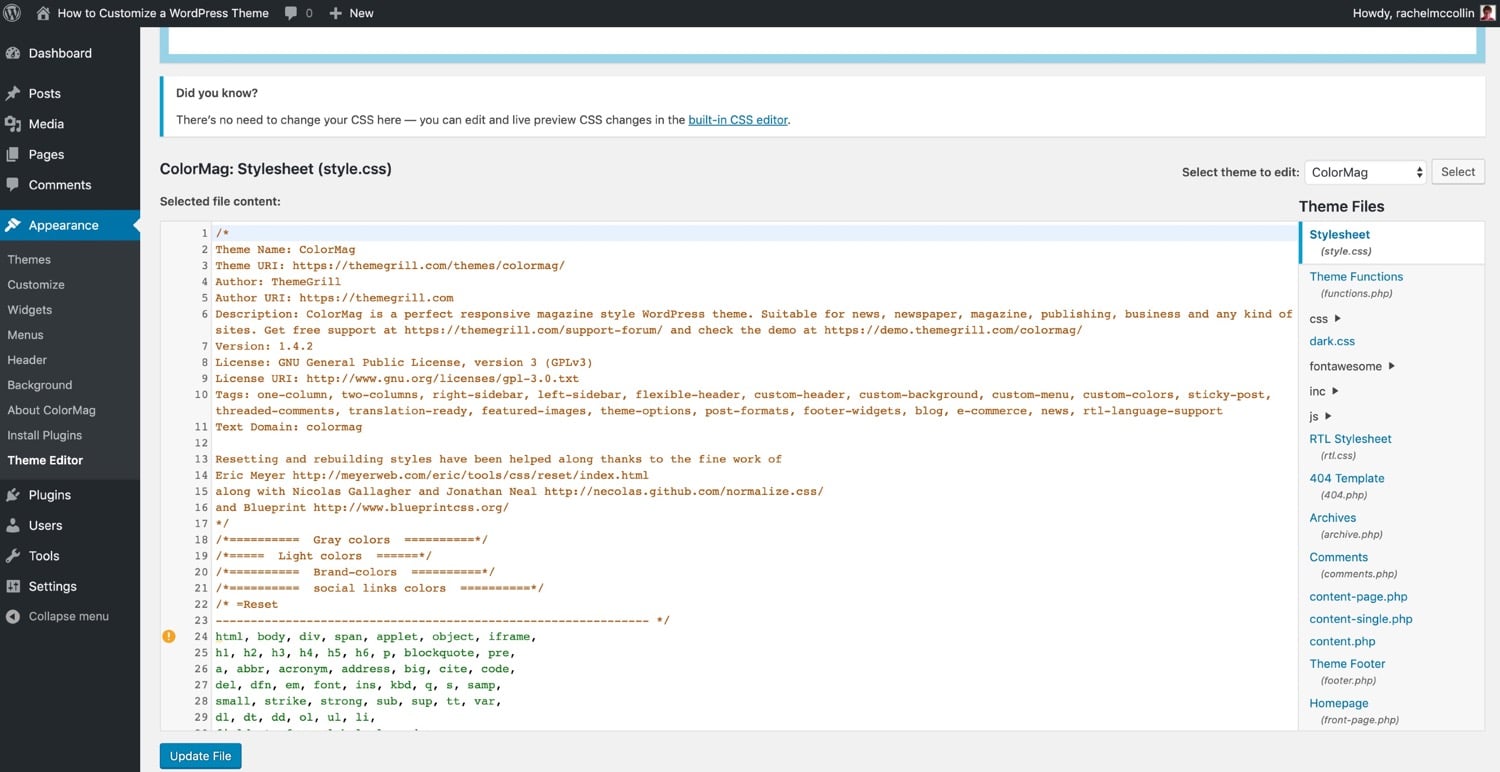
Accessing template files in WordPress is easy. Go to your dashboard. Click on Appearance. Then select Theme Editor. Here, you will see all the theme files. Be careful while editing. Changes can affect your whole site. Always make a backup first. This ensures your data is safe.
Some changes are popular. Adding a logo is one. You can also change colors. Many people edit the header. Others modify the footer. You may want to add widgets. Another idea is changing fonts. Each change can make your site unique. Use simple steps to make these edits. Always save your work.
Customizing Widgets And Sidebars
Widgets are small blocks that add features to your site. You can add a calendar, a search bar, or recent posts. Go to the WordPress dashboard. Click on Appearance and then on Widgets. Drag the widget you want to the sidebar area. To remove a widget, drag it back to the available widgets list. It’s easy and quick.
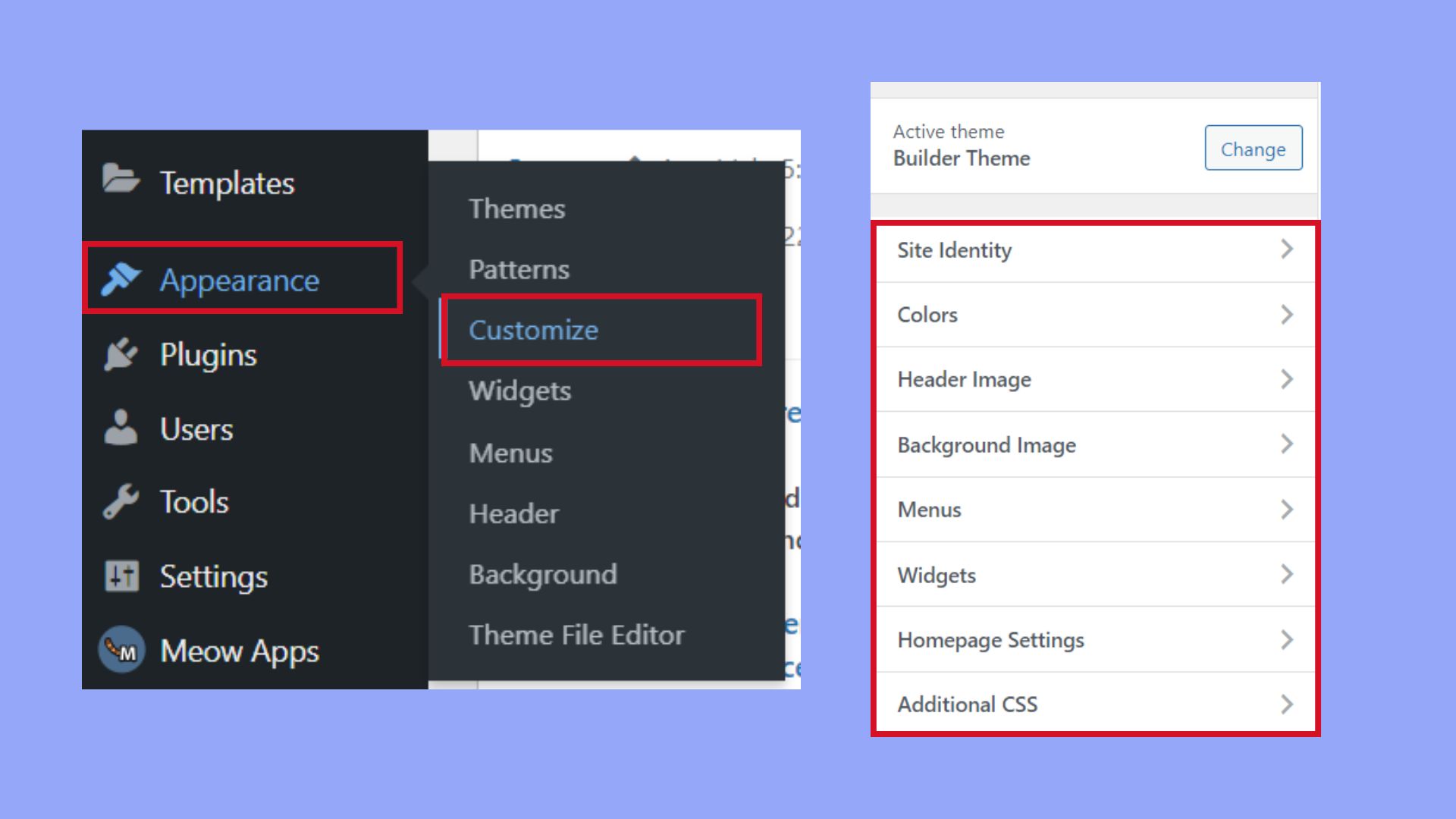
Sidebars can be on the left, right, or even both sides. Changing the layout is simple. Go to the dashboard and click on Appearance. Then select Customize. Choose Layouts and pick where you want the sidebar. Save your changes. Now your website looks different. You can try different layouts to see what you like best.
Credit: 10web.io
Enhancing Functionality With Plugins
Plugins help make a website better. Picking the right ones is important. First, decide what the site needs. Next, look for plugins that meet these needs. Check reviews and ratings. High ratings mean users like them. Also, ensure updates happen often. This keeps the site safe.
Too many plugins can cause trouble. Conflicts may slow down the site. Always test new plugins before using them. If a plugin breaks something, turn it off. Some plugins do not work well together. Be careful and choose only what is needed. Regular checks keep everything running smoothly.
Optimizing For Performance
Customizing a WordPress theme boosts performance and personalizes your site. Tweaking design elements improves load times. Efficient coding enhances functionality, resulting in a smoother user experience.
Improving Load Times
Boosting load times is crucial. Start by reducing image sizes. Smaller images load faster. Use tools like TinyPNG. Minimize CSS and JavaScript files. This reduces server requests. Enable browser caching. It stores data locally. This speeds up repeat visits. Choose a reliable hosting provider. Good hosts impact performance. You can use a Content Delivery Network (CDN). It delivers content quickly. Optimizing database queries is useful. Clean up unnecessary data. This makes your site faster.
Ensuring Mobile Responsiveness
Mobile users need a great experience. Themes should adapt to screens. Use responsive design techniques. This ensures content fits well. Test on various devices. Check smartphones and tablets. Adjust font sizes for readability. Large fonts are better on phones. Make buttons easy to click. Keep layouts simple. Avoid cluttered designs. A clean design is user-friendly. Implement touch-friendly navigation. It helps users explore easily. Responsive themes attract more visitors. They improve user satisfaction.
Maintaining Theme Customizations
It’s smart to save changes you make. Use a backup plugin. It keeps your work safe. If something breaks, you can restore it. A backup can be a lifesaver. Always backup before big changes. This way, you won’t lose your work.
Updating themes is important. It keeps your site secure. Before updating, check your custom changes. Write them down. Use a child theme. It keeps changes safe during updates. Always test updates first. This helps avoid problems.
Frequently Asked Questions
How Can I Customize A WordPress Theme?
Customizing a WordPress theme is easy with the built-in Customizer tool. Navigate to Appearance > Customize in your dashboard. Here, you can change colors, fonts, and layouts. Many themes also offer specific customization options. Additionally, you can use custom CSS for advanced styling changes to suit your needs.
What Tools Are Best For Theme Customization?
The WordPress Customizer is the primary tool for theme customization. It allows easy changes to layout and design. For advanced edits, use custom CSS or a page builder plugin like Elementor or Beaver Builder. These tools offer drag-and-drop functionality and more control over design elements.
Is It Safe To Edit Theme Files Directly?
Editing theme files directly is risky and not recommended. Changes can be lost during updates. Instead, use a child theme for customizations. This preserves your edits and ensures your site remains stable. Always back up your site before making any changes to avoid data loss.
Can I Change A Theme Without Coding Skills?
Yes, you can customize a theme without coding skills using the WordPress Customizer. It allows you to change colors, fonts, and layouts easily. Plugins like Elementor also offer user-friendly interfaces for designing pages visually. These tools simplify customization for users with no coding experience.
Conclusion
Customizing your WordPress theme is simpler than it seems. With practice, changes become easier. Start with small tweaks. Gradually move to more complex adjustments. Always back up your work. This prevents data loss. Use theme documentation for guidance. It offers valuable insights.
Experiment with color, layout, and fonts. These changes improve your site’s look. Remember, customization reflects your brand. Make your website unique and user-friendly. Stay consistent with your design choices. This helps maintain a professional appearance. Keep learning and exploring new features.
Your WordPress site will thrive with personal touches. Enjoy the creative process!


