
Are you tired of your WordPress site looking just like everyone else’s? You’re not alone.
A unique, eye-catching website can set you apart, drawing in visitors and keeping them engaged. But here’s the catch: you don’t have to spend a fortune on a premium theme to achieve this. Customizing a free WordPress theme is easier than you might think, and it offers a world of creative possibilities.
Imagine transforming your website into a digital masterpiece that truly reflects your brand’s personality. In this guide, we’ll walk you through simple, effective steps to tweak your free WordPress theme to perfection. Ready to make your website stand out? Let’s dive in!

Credit: kinsta.com
Choosing The Right Theme
Think about what your site needs. Blogs need simple designs. Online shops need features for selling. Write down your top needs. Colors, layout, and style are important. This helps pick the right theme. Good themes make websites look nice.
WordPress has many free themes. Browse the theme directory for ideas. Search by style or purpose. Look at ratings and reviews. Popular themes often work well. Preview themes before choosing. Try different themes to see what fits best. Easy way to find a theme that matches your needs.
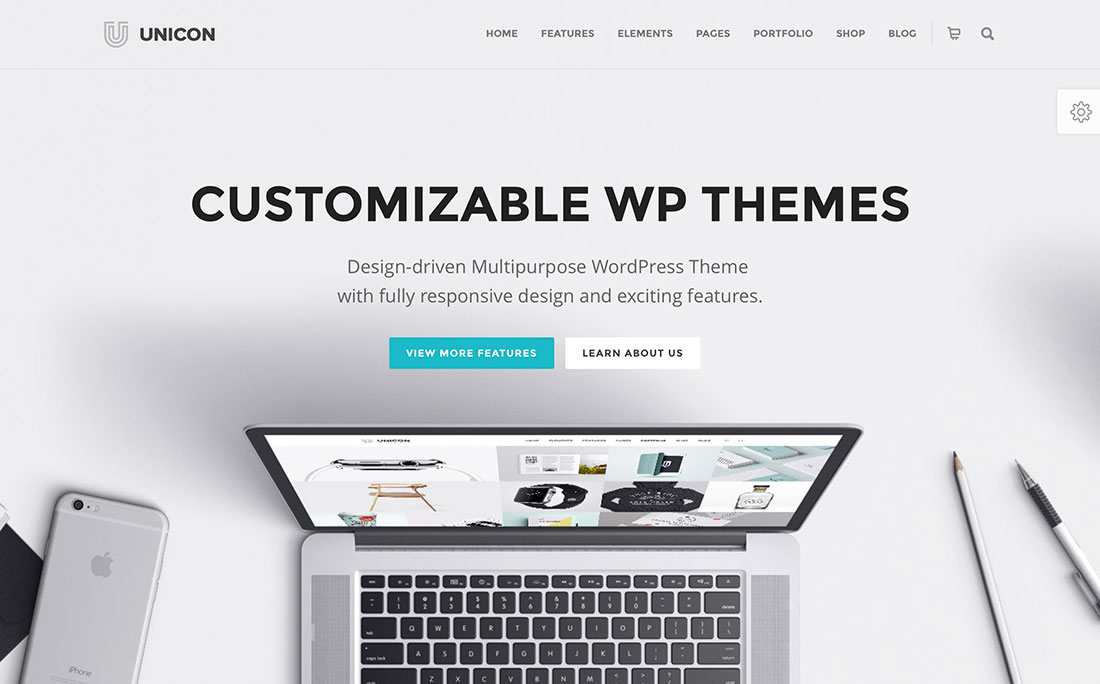
Check theme features carefully. Responsive design is important. Themes must work on phones and computers. Customizable options let you change colors and fonts. SEO-friendly themes help your site rank better. Look for support and updates. Choose themes with good support. This helps fix problems quickly.
Credit: colorlib.com
Installing A Free Theme
Accessing the WordPress Dashboard is easy. First, log in to your WordPress account. Find the dashboard on the left side. Click on it. This opens the main control area. From here, you can make changes.
Navigating to the Themes Section comes next. Look for “Appearance” in the sidebar. Click on it. A menu will drop down. Select “Themes” from this menu. You’ll see different themes here.
Activating Your Selected Theme is simple. Choose the theme you like. Click on “Activate.” This makes the theme live on your site. Your website will now have a new look. Refresh your site to see the changes.
Customizing Theme Settings
Explore the WordPress Customizer to change your theme. Find it in the dashboard. It allows easy adjustments. Make changes and see them live. No coding skills needed. Perfect for beginners. This tool is simple yet powerful.
Alter your site identity effortlessly. Add a logo or change the title. Include a tagline to describe your site. This creates a unique online presence. It’s quick and impactful. Make your site stand out with your brand.
Modify colors and fonts for a personal touch. Choose colors that match your brand. Select fonts that are easy to read. Adjusting these elements enhances visual appeal. It makes your site more attractive. Engage visitors with a stylish look.
Adding Custom Widgets
Widget areas are special parts of your website. You can add different widgets here. They help you customize your site. Common widget areas are the sidebar and footer. Each theme has its own widget areas. Check your theme to know them. This helps in placing widgets correctly.
Adding widgets is easy. Go to the WordPress dashboard. Click on “Appearance” and then “Widgets”. You will see all available widgets here. Drag a widget to your desired area. To remove, drag it back. You can also rearrange them. This changes how they appear on your site.
There are many widget options to explore. Some popular ones include the search bar, recent posts, and calendar. These widgets improve user experience. You can also add a text widget for custom messages. Social media widgets help link to your profiles. Explore these to enhance your site.
Customizing The Header And Footer
Start by choosing the right logo. It represents your site. Make sure the logo is clear and fits well. Adjust the title and tagline. These show on the browser tab. Make them catchy. Pick a header color that matches the theme. Colors affect mood. Add a header image if needed. It adds style. Ensure it is high quality.
Include contact information. Let people reach you easily. Add social media links. Connect with visitors outside the site. Copyright text is important. Show ownership of content. Choose a background color. Make it contrast the main theme. Add a footer menu. Useful for quick links. It improves navigation.
Start with a main menu. It guides visitors. Add links to important pages. Consider a secondary menu. Useful for less important links. Ensure menus are clear. They should be easy to read. Use dropdowns for subcategories. They save space. Arrange items logically. It helps users find what they need. Menus should be simple.
Enhancing Functionality With Plugins
Transform your WordPress free theme with plugins. Add new features easily. Improve design and functionality without coding.
Selecting Compatible Plugins
Choosing the right plugins is important. They must work well with your theme. Look for plugins with good reviews. Check if they are updated regularly. Always pick plugins that are simple to use. Avoid plugins that slow down your site. Compatibility is key for smooth operation.
Installing And Activating Plugins
To install a plugin, go to your dashboard. Click on “Plugins” and “Add New.” Search for the plugin you want. Click “Install Now” and wait. After installation, click “Activate.” This makes the plugin start working. Remember to update plugins regularly for best performance.
Integrating Plugins With Your Theme
After activating a plugin, integrate it with your theme. Check settings to ensure it matches your site’s look. Adjust options as needed for a seamless fit. Some plugins need extra setup. Follow instructions for each one. Test your site to see how the plugin works. This ensures everything runs smoothly together.
Optimizing For Mobile
Use a responsive theme for your site. It helps the site look good on all devices. Check that images and text fit the screen. This makes it easy for users to read. Avoid using large images. They slow down the loading speed.
Check your site on different devices. This ensures it looks good everywhere. Use tools like Google’s Mobile-Friendly Test. It shows how your site appears on phones and tablets. Fix any issues that it finds. This keeps your site user-friendly.
Keep navigation simple. Users should find things easily. Use large buttons. They are easier to tap. Make sure links are not too close together. This prevents accidental clicks. Always test your changes. It improves the user experience.
Credit: www.cloudways.com
Troubleshooting Common Issues
Customizing a WordPress free theme can sometimes be tricky. Common issues include layout changes and plugin conflicts. Solutions involve checking theme settings and ensuring compatibility with installed plugins.
Resolving Theme Conflicts
Theme conflicts can cause your website to look odd. Check if plugins are causing this. Deactivate them one by one. See if the problem goes away. Sometimes, two themes might not work well together. Use only one theme at a time. Updating your theme might also help. New updates fix many problems.
Fixing Layout And Display Problems
Layout issues can make your site hard to read. Use the WordPress Customizer for changes. Adjust the layout settings. Make sure your theme is compatible with your WordPress version. Responsive themes work better on phones and tablets. Clear your browser’s cache to see changes.
Seeking Support And Resources
Help is available if problems persist. Check the theme’s support page. Many themes have community forums. Ask questions there. Look for tutorials online. YouTube has many guides for WordPress themes. Always back up your site before making big changes.
Frequently Asked Questions
How Do I Choose A Free WordPress Theme?
Choosing a free WordPress theme involves assessing your website’s needs and aesthetics. Look for responsive design, customization options, and user-friendly interfaces. It’s crucial to pick a theme that aligns with your site’s purpose and audience. Reading reviews and checking active installations can provide additional insights into its reliability.
Can I Customize A WordPress Theme Without Coding?
Yes, you can customize a WordPress theme without coding using the built-in customizer. It allows you to change colors, fonts, and layouts easily. Widgets and plugins also offer customization options. For more advanced changes, page builder plugins like Elementor or Beaver Builder can be helpful.
What Tools Help In WordPress Theme Customization?
Several tools aid WordPress theme customization, including the WordPress Customizer and page builder plugins like Elementor. These tools offer intuitive drag-and-drop interfaces. Plugins like Jetpack and WooCommerce can add functionality. Always ensure plugins are compatible with your theme to avoid conflicts and ensure smooth operation.
How Can I Make My WordPress Theme Responsive?
To make a WordPress theme responsive, choose a theme with built-in responsive design. Use the WordPress Customizer to adjust settings for different screen sizes. Plugins like WP Touch can enhance mobile responsiveness. Regularly test your site on various devices to ensure optimal user experience across all platforms.
Conclusion
Customizing a WordPress theme can seem challenging but is rewarding. With free themes, you can easily personalize your site without spending money. Start small. Change colors, fonts, and layouts to match your style. Explore theme options and make tweaks. Use WordPress Customizer for instant previews.
Practice makes perfect. As you customize, your skills grow. Your unique site will attract more visitors. Remember, patience and creativity go hand in hand. Keep experimenting. Your perfect WordPress theme is within reach. Enjoy the journey of creating a personalized website that truly represents you.


