
Are you ready to give your WordPress site a fresh and unique look? Creating a custom Bootstrap theme might be just what you need.
By leveraging the power of Bootstrap, you can design a stunning, responsive theme that not only looks great but also performs brilliantly across all devices. Imagine having full control over the aesthetics of your website, ensuring it aligns perfectly with your brand vision.
In this guide, you’ll discover step-by-step instructions on how to create a Bootstrap theme for WordPress. Whether you’re a seasoned developer or a curious beginner, this process is more accessible than you might think. By the end, you’ll have the skills to craft a theme that’s not only visually appealing but also highly functional. Let’s dive in and unlock the potential of your WordPress site!
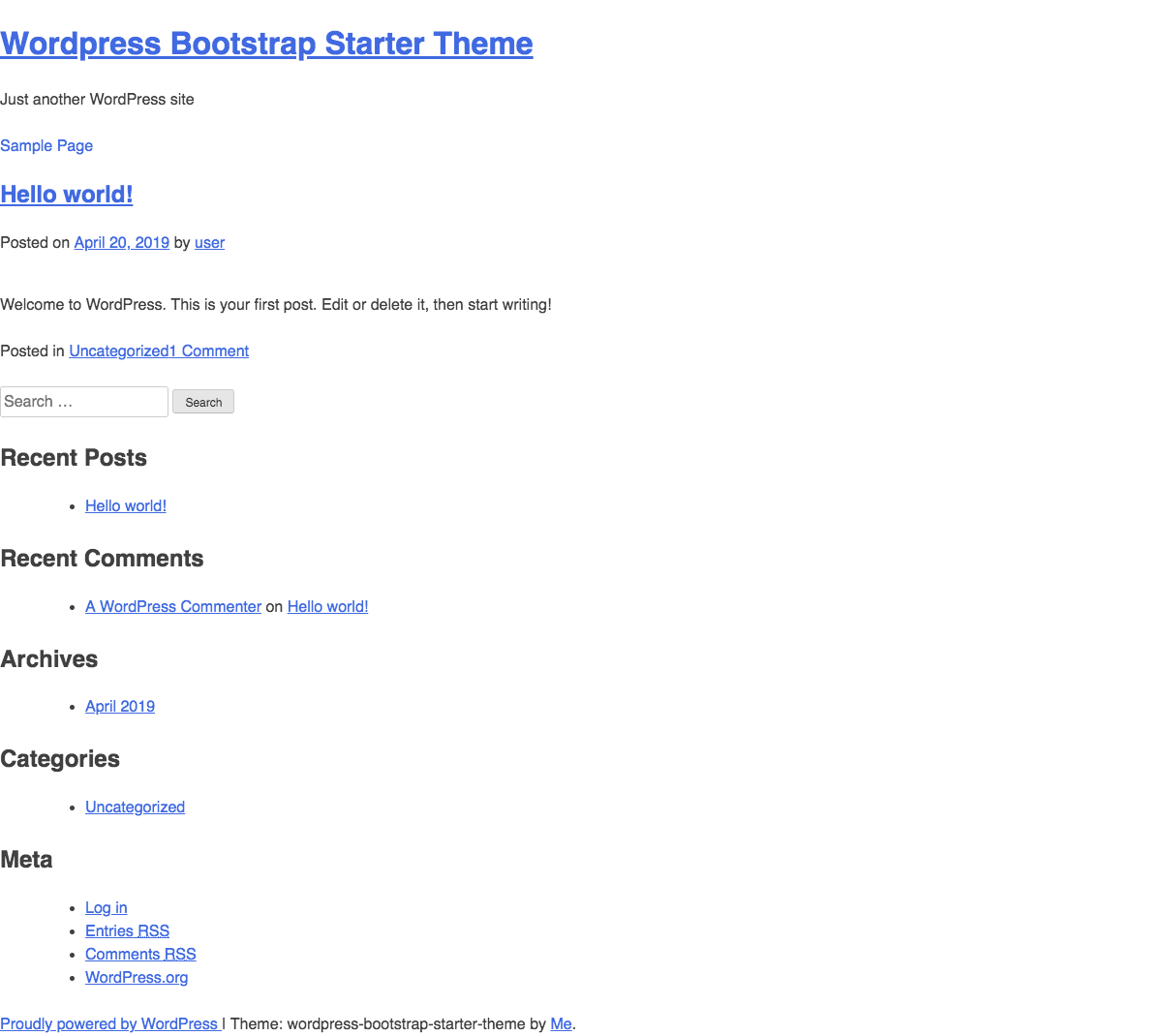
Credit: www.stevepolitodesign.com
Getting Started With Bootstrap And WordPress
First, you need to download WordPress. Go to the official site. Click the download button. Next, unzip the file. You will see many files. These are important.
Now, open your web hosting panel. Find the section for databases. Create a new database. Remember the name and password. Use them soon.
Bootstrap makes websites look nice. First, go to the Bootstrap website. Download the files. Unzip them like before. Now, you have Bootstrap files.
Open your WordPress theme folder. Find the ‘wp-content’ folder. Place the Bootstrap files there. Link them in your theme’s header file. Use a simple link tag. Now, your site can use Bootstrap.
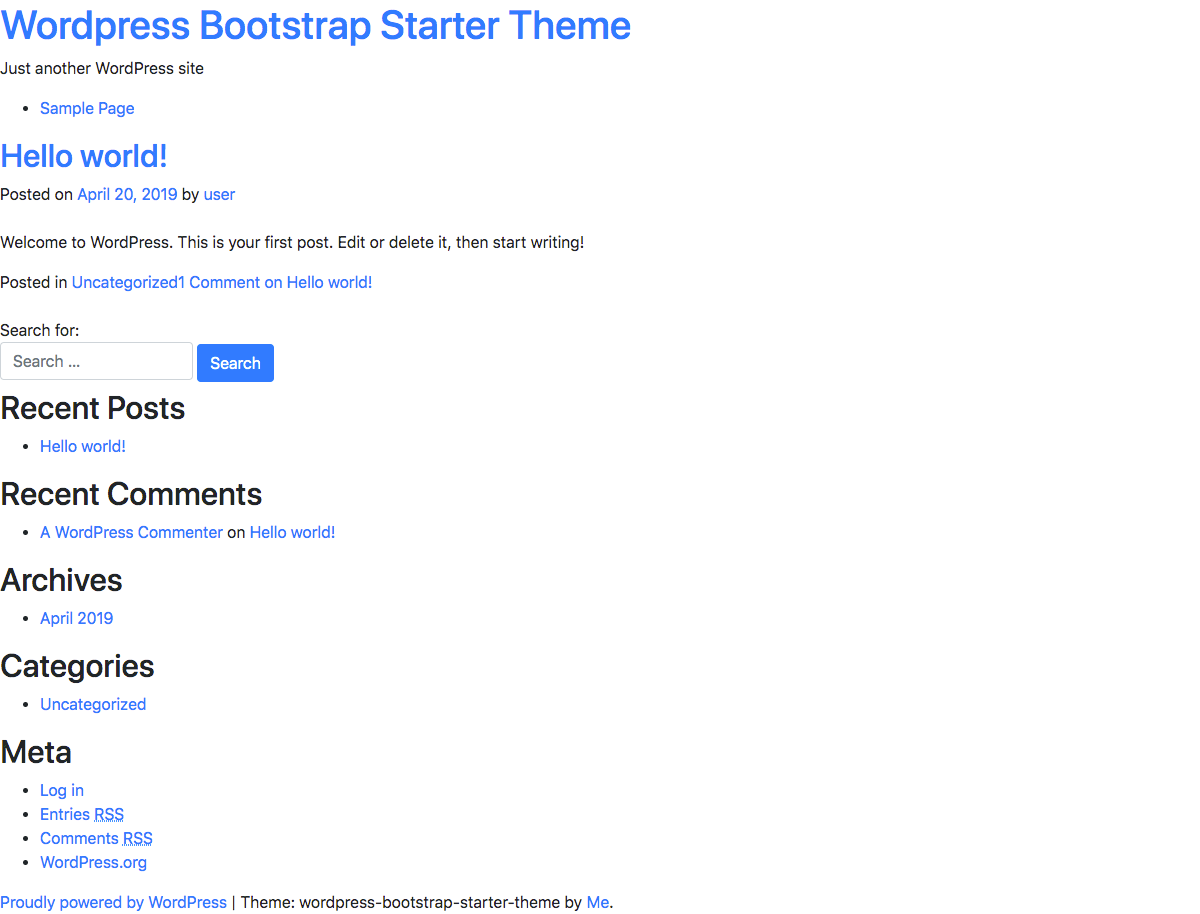
Credit: www.stevepolitodesign.com
Choosing The Right Tools
Selecting the right tools simplifies creating a Bootstrap theme for WordPress. Consider choosing a reliable code editor and a powerful framework. These tools streamline the design process, allowing for efficient customization and seamless integration.
Text Editors
Text editors help write code for your theme. Visual Studio Code and Sublime Text are popular choices. These editors have many features. Syntax highlighting helps spot errors easily. Auto-completion speeds up coding. Extensions make work easier. Choose an editor you like. Try different editors to find the best one for you.
Version Control Systems
Version control systems keep track of changes. Git is the most used tool. It helps save your work in steps. If mistakes happen, you can go back to older versions. Git also lets you work with others. Share your code easily with GitHub. Learning Git is helpful. It makes coding safe and organized.
Creating A Child Theme
Crafting a child theme for WordPress using Bootstrap involves creating a custom design while preserving core functionalities. Begin by setting up a new folder in your theme directory and enclose necessary files like style. css and functions. php. Utilize Bootstrap’s responsive features to enhance visual appeal and user experience.
Understanding Parent And Child Themes
Parent themes are full themes with all files. They control design and features. A child theme lets you change design without touching the parent. This keeps your changes safe when the parent updates. Always use a child theme to make changes safely.
Setting Up A Child Theme
First, create a new folder for your child theme. Give it a clear name. Inside the folder, add a style.css file. This file must have details about your theme. Copy the style.css header from the parent. Change the theme name and template. Next, add a functions.php file. Use it to enqueue the parent theme’s stylesheet. This links your child theme to the parent. Save all changes. Now, activate your child theme in WordPress. Your custom theme is ready to use.
Integrating Bootstrap With WordPress
First, download the Bootstrap files from the official website. Next, log in to your WordPress admin panel. Go to the Appearance tab and click on Editor. Find the header.php file and open it. Add the Bootstrap CSS link in the head section. Then, add the Bootstrap JS script just before the closing body tag. Save changes to update your theme.
Bootstrap offers many components like buttons, navbars, and forms. These components help create a modern look. Copy the desired component’s code from Bootstrap’s documentation. Paste it into your WordPress theme files. Customize the component to fit your theme’s design. This ensures a cohesive look across your site.
Customizing Theme Design
Creating a Bootstrap theme for WordPress involves customizing styles and layouts. Start by selecting a basic Bootstrap template. Modify CSS and HTML elements to fit your design preferences. Integrate with WordPress to ensure compatibility and functionality.
Modifying Stylesheets
Stylesheets make your theme look nice. Use CSS to change colors and fonts. Find the stylesheet file in your theme folder. Open it with a text editor. Change the code to update styles. Save the file after editing. Refresh your website to see changes. Always backup before editing. Mistakes can break your theme. Learn basic CSS rules to make edits easier. Practice makes perfect.
Editing Templates
Templates help structure your site. Use PHP to edit templates. Find template files in your theme folder. Open them in a text editor. Change the code to adjust layout. Save after each edit. Check your site for changes. Errors can stop your site from working. Always backup your files. Learn basic PHP for smoother edits. Test each change on your site.
Enhancing Functionality With Plugins
Plugins make your website work better. They add cool features. Contact forms help users reach you. SEO plugins help your site rank higher. Security plugins keep your site safe. They stop bad guys from breaking in. Caching plugins make your site load faster. Users love fast sites. E-commerce plugins let you sell things online. Each plugin has a job. Choose wisely.
Sometimes, you need special functions. Custom plugins are a great choice. They do exactly what you need. They fit your theme well. Professional developers can help you. They write clean code. They make sure the plugin works right. Custom plugins can be updated. They can grow with your site. Always test before using them live.
Testing And Debugging
Browser testing ensures your theme works everywhere. Open your theme in different browsers. Check Chrome, Firefox, Safari, and Edge. Look for display errors or problems. Test on mobile devices too. Responsive design is key for user experience. Use online tools like BrowserStack. They help you test on many browsers easily. Fix any layout issues you see. This keeps your users happy.
Resolving Common Issues
Problems are common in theme development. Text may not align. Images might not load correctly. Buttons could appear misplaced. Check your CSS for these issues. Verify your HTML tags are correct. Use the browser’s developer tools. They help spot errors quickly. Debugging tools like Firebug are useful. They show what is wrong in your code. Fix issues promptly for a smooth user experience.
Deploying Your Theme
Crafting a Bootstrap theme for WordPress involves organizing design elements effectively. Install the theme by uploading it via the WordPress dashboard. Activate it to see your custom design in action.
Preparing For Launch
Begin by checking your theme. Ensure all links and buttons work correctly. Test the theme on different devices. Make sure it looks good on phones and tablets. Review the theme for any missing parts. Fix errors before moving forward. Your theme must be complete and tidy. Double-check your files. Remove any unnecessary ones. Keep only what’s important. This makes the theme lighter and faster.
Publishing The Theme
It’s time to share your theme with the world. Upload your files to your WordPress site. Use a reliable hosting service for your theme. This keeps it safe and accessible. Activate the theme and check it again. Make sure it displays everything correctly. Tell your friends or followers about your new theme. Get feedback and improve it if needed. Your theme is now live and ready for users.
Credit: www.stevepolitodesign.com
Frequently Asked Questions
What Is A Bootstrap Theme For WordPress?
A Bootstrap theme for WordPress combines the responsive design framework of Bootstrap with WordPress. It allows developers to create mobile-friendly, customizable websites. This theme leverages Bootstrap’s grid system, components, and utilities. It provides a seamless user experience across different devices and screen sizes.
How Do I Start Creating A Bootstrap Theme?
To start creating a Bootstrap theme, first set up a local WordPress environment. Download the latest Bootstrap framework and include it in your theme files. Customize the CSS and JavaScript to fit your design needs. Use WordPress functions and hooks to integrate Bootstrap elements seamlessly.
Can I Customize Bootstrap Themes In WordPress?
Yes, you can customize Bootstrap themes in WordPress. Modify the theme’s CSS and JavaScript files to change styles and behavior. Use WordPress Customizer to adjust settings like colors, fonts, and layout. Child themes are also an option, allowing safe customization without altering the original theme files.
Are Bootstrap Themes Responsive By Default?
Yes, Bootstrap themes are responsive by default. Bootstrap’s grid system and components are designed to adapt to different screen sizes. This ensures your WordPress site looks great on desktops, tablets, and smartphones. Responsive design improves user experience and boosts search engine rankings.
Conclusion
Creating a Bootstrap theme for WordPress is rewarding. It blends design with functionality. Focus on simplicity for user-friendly experiences. Make sure to test your theme thoroughly. Optimize it for faster loading times. Customize thoughtfully to match your brand. Keep learning to improve your skills.
Engage with online communities for support and inspiration. Share your creation with the world. Your journey enhances your development knowledge. This process boosts creativity and technical skills. Remember, practice is key to mastery. Enjoy designing beautiful, responsive themes that enhance user engagement.
Explore new ideas and always stay innovative.


