
Ever felt the itch to customize your WordPress site, but you’re worried about losing changes every time there’s an update? You’re not alone.
The solution lies in creating a child theme. This powerful feature of WordPress allows you to tweak your site’s design and functionality without touching the main files of the parent theme. Imagine having the freedom to experiment, personalize, and innovate your website’s look, all while keeping your core theme intact and update-friendly.
In this guide, you’ll learn how to create a child theme for your parent theme in WordPress. We’ll walk you through the steps, ensuring you gain confidence and control over your website’s appearance. Get ready to take your WordPress skills to the next level, empowering you to craft a site that truly reflects your vision.

Credit: jetpack.com
What Is A Child Theme?
A child theme is a small theme. It depends on a parent theme. It changes the look without touching the main theme. This keeps the main theme safe. You can update the main theme. Your changes stay safe. A child theme has two files. One is style.css. The other is functions.php. These files are in a new folder. The folder has the same name as the parent theme. But it adds “-child” at the end. This makes it easy to know it’s a child theme.
Using a child theme is smart. It protects your custom changes. Updates won’t delete your work. It’s like having a safety net. You can play with new styles. You can try new features. All without fear of losing changes.
Benefits Of Using A Child Theme
Child themes help keep customizations safe. They don’t touch the parent theme. This means updates to the parent theme won’t remove your changes. You can update the parent theme without worry. Your child theme holds your custom codes and styles.
Updating themes becomes easy with child themes. The main theme can update without affecting your changes. You don’t need to redo custom work. This saves time and effort.
Child themes let you experiment. You can test new designs and features. If something breaks, the parent theme is still there. You can try new things without losing your old work. This helps learn and grow your skills.
Prerequisites For Creating A Child Theme
Access to WordPress Dashboard is essential. It lets you manage your site. You need to login with admin rights. This helps in theme management.
File Transfer Protocol (FTP) Client is a tool. It helps to access your server files. You can use programs like FileZilla. It is free and easy to use.
A Text Editor is also required. It is for editing theme files. Simple editors like Notepad or advanced ones like Sublime Text work well. Choose one that you are comfortable with.
Setting Up The Child Theme Directory
First, open your WordPress directory. This is where all your theme files live. Find the wp-content/themes folder. Inside, you will create a new folder. Name it based on your parent theme. Add “-child” at the end. For example, if your theme is “MyTheme,” name it “MyTheme-child.” Keep names simple and clear. Follow these naming conventions to avoid confusion.
Next, make sure the folder is empty. This is important. You will add files later. Remember, the child theme will use the parent theme’s files. This keeps the design and style similar. It is a good way to keep your site looking nice. Always check your spelling. Mistakes can cause problems.
Creating The Style.css File
The style.css file is key for a child theme. Start with a header. This header has basic theme info. Use Theme Name, Template, and Author. The Template tells WordPress the parent theme. Without it, the child theme won’t work.
Here’s an example:
Theme Name: My Child Theme
Template: ParentTheme
Author: Your Name
Child themes need parent styles. Add them to your style.css. Use the @import rule. This rule brings parent styles to the child theme. Example: @import url("../ParentTheme/style.css");. Now, the child theme looks like the parent. You can add your own styles below the import.
Credit: zenwp.co
Setting Up The Functions.php File
To start, open the functions.php file in your child theme folder. This file controls how your child theme works. Adding code here changes or adds features. Always use a text editor for this task. Never use a word processor. Save your changes often to avoid losing work.
Enqueue Parent Stylesheet
Enqueuing the parent stylesheet is important. It makes your child theme look like the parent. Add this code to your functions.php file:
function my_theme_enqueue_styles() {
    wp_enqueue_style('parent-style', get_template_directory_uri() . '/style.css');
}
add_action('wp_enqueue_scripts', 'my_theme_enqueue_styles');
This code connects the child theme to the parent theme’s styles. Always check for errors. A single typo can break your site.
Add Custom Functions
Custom functions change how your theme works. To add new features, write them in functions.php. Keep each function separate. Use comments to remember what each function does. This way, you can easily find and fix problems later.
Activating The Child Theme
Accessing the Themes Section is easy. Go to your WordPress dashboard. Look for “Appearance” on the left. Click on it. Now, click “Themes”. This is where all themes live. Find your child theme here. It’s usually next to the parent theme.
Ready to Preview and Activate? Hover over the child theme. You will see two options: “Activate” and “Live Preview”. Click “Live Preview” to see how it looks. Happy with it? Click “Activate” to make it live. Now your child theme is active! Enjoy the new look. Your site is now using the child theme. Changes made here won’t affect the parent theme.
Customizing The Child Theme
Creating a child theme in WordPress allows you to customize the appearance without altering the parent theme. Start by creating a new folder in the themes directory, then include a style. css and functions. php file. This approach ensures updates won’t affect your customizations.
Modifying Css
CSS changes can make your site look unique. Start by creating a style.css file in the child theme folder. Open this file and add your custom CSS rules. You can change colors, fonts, and layouts. Use simple CSS selectors for easy modifications. Remember to keep your styles organized. This helps in finding things later. Always test your changes on different devices. This ensures everything looks good everywhere. Save your file often to avoid losing work.
Overriding Template Files
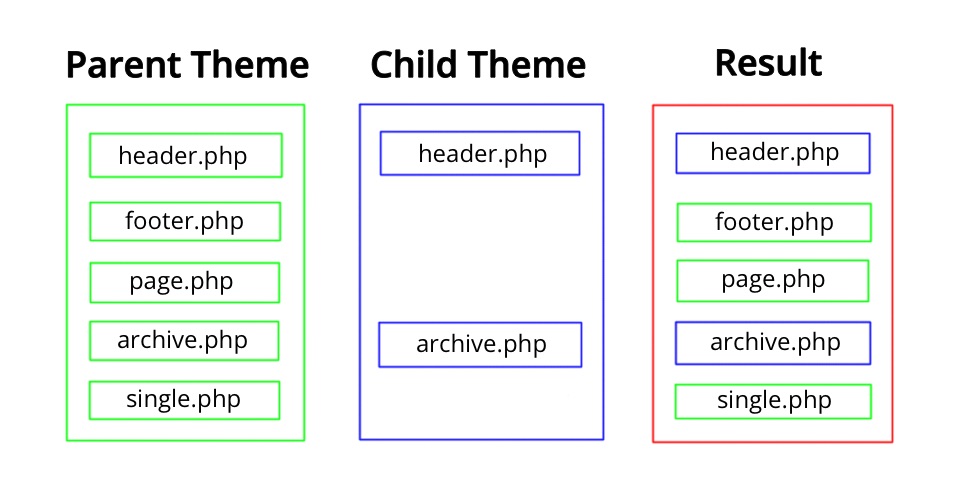
Sometimes, default templates need a tweak. Copy the template file from the parent theme. Paste it into the child theme folder. Make changes to this copied file. This will override the original. You can adjust layouts, content, and functionality. Be careful not to break any code. Check changes on your site after each edit. This helps catch errors early. Always back up your files before starting. This prevents losing important data.
Troubleshooting Common Issues
Creating a child theme in WordPress helps customize your site while preserving the parent theme’s updates. Begin by creating a new folder in the themes directory. Add a style. css file with a template header to link it to the parent theme.
Styles Not Applying
Parent theme styles might not appear in the child theme. Check the style.css in the child theme. Ensure it is properly linked. Use the @import rule to include parent styles. Place it at the top of the style.css file. Sometimes, cache issues hide changes. Clear the cache and refresh the page. Check browser settings for any blocking extensions. These might interfere with styles.
Functions Not Executing
Functions might not work in child themes. Ensure the functions.php file is correctly set up. Functions should be added in this file. Parent theme functions might be missing. Use the wp_enqueue_scripts action hook. This ensures proper script loading. Check for any typos or errors. Debugging tools can help find issues. Make sure all files are correctly linked.

Credit: www.askdesign.biz
Frequently Asked Questions
What Is A Child Theme In WordPress?
A child theme in WordPress is a sub-theme that inherits the functionality of a parent theme. It allows you to customize the appearance and functions without altering the parent theme files. This ensures your changes won’t be lost when the parent theme updates, offering safe and efficient customization.
Why Create A Child Theme In WordPress?
Creating a child theme helps maintain customizations after parent theme updates. It allows you to safely modify styles, templates, and functions without losing changes. This ensures your WordPress site remains stable and updated, while preserving your custom modifications and designs.
How To Install A Child Theme In WordPress?
To install a child theme, first create a new theme folder in wp-content/themes. Add a style. css and functions. php file. Include the parent theme details in style. css. Activate the child theme in WordPress admin. This setup allows you to customize safely while retaining parent theme updates.
Can I Customize A Child Theme Easily?
Yes, customizing a child theme is easy. Modify styles and functions in the child theme files. Changes won’t affect the parent theme, ensuring safety and ease of customization. You can add unique features and designs to your website without losing your modifications during parent theme updates.
Conclusion
Creating a child theme in WordPress is simpler than it seems. It protects your customizations when updating the parent theme. You only need a few files and some basic coding skills. First, make a new directory for your child theme.
Then, copy the necessary files from the parent theme. Don’t forget to add your CSS and functions. Testing is crucial. Ensure everything works smoothly before going live. With a child theme, your site stays fresh without losing your tweaks. Happy coding and enjoy your customized WordPress experience!


