
Are you looking to give your WordPress site a personalized touch? Creating a custom menu might just be the perfect solution for you.
A well-crafted menu not only enhances your website’s navigation but also elevates the user experience, making your site more engaging and easy to explore. Imagine your visitors easily finding exactly what they’re searching for, thanks to a menu designed specifically for your content.
We’re diving deep into the steps on how to create a custom menu in a WordPress theme. You’ll discover how simple adjustments can make a big difference in showcasing your site’s unique features, keeping your audience hooked from the moment they land on your page. Let’s get started on transforming your WordPress site into a seamless, user-friendly platform that truly reflects your brand’s identity.
Credit: www.seedprod.com
Understanding WordPress Menus
WordPress menus help you navigate your website. They are easy to use. You can add pages, posts, or links. They appear at the top or side of the page. Menus make your site user-friendly. Visitors find information quickly. Each menu has menu items. These items can be organized. You can create sub-menus for better structure. This helps in arranging content logically. Different themes support different menu styles. Some themes allow multiple menus. You can customize these menus for your needs. Drag and drop items to arrange them. Save changes to keep the menu updated. Always preview your menu before publishing. This ensures everything looks right. WordPress makes it simple.
Credit: www.wpbeginner.com
Benefits Of Custom Menus
Custom menus make your site easy to use. They help visitors find information fast. With custom menus, you can organize links neatly. This keeps your site tidy and simple. You can add links to any page or post. This gives you more control over your site’s look. Custom menus also improve user experience. Visitors stay longer when they find what they need. You can change menus anytime without coding. This is good for beginners and saves time. Custom menus can match your site’s style. This makes your site unique and attractive. Easy for everyone to understand.
Setting Up Your WordPress Environment
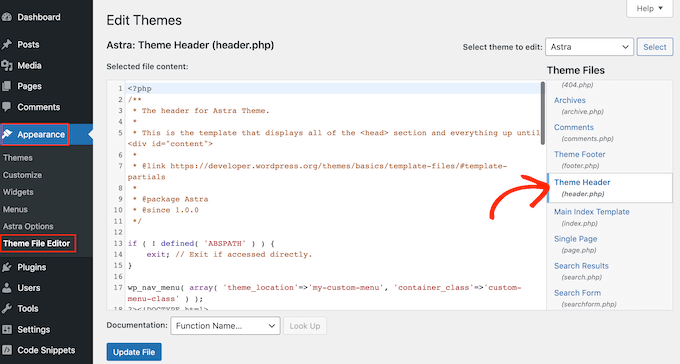
Select a theme that fits your needs. Make sure it is responsive and easy to customize. Check the theme’s ratings and reviews. Ensure it supports menus. You want a theme that has clear documentation. This helps in setting up your site easily.
Plugins add extra features to your site. Use a plugin for menu customization. Install from the WordPress Plugin Directory. Popular choices include Elementor and WP Mega Menu. Always keep plugins updated. It keeps your site secure and fast.
Creating A Custom Menu
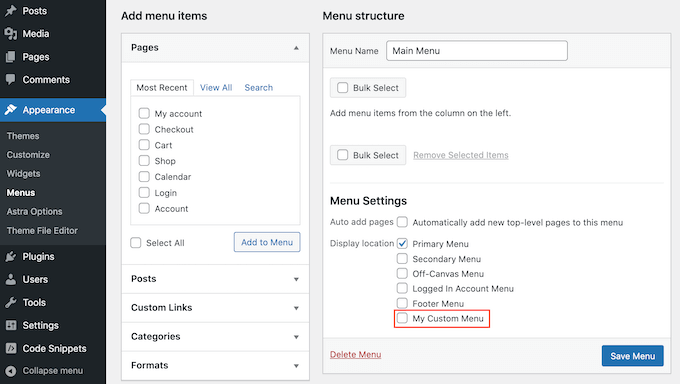
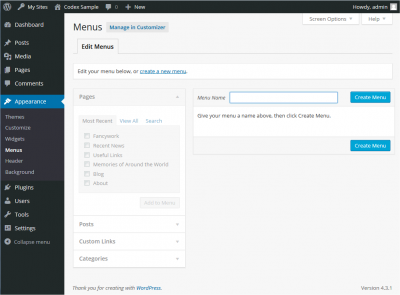
First, log in to your WordPress dashboard. Find the ‘Appearance’ option on the left. Click on ‘Menus’. Here, you can create a new menu. Type a name for your menu. Click ‘Create Menu’. Now, you can start adding items.
In the menu editor, look at the left column. You will see options like ‘Pages’, ‘Posts’, and ‘Custom Links’. Check the boxes next to the pages you want. Then, click ‘Add to Menu’. For a custom link, type the URL and a label. Click ‘Add to Menu’. Your items are now added.
Drag and drop menu items to arrange them. Place items under another to create a submenu. This helps organize your menu. Make sure to click ‘Save Menu’ when done. Now, your custom menu is ready!
Styling Your Menu
CSS makes your menu unique. You can change the menu look. Adjust colors, fonts, and sizes. Use CSS classes and IDs. Create smooth transitions. Add hover effects. Make the menu stand out. CSS helps your site look professional.
Menu icons are fun. They help users find things easily. Add icons next to menu items. Use a plugin or CSS. Icons can be small pictures. They make your menu look cool. Choose icons that match your theme. Make sure they are clear and visible.
Advanced Menu Features
Creating a custom menu in a WordPress theme enhances website navigation. Users can design unique menus that fit their specific needs. These advanced menu features allow easy organization and improved accessibility for visitors.
Dropdown Menus
Dropdown menus help users find items quickly. They show more options under a main menu item. You can add items like pages, posts, or links. This keeps your menu neat and clean. Users will click the main item to see more choices. It’s easy to set up in WordPress. Go to the menu settings. Drag and drop items under a main item. Indent them slightly. They will appear in a dropdown. This makes navigation simple for all users.
Mega Menus
Mega menus offer a wide view of many links. They show many items at once. Perfect for large websites with lots of content. Users see groups of links in one big panel. It’s like a mini-site map. To make one, use a plugin. Many themes support mega menus. You can add images or icons. This helps users find what they need fast. Organize links into columns or sections. Keep it simple so users don’t feel lost.
Integrating With Widgets
Crafting a custom menu in a WordPress theme enhances user experience. Widgets allow easy integration for personalized navigation. This setup simplifies access to important pages, improving site usability and engagement.
Adding Menus To Sidebars
Sidebars can hold custom menus. First, go to the WordPress Dashboard. Click on Appearance, then Widgets. Here, you will see a list of available widgets. Find the Custom Menu widget. Drag it to the sidebar area. Now, select the menu you want from the dropdown list. This menu will now show in your sidebar. It’s easy and quick.
Using Footer Menus
Footers are great for menus too. Navigate to the WordPress Dashboard. Click on Appearance, then Menus. Create a new menu if needed. Once ready, go to Manage Locations. Here, assign your menu to the Footer location. Footer menus help users find info fast. They are very useful.
Testing And Troubleshooting
Creating a custom menu in a WordPress theme involves navigating to the Appearance tab and selecting Menus. Select ‘Create a New Menu’, then add pages or categories as needed. Save your changes to see the custom menu appear on your website.
Cross-browser Compatibility
Websites must work well on all browsers. Test your menu on Chrome, Firefox, Safari, and Edge. Each browser can display things differently. Look for any layout issues. Fix any problems you find. It helps users have a better experience. Use online tools to test if needed.
Responsive Design Checks
Menus should look good on all devices. Check on phones, tablets, and desktops. See if the menu is easy to use on small screens. Adjust settings for better viewing. Make sure all buttons and links work correctly. Fix any display issues for a smoother user experience. This makes your site user-friendly on any device.
Common Mistakes To Avoid
Many people forget to save changes. This is a big mistake. Always click the save button after making changes. Another mistake is not checking the menu on mobile devices. Menus may look different on smaller screens. Always preview your site on both desktop and mobile. Some users add too many items to the menu. A menu with too many links can be confusing. Keep it simple and easy to navigate.
People often overlook the menu’s location. Make sure it is easy to find. Some themes offer multiple menu locations. Choose the best spot for your menu. Be sure to check if the menu items are linking correctly. Links should go to the right pages. If not, visitors might get lost. Testing the menu is key. Click each link to make sure it works. This will ensure a good user experience.
Credit: codex.wordpress.org
Frequently Asked Questions
How Do I Add A Custom Menu In WordPress?
To add a custom menu in WordPress, navigate to your dashboard. Click on ‘Appearance’ then ‘Menus’. Create a new menu by selecting ‘Create a new menu’. Add pages, categories, or custom links using the provided options. Save your changes to update the menu on your site.
Can I Customize Menu Design In WordPress?
Yes, you can customize menu design in WordPress. Use the ‘Customize’ feature under ‘Appearance’. You can modify menu colors, fonts, and layout. Some themes offer advanced options. Custom CSS can also be added for deeper customization. Always preview changes before saving to ensure they fit your site’s style.
How Do I Create A Dropdown Menu?
Creating a dropdown menu is simple in WordPress. Go to ‘Appearance’ > ‘Menus’. Drag items under a parent menu item. Indent them slightly to create a hierarchy. Save your menu. Dropdown menus enhance navigation by organizing links under main categories, improving user experience and site structure.
Why Is My Custom Menu Not Showing?
If your custom menu isn’t showing, check theme settings. Ensure the menu is assigned to a location in ‘Appearance’ > ‘Menus’. Verify menu items are published and not drafts. Clear your browser cache. If issues persist, consult theme documentation or support for specific troubleshooting steps.
Conclusion
Creating a custom menu in your WordPress theme enhances user experience. It helps visitors find content quickly. A well-organized menu boosts site navigation. Easy to set up, even for beginners. Follow steps and personalize your site effectively. Custom menus offer flexibility.
Tailor them to match your brand’s style. They make a site look professional. Regular updates keep menus relevant. Encourage visitors to explore more. A thoughtful menu reflects careful planning. It makes a lasting impression on users. Perfect for enhancing website functionality.
Start customizing today and see the difference.


