
Creating a website can feel overwhelming, especially if you’re not a tech expert. But what if I told you that building a stunning, functional site is easier than you think?
Enter WordPress themes: your shortcut to a professional online presence. With just a few clicks, you can transform your ideas into a digital reality. Imagine having full control over your site’s look and feel, without writing a single line of code.
Sounds exciting, right? This guide will walk you through the process, step by step. You’ll discover how to choose the perfect theme, customize it to fit your brand, and launch your website with confidence. Ready to unlock the secrets of WordPress themes and create a website you’ll be proud of? Let’s dive in!
Credit: wpmanageninja.com
Choosing A WordPress Theme
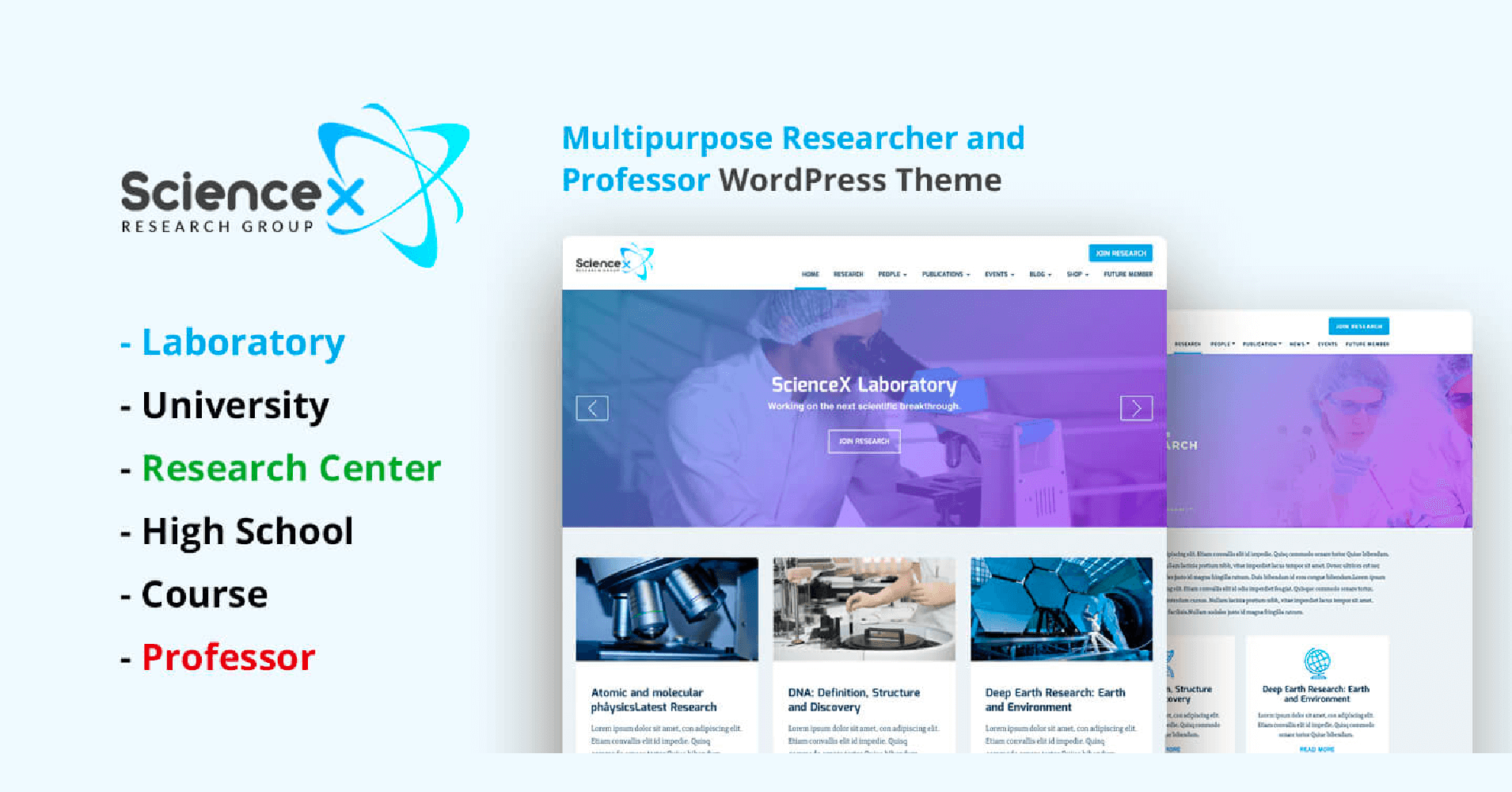
First, know why you want a website. Is it for a blog, a shop, or a portfolio? Each type needs a different look. A blog might need a clean design. A shop may need many product pages. A portfolio needs to show off your work. Think about what you need. Choose a theme that fits your purpose.
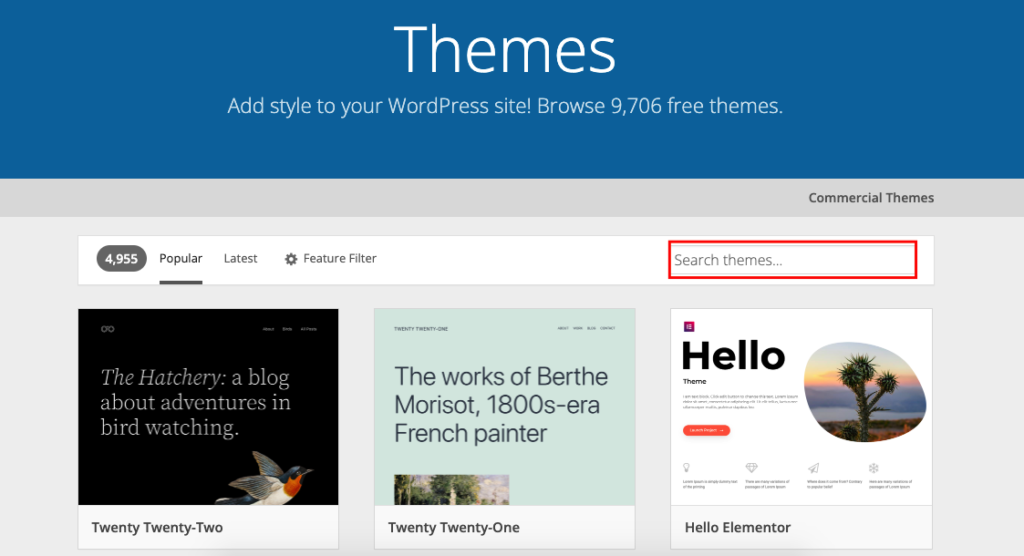
There are many places to find themes. Some popular sites are ThemeForest, WordPress.org, and Elegant Themes. Each site offers many choices. Some themes are free, others cost money. Check reviews and ratings before buying. Reviews help you know if a theme is good. Also, look for updates. A theme that updates often is better.
Every theme comes with different features. Some themes have sliders, others have custom colors. Responsive design is important. It makes your site look good on phones and computers. Look for SEO-friendly themes. They help your site rank better in search engines. Make sure the theme supports plugins. Plugins add extra features to your site.
Credit: wedevs.com
Installing WordPress
Choose a hosting provider that supports WordPress. Look for a reliable service. Compare prices and features. Check customer reviews. Make sure the provider offers good support.
Pick a unique domain name. Keep it short and easy to remember. Visit a domain registrar website. Search for your name. Register your domain. Connect it to your hosting account.
Log in to your hosting account. Find the WordPress installer. Click to start the installation. Follow the steps on the screen. Enter your site name and email address. Set up your admin username and password. Wait for the process to finish. Your WordPress site is now ready!
Installing Your Chosen Theme
First, log in to your WordPress dashboard. This is your website’s control room. Look for the menu on the left. Find the word “Appearance.” Click on it. A new menu will drop down. Choose “Themes” from this list. Now you are ready to add a new theme.
On the Themes page, locate the “Add New” button. Click it. Then, find the “Upload Theme” button. Press it. A box will appear. Use the “Choose File” button to find your theme file. Make sure it is a .zip file. After selecting the file, click “Install Now.”
Once installed, find the “Activate” button. Click on it. This makes your theme live. Your website now uses the new theme. Check your site to see the changes. You can always switch themes later. Explore and have fun!
Credit: gracethemes.com
Customizing Your Website
The Theme Customizer helps make your site unique. Change colors, fonts, and layouts easily. Preview changes in real-time. This tool is great for beginners. Make your site look just right. Save your work when happy with changes.
Plugins add extra features to your site. Install plugins for security and SEO. Some plugins help with speed. Others help with design. Choose plugins carefully. Too many can slow down your site.
Menus help visitors find what they need. Create clear and simple menus. Use widgets for extra content. Add widgets to sidebars or footers. Widgets can show latest posts or contact info. Make sure everything is easy to find.
Creating Content
Writing posts is fun and easy. Start with a clear topic. Write short sentences. Use simple words. Make sure your post is interesting. Break text into small paragraphs. This helps readers understand better. Check for mistakes before publishing. Click the publish button when ready.
Pages are different from posts. They can show information like contact details. Use the right layout for your page. Make sure it looks neat. Add a title and some text. You can include images to make it nice. Preview your page first. Then publish it when you are happy with how it looks.
Pictures and videos make your website exciting. Add images to catch attention. Videos can explain ideas quickly. Use audio files for music or speeches. Keep multimedia elements clear and relevant. This keeps the site tidy. Check how they appear on the site. Adjust if needed before publishing.
Optimizing For Search Engines
Begin by installing an SEO plugin on your WordPress site. This plugin helps in improving your site’s visibility. Popular choices are Yoast SEO and All in One SEO Pack. These plugins guide you in optimizing your content. They ensure your site follows SEO best practices. It’s easy to install and configure.
Use tools like Google Keyword Planner for keyword research. Find words your audience searches for. Use these words in your content. Place them in titles and headings. Keywords should also be in meta descriptions. This helps search engines understand your content. It makes your site easier to find.
Website speed affects user experience and SEO. Use a caching plugin to make your site faster. Optimize images by reducing their size. Avoid using large image files. Choose a fast and reliable hosting provider. These steps help in making your site load quickly. A fast site keeps visitors happy.
Ensuring Security And Backup
Building a website with a WordPress theme requires steps for security and backup. Use plugins to protect data and schedule regular backups to prevent data loss. Make sure your website is safe and recoverable.
Installing Security Plugins
Security plugins keep your website safe. Install trusted plugins to block threats. They can stop hackers from getting in. Some plugins also alert you if something goes wrong. Keep them updated for best protection.
Regular Backup Strategies
Backups save a copy of your website. If anything breaks, you can restore it quickly. Use tools that make backups easy. Some plugins can even schedule backups. Store them in a safe place. This way, your data stays secure and retrievable.
Monitoring Website Activity
Keep an eye on what happens on your site. Monitoring tools help track changes. They can show who logs in and out. If something unusual happens, you will know. This helps keep your site safe and sound.
Launching Your Website
Creating a website with a WordPress theme is simple and efficient. Choose a theme that suits your style and customize it to fit your needs. Add essential plugins for functionality and optimize for search engines.
Testing Functionality
Ensure your website works well. Check all links and buttons. They should direct users correctly. Test forms. Users should easily fill them out. Verify the site loads fast. Slow websites lose visitors. Review your pages on different devices. It should look good on phones and computers. Fix any errors found during testing.
Final Design Tweaks
Review your website design. Make small changes if needed. Adjust colors and fonts for clarity. Check images. They should be clear and fit well. Look at the layout. Ensure everything is easy to find. Make sure text is simple to read. Keep the design tidy and neat.
Promoting Your Website
Spread the word about your site. Share it on social media. Tell friends and family. Encourage them to visit. Use emails to inform people. Write about your site on forums. Participate in online groups. Be active and engage with others. Your goal is to get more visitors.
Frequently Asked Questions
How Do I Install A WordPress Theme?
To install a WordPress theme, go to your dashboard, click on “Appearance,” then “Themes. ” Select “Add New” to browse themes. Once you find one you like, click “Install” and then “Activate” to use it. This process is simple and can be completed in minutes.
Can I Customize A WordPress Theme?
Yes, you can customize a WordPress theme using the built-in customizer. Access it through “Appearance” and “Customize. ” You can change colors, fonts, and layouts. Many themes also offer additional settings. Plugins can further enhance customization options, providing flexibility for your website design.
Are Free WordPress Themes Reliable?
Free WordPress themes can be reliable if sourced from reputable developers. Check reviews, ratings, and updates before installing. Many free themes offer essential features and good design. For advanced functionality, consider premium themes. Always ensure themes are compatible with your WordPress version for best performance.
How Do I Update A WordPress Theme?
To update a WordPress theme, go to your dashboard, click “Appearance,” then “Themes. ” If an update is available, you’ll see a notification. Click “Update” to proceed. Regularly updating ensures security and compatibility. Backup your site before updating to prevent data loss or conflicts.
Conclusion
Creating a website with a WordPress theme is simple. Begin by choosing a theme that fits your style. Install it with a few clicks. Customize colors, fonts, and layouts easily. Add pages and posts to share your content. Use plugins to enhance features like forms or galleries.
Keep updating the site for fresh appeal. WordPress offers flexibility for both beginners and experts. Enjoy the process of building your online space. As you grow, your site can evolve with you. Embrace the learning curve and soon, you’ll have a site you love.


