
Have you ever felt overwhelmed after importing a new WordPress theme, only to find your site cluttered with unnecessary content? You’re not alone.
It’s a common scenario: you’ve found the perfect theme, excitedly hit the import button, and suddenly your clean slate is filled with irrelevant posts, pages, and images. This not only makes your site messy but can also slow it down, affecting your user experience and search engine rankings.
Don’t worry, though—cleaning up this imported content is simpler than you might think. In this guide, you’ll discover step-by-step strategies to efficiently tidy up your WordPress site, ensuring it’s sleek, fast, and ready to impress your visitors. Ready to take back control of your website? Let’s get started!
Preparing For Cleanup
Always create a backup of your website before making changes. This keeps your data safe. You can use a plugin for this. Many plugins are free. Choose one and follow its steps. It is easy. A backup is like a copy of your site. You can restore it if something goes wrong.
Place your site in maintenance mode. This hides changes from visitors. Use a plugin for this too. It is simple to set up. It shows a special page to visitors. They know your site is under work. This keeps your site looking professional. Remember to turn it off later.
Identifying Unwanted Content
Begin by exploring each page. Check for duplicate pages. Look for pages that are not needed. Pages with strange titles might be unwanted. List these pages for deletion. Focus on page quality. Ensure they fit your site’s theme.
Review all posts carefully. Identify posts that do not align with your site’s message. Check media files like images and videos. Remove media that seems unrelated. Organize remaining media for easy access. Make sure all posts and media are relevant.
Deleting Unnecessary Pages
Imported themes often come with sample pages. These pages are not needed. They can make your site messy. Go to your dashboard. Find the Pages section. Look for sample pages. Click on them and press delete. This will help make your site clean. It also helps your site look professional.
Demo posts are often part of theme imports. They are used for examples. But your site does not need them. Visit the Posts section. Identify demo posts. Select them and delete. Removing them keeps your content original. It also helps visitors find real posts. This makes your site more useful.
Cleaning Up Media Library
Unused images take up space. They make your site slow. Go to the Media Library. Look for images not in use. Use a plugin to help. These tools find unused images. They save time. They make the process easier.
Extra files clutter your library. They waste space and resources. Delete files you don’t need. Be careful. Double-check before deleting. Use a plugin if unsure. This keeps your site clean. It also runs faster. Always back up your files first. This way, nothing gets lost.
Managing Menus And Widgets
First, check all the navigation menus. Remove any unnecessary links. Keep the menu simple. Visitors should find pages quickly. Arrange items in a clear order. Use a logical flow. Always think about user experience. Make sure all links work.
Start by reviewing the widget areas. Delete any unused widgets. Update widgets that need changes. Add widgets that improve the site. Keep layout clean and tidy. Widgets should be helpful. Consider user needs. Focus on simplicity and functionality.

Credit: crocoblock.com
Resetting Theme Settings
Theme options let you change how your site looks. First, go to the Theme Options in your WordPress dashboard. Look for settings that control colors, fonts, and layouts. Make small changes and see how they affect your site. If you don’t like a change, you can always go back. It’s like trying new clothes. Keep what fits your style.
The Customizer is another tool. It helps you change your site easily. Find it in your WordPress dashboard. Look for settings like site identity and menu options. Try changing one thing at a time. See how it looks on your site. This way, your site stays neat and tidy. You can always reset if things get messy.
Optimizing Database
Database cleanup plugins help keep your site fast. They remove unwanted data. This includes old post revisions and spam comments. With these plugins, you can clean your database quickly. They are easy to use. Most have a simple interface. You just click a button to start. Some popular plugins are WP-Optimize and Advanced Database Cleaner. They also help with optimizing tables.
Database tables store your site information. Over time, they become cluttered. This can slow your site down. It’s important to optimize your tables regularly. Many plugins help with this task. They reorganize the data. This makes it easier to access. It also speeds up your website. Regular optimization keeps your site running smoothly.
Credit: quanticalabs.com
Testing And Finalizing
Check every link on your website. Ensure they lead to the right pages. Click on each button to see if it works. Test the contact form. Make sure it sends messages. Navigate through all menus. Verify they open correctly. Look at the site’s layout on different devices. It should fit well on phones, tablets, and computers. Make sure images display without any errors.
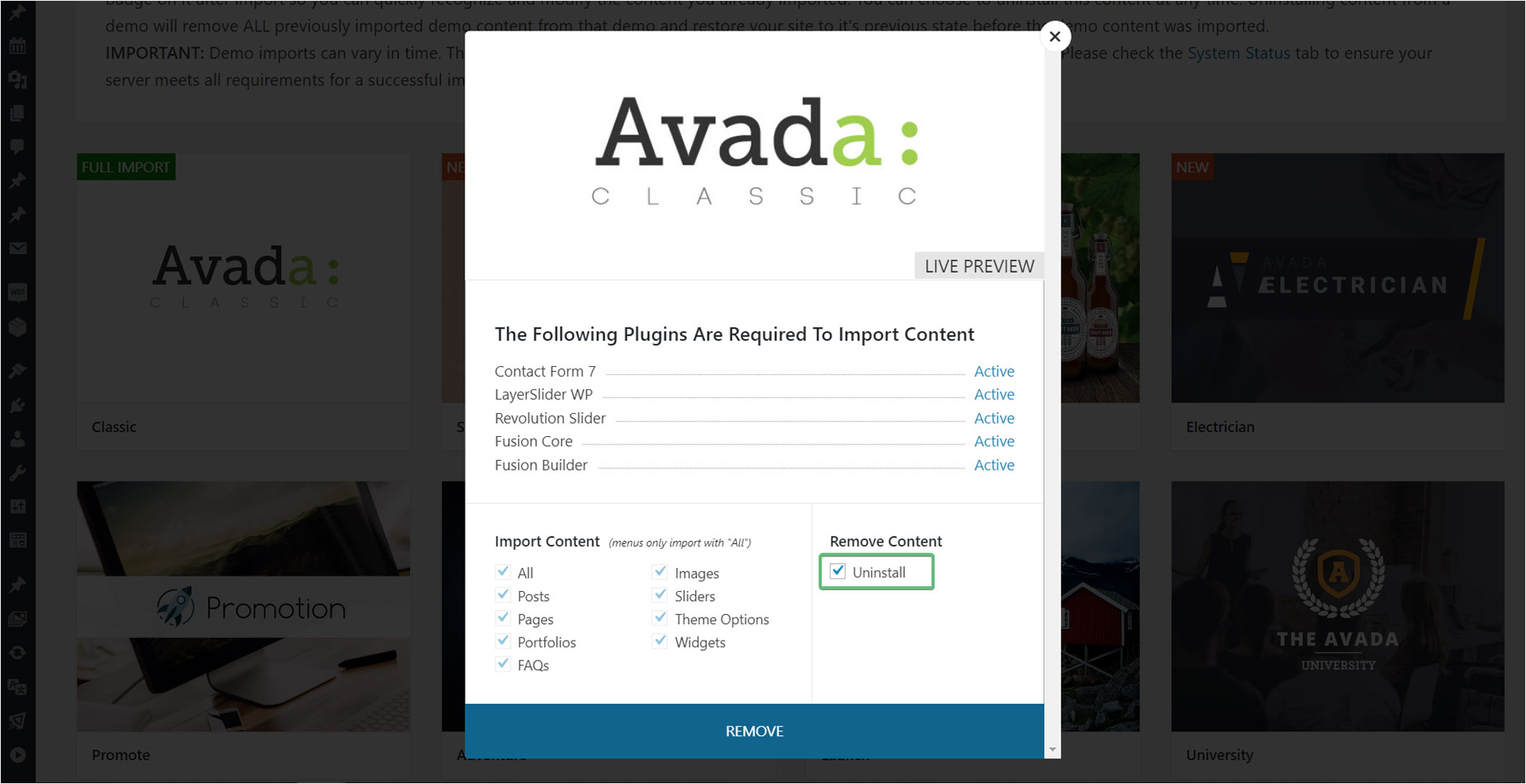
Go to the dashboard of your WordPress site. Find the plugin or setting for maintenance mode. Turn it off. This makes your website live. Now visitors can see your changes. Keep checking that everything works. If there’s an issue, fix it quickly. Your site is ready for the world.
Credit: avada.com
Frequently Asked Questions
How To Remove Demo Content In WordPress?
To remove demo content, navigate to your WordPress dashboard. Use the “Posts,” “Pages,” and “Media” sections to delete unwanted items. You can also use plugins like WP Reset to clean up faster. Always back up your site before making major changes to avoid loss.
Can I Delete Imported Theme Images?
Yes, you can delete imported theme images. Go to the “Media” library in your WordPress dashboard. Select and delete images you no longer need. Consider using a plugin for bulk deletion to save time. Regularly clean your library to optimize your site’s performance.
What Tools Help Clean WordPress Themes?
Plugins like WP Reset and Advanced Database Cleaner are great for cleaning WordPress themes. They help remove unnecessary data and optimize your database. Using these tools can speed up your site and improve performance. Always ensure to back up your site before using these plugins.
How To Tidy Up WordPress Menus?
To tidy up WordPress menus, go to “Appearance” and then “Menus” in your dashboard. Remove or rearrange items for better navigation. Ensure your menu reflects your current content and site structure. Regular menu updates improve user experience and site organization.
Conclusion
Cleaning up imported WordPress theme content is crucial. It keeps your site tidy. First, remove unwanted pages and posts. Next, delete unnecessary media files. Simplify your menus for easy navigation. Customize widgets to fit your design. Always check for broken links.
Maintain your website’s speed and performance. Regular updates help keep your site secure. A clean site boosts user experience. It enhances SEO rankings too. With these steps, your WordPress site stays fresh. Visitors enjoy a better experience. Your website becomes more efficient and appealing.
Keep it clean, keep it effective.


