
Imagine having a sleek, professional-looking website that conveys all your essential information in just one scroll. A one-page WordPress theme can do just that, offering simplicity and elegance without overwhelming your visitors.
If you’re tired of complex multi-page sites or simply want to make a bold statement, learning how to create a one-page theme in WordPress could be your game-changer. You don’t need to be a coding wizard or a design guru to achieve this.
With the right guidance, you can transform your ideas into a stunning one-page website that captures attention and leaves a lasting impression. Whether you’re a small business owner, a freelancer, or just someone looking to streamline their online presence, the power to captivate your audience is at your fingertips. Ready to discover how you can make your vision come to life on a single, impactful page? Let’s dive in and explore the steps together.
Getting Started With WordPress
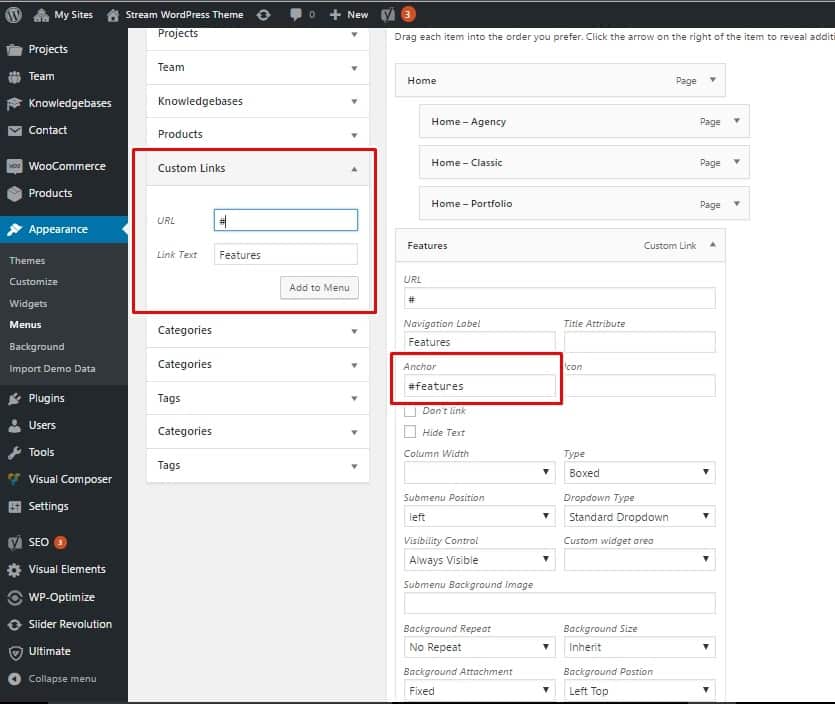
First, install a local server on your computer. XAMPP or MAMP are good choices. These tools help you run WordPress locally. Download WordPress from the official website. Extract the files to your local server’s root directory. Open your browser and go to `localhost/wordpress`. Follow the setup steps to install WordPress. Choose a username and password. Now, your local WordPress is ready.
Use a good code editor for writing code. Visual Studio Code is a popular choice. It is free and easy to use. Plugins can help you code faster. Install a web browser with developer tools. Google Chrome is a good option. It helps you see changes in real-time. Also, use version control like Git. It keeps track of your code changes. These tools make development easier.
Credit: visualmodo.com
Essential Theme Components
Crafting a one-page theme in WordPress involves key components. First, ensure a responsive design for all devices. Next, optimize loading speed by minimizing plugins. Finally, focus on clear navigation and engaging content to enhance user experience.
Understanding WordPress Theme Structure
WordPress themes need some basic files to work. These files help your site look good and work well. The main files are style.css and index.php. The style.css file holds the design details. This includes colors, fonts, and layout. The index.php file is the main template for your page.
Another important file is functions.php. This file adds features to your theme. You might also need header.php and footer.php. These files help with the top and bottom of your page. They make sure your site looks complete.
Creating The Basic Files
To start, create a folder for your theme. Inside, make the style.css file. Add your theme’s name and details at the top. Next, create the index.php file. This is where your content will show. You can add HTML code here for your page layout.
Don’t forget functions.php. This file lets you add extra features. You can also include header.php and footer.php. These files hold the top and bottom parts of your page. They help your site look neat and professional.
Designing The Layout
Choose a simple color scheme for your theme. Limit colors to three. Too many colors can confuse users. Pick a main color, a secondary one, and an accent. Use easy-to-read fonts. Keep font styles to two or three. This helps users focus. Use white space smartly. It makes the page clean and less cluttered.
Make sure your theme looks good on all devices. Use flexible grids. These grids help your page fit any screen. Test the layout on phones and tablets. Check for easy navigation. Users should find things easily. Keep buttons and links large. Small buttons are hard to click on small screens.
Building The Header And Footer
Crafting the header and footer in a one-page WordPress theme enhances user navigation. These elements create a cohesive look, ensuring easy access to important links and branding. A well-designed header and footer are essential for a seamless user experience and aesthetic appeal.
Creating A Dynamic Header
Start by making the header responsive. Use HTML and CSS for structure and style. Add a logo and a menu. This helps users navigate easily. Use WordPress functions to make the menu dynamic. This means it will update automatically. Users can click on menu items to explore the page. Make sure the header looks good on all devices. Use media queries for this purpose. A responsive header improves user experience.
Designing An Informative Footer
A footer is the last part of the page. It should have important links. Add contact details and social media icons. This helps visitors connect with you. Use widgets to add elements like text or images. Widgets are easy to manage in WordPress. Make sure the footer design matches the rest of the page. This keeps the design consistent. An informative footer provides quick access to information.
Developing The Main Content Area
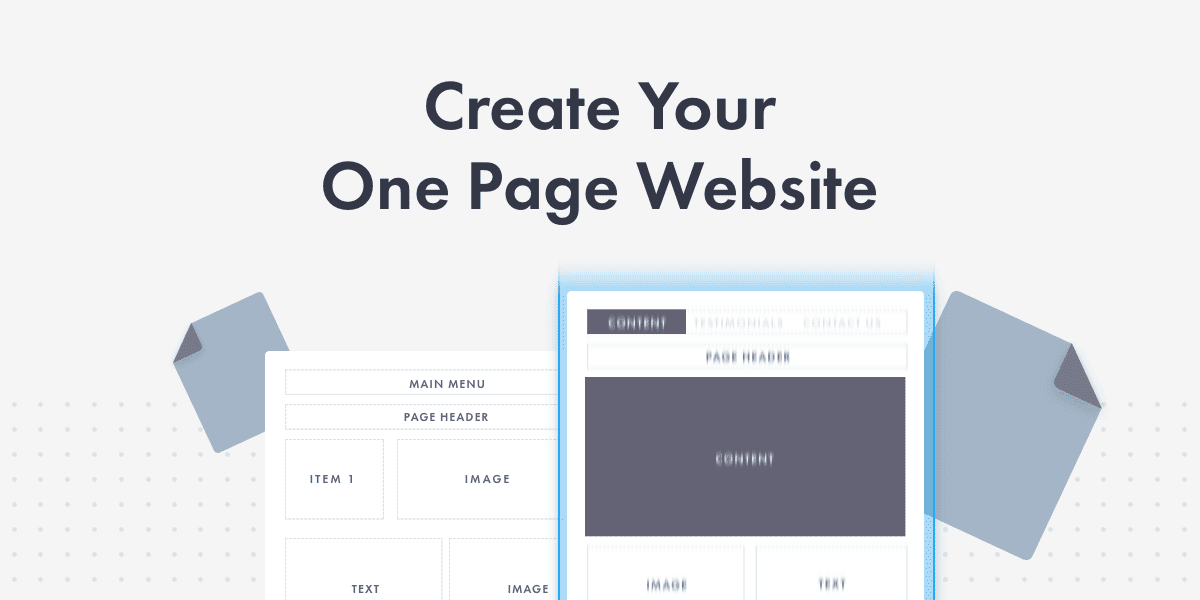
Building a one-page theme in WordPress means having all content on one page. Incorporating sections and widgets is key. Each section serves a unique purpose. Widgets add extra features. They enhance user experience. Sections can include text, images, or videos. Widgets might be social media feeds, forms, or galleries.
Adding dynamic content with loops makes the page interactive. Loops display posts or custom content. They refresh without reloading the page. It keeps the site engaging. Loops are controlled by WordPress functions. They help in displaying new content automatically. This technique is vital for a modern web experience.
Credit: www.proteusthemes.com
Styling With Css
CSS gives your page its look. Use it to set colors. Choose fonts that match your theme. Add borders for style. Keep your design simple and clean. Make sure text is easy to read. Add padding for space. Use margins to separate items. Align elements nicely. Your page will look more professional.
Responsive design is key. It helps your page work on all devices. Use media queries in CSS. Set different styles for phone and computer screens. Make images resize properly. Keep buttons easy to click. Test your page on different devices. Check that everything looks good. This helps users have a better experience.
Integrating Javascript For Interactivity
Enhancing User Experience makes your website fun. Use JavaScript to make buttons. Add cool effects to images. Users like sites with interactive parts. It keeps them on the page longer. Try adding pop-ups for messages. Show information in a fun way. Interactive features can make users happy.
Implementing Smooth Scrolling is easy. It makes moving on a page feel nice. Users can go from top to bottom smoothly. No jumping or quick moves. It feels more natural and calm. Adding this feature can help users enjoy your site. Smooth scrolling makes navigation easy. Happy users will come back again.
Optimizing For Performance
Crafting a one-page WordPress theme involves simplifying design and code for faster load times. Focus on minimalism to ensure smooth navigation and quick content delivery. Optimize images and scripts to enhance performance and user experience.
Minimizing Load Times
Fast websites make users happy. A lightweight theme is crucial. Remove unnecessary plugins. Compress images before uploading. Use lazy loading for media. This helps load only what’s visible first. Caching plugins can speed up your site. They store parts of your site for quick access. Clean up your database regularly. This removes old, unused data. Choose a reliable hosting provider. They make your site run smoothly.
Ensuring Cross-browser Compatibility
Websites should work on all browsers. Test your theme in Chrome, Firefox, and Safari. Each browser is different. CSS resets can help with consistency. They make styles look similar across browsers. Avoid browser-specific code. Use standard HTML and CSS practices. Regular testing ensures your site looks good everywhere. Keep your code updated. Outdated code may not work in new browsers. Follow best practices for coding.
Testing And Debugging
Testing is very important for your theme. It helps find errors early. Use tools to check each part. Check the layout on different devices. Make sure links work. Look for broken images. Test forms to see if they send data. Check the theme with other plugins. Ensure it loads fast. Slow themes are not good. Fix all problems found during testing.
Some themes may not work right. Errors can happen. Check if the theme conflicts with plugins. Sometimes, themes do not update properly. Use the WordPress debug mode. It shows errors in detail. Error logs help find problems. If styles look bad, check the CSS files. Ensure JavaScript is loading. Clear the browser cache if changes don’t show. Always backup before making big changes.
Deploying Your Theme
Building a one-page theme in WordPress involves deploying your theme effectively. Ensure your theme’s design is responsive and visually appealing. Implement smooth navigation for user-friendly experiences.
Preparing For Launch
Check every detail of your theme before launching. Make sure all links work. Images should load fast. Test the theme on different devices. Mobile phones and tablets are important. Look for any design issues. Fix them quickly.
Double-check your settings. SEO settings are crucial. They help people find your website. Use clear headings and simple words. Ensure the theme is easy to use. Users should not feel lost. Keep things simple and neat.
Publishing On WordPress
Login to your WordPress account. Go to the themes section. Click on ‘Add New’. Upload your theme file. Follow the steps to install it. Activate the theme once installed. Preview your site. Make sure everything looks good. Adjust any settings if needed. Your theme is now live.
Enhancing With Plugins
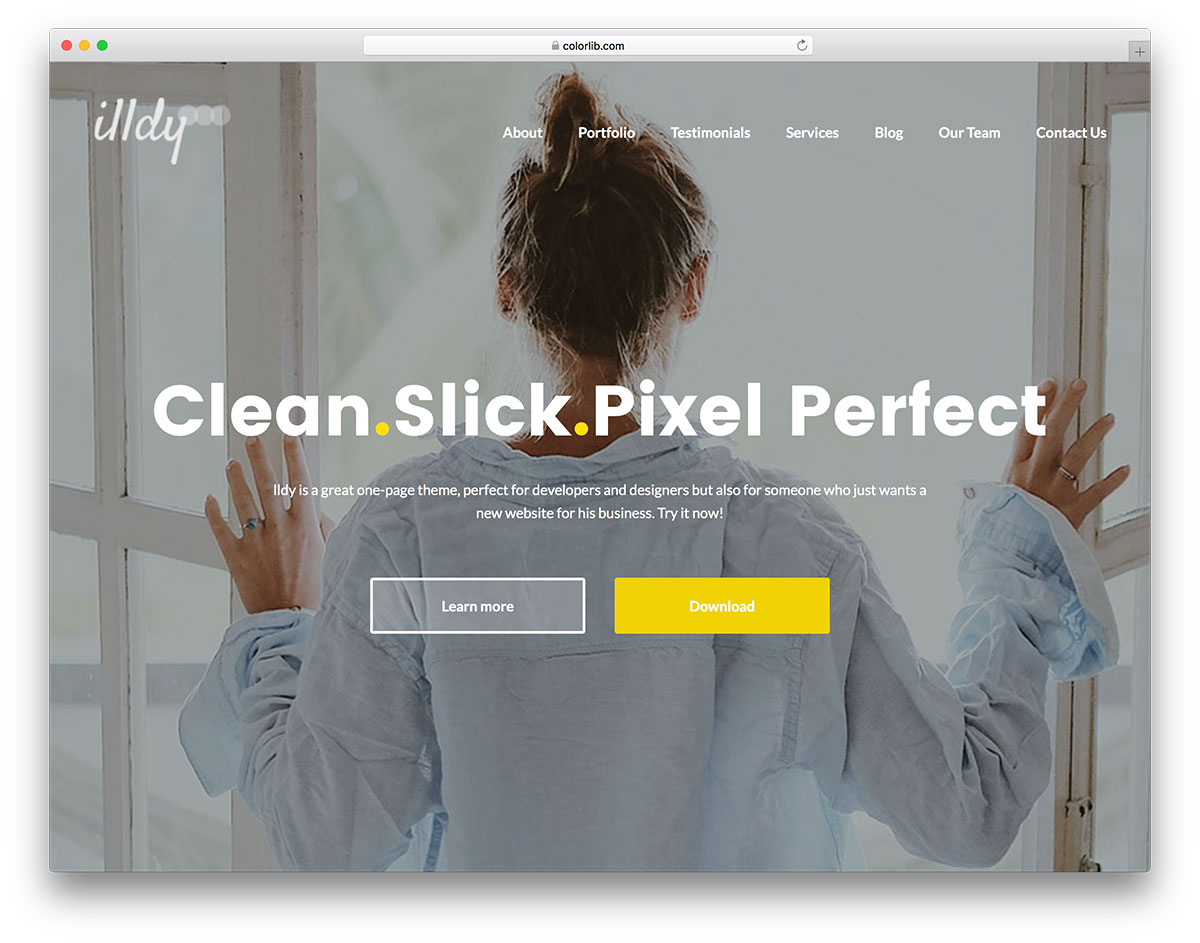
Choosing the right plugins is key. They make your site work better. SEO plugins help your site show up in searches. Security plugins keep your site safe from hackers. Backup plugins save your site data if something goes wrong. Performance plugins make your site faster. Choose plugins that are updated often. Also, check if they have good reviews. This shows they work well and are safe.
Plugins come with many features. You can turn on or off these features. This helps the plugin work the way you want. Settings allow you to change how the plugin works. Look for a guide or help page. It will show you how to change settings. Use only the features you need. This keeps your site fast and simple.
Credit: colorlib.com
Frequently Asked Questions
What Is A One-page Theme In WordPress?
A one-page theme in WordPress is a design where all content is displayed on a single page. It allows smooth scrolling and easy navigation. This style is popular for portfolios, agencies, and small businesses. It offers a streamlined user experience and can boost engagement.
How Do I Start Creating A One-page Theme?
Begin by choosing a clean and responsive theme from WordPress’s library. Install necessary plugins for functionality. Customize the layout using the WordPress Customizer or Elementor. Focus on sections like About, Services, and Contact. Ensure each section is visually appealing and concise.
Which Plugins Are Essential For One-page Themes?
Essential plugins include Elementor for layout customization and WPForms for contact forms. Use Yoast SEO for optimizing content and Jetpack for site performance. Consider plugins for caching and security, like W3 Total Cache and Wordfence. These enhance functionality and user experience.
Can One-page Themes Improve User Engagement?
Yes, one-page themes can enhance user engagement. They provide a seamless experience by presenting all information in one place. This design encourages visitors to scroll through content effortlessly. It simplifies navigation, reduces bounce rates, and can increase conversions.
Conclusion
Creating a one-page theme in WordPress is simple and rewarding. Start by selecting a suitable theme. Customize the layout to fit your style. Focus on the essential sections. Add engaging content that attracts visitors. Optimize images for faster loading. Ensure your site is mobile-friendly.
Use plugins to enhance functionality. Test your theme thoroughly before going live. Update it regularly for better performance. By following these steps, you craft a seamless and attractive site. Your visitors will appreciate the simplicity and ease of navigation. Enjoy your new one-page WordPress theme!


