
Are you looking to customize your WordPress theme without the risk of losing your changes during updates? Creating a child theme is the perfect solution.
But how do you copy theme files to a child theme in WordPress? It might sound a bit technical, but don’t worry—it’s simpler than you think. By the end of this guide, you’ll feel confident in making theme modifications that are safe and update-proof.
Imagine the freedom of tweaking your website’s design and functionality without fear. Stick with us, and you’ll learn how to maintain control over your website’s appearance effortlessly. Let’s dive in and unlock the potential of your WordPress site!
Credit: learn.wordpress.org
Understanding Child Themes
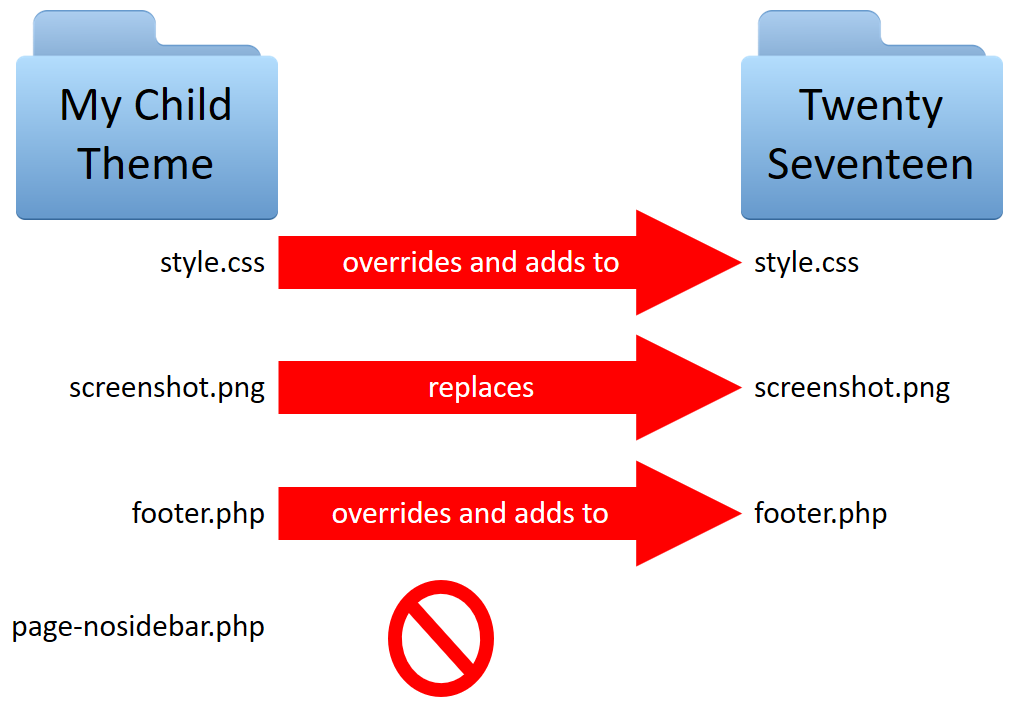
Child themes are like little helpers for your main theme. They let you make changes without messing up the original theme. This keeps your changes safe during updates. You get to keep the look you love. Plus, you can add cool features and styles.
A child theme needs three things: a folder, a style.css file, and a functions.php file. The folder goes in the themes directory. The style.css file controls how your site looks. The functions.php file adds special features.
Making a child theme is fun and easy. You can change colors, fonts, and more. Just be sure to copy the right files. This way, your website will look great and work well. No need to worry about updates breaking your site.

Credit: www.youtube.com
Benefits Of Using Child Themes
Child themes keep your design safe during updates. Changes stay when you update the main theme. This means no lost work or surprise design changes. Child themes help you learn. You can try new styles safely. Experiment without breaking your site. Easy customization is another perk. Only change what you want. Keep the rest as it is. This saves time and effort. Using a child theme protects your work. It’s a wise choice for site builders. It also keeps your website stable. No surprises when changes are made.
Child themes also make troubleshooting easier. If something breaks, you know where to look. The main theme stays untouched. Fixes are quick and simple. For web creators, child themes are a tool. They bring peace of mind and flexibility.
Creating A Child Theme
Start by making a new folder for the child theme. Name it well. This folder sits in wp-content/themes. Pick a simple name. Keep it short and clear. Use lowercase letters. No spaces. Underscores are fine.
Inside the new folder, make a file called style.css. This file holds important data. It tells WordPress about the child theme. Use comments at the top. Write the theme name and template. Add your name as author. This makes the theme work.
Make a file named functions.php. This file adds extra features. It links parent and child theme. Use a function to load the parent style. Add code inside the file. Keep it simple. This file is powerful. Use it wisely.
Copying Theme Files
First, look at the files in the parent theme. These files control how your site looks. Some files are more important than others. Focus on files that have custom styles or special functions. You might see a style.css file. This file has the design rules for your site. There might also be a functions.php file. This file adds extra features to your site.
Find the parent theme files in the WordPress dashboard. Go to Appearance, then Theme Editor. You will see a list of files on the right. These are the parent theme files. You can also use an FTP client. This tool lets you see files on your server. Go to the wp-content/themes folder. Inside, find your theme folder. Now you can see all the files.
Customizing Child Theme Files
CSS styles change how your website looks. To edit them, open your child theme folder. Find the style.css file. Use a text editor to open it. You can add or change code here. Save your changes. Check your website. See how it looks now. If you make mistakes, fix them. Try again. Experiment with colors and fonts. Make your site unique.
Template files control how pages display. Copy files from the parent theme. Place them in the child theme folder. Edit these files to make changes. Use a text editor. Change HTML and PHP code. Save your changes. Refresh your site. View the new layout. If something breaks, check your code. Adjust as needed. Learn through practice. Improve your skills over time.

Credit: www.youtube.com
Testing The Child Theme
Activating the Child Theme is simple in WordPress. Start by visiting your dashboard. Find the “Appearance” tab. Click on “Themes”. You will see a list. Locate your child theme. Click “Activate”. Your child theme is now live. Check your site. Ensure everything looks good. If the layout breaks, don’t worry. This can happen sometimes.
Troubleshooting Common Issues is easy. First, check if the parent theme is active. Sometimes themes clash. Make sure both themes are updated. Old themes can cause problems. Look for broken links. Fix them quickly. Missing images may appear. Upload them again. Sometimes plugins interfere. Disable them one by one. Find the troublemaker. Re-enable safe plugins. If all fails, seek help. WordPress forums are great. Many users share solutions.
Best Practices For Child Themes
Always update the parent theme to get new features. Updates fix bugs and improve security. Use a child theme to keep your changes safe. This way, updates won’t erase your work. Backup your site before updating. This protects your data.
Use a child theme to save your custom changes. This keeps them separate from the parent theme. Copy only the files you change. This makes your work neat. Keep a list of your changes. It helps you remember what you’ve done. Always test your site after changes. This ensures everything works well.
Useful Tools And Plugins
WordPress is great for creating websites. To copy theme files, some tools help. File Manager plugins are popular. They let you see files inside WordPress. You can easily copy files with them. FTP clients are another option. They connect your computer to your website. You can move files between them. Child Theme Configurator is a plugin that makes child themes. It copies files for you. Many people use One-Click Child Theme. It’s simple and fast. These tools save time and make work easy. Always backup your site before changes.
Frequently Asked Questions
What Is A Child Theme In WordPress?
A child theme in WordPress is a theme that inherits functionality from another theme, called the parent theme. It allows you to modify or add features to the parent theme without altering its core files, ensuring your customizations are safe during updates.
Child themes offer a safe way to make changes.
Why Use A Child Theme In WordPress?
Using a child theme in WordPress is essential for preserving customizations. It allows you to update the parent theme without losing changes. Child themes enable you to enhance or modify design and functionality. They provide a structured way to manage and document customizations, ensuring a seamless website update process.
How To Copy Theme Files To A Child Theme?
To copy theme files to a child theme, first create the child theme folder. Then, copy the files you want to modify from the parent theme. Paste them into the corresponding child theme folder. Ensure the directory structure matches the parent theme to maintain functionality.
Is It Safe To Update The Parent Theme?
Yes, it’s safe to update the parent theme when using a child theme. Child themes keep your customizations separate from the parent theme. This separation ensures that updates to the parent theme won’t overwrite your changes. Always back up your site before making updates for extra security.
Conclusion
Copying theme files to a child theme in WordPress is simple. Follow the steps outlined, and you’ll succeed. Child themes help protect your customizations. No risk of losing changes with updates. Always back up your files before starting. This ensures safety if something goes wrong.
With practice, you’ll grow confident in editing themes. Customization offers creativity and flexibility. Your website will truly reflect your style. Remember, patience is key. Happy customizing, and enjoy your WordPress journey!


