
Struggling to make your WordPress site truly yours? Changing the default theme color of your Qode theme is a fantastic way to reflect your brand’s personality and captivate your visitors.
A splash of color can transform a generic website into a vibrant digital space that resonates with your audience. Imagine the power of a consistent color scheme that not only grabs attention but also builds trust and recognition. In this guide, you’ll discover a straightforward method to change the Qode default theme color in WordPress, ensuring your website stands out in a sea of online noise.
Ready to take control of your site’s look? Let’s dive in and unlock the full potential of your website’s design!
Accessing WordPress Dashboard
Start by logging into your WordPress dashboard. Use your username and password. Once logged in, you see the main dashboard. This is where you manage your site. Look for the “Appearance” option on the left menu. Click on it to see more options.
Next, find the “Customize” button. Clicking it opens the theme settings. You can adjust many things here. To change the theme color, find the “Colors” section. It’s usually under the “Customize” menu. Click to open color settings. Now, choose the color you like. Save your changes by clicking the “Publish” button. Your new theme color is now live!
Credit: bridge.qodeinteractive.com
Navigating To Theme Settings
Open your WordPress dashboard. Find the Appearance menu on the left. Click it to see options. Choose Customize from the list. This opens the theme settings.
Locate the Colors option. Click to view color settings. Here, you can change the default theme color. Pick the color you like. Click Publish to save.
Check your website. See the new colors in action. If not happy, go back. Try different colors until satisfied. Make sure to always save changes.
Locating Qode Options Panel
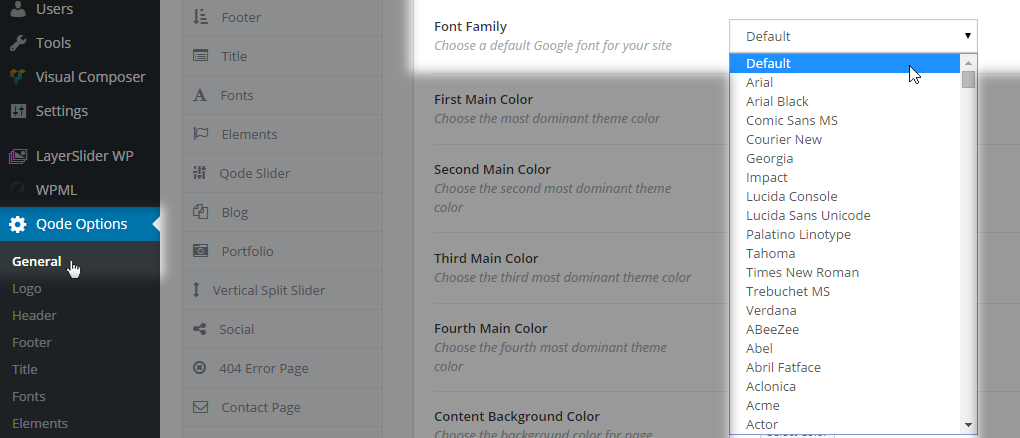
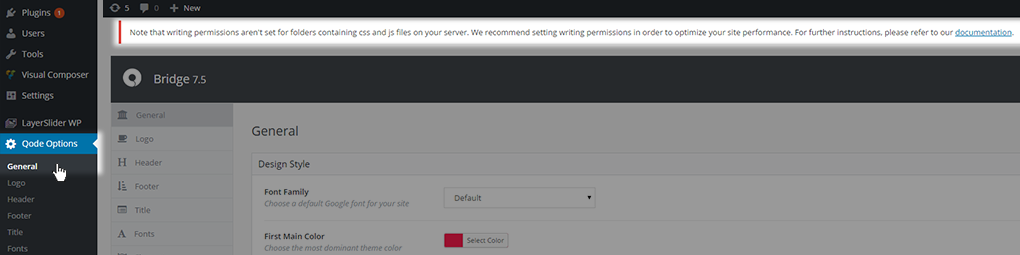
First, log in to your WordPress dashboard. Find the Appearance tab on the left. Click it. A menu will open. Look for Qode Options. Click on it. This is where you change theme settings. The options panel is easy to use. It has many settings.
In the Qode Options panel, search for General. Here, you can change colors. Look for Default Theme Color. This is the main color of your theme. Choose a color you like. Save your changes. Your new color is now active on your website.
Selecting The General Settings Tab
First, open your WordPress dashboard. You will find many options here. Search for the Qode options. Click on it. This will open a new menu. Look for the General Settings Tab. It is usually easy to find.
Once you click on it, you will see many settings. These settings help you change your website. Find the color settings. These settings let you change the theme color. You can choose any color you like. Just make sure to save your changes. This will update the theme color on your website.
Choosing Default Theme Color
Colors make a website look nice. The Color Picker Tool is your friend. It helps you find the perfect color. Click on the tool to open it. You will see many colors. Choose one that you like. You can see how it looks on your site. This will help you decide. Remember, colors change how people feel. Pick a color that matches your mood. Happy colors make people smile.
The Color Picker is easy to use. You can drag your mouse to find colors. It shows the color code. This code is important. Copy it to use later. Make sure the color looks good. Try different colors. See which one fits best. You can always change it again. Experiment with shades and tones. Have fun finding the right color.
Now you have your color. It’s time to save it. Click the save button. This will keep your changes. Check your site to see the new colors. The colors should look nice and clean. If not, try again. You can change them anytime. Make sure to save each time. Colors help your site look unique. Show your style with colors.

Credit: qodeinteractive.com
Previewing Changes On The Website
Use the Live Preview feature in WordPress to see changes instantly. This tool helps you view how the new colors will look. Make sure the colors match your site’s theme and style. Click on the Customize option in your WordPress dashboard. Then, select the Colors section. Here, you can adjust the colors and see them change in real-time.
Using Live Preview Feature
Click on the Save & Publish button after making changes. This saves your new color settings. Always check how colors look on different pages. Sometimes, one color looks good on one page but not another. Use the preview feature to ensure everything looks just right.
Ensuring Consistency Across Pages
Choose colors that work well together. This ensures your site looks uniform. Check each page to confirm the colors are consistent. Sometimes, a page might not update as expected. Revisit the Customize section to fix any errors. Consistency makes your site look professional and appealing.
Troubleshooting Common Issues
Clear the browser cache to see changes. Old files may block updates. Users should clear cache regularly for best performance. This ensures the website looks fresh and correct.
Problems often arise from stored cache. It holds old data. To solve this, clear the cache. This allows the browser to load new files.
Sometimes, users forget this step. But it’s easy. Go to settings. Find the clear cache option. Click it. Now, check the site again. Changes should appear.
Advanced Customization Tips
Change the Qode default theme color in WordPress easily. Access the theme options panel. Then select your preferred color. Save changes and refresh to see the new look.
Using Custom Css
Changing the theme color in Qode is easy with Custom CSS. First, open your WordPress dashboard. Navigate to Appearance and then Customize. Look for the Additional CSS option. Click it to open the CSS editor. Here, you can write your CSS code. For example, change the background color by typing: body { background-color: #yourcolor; }. Replace “yourcolor” with your desired color code. Save your changes to see them live on your site. Practice with different codes to get the look you want. It’s a fun way to learn.
Integrating Third-party Plugins
Plugins can help change theme colors too. Search for color-changing plugins in the WordPress Plugin Directory. Install one that suits your needs. Activate the plugin after installation. Open the plugin settings to explore options. Choose colors that fit your style. Plugins often have easy-to-use interfaces. This makes it simple for beginners. Experiment to find the perfect look for your site. Always check plugin ratings before installing.
Credit: bridge.qodeinteractive.com
Frequently Asked Questions
How Do I Access Qode Theme Settings In WordPress?
To access Qode theme settings, log into your WordPress dashboard. Navigate to ‘Appearance’ and click on ‘Customize. ‘ Here, you’ll find various options to modify your theme, including color settings. This section allows you to make adjustments to align your website’s look with your brand.
Can I Change Qode Theme Color Without Coding?
Yes, you can change the Qode theme color without coding. Use the WordPress Customizer tool under ‘Appearance. ‘ Select ‘Theme Options’ and then ‘Color. ‘ Here, you can adjust your theme’s default colors to match your preferences, ensuring an easy and code-free customization experience.
What Are Steps To Change Qode Theme Color?
To change Qode theme color, go to ‘Appearance,’ then ‘Customize. ‘ Select ‘Theme Options’ and choose ‘Color. ‘ Adjust the color settings to your preference. Save changes to apply them. This straightforward process helps personalize your site’s appearance without complex modifications.
Why Change Default Theme Color In Qode?
Changing the default theme color in Qode enhances your site’s visual appeal. It allows alignment with your brand identity. Customizing colors can improve user engagement and create a unique look. This simple adjustment can significantly impact your website’s overall aesthetics and user experience.
Conclusion
Changing the Qode theme color is simple. Follow clear steps, and customize easily. Personalize your WordPress site without stress. Small changes make a big impact. Your site feels fresh and unique. Enjoy experimenting with different colors. Make your website reflect your style.
Understanding theme options opens creative possibilities. Explore more, and enhance your site regularly. Keeping it updated keeps visitors engaged. Remember, your website is your digital identity. Keep it vibrant and appealing. Happy customizing!


