
Are you looking to customize your WordPress website without risking the integrity of your main theme? Creating a child theme is your perfect solution.
This nifty technique allows you to tweak your site’s design and functionality while keeping your original theme intact and update-ready. Imagine having the freedom to unleash your creativity without the fear of breaking your site or losing changes with every update.
Sounds appealing, right? This guide will walk you through the step-by-step process of crafting your own child theme on WordPress. Stick around, and you’ll learn how easy it is to safeguard your customizations and elevate your website’s design. Ready to dive in? Let’s get started!
What Is A Child Theme?
A Child Theme is like a copy. But, it is a special copy. It keeps the main theme safe. This means, your changes will not break the main theme. A Child Theme uses the main theme’s features. You can add or change parts without harm. It is easy and safe for your website.
Why use a Child Theme? It helps you customize without fear. Updates to the main theme will not erase your work. You get the benefits of updates and your own changes. This is great for beginners and experts alike. A Child Theme is a smart choice for WordPress users.
Credit: www.cloudways.com
Benefits Of Using A Child Theme
A child theme keeps your customizations safe. It lets you update the main theme without losing changes. This means you can have new features and security updates. Your site stays fresh and secure.
Child themes are great for learning. They help you understand how themes work. You can tweak the design without breaking the main theme. This is perfect for beginners who want to try new things.
These themes allow you to experiment with coding. You can add custom functions and styles. If something goes wrong, the main theme stays safe. Child themes give you room to grow and explore.
Essential Requirements
Create a child theme with care. Understand the basics. WordPress knowledge helps. Install WordPress first. Access to the admin panel is key. Know how to use FTP. FTP lets you connect to the server. Files are important. Style.css and functions.php are needed. Backup your site. Safety comes first. Be ready to learn.
Themes make sites look unique. Parent themes give structure. Child themes change styles. Keep the parent theme updated. Stay secure. Tools can help. FileZilla is a good FTP tool. Text editors like Notepad++ are useful. Simple and effective. Start with these tools. Begin your journey now.
Setting Up The Environment
Select a theme you like. This will be your parent theme. Check if the theme has all the features you need. You can find themes in the WordPress theme directory. Always choose a theme that is popular and updated regularly. This ensures your site is secure and has the latest features. Avoid themes with poor ratings. They might have issues or lack support.
Create a new folder for your child theme. Name it something like theme-name-child. This folder will hold all your child theme files. Place this folder in the wp-content/themes directory. Inside, you need a style.css file. This file will contain your child theme’s styles and information. Also, create a functions.php file. This is where you will add custom functions.
Creating The Style.css File
Style.css is the main file for your child theme. It holds all the design rules. Start by creating a new file named style.css. Place it inside the child theme folder. At the top, add theme information. This tells WordPress about your child theme. Include the theme name, description, author, and version. This is very important. It helps users and developers understand the theme. Without this, WordPress might not recognize your theme.
Adding Theme Information
Adding theme information is easy. Use comments in the file. Begin with / and end with /. Write the theme name, description, author, and version. Each line should start with the name of the attribute. Keep it simple and clear. This helps WordPress show the right details.
Enqueuing Stylesheets
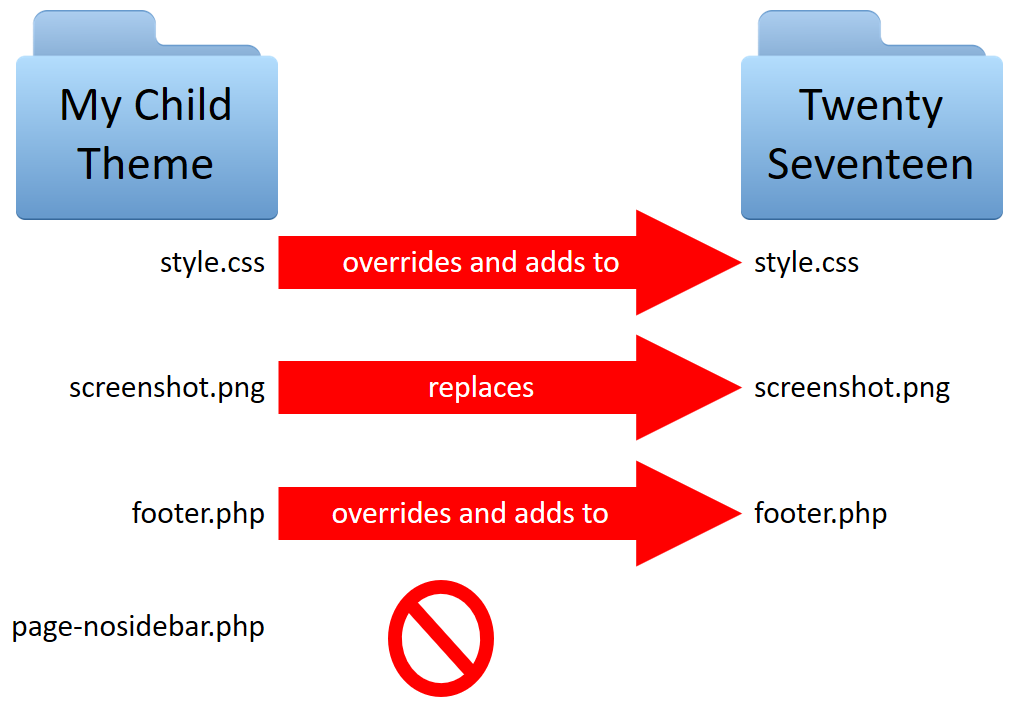
To make styles work, you must enqueue them. Use the functions.php file in the child theme. Add a function to enqueue the stylesheet. This links your child theme with the parent theme. You need to use wp_enqueue_style to add styles. This ensures the child theme inherits styles from the parent theme. Without this, styles may not appear correctly.
Credit: learn.wordpress.org
Setting Up The Functions.php File
The functions.php file is like a magic book. It holds special codes for your WordPress theme. Every theme has its own functions.php. This file helps your theme do cool things. You can add new features with it. But be careful. Too many codes can slow down your site. Keep it neat and tidy.
You can make your theme even better. Add custom functions to the functions.php file. Custom functions are like special recipes. They make your theme unique. Write your own code or use examples online. Test each function carefully. Always make a backup before changing codes.
Customizing The Child Theme
Creating a child theme in WordPress allows for easy customization without affecting the main theme. Start by creating a new folder in the themes directory. Next, add a style. css file and functions. php to define your child theme’s details and enqueue the parent theme’s styles.
Modifying Css
To change the look of a WordPress child theme, edit the CSS file. Locate the style.css file in the child theme folder. Open it in a text editor. Add or change CSS rules here. These rules alter colors, fonts, or layout. Make sure to save your changes. Refresh your site to see the new design. Don’t forget to back up before editing. It protects your work from mistakes.
Overriding Template Files
To change the structure of a WordPress child theme, override template files. Copy the original template file from the parent theme. Paste it into the child theme folder. Edit the copied file to make changes. This method keeps parent theme updates safe. Always double-check for errors. Save your work often. Refresh your site to apply changes.
Testing The Child Theme
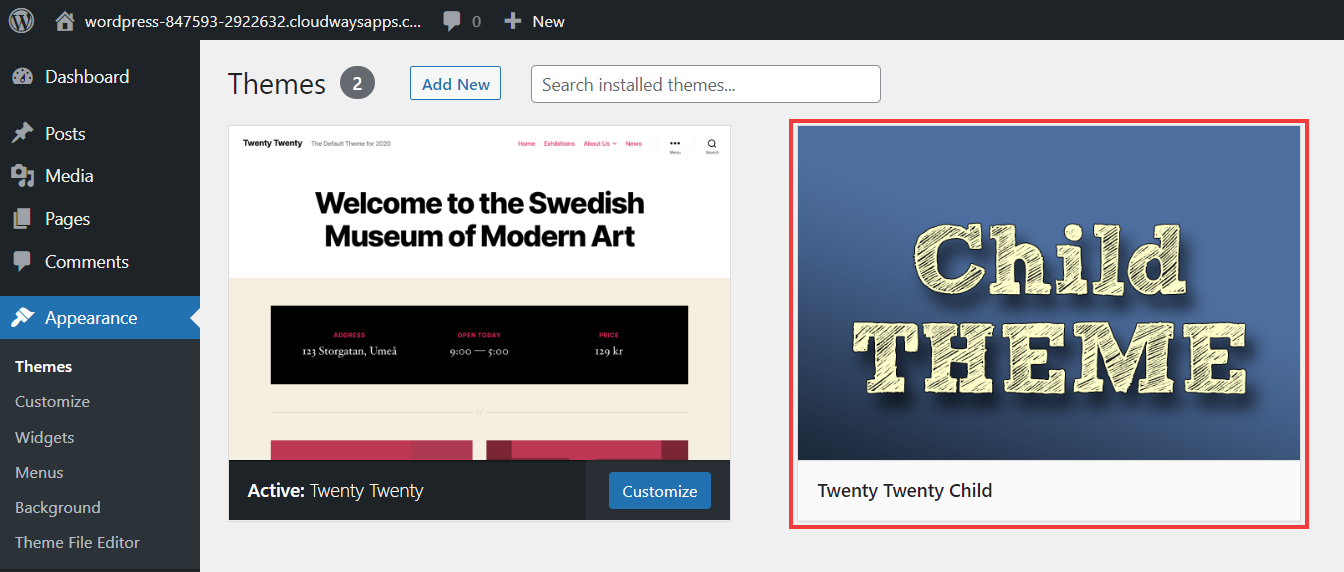
Check your new child theme. Go to your WordPress dashboard. Find the Appearance tab. Click on Themes. Choose your child theme. Hit the Activate button. Visit your site to see changes. Look for style changes. Check the layout. Ensure features work correctly. Compare with the parent theme. Notice differences in design. Functionality should remain the same. Test all links and buttons. Ensure they work. Check responsiveness on devices. Make adjustments if needed.
Problems might occur. Styles may not show. Features might break. Check your code first. Ensure stylesheets are linked. Verify functions.php file. Errors could be there. Fix any typos or missing brackets. Review your changes. Look for overrides. Parent theme might override child theme. Check for plugin conflicts. Deactivate plugins one by one. Some plugins cause issues. Re-activate them after testing. Seek help if stuck. Forums are helpful. Ask for guidance. Experts can assist.
Activating The Child Theme
Switching from the parent theme to the child theme is simple. Go to your WordPress dashboard. Find the Appearance tab. Click on Themes. You will see both parent and child themes here. Choose the child theme. Click on Activate. Your child theme is now live.
Verifying functionality is important. Make sure everything works. Check your website’s design. Ensure all features are present. Test your site on different devices. Look for any errors. Fix any problems quickly. This ensures a smooth experience for users.
Credit: wedevs.com
Maintaining And Updating
Keeping the Parent Theme Updated is very important. Always check for new updates. Updates fix bugs and improve security. Never ignore them. Use a testing site first. This helps prevent errors. Check your child theme after updates. Make sure everything works well. It’s crucial for smooth performance.
Managing Custom Modifications can be tricky. Changes can disappear after updates. Save your modifications separately. Use a custom CSS file. This keeps styles safe. Keep a backup of changes. This helps restore them quickly. Always note what you change. It makes troubleshooting easier. Avoid editing core files. Core files are essential for stability.
Frequently Asked Questions
What Is A Child Theme In WordPress?
A child theme in WordPress is a theme that inherits the functionality and styling of another theme, called the parent theme. It allows you to make modifications without altering the original theme files. This ensures your customizations are preserved even when the parent theme is updated.
Why Use A Child Theme In WordPress?
Using a child theme allows you to safely modify your website’s design and functionality. It prevents the loss of customizations during theme updates. By using a child theme, you can experiment and make changes without affecting the original theme’s code, ensuring a stable and updatable website.
How Do I Create A WordPress Child Theme?
To create a child theme, first create a new folder in your themes directory. Then, add a style. css file with a template header referencing the parent theme. Finally, enqueue the parent theme’s styles using a functions. php file. Activate your child theme in the WordPress dashboard.
Can I Customize A Child Theme?
Yes, you can customize a child theme extensively. You can add custom CSS, modify templates, and even extend functionalities. This flexibility allows you to tailor your website’s appearance and behavior without altering the parent theme. Customizations in a child theme ensure your changes remain intact during theme updates.
Conclusion
Creating a child theme in WordPress is easier than you think. It boosts your site’s design and keeps your changes safe. Follow the steps, and you’ll have a custom look. No need for advanced coding skills. Just some patience and practice.
This way, your website remains updated and stylish. Experiment with different styles and enjoy the creative process. It’s a rewarding experience that brings your vision to life. Start today, and explore the possibilities of your WordPress site. Your journey in web design is just beginning.
Embrace the process and watch your site transform!


