
Are you finding that your WordPress website is running slower than usual or not reflecting recent changes? The culprit might be your cache.
Clearing your cache is like hitting the refresh button on your WordPress theme, ensuring that visitors experience your site at its best. Imagine your website as a storefront window—cleaning off the smudges reveals the vibrant display inside. By understanding how to clear your WordPress theme cache, you can keep your site running smoothly and efficiently.
This guide will walk you through the simple steps to refresh your site and enhance your visitors’ experience. Ready to optimize your site for speed and performance? Let’s dive in and discover how easy it is to clear your WordPress theme cache.

Credit: totalwptheme.com
Importance Of Clearing Cache
Clearing the cache is very important for your website. It helps make your site run faster. A fast website is good for visitors and keeps them happy. Fast sites also rank better on search engines. This means more people can find your site.
Old cache can slow down your site. It might show outdated content. This confuses visitors. They might leave your site. To avoid this, clear the cache regularly. This ensures your content is always fresh and up-to-date.
Clearing cache also helps when you make changes to your site. New updates appear right away. This helps keep your website’s look and feel consistent. So, remember to clear cache often. It’s a simple task with big benefits.
Identifying Cached Elements
Cached elements can slow down your website. Images and scripts often get cached. Stylesheets are another common cached element. Plugins may also store cache. Recognizing these cached elements is key. It helps in clearing them easily. Browsers often cache parts of your site. This can make it load faster. But sometimes, you need fresh data. Outdated cache can cause errors. Knowing what is cached is important. It ensures your site runs smoothly. Checking your theme settings helps. Many themes have cache options. Reviewing them gives insight. Tools can also assist. Plugins like WP Super Cache are useful. They help identify cached items. You can then clear them. This improves your site’s performance.
Types Of Cache In WordPress
Browser cache stores web files on your computer. This makes sites load faster. Images, CSS, and JavaScript files are saved. Clearing browser cache can fix display issues. It’s easy to do in browser settings. Look for “clear history” or “clear cache” options. This helps see the latest updates on sites.
Server cache saves web pages on the server. It helps reduce load time. Users get faster access to sites. Clearing server cache can solve problems with outdated content. Often, hosting services provide tools to clear cache. Check your hosting dashboard for options. This process ensures fresh content is delivered.
Plugins can cache data in WordPress. This improves site speed. Popular plugins like W3 Total Cache and WP Super Cache manage this. They store static files for quick loading. Clear plugin cache through plugin settings. This can fix errors and improve site updates. Always check plugin documentation for detailed steps.
Using WordPress Plugins
WordPress offers many plugins to clear cache. Some popular plugins are W3 Total Cache, WP Super Cache, and WP Fastest Cache. These plugins help speed up your website. They store a copy of your site. This reduces server load. The W3 Total Cache plugin offers many features. It is very flexible. WP Super Cache is easy to use. It is great for beginners. WP Fastest Cache is simple but effective. It is a good choice for small sites.
First, install your chosen cache plugin. Next, activate it in WordPress. Then, go to the plugin settings. Enable caching from the settings menu. Most plugins have a “Cache” or “General” tab. Here, you can turn on caching. W3 Total Cache has many options. Choose the ones you need. WP Super Cache has simple settings. Just click “Easy” mode. WP Fastest Cache is similar. Enable the cache with one click.
Manual Cache Clearing
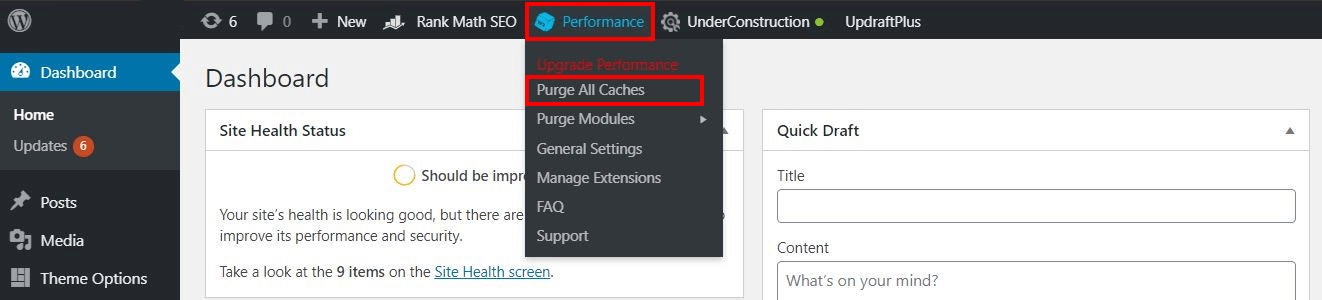
Clearing cache in a WordPress theme can enhance site performance. Access your WordPress dashboard, find the caching plugin, and clear the cache. This process ensures your site displays the most recent changes effectively.
Accessing Hosting Dashboard
Start by logging into your hosting account. Look for the hosting dashboard. It helps you manage website files. Navigate to the section for cache management. Follow instructions to clear the cache. This will remove old files. Your site will load fresh data.
Clearing Cache Via Ftp
Connect to your site with FTP client. Locate the cache folder. Delete files inside the folder. This empties the cache. Make sure not to delete important files. The cache will rebuild itself. Your site will use new information. This keeps your site fast and updated.
Credit: www.ionos.com
Troubleshooting Cache Issues
Cache can cause many website problems. Pages may not update. Changes might not show. Users often see old content. This can confuse visitors. Website speed may slow down. This frustrates users. They might leave your site. Search engines may rank your site lower. SEO can suffer. It’s important to fix these issues.
Clear cache regularly. Use a plugin to help. Plugins make it easy. Find the right one for your theme. Follow the instructions closely. Backup your site before changes. This keeps data safe. Sometimes, you may need expert help. Experts know how to fix tricky problems. They can save you time and stress.
Best Practices For Cache Management
Clearing cache keeps your site fast and smooth. Cache stores old data. This helps pages load quickly. But old cache can cause problems. It may show outdated content. Regular clearing fixes this. Do it weekly or monthly. Use a plugin for easy clearing.
Good performance is key for happy visitors. Slow sites make users leave. Check your site’s speed often. Use tools like Google PageSpeed. These tools show what’s wrong. Fixing these issues helps your site. A fast site improves user experience.

Credit: cyberchimps.com
Frequently Asked Questions
How Do I Clear WordPress Theme Cache?
To clear WordPress theme cache, access your hosting control panel or FTP. Navigate to the wp-content folder and locate the cache folder. Delete its contents to clear the cache. Alternatively, use a caching plugin with a clear cache option. Regularly clearing cache improves site performance and resolves display issues.
Why Is Clearing Cache Important In WordPress?
Clearing cache is crucial for optimizing site performance and ensuring the latest content is visible. Cached files can become outdated, causing display errors and slower loading times. By regularly clearing cache, you improve user experience, enhance site speed, and resolve any issues related to stale content or design changes.
Can Plugins Help Clear WordPress Cache?
Yes, plugins can efficiently clear WordPress cache. Popular caching plugins offer a clear cache option within their settings. These tools automate cache management, making it easy to refresh cached files. They also provide advanced features like scheduled cache clearing and optimization, enhancing site performance without manual intervention.
How Often Should I Clear WordPress Cache?
Clear cache regularly, especially after major updates or design changes. Frequency depends on site traffic and content updates. High-traffic sites or those with frequent content changes may need daily or weekly cache clearing. Monitor site performance and visitor feedback to determine the optimal cache clearing schedule.
Conclusion
Clearing cache in your WordPress theme is essential. It improves site performance. Visitors enjoy faster loading times. Regular cache clearing prevents old data issues. Outdated content can confuse users. Fresh cache keeps your site updated. It’s a simple task. But often overlooked.
Regular maintenance ensures smooth operation. Your site remains reliable. Efficient for users and search engines. Take control of your WordPress theme today. Keep your site running smoothly. Happy visitors mean better engagement. Better engagement boosts site success. Follow these steps regularly.
Enjoy a seamless WordPress experience. Keep your site fresh and efficient.


