
Are you struggling to update your contact information on your WordPress site? If your website is built using the Panoramic theme, changing your phone number might seem daunting.
However, it doesn’t have to be. Imagine a website where potential clients can easily reach you, ensuring you never miss a business opportunity. This guide is designed to make the process of updating your phone number simple and stress-free. You’ll learn step-by-step how to make this crucial update seamlessly, ensuring your website remains a powerful tool for connection.
Read on to discover how easy it can be to keep your contact details current on your WordPress site with the Panoramic theme.
Accessing The WordPress Dashboard
First, log into your WordPress account. You will see the dashboard. This is where you manage your site. It’s like a control room. Find the left menu. Click on “Appearance”. Then, select “Customize”. This will open the theme settings. It’s where you make changes to your site. You can add or change many things. But today, we focus on the phone number.
Look for the “Contact Details” or “Contact Information” section. It’s usually under “Theme Options” or similar. Click on it. Find the phone number field. You can type in the new number. Double-check it. Make sure it’s correct. When done, hit “Publish” or “Save Changes”. Your new phone number is now live.
Navigating To The Panoramic Theme Settings
Start by logging into your WordPress dashboard. Find the menu on the left side. Click on “Appearance.” Look for “Customize” and select it. This opens the theme settings. Find “Panoramic Theme Options.” Click to open it.
Inside, there are many choices. Search for “Contact Details.” This is where you can change the phone number. Click on the box with the current number. Type the new number. Make sure it is correct.
After changing the number, always save your changes. Look for the “Save” button. It’s usually at the top. Click it to keep your new number.
Check your website. Make sure the number is updated. This confirms your change worked.
Locating The Contact Information Section
First, go to your WordPress dashboard. Look for the Appearance option. Click on it, then select Customize. This opens the theme customizer. Find the Contact Information section. It’s usually under Header or Footer settings. If you can’t find it, check the Widgets section. Widgets may contain contact details too. You might see a widget named Contact Info or similar. Click on it to check the details.
Ensure you are in the right theme. Sometimes themes have different settings. The Panoramic Theme should have these options. If not, consider checking the theme’s documentation. This helps in finding settings specific to Panoramic.

Credit: freebiesupply.com
Editing The Phone Number
Changing your phone number in WordPress is easy. First, go to your WordPress dashboard. Look for the Appearance tab. Click on it. You will see Customize. Select it. Now, find the Contact Info section. Click on it. Here, you will see the phone number field. Remove the old number. Type your new phone number. Don’t forget to save your changes. This ensures your new number is visible.
Always double-check your number. Make sure it is correct. A wrong number can cause problems. You might miss important calls. Your clients need the right number to reach you. It’s important for your business.
Saving Changes
After updating your phone number, it’s vital to save the changes. Look for the save button or publish option on the screen. Click to ensure the update is complete. Check your site to see the new number. Confirm it displays correctly. This step prevents any errors. Make sure your visitors see the right contact info. A correct phone number helps your site look professional. Always double-check for accuracy. A small mistake can cause confusion. Properly saving changes is crucial. It keeps your site updated and trustworthy. Your visitors rely on the right information. Never skip this step. It’s easy but important.
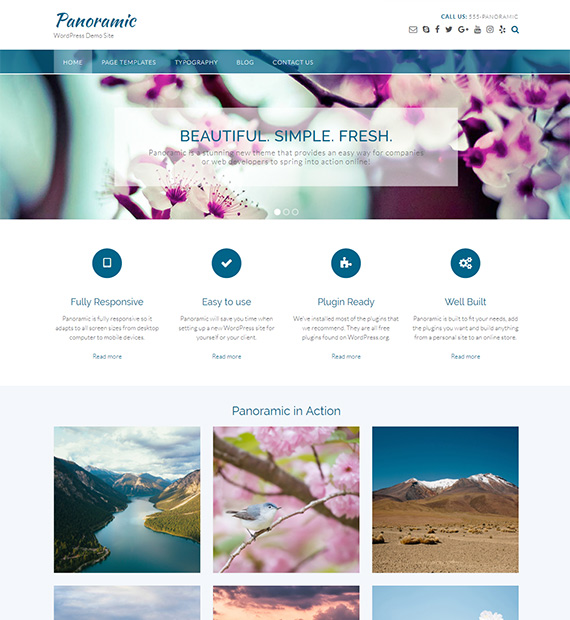
Credit: beautifulthemes.com
Verifying The Update On The Frontend
After changing your phone number in WordPress, it’s essential to check it. Look at your website’s frontend to ensure the new number shows. This step helps confirm the update was successful. Open your website in a browser. Navigate to the section with the contact details. You should see the new phone number displayed. Refresh the page if the old number still appears. Sometimes, browsers cache old data. Refreshing helps load the latest changes. If the update is not visible, clear your browser’s cache. This action forces the browser to fetch fresh data. Clearing cache is simple and often fixes display issues. Lastly, ask a friend to check your website. They can confirm if the new number is visible on their device too.
Troubleshooting Common Issues
Changing your phone number in WordPress on the Panoramic theme is simple. Start by accessing the WordPress dashboard. Navigate to the theme customizer and look for contact information settings. Save changes after updating your phone number.
Changes Not Reflecting
Sometimes changes don’t show up. Clear your cache first. This often solves the problem. Use a plugin if needed. Check your browser settings too. Disable any caching plugins temporarily. Refresh your page often. Verify your settings in the WordPress admin. Ensure you saved your changes.
Theme Customization Errors
Theme errors can be tricky. Ensure your theme is up-to-date. Update it regularly. Check for any conflicting plugins. They can cause issues. Disable them one by one. Review your theme’s documentation. Look for troubleshooting tips. Contact the theme support if problems persist. They can help you fix the issue.

Credit: www.outtheboxthemes.com
Updating Phone Number In Widgets
First, go to your WordPress dashboard. Find the Appearance option on the left. Click on it, then select Widgets. Here, you will see all your widget areas. Look for the widget that shows your phone number. Click on it to edit.
Inside the widget, find the text field with the phone number. Erase the old number. Type in the new phone number. Double-check it to make sure it is correct.
After updating, look for the Save button. Click it to save the changes. Now, your new phone number will show on your website. Refresh your site to see the update. This process is simple and quick.
Using Custom Css For Phone Number Display
Changing your phone number in the Panoramic theme is easy. First, open your WordPress dashboard. Navigate to the Appearance section and click on Customize. Look for the Additional CSS option. It’s usually at the bottom. Click to open the CSS editor.
Find the phone number class or ID. This is where your current number is styled. You might see something like .phone-number or #contact-number. Type your new number in the CSS editor. Save your changes.
Refresh your page to see the update. Your new number will show up. Remember to check all areas where your number appears. This ensures consistency across your site.
Maintaining Consistent Contact Information
Updating contact details is crucial for any website. This includes phone numbers. Your visitors must find accurate info every time. Start by logging into your WordPress dashboard. Use the Panoramic theme options. Navigate to the ‘Header’ section. This is where phone numbers are often displayed. Look for the field labeled ‘Contact Info’. Change the number here. Then, save your changes. Check the site’s front end. Ensure the new number appears correctly.
Consistency is key. Update your phone number everywhere. Check footer, contact page, and widgets. Clear old numbers from all locations. This prevents confusion for visitors. Consider using a plugin. Some plugins help manage contact info easily. This saves time and effort. Remember, clear contact info builds trust. Visitors are more likely to reach out. Keep your details updated regularly.
Frequently Asked Questions
How Do I Update My Phone Number On WordPress?
To update your phone number in WordPress using the Panoramic theme, navigate to the theme settings. Locate the contact information section, where you can edit your phone number. Save the changes to ensure your new contact information is displayed correctly on your site.
Where Is The Phone Number Setting In Panoramic Theme?
In the Panoramic theme, the phone number setting is typically found under the theme options or customizer. You may find it within the “Contact” or “General Settings” sections. Access these settings from your WordPress dashboard to make necessary changes.
Can I Change Phone Number Without Coding?
Yes, you can change your phone number without coding in the Panoramic theme. Use the WordPress dashboard to access theme settings. Navigate to the contact information section and update your phone number. This method requires no coding skills and is user-friendly.
Will Changing My Number Affect Seo?
Changing your phone number in WordPress won’t directly affect SEO. Ensure your contact information is consistent across your website and other platforms. Keep your site updated to maintain credibility with search engines. This consistency helps in local SEO and user trust.
Conclusion
Changing your phone number in WordPress using the Panoramic theme is easy. Just follow the steps. Start by logging into your WordPress dashboard. Navigate to the theme customizer. Update your phone number in the contact section. Save changes. Your new number displays on your site instantly.
Regular updates keep your contact information current. Visitors find you without hassle. This process enhances user experience. Ensures seamless communication. A simple tweak makes a big difference. Keep your site updated. Stay connected with your audience. Enjoy your refreshed site presence.


