
Have you ever felt overwhelmed by the thought of managing your website? You’re not alone.
Many people find the technical aspects of web hosting daunting. But here’s the good news: learning how to use a web hosting control panel can change everything for you. Imagine having the power to manage your website efficiently, without needing to be a tech expert.
With the right guidance, this tool can become your new best friend in the digital world. You’ll discover simple steps to navigate your control panel like a pro, enhancing your website’s performance and your peace of mind. Get ready to unlock the full potential of your online presence and feel empowered every step of the way. Your website management journey is about to get a whole lot easier.

Credit: en.wikipedia.org
Choosing The Right Control Panel
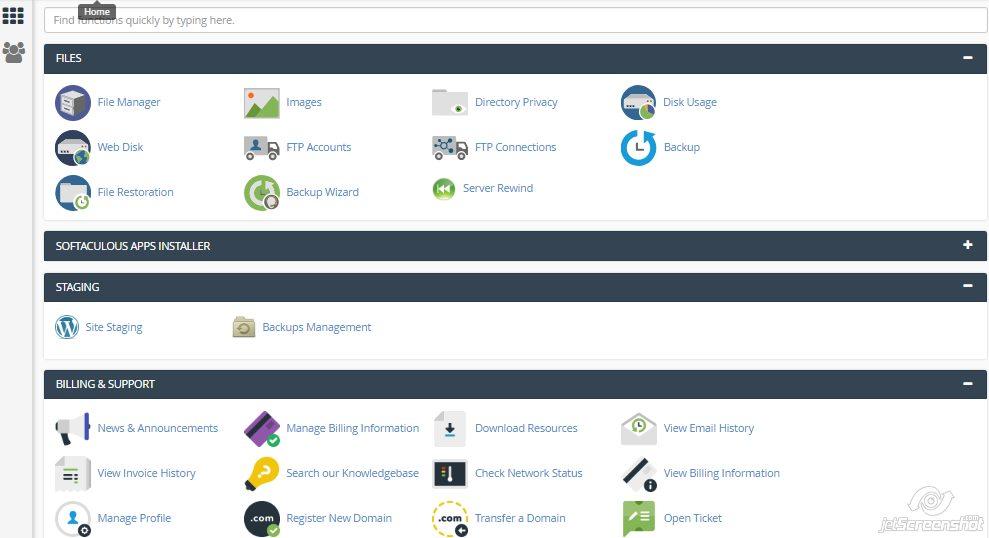
Picking a web hosting control panel is crucial. cPanel and Plesk are popular choices. They offer user-friendly interfaces. cPanel supports Linux servers. Plesk works with Windows and Linux. Both panels have tools to manage domains. They help with email accounts and databases. DirectAdmin is another option. It is lightweight and fast. ISPConfig is free and open-source. Each panel has unique features.
Consider what each control panel offers. Look for ease of use and security features. Check if it supports multiple domains. See if it has auto-installers for apps. cPanel provides a lot of plugins. Plesk has an intuitive dashboard. DirectAdmin is budget-friendly. ISPConfig is great for advanced users. Choose based on your needs. Make sure it fits your hosting plan.
Credit: www.hostinger.com
Setting Up Your Web Hosting
First, find the login details in your welcome email. Use them to access your web hosting control panel. It’s like the dashboard of your website. You can find tools and options here. These help you manage your site easily. Look for a URL link, a username, and a password. Enter them on the login page.
After logging in, start with the basic settings. Choose your preferred language. Set your time zone for accurate logs. Check if your domain name is correct. You can also create email accounts here. Use easy names like “info” or “support”. This keeps things simple for your visitors. Don’t forget to save your changes.
Managing Domains
Web hosting control panels simplify domain management. They help users configure settings, manage files, and set up email accounts easily. These panels provide intuitive interfaces for straightforward navigation, making website management accessible to everyone.
Adding And Removing Domains
It’s easy to add new domains in the control panel. Click the “Add Domain” button. Enter your domain name and confirm. The domain appears in your list. To remove a domain, find it in your list. Click the “Delete” option next to it. Confirm the removal. Always check twice before deleting. Removing a domain is permanent. Make sure you no longer need it.
Domain Redirects And Subdomains
Redirects send visitors from one domain to another. Choose “Create Redirect” in the panel. Enter the old and new domain names. Subdomains are parts of a main domain. Use them for different site sections. Create subdomains by selecting “Add Subdomain.” Enter the name and link it to your main domain. Subdomains help organize your site. Use them for blogs, shops, or forums.
Email Management
Creating email accounts is simple. First, log into your hosting panel. Find the email section. Click on “Create New Email”. Enter your desired email name. Choose a strong password. Click “Create” to finish. Your email is ready to use.
Email forwarders send emails to another address. Go to the forwarders section. Click “Add Forwarder”. Enter the email to forward. Type the destination email. Click “Save” to finish.
Email filters help manage messages. Find the filters section. Click “Add Filter”. Set rules for emails. Choose actions like delete or forward. Click “Create” to finish. Filters keep your inbox tidy.
File Management
FTP helps to move files to your website. It is a way to send files fast. First, get an FTP client like FileZilla. Next, enter your host details. You need username and password. Connect to your server. Now, you can see your files. Drag files from your computer to the server. Check if the files are in the right folder. You can also download files from your server to your computer. Remember, FTP is secure when used with SFTP.
File Manager is part of your control panel. It helps you manage files easily. Open the control panel. Find the File Manager icon. Click it to access your files. You can upload files straight from your computer. Select the right folder before uploading. You can create, delete, or edit files. This tool is simple and quick. Use it for small tasks or when you have no FTP client. File Manager works well for beginners.
Database Administration
Use the control panel to create databases easily. Click on the database section. Find the option to create a new database. Enter a name for your database. Click the create button. Your database is ready now.
Access phpMyAdmin through the control panel. It helps manage your database. You can add tables or delete tables. Import and export data too. Click on the database name. See the list of tables inside. Use the tabs to perform actions. It’s easy and user-friendly.
Security Features
Navigating the web hosting control panel is crucial for security. Easily manage passwords, enable firewalls, and configure SSL certificates. Safeguard your website by regularly updating security settings.
Ssl Certificates
SSL Certificates help protect your website. They keep data safe. Encrypting data is their main job. This means data is hard to read by others. Google likes sites with SSL. They rank higher in search results. Having an SSL also builds trust with visitors. It shows your site is secure.
Firewall Settings
Firewalls keep hackers out. They block harmful traffic. You can set rules for firewalls. These rules decide what traffic is safe. Updating firewall settings is important. It helps protect your site. Regular checks can stop attacks. Always make sure your firewall is on.

Credit: metabox.io
Backup And Restore
Regular backups keep your data safe. It is important to set them up. Use your web hosting control panel. Find the backup option. Choose how often you want backups. Daily or weekly is best. Select where to save them. Cloud storage is a good choice. Make sure backups are automatic. This saves time and effort.
Restoring data is easy. Go to your control panel. Find the restore option. Click on it. Choose the backup you need. Follow the steps to restore. Your data will come back. Always check restored files. Make sure they are correct. Restoring can fix problems quickly.
Monitoring And Analytics
Use the control panel to watch your website’s visitors. See how many people visit and what pages they like. This helps you know which parts of your site are popular. It’s fun to see where visitors come from. Are they from different countries? Or nearby? Use this info to make your site even better.
Check your website’s performance metrics for better speed. Look for load times. Are they fast or slow? Fast sites make visitors happy. Also, see server uptime. How often is your site working? A reliable site is key. Use these numbers to fix problems and improve user experience.
Troubleshooting Common Issues
Explore the essentials of using a web hosting control panel. Learn to troubleshoot common issues efficiently. Manage your website and solve problems with ease. Keep your site running smoothly with simple steps.
Resolving Access Problems
Access issues can be frustrating. First, check your login credentials. Make sure they are correct. Double-check your username and password. If still stuck, reset your password. This helps sometimes. Use the control panel’s password reset option. Ensure your internet connection is stable. Slow connections can cause access problems. Contact your web host support for help if needed.
Error Logs And Debugging
Reading error logs is important. They show what went wrong. Check the error log section in the control panel. Look for recent errors. These logs help in finding issues. Understand the error codes listed. Each code means something specific. Use these codes to troubleshoot. Debugging tools can also help. The control panel might have some. They make finding problems easier. Try using them if available.
Frequently Asked Questions
How To Access Web Hosting Control Panel?
Log into your hosting account on the provider’s website. Find the control panel section and click it. Use your provided credentials to access the control panel dashboard. Explore available tools to manage website settings, files, and databases efficiently.
How To Use Cpanel In Hosting?
Access cPanel through your hosting account login. Manage files, databases, email, and domains efficiently. Use the file manager for uploads, set up databases via MySQL, configure emails, and install software using Softaculous. Navigate easily with the intuitive interface for seamless website management.
What Is An Hosting Control Panel?
A hosting control panel is a web-based interface that manages server functions. It allows users to handle domains, emails, and databases efficiently. Popular control panels include cPanel and Plesk. They simplify server management tasks, providing easy access and configuration tools for hosting websites.
What Is A Cpanel Used For?
CPanel is a web hosting control panel. It manages websites, email accounts, and server settings. Users can easily install applications, monitor resources, and secure data. CPanel streamlines website management with an intuitive interface, making tasks like file management and backups simple.
Conclusion
Mastering web hosting control panels boosts your website management skills. With practice, tasks become easier. You can configure settings, upload files, and monitor performance smoothly. Troubleshooting issues becomes less daunting. A strong grasp of control panels enhances your hosting experience.
It ensures your website runs smoothly. Regular use builds confidence. Explore features to optimize your site. Remember, every feature serves a purpose. Keep learning to make the most of your hosting. Navigating control panels effectively saves time and effort. In short, understanding web hosting tools is crucial.
So, dive in and manage your website like a pro!


