
Are you tired of the same old look of your WordPress page? Do you feel that a fresh and vibrant theme could breathe new life into your website?
You’re not alone! Changing your WordPress theme is one of the easiest and most impactful ways to revamp your site’s appearance and improve user experience. Imagine the excitement of visitors as they encounter your newly styled pages, designed to captivate and engage.
In this guide, you’ll discover simple, step-by-step instructions to seamlessly change your WordPress theme without losing any content or functionality. Get ready to turn your creative vision into reality and make your website stand out from the crowd!
Choose A New Theme
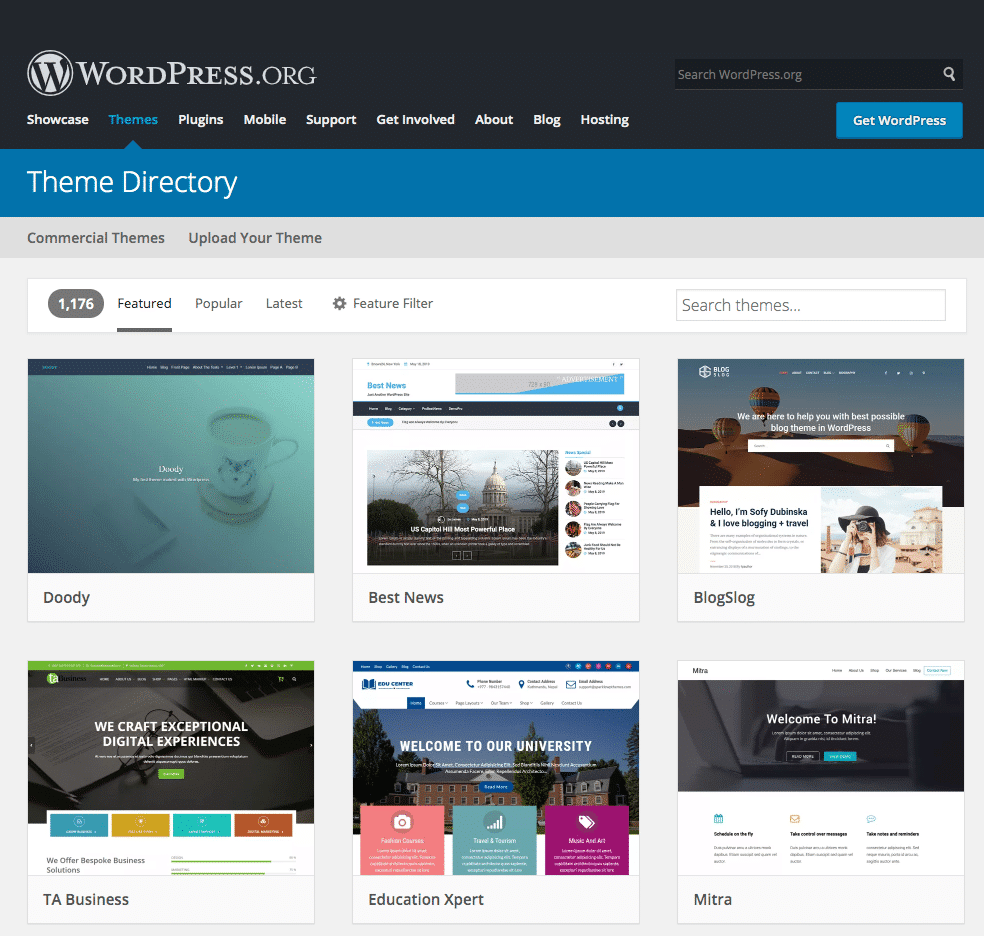
Free themes are available for everyone. Many people start with free themes. They cost nothing and are easy to use. But, they may lack some features. Premium themes often have more options. They can make your site look better. They may have better support too. Think about your needs before choosing. A premium theme might be worth the cost.
Responsive design matters a lot. People use phones to view websites. Your theme should look good on all devices. Check if your theme is responsive. Test it on a phone or tablet. If it works well, your visitors will be happy. Avoid themes that are not responsive. They can make your site look bad. A good theme must work everywhere.

Credit: jetpack.com
Install A Theme
Changing a WordPress theme is easy. First, log in to your WordPress Dashboard. Click on Appearance in the sidebar. Then click on Themes. You will see many themes here. Choose the one you like. Click on Install and then Activate. Your theme will change.
FTP lets you upload themes manually. Open your FTP client. Connect to your website server. Find the wp-content/themes folder. Upload your theme’s folder here. Go back to your WordPress Dashboard. Click on Appearance and then Themes. Find your new theme and click Activate. Your theme is now ready.
Activate The Theme
Always preview a theme before activating it. This helps you see how your website will look. Go to your WordPress dashboard. Find the Appearance section. Click on Themes. Hover over the theme you like. Click Live Preview. Check how the theme displays your content. Make sure it matches your style. If it looks good, you can activate it.
Ensure the theme has no errors. Errors can cause website problems. After previewing, check for issues. Look at the theme’s ratings and reviews. See if other users had problems. Use tools to check for broken links. Make sure everything works fine. If there are no errors, the theme is ready for use.
Customize The Theme
Changing the theme of a WordPress page is simple. Navigate to the dashboard, select “Appearance,” then “Themes. ” Choose a new theme and activate it. This updates the look of your website quickly.
Using The WordPress Customizer
Open your WordPress dashboard. Click on “Appearance”. Then select “Customize”. This opens the WordPress Customizer. You can see many options here. They help change the look of your site.
Choose the “Colors” option. Here, you can pick new colors. Make your site bright or soft. Change the “Header” to add a logo or text. Click on “Menus” to add or change menu items.
Adjust the layout by selecting “Widgets”. You can add new parts to your page. Each change shows live on the right. This helps you see how your site looks. Click “Publish” to save changes. Now, your site has a new theme!
Test Your Website
Make sure your website looks good on all devices. Check it on phones, tablets, and computers. Use tools to see how it works on different screen sizes. A responsive site keeps visitors happy. They won’t leave your site quickly. This helps your site’s ranking.
Browsers are important. Your site must work on Chrome, Firefox, and Safari. Check your site with these browsers. Some features might not work everywhere. Fix any issues you find. Compatibility helps everyone see your site correctly. This is good for your site traffic.

Credit: www.wpzoom.com
Backup Your Site
Changing a WordPress theme is straightforward. Start by backing up your site to protect your content. Navigate to the dashboard, select “Appearance,” then “Themes,” and choose a new theme. Preview before activating to ensure compatibility with your site’s layout.
Using Plugins For Backup
Plugins make it easy to back up your site. Many options are free. Install a backup plugin from the WordPress repository. Follow the instructions. Backup plugins create copies of your site. You can store these copies safely. Some plugins even schedule automatic backups. This ensures your site is always protected. It’s important to check your backups regularly. Ensure they work correctly. This will help if your site ever breaks.
Storing Backups Safely
Always keep backups in multiple places. Use an external hard drive or a cloud service. This protects your data from being lost. Cloud storage is great for this. It is accessible from anywhere. Make sure your backup is updated regularly. Delete old backups to save space. Remember, safe storage keeps your site secure.
Troubleshoot Common Issues
Theme conflicts can cause your site to break. They may also make it look odd. Always check for plugin conflicts. Deactivate all plugins. Then, activate them one by one. This helps find the problem plugin. Sometimes, a theme update can fix things. Always keep your theme updated. If the issue remains, contact the theme’s support.
Missing elements make your site look incomplete. Check your theme’s settings. Some themes have options to show or hide elements. Ensure these settings are correct. Custom CSS might also hide elements. Check your CSS code for mistakes. If you added any code, remove it and check. Sometimes, a page builder might be the reason. Ensure it is updated and working well.
Credit: kinsta.com
Frequently Asked Questions
How Can I Change My WordPress Theme?
To change your WordPress theme, navigate to your dashboard. Click on “Appearance,” then “Themes. ” Browse available themes or upload a new one. Select your desired theme and click “Activate” to apply it. Always preview before activation to ensure compatibility with your site’s content and design preferences.
Is It Safe To Switch WordPress Themes?
Yes, switching themes is generally safe. However, always back up your site before making changes. Check compatibility with your plugins and widgets. Ensure your new theme supports necessary features. Preview the theme to identify any layout issues. Follow best practices to maintain your site’s integrity during the transition.
Will Changing Theme Affect Seo?
Changing themes can affect SEO. Ensure your new theme is SEO-friendly. Check for clean code, mobile responsiveness, and fast loading times. Retain essential SEO elements like meta tags and alt attributes. Verify that header structures are preserved. Conduct an SEO audit post-change to address any discrepancies.
Can I Customize My New WordPress Theme?
Yes, WordPress themes are customizable. Use the built-in Customizer to adjust colors, fonts, and layouts. Explore theme settings for additional options. Utilize widgets and plugins for extended functionality. Modify CSS for advanced customization. Always preview changes before saving to ensure they align with your design vision.
Conclusion
Changing your WordPress theme is simple and fun. A new theme can refresh your site. Always back up before you switch themes. Explore different designs and find what suits your style best. Customize to make it unique. Your site reflects your brand.
Keep it user-friendly and easy to navigate. Fast loading times are crucial. Test your site after changes. Ensure it works on all devices. A good theme enhances user experience. So, choose wisely and enjoy the process. Your WordPress journey is exciting.
Happy designing!


