
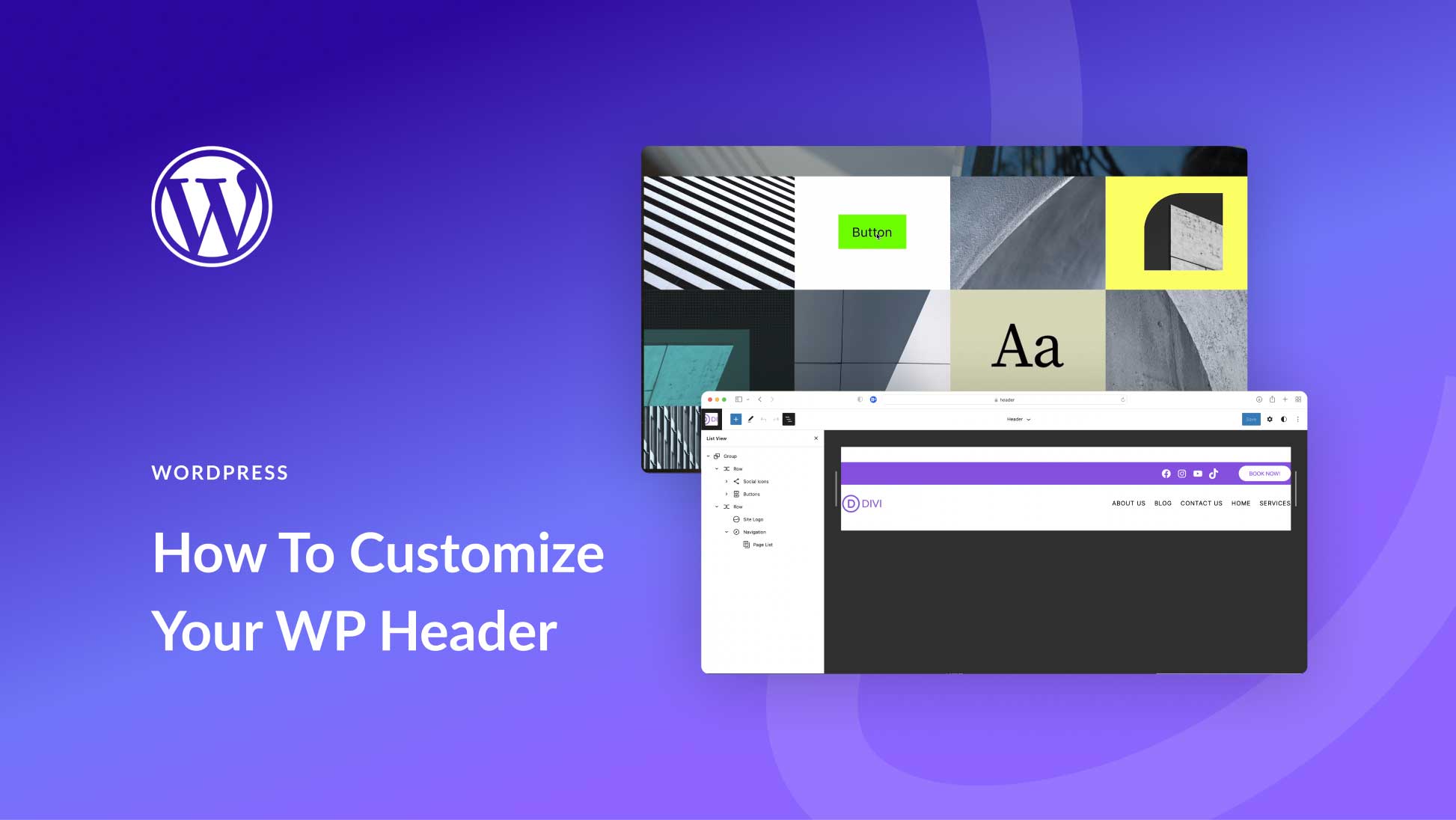
Are you ready to give your WordPress site a fresh, new look? Changing your WordPress theme banner is a simple yet powerful way to revitalize your website and capture your visitors’ attention.
Imagine your site with a banner that perfectly represents your brand, instantly grabbing the attention of anyone who visits. This guide will walk you through the steps to change your WordPress theme banner, making the process as straightforward as possible.
You’ll learn how to select the perfect image, upload it seamlessly, and ensure that it fits beautifully within your site’s design. By the end of this article, you’ll be equipped with the know-how to make your website stand out in the digital crowd. So, if you’re ready to transform your site’s visual appeal, keep reading!
Credit: www.elegantthemes.com
Choosing The Right Theme
Pick a theme that fits your brand style. Colors and fonts should match your logo. Think about the message you want to send. A fun theme suits a toy store. A serious theme suits a lawyer’s site. Your theme should make sense with your content.
Users should find your site easy to use. Menus must be simple. Pages should load fast. People like sites that are easy to use. A good theme helps with this. Make sure the design is clear. Users will enjoy their visit.
Some themes don’t work with all plugins. Check if your theme is compatible. Plugins add features to your site. They help with SEO, security, and more. Choose a theme that supports the plugins you need. This keeps your site running well.
Credit: www.theblogstarter.com
Preparing For The Change
Backing up your theme is very important. It saves your hard work. Use a plugin to make it easy. You can also do it manually. Save your theme files on your computer. This keeps your design safe.
Check what you have changed in your theme. List these customizations. They include colors, fonts, and images. Knowing them helps you later. You won’t lose your favorite settings. It is useful to keep screenshots as well. This helps if you need to recreate your design.
Accessing Theme Settings
First, open your computer browser. Type your WordPress site URL. Add /wp-admin at the end of the URL. Press Enter. A login screen will appear. Enter your username and password. Click the Log In button. The WordPress Dashboard will load.
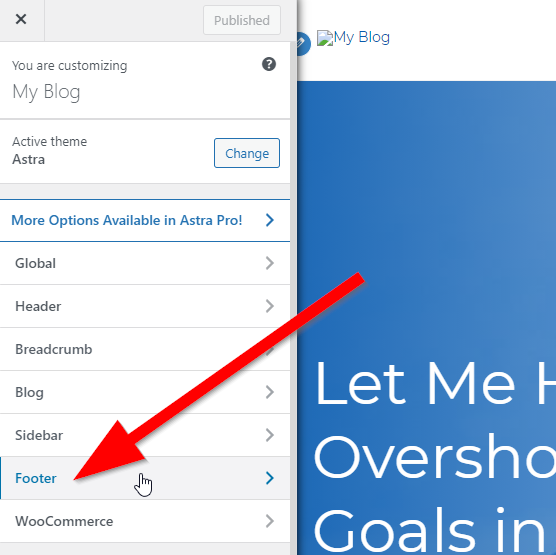
Look at the left menu. Find the Appearance option. Click on it. A dropdown will show more options. These include Themes, Customize, and Widgets. Choose Customize to access theme settings. You can now change the theme banner easily.
Customizing The Banner
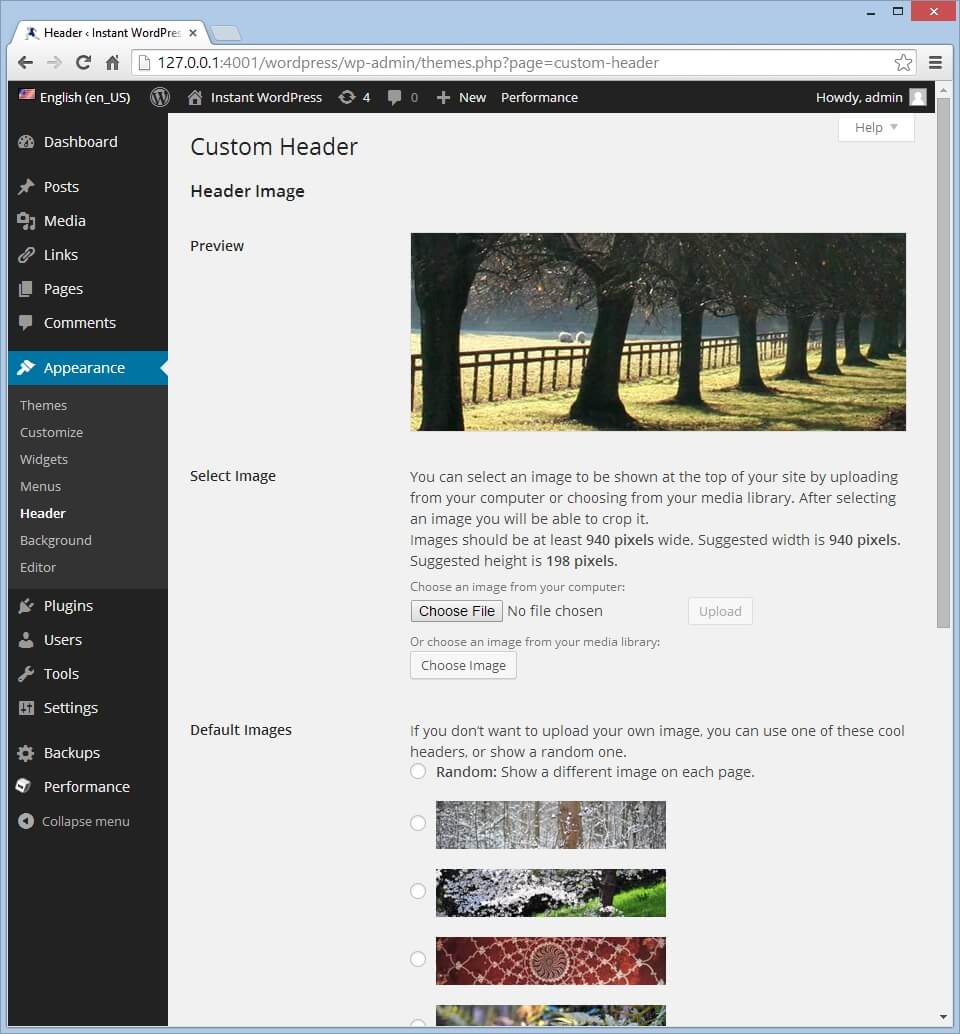
Go to the WordPress dashboard. Find the Appearance menu. Click on Header. Now, select Upload. Choose your new image. Ensure it’s a good quality photo. Click Save to update. Your new banner is now uploaded.
Check the recommended size. It is usually mentioned in the header section. Resize your image using an image editor. Make sure it fits well. Larger images may slow down your site. Always use the right size for better performance. Save the new dimensions.
Decide where to place your banner. Top is the most common. Sidebar is another option. Placement affects how users see it. Choose what suits your site’s design. Always preview changes before saving. This helps in making sure it looks good.
Using WordPress Customizer
Explore WordPress Customizer for easy banner changes. Navigate to the Appearance section, select Customize, and choose Header Image. Upload your new banner, ensuring it fits your theme’s dimensions. Save changes to see your updated banner instantly.
Accessing The Customizer
Start by logging into WordPress. Navigate to the dashboard. Find Appearance in the menu. Click on it. Select Customize. This opens the WordPress Customizer. Here, you can change many things. The theme banner is one of them. It’s easy and quick to access. Everything you need is there. Just follow the steps.
Using Live Preview
Live Preview lets you see changes instantly. It’s a helpful tool. Click on the Customize button. Watch the screen update. Adjust the theme banner. See the changes right away. This helps make sure everything looks good. You don’t need to publish first. You can test different looks. Change colors and images. Find what you like best. Save when happy. Preview helps make decisions. It shows real-time updates.
Managing Banner With Page Builders
Elementor makes it simple to change banners. First, open your page with Elementor. You will see a blue plus icon. Click it. Now, select the structure for your banner. Add your image by clicking on the image widget. Drag it into the structure. Use the style tab to adjust size and position. Save changes by clicking the update button. Now your banner is ready!
Beaver Builder is easy for banners too. Start by launching Beaver Builder. Look for the row layout option. Choose your desired layout. Now, find the photo module. Drag it to your layout. Click on the photo to upload your banner image. Use the settings to adjust. Want to save? Click the done button. Confirm by clicking publish. Your banner will look great!
Testing The New Banner
It’s important to check the new banner on different devices. Use a phone, tablet, and computer. Make sure the banner looks good everywhere. The banner should not look too small or too big. Check if the text is easy to read. This helps everyone enjoy your site.
You should also verify the load times. A slow banner can make people leave your site. Use tools to see how fast the page loads. Faster load times mean a better experience. Fast sites make visitors happy. Happy visitors might stay longer on your site.
Troubleshooting Common Issues
Check if the image file is in the right format. JPEG or PNG works best. If the image is still not showing, check the image URL. It should be correct and start with http or https. Look in the theme settings. Ensure the image path is set right. Sometimes, clearing the cache can help. Try it to see if the image appears.
Images might not align well sometimes. Ensure you have set the alignment in the theme settings. Look for options like left, center, or right. If the image is still off, check the CSS file. Look for any alignment rules that might be causing trouble. Try adjusting the margins or padding to fix it.
Finalizing And Publishing
Check the banner carefully. Is it displayed correctly? Look for any missing elements. Adjust the image size if needed. Make sure the colors match your theme. Verify text alignment. Does it look neat?
Click on the publish button. Wait for the page to refresh. Your new banner is now live. Visit your site to confirm changes. Ensure everything is as desired. Check on different devices. Do updates if necessary. Keep your site fresh and engaging.
Credit: www.crazyegg.com
Frequently Asked Questions
How Do I Change My WordPress Theme Banner?
To change your WordPress theme banner, navigate to the Appearance section. Select Customize, then Header Image. Upload a new image or choose from the media library. Ensure the banner fits your theme’s dimensions. Save changes to update your site’s appearance instantly.
Can I Customize Banner Size In WordPress?
Yes, you can customize the banner size by editing the image before uploading. Use image editing tools to adjust dimensions. Some themes offer options to adjust banner size within their settings. Always check theme documentation for guidance on resizing banners effectively.
Why Is My WordPress Banner Not Displaying?
Your WordPress banner might not display due to incorrect image format or size. Ensure the image is compatible and meets theme requirements. Also, check media library permissions. Clear your browser cache and refresh the page to troubleshoot display issues.
What Formats Are Supported For WordPress Banners?
WordPress supports popular image formats like JPEG, PNG, and GIF for banners. JPEG is optimal for photographs, PNG for graphics, and GIF for animations. Always choose the format that maintains quality while ensuring fast loading. Check theme documentation for specific format preferences.
Conclusion
Changing a WordPress theme banner can be simple. Follow the steps carefully. Each step ensures a smooth transition. A new banner can freshen your site. It can attract more visitors too. Remember to preview changes before finalizing. This helps avoid any unwanted surprises.
Practice makes perfect with WordPress. Experiment with different styles. Find what suits your site best. Keep your design consistent and engaging. This improves user experience. Regular updates keep your site modern. Enjoy the creative process. Your site will benefit from your efforts.
Happy designing!


