
Are you tired of looking at the same old design every time you open your WordPress app? A fresh theme could be just the change you need to bring new life to your site and inspire you to create more.
Imagine the thrill of seeing your content in a new layout, with vibrant colors and modern design elements that perfectly capture your style and message. Changing your WordPress theme isn’t just about aesthetics; it’s about creating an engaging experience for your audience and boosting your online presence.
In this guide, you’ll discover just how simple it is to switch up your theme on the WordPress app. We’ll walk you through the steps, ensuring you feel confident and excited to make the change. Get ready to transform your site into something that not only looks amazing but also feels uniquely yours. Let’s dive in and unlock the potential of your WordPress site together!
Choosing The Right Theme
Your blog’s purpose is important. Think about what you want to say. Choose a theme that helps show your message. A fun blog might need bright colors. A serious blog may need calm colors. Your theme should match your blog’s voice.
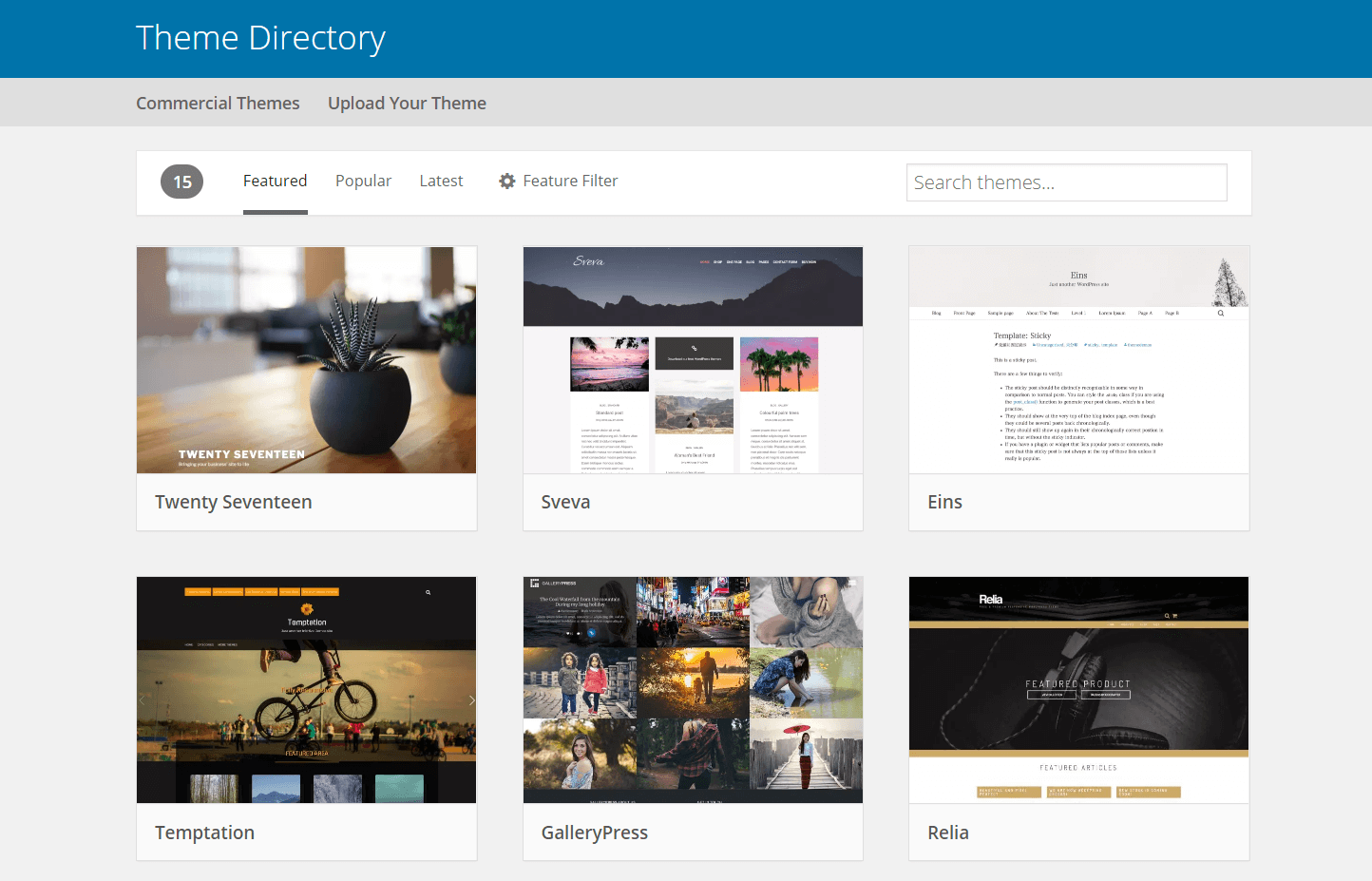
WordPress offers many themes. Explore them to find what you like. Some themes are free. Others cost money. Look at the features. Do they match what you need? Test a few to see what works best.
Make sure your theme works on all devices. Check if it looks good on a phone. Also, see if it works on a tablet. Compatibility with plugins is important too. Some themes may not support all plugins. Choose a theme that fits well with your tools.
Credit: wpengine.com
Accessing The Theme Section
Open the WordPress App on your phone or tablet. Find the app icon and tap it. Wait for the app to load.
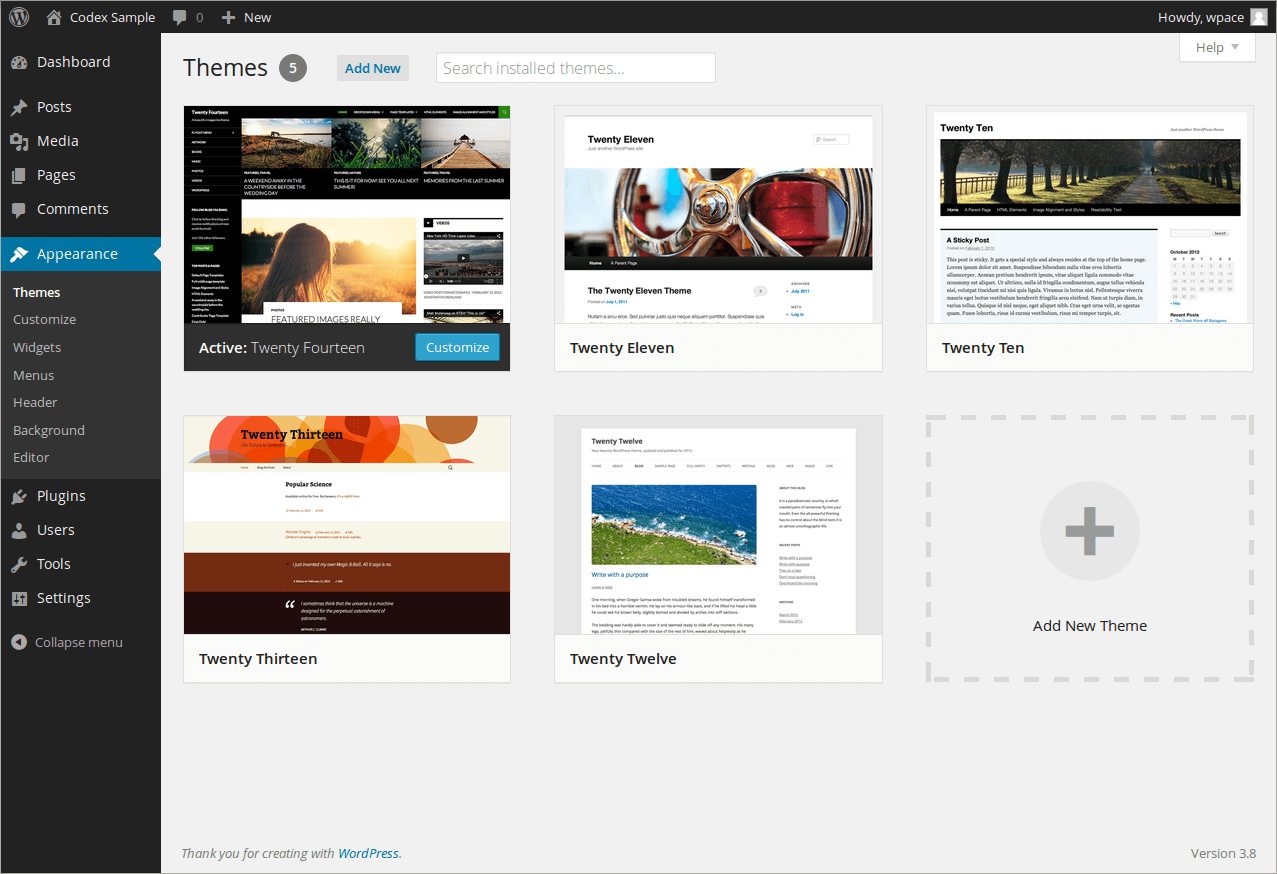
Next, navigate to the Appearance Menu. Look for three lines or a gear icon. Tap on it to open more options. Find the Appearance choice and tap it.
Finally, select Themes from the list. Browse through the options available. Tap on a theme you like. Preview it to see how it looks. Tap ‘Activate’ to use the new theme. Enjoy your new look!
Installing A New Theme
Open the WordPress app. Go to the Themes section. You can see many themes there. Use the search bar to find more themes. Type the theme name or keyword. Find a theme you like? Great! Go to the next step.
Always preview the theme before installing. Click the preview button. See how your site looks. Check if it matches your style. Make sure it’s user-friendly. No surprises later. Happy with the preview? Move on to activate.
Time to activate the theme. Click the activate button. Your site will change to the new look. Check your site again. Everything should work well. If not, you can choose another theme. Enjoy your new site design!
Customizing Your Theme
The Customizer Tool helps change the look of your theme. Click on “Customize” in your WordPress app. You’ll see many options. Make changes and see them live. It’s simple and fun to use!
Colors and fonts make your site unique. Choose colors that match your style. Pick fonts that are easy to read. The right mix can make your site pop!
Layouts and widgets help organize your site. Change the layout to fit your needs. Move widgets around to show what’s important. A well-arranged site is easy to navigate.
Troubleshooting Common Issues
Changing your theme on the WordPress app can be straightforward. Navigate to ‘Appearance,’ then select ‘Themes’ to explore options. Use the ‘Customize’ button to preview and activate your chosen theme.
Theme Not Displaying Correctly
Sometimes, a theme might not show up right. This can happen after updates. Clearing your browser’s cache can help. Try refreshing the page. If this doesn’t work, check for any plugin conflicts. Deactivate plugins one by one. See if the theme displays better. This helps find the problem.
Resolving Compatibility Issues
Themes may not work with certain plugins. This can cause display problems. Update your plugins and themes regularly. This helps them work well together. Check the theme’s requirements before you install it. Ensure your WordPress version matches. If not, update WordPress first.
Restoring To A Previous Theme
If you want to go back to an old theme, it’s easy. Visit your WordPress dashboard. Go to Appearance > Themes. Find the theme you want. Click on Activate. Your site will switch back to the old theme. Always backup your site first. This way, you won’t lose any data.
Credit: www.hostpapa.com
Enhancing Theme Functionality
Changing a theme on the WordPress app enhances functionality and design. Navigate to the app’s Appearance tab and select Themes. Choose a new theme, then activate it to refresh your site’s look instantly.
Add Plugins For Extra Features
Plugins add extra features to your theme. Many plugins are available. Some are free, others need payment. Choose wisely. Popular plugins can add forms, sliders, or social media links. Always check reviews before installing. Reviews tell you if a plugin is good. Plugins can make your site fun and useful. But don’t add too many. Too many plugins slow your site down.
Optimize For Performance
Fast sites are better. They help keep visitors. Slow sites make people leave. Make sure images are small. Small images load faster. Use caching plugins. These help your site load quickly. Remove unused plugins. They can slow down your site. Always update your theme. Updates fix problems and keep your site fast.
Ensure Mobile Friendliness
Many people use phones to browse. Your theme must work on phones. Look for themes labeled responsive. Responsive themes fit any screen size. Test your site on different phones. This helps you see if the theme works well. Google likes mobile-friendly sites. Mobile-friendly sites rank higher. Always check how your site looks on phones.

Credit: jetpack.com
Frequently Asked Questions
How Do I Change Themes On WordPress App?
To change themes on the WordPress app, go to “Appearance” and select “Themes. ” Browse available themes and click “Activate” to apply. Make sure to preview before activating to ensure it fits your site’s needs.
Can I Customize Themes On WordPress App?
Yes, you can customize themes through the “Customize” option under “Appearance. ” This allows you to modify elements like colors, fonts, and layout. Use the live preview to see changes instantly before saving.
Are All WordPress Themes Mobile-friendly?
Most WordPress themes are mobile-friendly, but it’s crucial to check responsiveness. Preview the theme on different devices before activating. Responsive themes ensure your site looks good on smartphones, tablets, and desktops.
Do I Need Coding Skills To Change Themes?
No coding skills are required to change themes on WordPress. The app provides a user-friendly interface for theme selection and customization. You can easily modify layouts and design elements without technical expertise.
Conclusion
Changing themes on the WordPress app is simple. Follow the steps to find your perfect look. Explore different options. Adjust settings to match your style. Preview themes before applying. Ensure your content shines with the new design. Remember, a theme reflects your site’s personality.
Keep it user-friendly. Check responsiveness on mobile devices. Enjoy the flexibility WordPress offers. Make your site visually appealing. Your unique touch matters. Regularly update and refresh your theme. Keep it modern. Enhance your audience’s experience. A fresh theme can boost engagement.
Personalize your space. Let creativity guide you. Your site, your vision.


