
Are you curious about the theme your WordPress website is using? Whether you’ve just purchased a site, are looking to make some changes, or simply want to replicate a stunning layout you’ve seen elsewhere, knowing how to check your WordPress website theme is essential.
Imagine being able to instantly identify the style and features that make your site stand out or, if you’re a business owner, ensuring your theme aligns perfectly with your brand’s identity. You will discover simple yet effective ways to uncover the theme details of any WordPress site.
By the end, you’ll not only satisfy your curiosity but also gain valuable insights that could enhance your online presence. Let’s dive in and unlock the secrets behind your WordPress theme!
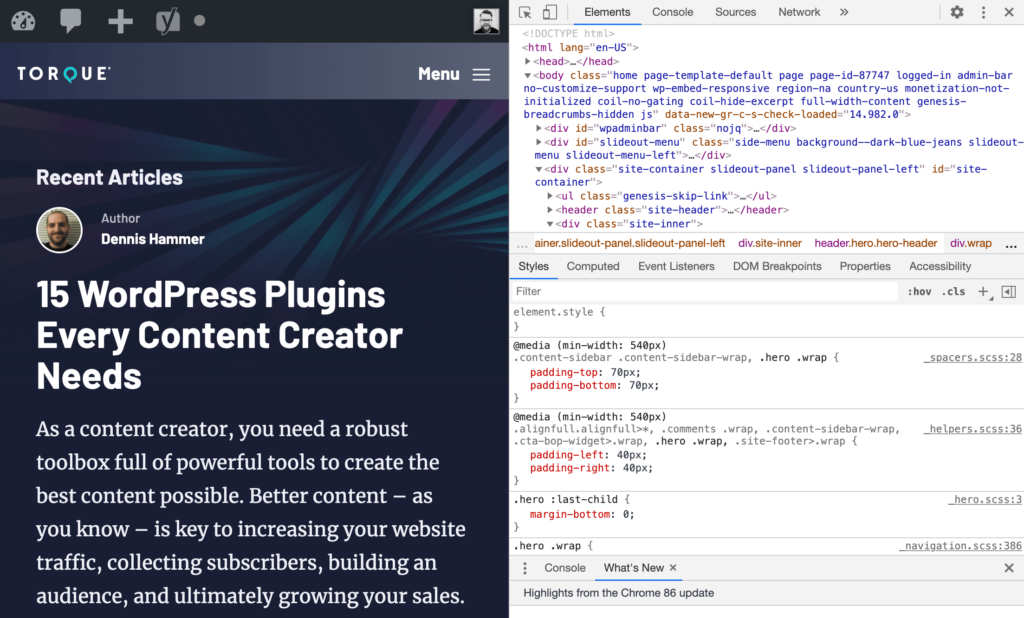
Credit: torquemag.io
Identifying Your WordPress Theme
First, log in to your WordPress dashboard. Look at the left sidebar and find the “Appearance” menu. Click on “Themes” under this menu. Here, you will see your active theme displayed. The active theme’s name and details are shown here. This tells you which theme your website uses. It’s simple and quick.
Accessing your theme files can give more details. Use an FTP client or your hosting file manager. Navigate to the “wp-content” folder. Then open the “themes” directory. Here, you find folders for each theme. The active theme folder matches the name seen in the dashboard. Inside, you can see various files and codes. This is where developers often make custom changes. Be careful if editing these files. Changes here affect your website’s look and function.

Credit: themeforest.net
Theme Check Plugins
First, open your WordPress dashboard. Click on Plugins in the sidebar. Then click Add New. Type “Theme Check” in the search box. You will see the plugin in the list. Click the Install Now button. Wait for the installation to finish. After installing, click Activate. The plugin is now ready to use.
Go to the Appearance section in the dashboard. Select Theme Check. Choose the theme you want to check. Click the Check button. The plugin will scan your theme. It will show results in a list. Look for errors or warnings. Fix them to improve theme quality. Theme Check helps keep your website safe.
Inspecting Theme Code
Find the Theme Editor in your WordPress dashboard. It is easy to locate. Go to the Appearance section. Then click on Theme Editor. You will see a list of files. Each file is part of your theme.
Be careful while editing. Wrong changes can break your site. Make sure to backup files first. You can use a plugin for backup.
Check the style.css file. It controls the site’s look. Review the functions.php file. It adds features to your site. Look at the header.php and footer.php. They manage the top and bottom parts of your site.
Analyze the template files. They shape pages and posts. Always review code for errors. Correct them to prevent issues. Use online forums for help if needed.
External Tools For Theme Analysis
Many websites offer free tools to find out a site’s theme. These tools can scan a WordPress site. They tell you which theme is used. Some popular choices are What WordPress Theme Is That and WPThemeDetector. They are easy to use. Just enter the site’s URL. In a few seconds, you get the theme details. These tools help beginners a lot. They are fast and useful. Try them for quick answers.
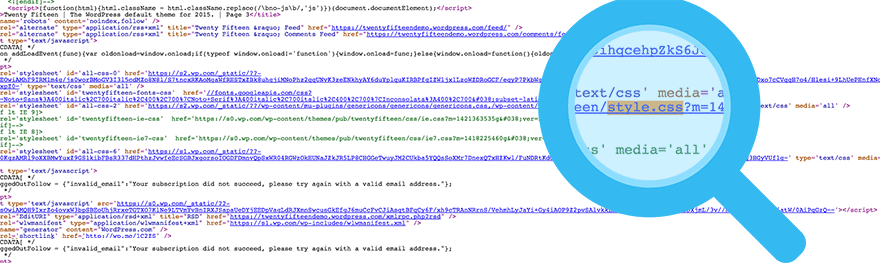
Browsers have built-in developer tools. These tools can show which theme a site uses. To find this, right-click on a webpage. Select “Inspect” to open the developer tools. Look for the style.css file. It often has the theme name. This method is more technical. But it’s helpful for curious minds. Most browsers support these tools. They are free and powerful.
Understanding Theme Security
Theme security is very important for your website. A theme with vulnerabilities can lead to big problems. Always check for security issues. You can use tools like Theme Check plugin. It scans themes for common issues. Look for untrusted code or outdated functions. These can be security risks.
Check if your theme is secure. See if there are known vulnerabilities. Visit websites like WPScan Vulnerability Database. It lists security issues. Search for your theme name. Look for recent reports. If there are problems, find a solution quickly.
Theme updates are important. They fix security problems. See if your theme is updated regularly. Visit the theme’s page on WordPress.org. Check the last update date. If it’s old, be careful. An updated theme is usually safer.
Credit: winningwp.com
Evaluating Theme Performance
Evaluating theme performance involves checking speed, responsiveness, and compatibility of a WordPress website theme. Tools like Google PageSpeed Insights help analyze load times. Responsiveness can be tested by viewing the site on various devices, ensuring it adapts seamlessly. Compatibility checks ensure plugins work without issues.
Speed Testing Tools
Fast loading sites keep users happy. Use speed testing tools to check your theme. Google PageSpeed Insights is a popular choice. It gives you a score for your site. GTmetrix is another tool. It shows page load time and other details. Pingdom is also useful. It helps you see where your site can be faster. All these tools are easy to use.
Optimizing For Performance
A slow theme can annoy users. Optimize your theme for better speed. Compress images to make them smaller. Use a caching plugin to save time. Minimize CSS and JavaScript files. This makes them load faster. Choose a lightweight theme to start with. Avoid using too many plugins. They can slow down your site. Always keep your theme updated.
Ensuring Theme Compatibility
Every website must work on different browsers. Different browsers show websites in unique ways. Test your theme on Chrome, Firefox, and Safari. Check for errors or broken parts. Look for inconsistencies in the layout. Each browser might show colors differently. Make sure all links work. Images must load correctly on all browsers.
Most users browse on phones. Your theme must be mobile-friendly. Check how it looks on different screen sizes. Use a phone to test it. The text should be easy to read. Images must fit the screen. Buttons should be big enough to click. Your website should load quickly on mobile. Optimize for small screens.
Verifying Licensing And Legality
Understanding the right theme licenses is crucial. Always check if your theme has a valid license. A proper license means you can use the theme legally. This protects you from potential copyright issues. Themes often come with different types of licenses. Some are free, others need payment. Look for a GPL license. It gives you freedom to use, modify, and share.
Avoiding copyright problems is important. Using a theme without a proper license can lead to trouble. You might face legal action or fines. It is smart to check the theme’s source. Make sure it is from a trusted place. Read the theme’s documentation. It often tells about its license. This helps you understand what you can and cannot do.
Frequently Asked Questions
How Can I Identify My WordPress Theme?
To identify your WordPress theme, check the source code. Right-click on your webpage, select “View Page Source. ” Search for “wp-content/themes” to find the theme folder name.
Is There A Tool To Check WordPress Theme?
Yes, tools like WP Theme Detector and What WordPress Theme Is That can identify your theme. Simply enter your website URL for instant results.
Can I Change My WordPress Theme Easily?
Yes, changing your WordPress theme is simple. Navigate to “Appearance” in your dashboard, select “Themes,” and choose a new theme.
Why Should I Know My WordPress Theme?
Knowing your WordPress theme helps in customization and troubleshooting. It ensures compatibility with plugins and updates, enhancing website functionality.
Conclusion
Checking your WordPress theme is crucial for performance. Ensures compatibility with plugins. Keeps your site secure and up-to-date. Start by accessing the theme settings. Explore its features, options, and updates. Use online tools to analyze theme quality. Check responsiveness on different devices.
Important for user experience and SEO. Regularly update the theme for security patches. Consider user reviews and developer support. Always back up your site before making changes. This way, you maintain a healthy website. Keeps your online presence strong and effective.


