
Are you tired of the same old look of your WordPress site? Craving a splash of new color to make your website stand out?
Changing the color of your WordPress theme can breathe new life into your online presence, making it more engaging and visually appealing to your audience. Whether you’re looking to align with your brand’s identity or simply want a fresh start, updating your theme’s color is easier than you might think.
In this guide, you’ll discover simple, step-by-step instructions to transform your website’s look effortlessly. Keep reading, and you’ll unlock the secrets to making your site more vibrant and captivating. After all, first impressions count, and the right color can make all the difference.
Credit: wpastra.com
Choosing The Right Theme
Choosing a theme that works with your website is important. Compatibility means the theme will work well without problems. Some themes may not work with your plugins. This can cause trouble. Always check if the theme is compatible before you choose it. A theme that fits well makes your website run smoothly. This keeps visitors happy and engaged. Choosing the right theme is like finding the right shoes. It must fit well to be comfortable.
Customization lets you change colors, fonts, and layouts. A customizable theme offers more options. You can make your website look unique. Some themes have easy settings to change colors. Others need coding skills. Pick a theme that matches your skill level. If you are a beginner, choose a theme with simple options. This makes it easier to change your website’s look. A customizable theme gives you the power to create a site you love.
Exploring Theme Options
First, access your WordPress dashboard. This is where you manage your website. You can find it by logging into your WordPress account. Look for the sidebar on the left. It has many options.
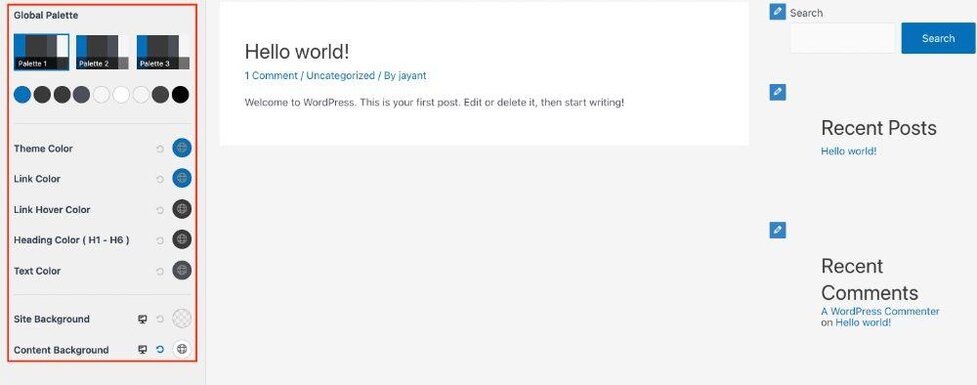
Now, navigate to the Appearance settings. Click on “Appearance” in the sidebar. This opens a new menu. You will see options like Themes, Customize, and Editor. These help you change your site’s look. To change colors, click “Customize.” This option lets you edit the theme.
Using The Theme Customizer
First, access the WordPress dashboard. Next, look for the Appearance menu on the left. Click it. You will see the Customizer option. Select it. Now, the Customizer tool is open.
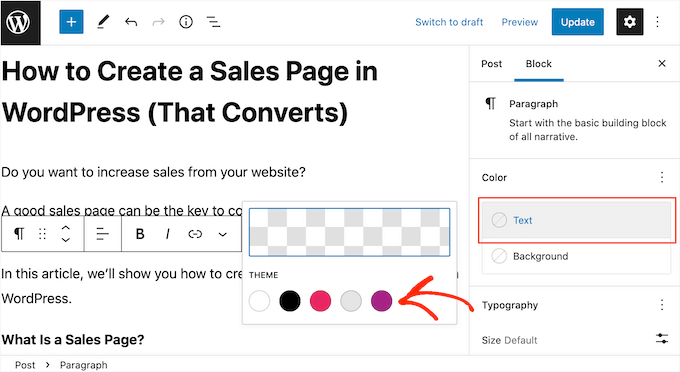
Find the Colors section in the Customizer. This section allows you to change colors. Click on it. A menu with color options appears. Here, you can adjust the background color. You can also modify the text color. Make sure to save changes. This will update your theme’s colors.
Changing Color With Css
Custom CSS helps change your WordPress theme’s color. It lets you make your site unique. CSS stands for Cascading Style Sheets. It controls how your website looks. You can change colors, fonts, and more.
To start, find the WordPress Customizer. It’s in your dashboard. Click on Appearance, then Customize. Here, you can add custom CSS. This section is safe to use. It won’t harm your site.
To change a color, you need the right CSS code. For example, to make the background red, use this code:
        body {
            background-color: red;
        }
Copy this code into the CSS box. Save your changes. Your site should now have a red background. Always preview your changes first. This ensures everything looks good.
Utilizing WordPress Plugins
Color change plugins are tools that help change theme colors. They are easy to use and don’t require coding skills. Some popular options include Customify, Colorlib, and SiteOrigin CSS. These plugins offer a variety of features to modify colors. Customify allows easy customization with a live preview. Colorlib offers a simple interface for quick changes. SiteOrigin CSS provides advanced options for more detailed edits. Each plugin has unique features. Try them to see which fits your needs.
First, go to the WordPress dashboard. Find the “Plugins” section. Click “Add New” to search for plugins. Type the plugin name in the search bar. Click “Install” to add the plugin. Wait for the installation to finish. Then, click “Activate” to start using it. Now, you can use the plugin to change theme colors. Explore plugin settings for more options. Don’t forget to save changes after editing colors.
Checking For Browser Compatibility
Color changes can look different in browsers. Test your theme’s color in Chrome, Firefox, and Safari. Each browser may show colors differently. Always check if the theme looks good in all browsers. This ensures everyone sees your website as intended.
Many users browse websites on phones. Your theme’s color must look nice on mobile devices. Test your theme on different phones. Check if colors appear correctly on small screens. Mobile responsiveness is important for a good user experience.
Saving And Publishing Changes
Changing colors is fun. You can see changes before saving. Use the preview feature in WordPress. Click the customize option in your dashboard. Make color changes there. Look at the preview window. It shows how your site will look. Happy with your choice? Save your changes. This way, mistakes are easy to avoid. Play with colors and see them live first. It’s like testing before buying.
Ready to show your new colors? Click the publish button in the WordPress customize area. This makes changes live. Your visitors will see the new look. Make sure you like the colors first. Publishing is quick and simple. Your site will feel fresh and new. Enjoy your updated theme colors.

Credit: qodeinteractive.com
Troubleshooting Common Issues
Changing the color of your WordPress theme can be tricky. Check theme settings or use custom CSS to update colors. Ensure compatibility with your theme for smooth adjustments.
Dealing With Theme Limitations
Themes sometimes have limited color options. This can be frustrating. Check your theme settings. Look for a custom color option. If you cannot find it, consider using a child theme. A child theme lets you make changes. It does not affect the main theme. This way, you can add your own colors. Another option is using custom CSS. This can change many parts of your theme. Make sure to use these tools carefully. Backup your site before making changes. This keeps your site safe.
Fixing Css Conflicts
CSS conflicts can make colors look wrong. Sometimes, another plugin changes your colors. Check your browser’s developer tools. This can help find the problem. Look for conflicting CSS rules. Try disabling plugins one by one. This finds the plugin causing the problem. Update all your plugins regularly. This helps avoid conflicts. If problems continue, ask for help. Many forums and guides can help fix CSS issues.
Credit: www.wpbeginner.com
Frequently Asked Questions
How Can I Change My WordPress Theme Color?
To change your WordPress theme color, navigate to Appearance > Customize in your WordPress dashboard. Look for the ‘Colors’ or ‘Theme Options’ section. From there, you can choose new colors for various elements. Save your changes to update the theme color.
Do I Need Coding To Change Theme Color?
No, you don’t need coding skills to change your theme color. Most WordPress themes offer built-in customization options. You can easily change colors using the WordPress Customizer. However, advanced customization may require CSS edits, but basic changes are user-friendly.
Can I Use A Plugin To Change Theme Color?
Yes, you can use a plugin to change your theme color. Plugins like “Advanced WordPress Backgrounds” offer additional customization options. They allow you to modify colors, backgrounds, and other design elements without coding. Explore plugin options to enhance your site’s appearance.
Will Changing Color Affect Website Performance?
Changing theme colors won’t significantly affect website performance. However, excessive customization can lead to larger files, impacting load times. Ensure your theme and plugins are optimized. Regularly check your site’s speed to maintain performance after making changes.
Conclusion
Changing your WordPress theme color is simple and rewarding. It enhances your site’s look. Follow steps in the guide for smooth transitions. Experiment with colors that match your brand. Ensure readability for visitors. Consistent colors boost your site’s appeal. Use tools available in WordPress settings.
Customization brings uniqueness to your website. Stay creative while maintaining user-friendly design. Keep your audience engaged with appealing visuals. Remember, a cohesive color scheme supports your site’s message. Enjoy exploring different shades and styles. Transform your WordPress site into a captivating experience.
Happy color changing!


