
Are you looking to make your WordPress site stand out with an eye-catching gallery theme? Creating a WordPress gallery theme might sound complex, but with the right guidance, you can transform your website into a visual masterpiece.
Imagine having a unique and personalized gallery that not only showcases your content beautifully but also captivates your audience and keeps them coming back for more. We’ll walk you through the simple steps to design a gallery theme tailored to your style and needs.
Whether you’re a photographer, artist, or just someone who loves to display images, you’ll find these tips invaluable. By the end of this guide, you’ll have the tools and confidence to create a stunning WordPress gallery theme that resonates with your audience and reflects your unique vision. Ready to dive in? Let’s get started!
Choosing A Base Theme
Picking the right theme is key. A good theme makes your gallery look nice. It must be easy to use. Many themes are available. Choose one that fits your style. A clean design is best for galleries.
A theme framework helps you build your gallery. It is like the bones of your theme. Frameworks make design easy. They have tools to help you. Look for frameworks with good support. This can help if you have questions.

Credit: www.youtube.com
Setting Up A Development Environment
Creating a WordPress gallery theme involves setting up a development environment. Install WordPress locally using tools like XAMPP or Local by Flywheel. Use a code editor to modify theme files for personalized gallery designs.
Installing WordPress Locally
First, download WordPress from the official site. Extract the files to your computer. You need a server to run WordPress. Use XAMPP or MAMP for this. Install the software and start the server. Create a database for WordPress. Use phpMyAdmin to do this. Open your browser and type localhost/wordpress. Follow the setup steps. Enter the database name, username, and password. WordPress will install.
Essential Tools And Plugins
Some tools make work easy. Use Visual Studio Code for coding. This editor is free and powerful. Install Elementor for designing pages. This plugin is user-friendly. Yoast SEO helps with search ranking. Install this for better visibility. WooCommerce is great for stores. Add this if selling products. These tools help build a great site.
Designing The Gallery Layout
Crafting a WordPress gallery theme involves selecting an appealing layout. Focus on user-friendly navigation and responsive design. Ensure images are optimized for fast loading.
Grid Vs. Masonry Layouts
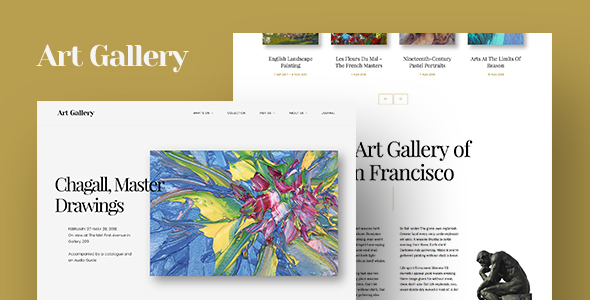
A grid layout shows pictures in neat rows and columns. Each picture is the same size. This makes it look tidy and organized. Masonry layouts are different. Pictures can be different sizes. They fit together like a puzzle. This makes the gallery look fun and unique.
Choosing between the two depends on your style. Grid layouts are good for formal galleries. Masonry layouts work well for creative designs. Think about how you want your gallery to feel. A grid might be best for simple themes. A masonry layout is great for more creative themes.
Creating Responsive Designs
Responsive designs make your gallery look good on all devices. This means the gallery changes size on phones, tablets, and computers. Use flexible grids and images. They help your gallery fit any screen. Check your design on different devices. Make sure everything looks right.
Media queries help adjust your gallery. They change the design for different screen sizes. This makes sure your gallery is always user-friendly. A good gallery works on all devices. It should be easy to see and use for everyone.
Credit: themeforest.net
Customizing Theme Files
Start by editing the HTML files. Look for the gallery section. Change the tags to fit your needs. Use CSS to make it look nice. Add colors and fonts to your style sheet. Check your work on the browser. See how it changes the look. Work with the layout until it looks right. Keep your code clean and organized. This helps in making changes later.
Open the PHP files. These files make the site dynamic. Find the part that handles the gallery content. Edit it to show the pictures you want. Use WordPress functions for easy changes. This makes the gallery update itself. Check your changes often. Ensure everything works smoothly. PHP can be tricky, so be careful with syntax. Always save your work.
Implementing Image Management
The WordPress Media Library stores all your pictures. It keeps them organized and easy to find. You can upload pictures from your computer. You can also choose pictures from the library. It’s easy to use and saves time. You can add titles and captions to your pictures. This helps people understand your pictures better. You can even edit your pictures. Change their size or rotate them. Make them look just right. It’s all in one place. Very handy for creating galleries.
Fast loading pictures make websites better. Use smaller picture sizes. They load faster on web pages. Compress pictures without losing quality. This reduces their size. Choose the right format. JPEGs are usually smaller. Use tools like plugins. They help with compression. Keep your galleries fast. Visitors will be happy. They won’t wait long for pictures to load. This boosts your site’s performance. It’s important for a good user experience.
Enhancing User Experience
Smooth transitions can make a gallery more enjoyable. They add a layer of elegance. Slides change with a gentle movement. This keeps the viewer’s attention. Smooth transitions help in keeping the flow natural. Use simple effects like fade or slide. These are easy to set up. They make the gallery look professional. Users appreciate this touch. It shows care in design. Transitions should be quick. Long transitions can be boring. Keep them under two seconds.
Interactive elements engage users better. Clickable images are a good start. They allow users to see more details. Zoom effects add fun. Users can see close-ups. Add captions for context. This makes images more informative. Use lightboxes for a full view. They pop up when clicked. Interactive elements should be simple. Complicated features confuse users. Keep them easy to understand. Users enjoy galleries more when they can interact. It makes them feel part of the experience.
Testing And Debugging
Cross-Browser Compatibility is very important for your gallery theme. Different browsers show pages differently. Test your theme on many browsers. Use Chrome, Firefox, and Safari. Also, test on Internet Explorer if needed. Look for design issues. Fix any layout problems. Your theme must look good everywhere. This makes users happy.
Mobile Responsiveness Checks are also essential. Many people use phones to view websites. Your gallery must look great on small screens. Test your theme on different phones. Try both Android and iPhone. Check for images that don’t fit. Fix text that is too small. Make sure buttons are easy to press. A good mobile view is key for user satisfaction.
Credit: www.wpzoom.com
Deploying The Theme
Deploying the theme involves uploading your custom-designed gallery theme to your WordPress site. Ensure all files are in place for a seamless display. Activate the theme through the WordPress dashboard to see your photo gallery come alive.
Uploading To A Live Server
Uploading your WordPress gallery theme is simple. First, access your hosting provider. Navigate to the file manager. Select your theme files. Click the upload button. Watch the progress bar. Ensure all files are uploaded. Double-check for missing files. Open your WordPress dashboard. Go to “Appearance” and “Themes”. Click “Add New”. Select “Upload Theme”. Choose your theme zip file. Click “Install Now”. Wait for the installation to finish. Click “Activate”. Your theme is now live.
Ensuring Seo Optimization
SEO is crucial for visibility. Use descriptive image names. Optimize image alt tags. Add meta descriptions to pages. Use keywords wisely. Keywords should fit naturally. Avoid keyword stuffing. Ensure fast loading speeds. Compress images where possible. Create engaging content. Content should be relevant. Link to other pages wisely. Internal linking helps navigation. Use clean URLs for pages. Avoid lengthy URLs. Keep URLs short and direct. Regularly update content. Fresh content attracts visitors.
Maintaining And Updating
Crafting a WordPress gallery theme involves regular maintenance and updates. Ensure compatibility with new versions and features. Keep your theme secure and efficient by addressing bugs and optimizing code.
Regular Updates And Support
WordPress themes need regular updates. Updates fix bugs and add new features. Ensure your gallery theme stays fresh. Check for updates weekly. Support is also crucial. Users may face issues. Provide clear answers to their questions. This helps build trust. A supported theme gets positive feedback.
Handling User Feedback
User feedback is a gift. Listen to what users say. Feedback helps improve the theme. Create a form for users to leave comments. Respond to their feedback quickly. Make changes if needed. Happy users recommend your theme. This spreads the word to others. Good feedback makes the theme better.
Frequently Asked Questions
How Can I Create A Gallery In WordPress?
To create a gallery in WordPress, use the built-in gallery block or plugins like Envira Gallery. Start by uploading images, select your layout, and customize settings. Use shortcodes or widgets to display the gallery on your site. Optimize images for faster loading and better SEO.
What Are The Best Gallery Plugins For WordPress?
Popular WordPress gallery plugins include Envira Gallery, NextGEN Gallery, and FooGallery. These plugins offer customizable layouts, lightbox effects, and responsive designs. Choose a plugin based on your design needs and ease of use. Always check for compatibility with your theme and update regularly.
How Do I Customize A Gallery Theme?
Customize a gallery theme by editing the theme’s CSS or using theme options. You can change colors, fonts, and layouts to match your brand. Use page builders for more advanced customization. Test changes on different devices to ensure responsiveness and user experience.
Can I Add Videos To My WordPress Gallery?
Yes, you can add videos to your WordPress gallery using plugins like Video Gallery or integrating YouTube and Vimeo links. Ensure videos are optimized for web and mobile viewing. Use responsive designs to maintain video quality. Consider loading speed and user experience when adding multiple videos.
Conclusion
Creating a WordPress gallery theme is simpler than you think. Start with a clear idea. Choose the right plugins. Customize your design. Keep images crisp and load times fast. Test on mobile devices. Check for any broken links. Your gallery should feel intuitive and seamless.
Remember, your theme showcases your creativity. A well-designed gallery enhances user experience. It also attracts more visitors. Focus on simplicity and functionality. This makes your site enjoyable. With these steps, your gallery will shine. Engage your audience with captivating visuals.
Happy designing!


