
Are you tired of your WordPress website looking like everyone else’s? Changing the background image can instantly refresh your site’s appearance, making it more engaging and uniquely yours.
Imagine how a new background could capture your brand’s essence or set the mood for your content. Whether you want to convey professionalism with a sleek design or create a warm, inviting atmosphere, the right background can make all the difference.
In this guide, you’ll discover how easy it is to change the background image on your WordPress theme. Get ready to transform your site with just a few clicks, and watch as your visitors become captivated by your fresh new look. Stay with us, and let’s unlock the full potential of your website together.
Choosing The Right Image
High-quality images make your site look great. Resolution is how clear your image is. A high-resolution image is very clear and sharp. Low-resolution images look blurry. Always pick images with good quality. They make your website look professional. Large images can slow down your site. So, balance quality and size.
Free images are available online. Sites like Unsplash or Pexels offer free choices. Paid images give you more options. They often have higher quality. Free images can be used by many people. Your site might look like others. Paid images give a unique touch. Choose what’s best for your needs.

Credit: colibriwp.com
Accessing WordPress Dashboard
First, open your web browser. Then type your WordPress website URL. Add “/wp-admin” at the end. Press “Enter.” You will see the login screen. Enter your username and password. Click “Log In” button. You are now in the dashboard.
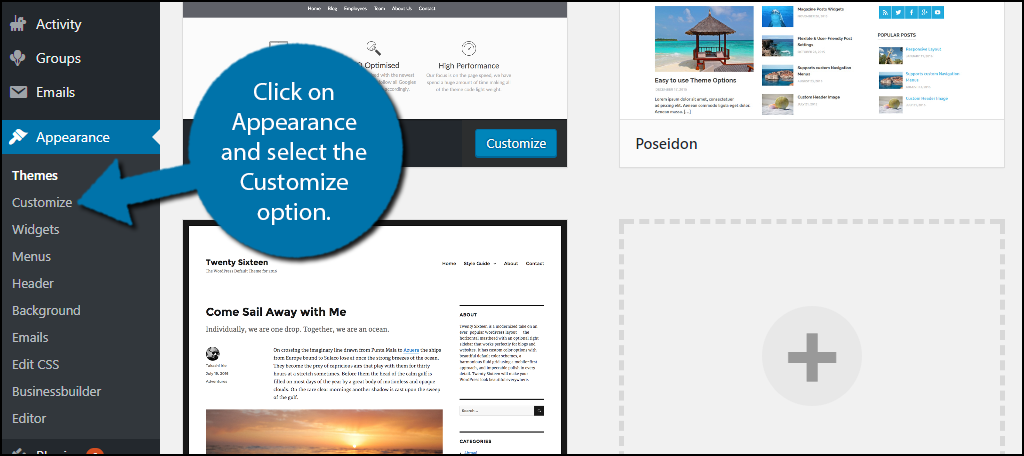
Find the menu on the left side. Look for “Appearance.” Click on it. A dropdown menu will appear. Choose “Customize” from the list. This is where you change the background image. Look for the “Background” option. Click it to upload a new image. Make sure to save changes.
Locating The Background Image Settings
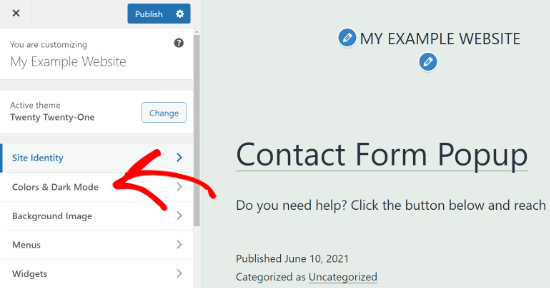
First, log into your WordPress dashboard. Look for the Appearance menu on the left. Click on it, then select Customize. This opens the Theme Customizer. In the Customizer, find the Background Image option. It might be under Colors or Header. Click on it to see image settings. Here, you can change the background image. Upload a new picture or select from the library. Save changes to see your new background.
Some themes have their own Theme Options panel. Check under the Appearance menu for this. Click on Theme Options to open it. Here, look for Background Settings. Some themes label it as Design or Style. You can change the image here too. Choose a new picture or use one from your media library. Always save the settings after changes. This ensures the background updates correctly.
Credit: www.greengeeks.com
Uploading A New Background Image
To change the background, first find an image. Choose one that fits your theme. You need a clear and nice picture. Click on “Appearance” in your dashboard. Then go to “Customize.” Look for “Background Image.” Click “Change Image.” Now, click “Upload Files.” Find the picture on your computer. Select it and click “Open.”
Access the media library for saved images. Click on “Appearance” then “Customize.” Find “Background Image” and click “Change Image.” Choose “Media Library” and browse saved images. Select your favorite image. Click “Choose Image” to set it as your background. Make sure the image fits your theme style. Adjust and save changes for the best look.
Adjusting Image Display Settings
Align the image to look perfect on your page. You can choose from top, center, or bottom. Make sure the image fits your text and layout. This gives a neat and balanced look.
Decide if the image should repeat. You can set it to repeat in all directions. Or, choose to repeat it horizontally or vertically only. This works well if the image is small.
Choose how the image fills the screen. You can make it cover the whole area. Or, let it contain within the section. This helps in making the image look just right.
Saving And Previewing Changes
Click the save button to keep changes. This saves your new background. Make sure you like the changes before saving. Check everything looks right. You can always change it later. Saving is easy and quick. Your changes will show up soon.
Press the preview button to see the new look. This shows how your site looks with the new background. You can check if the background fits well. Look at all parts of your site. Make sure it looks nice everywhere. Preview helps you decide if changes are good. If not, you can make more changes. Previewing is a smart step.
Troubleshooting Common Issues
Changing the background image in a WordPress theme often poses challenges. Navigate to the Appearance tab in your dashboard, select Customize, then Background Image. Upload your chosen image, ensuring it’s the right size. If issues persist, check theme settings or contact support.
Image Not Displaying
If the image is not showing, check the file format. Use formats like JPEG or PNG. Ensure the file is uploaded to the media library. Double-check the image URL in the theme settings. Sometimes, permissions cause issues. Adjust the settings to allow public access. Clear the browser cache to see changes. Refresh the page to load the new image.
Background Clashes With Content
A busy background can make text hard to read. Choose a simple image without too many colors. Ensure the text is in a contrasting color. This helps it stand out. Adjust the opacity of the background if needed. Use tools in the theme settings for this. Test the page on different devices. Make sure it looks good everywhere.
Enhancing Backgrounds With Plugins
Changing the background image on a WordPress theme is simple with plugins. These tools offer various design options, making customization easy. Enhance your site’s look effortlessly, attracting more visitors and boosting engagement.
Top Plugins For Background Customization
Plugins make changing your background easy. They offer many options. Simple Full Screen Background lets you add images quickly. Advanced WordPress Backgrounds provides video backgrounds. Background Manager offers slideshow features. These plugins help make your site look better.
Installing And Activating Plugins
First, go to the WordPress dashboard. Click on “Plugins” and then “Add New.” Use the search bar to find your plugin. Click “Install Now” next to the plugin name. After installation, click “Activate.” This process is quick and easy. Now, your plugin is ready to use.
Credit: www.wpbeginner.com
Frequently Asked Questions
How Do I Change The Background Image In WordPress?
To change the background image, go to your WordPress dashboard. Navigate to Appearance > Customize. Under the Customize menu, select Background Image. Upload your desired image and save changes. Ensure the image fits well with your theme’s design for best results.
Can I Use Custom Images For WordPress Backgrounds?
Yes, you can use custom images. Upload your desired image through the Customize option under Appearance in the dashboard. Ensure the image is high-quality and properly sized. This ensures it enhances your site’s visual appeal without slowing down the load time.
What Size Should My WordPress Background Image Be?
For optimal results, ensure your background image is at least 1920×1080 pixels. This size maintains quality on most screens. However, check your theme’s documentation for specific recommendations. Properly sized images enhance visual appeal and improve website performance.
Why Isn’t My WordPress Background Image Displaying?
If your background image isn’t displaying, check the image format and file size. Ensure it’s compatible and not too large. Also, verify your theme supports custom backgrounds. Clear your browser cache and refresh the page. This often resolves display issues.
Conclusion
Changing your WordPress theme’s background image is simple. Follow the steps mentioned, and customize your site effortlessly. A fresh background can enhance your blog’s look. It creates a welcoming vibe for visitors. Experiment with different images to find the perfect fit.
Remember to keep your images relevant and engaging. Your site’s appearance matters. It reflects your content and personality. Regular updates keep your site fresh. So, take some time to explore and update your theme. Your visitors will appreciate the effort.
Happy blogging!


