
Are you looking to give your self-hosted WordPress site a fresh new look? Changing your theme can instantly transform your website’s appearance, enhance its functionality, and improve user experience.
Whether you want a sleek and modern design or something more traditional, picking the right theme is crucial. But don’t worry—switching themes is easier than you might think. You’ll discover step-by-step instructions on how to change your theme effortlessly, ensuring a seamless transition without losing your content or breaking your site.
Imagine the possibilities of revitalizing your website with just a few clicks! Stick around, and you’ll be ready to give your site the makeover it deserves.
Benefits Of Changing Your Theme
Changing your theme can refresh your site’s look. A new theme can make your site look modern. This helps to keep visitors interested. It can also improve your site’s functionality. Some themes load faster and work better on phones. This can make users happy. Happy users might visit again. A good theme can help with SEO too. Some themes have better coding. This helps search engines find your site. Better search results mean more visitors. More visitors can mean more success for your site.
Choosing The Right Theme
Picking a theme is crucial. It shapes your site’s look. Think about your site’s purpose. Is it a blog or a shop? Look at the color and style. Does it match your brand? Check the theme’s speed. A fast theme helps users stay. Mobile-friendly themes are important. Users browse on phones too.
Free themes are budget-friendly. Good for starting out. Many offer basic features. Premium themes have more options. They are often customizable. Support is better with premium themes. Free themes might lack updates. Premium themes usually have updates. Choose based on your needs. Budget and features matter.
Preparing For Theme Change
Always make a backup of your website before changes. Use a plugin like UpdraftPlus for this task. It keeps your files and database safe. Store your backup in a secure location. You can use cloud storage or an external drive. This step ensures you don’t lose data.
Check if your new theme works with your plugins. Deactivate one plugin at a time. Then see if there are any issues. Some themes may not support all plugins. Also, test the theme on different browsers. Ensure it displays well on each one. This keeps your site looking good for all users.
Credit: 10web.io
Accessing The WordPress Dashboard
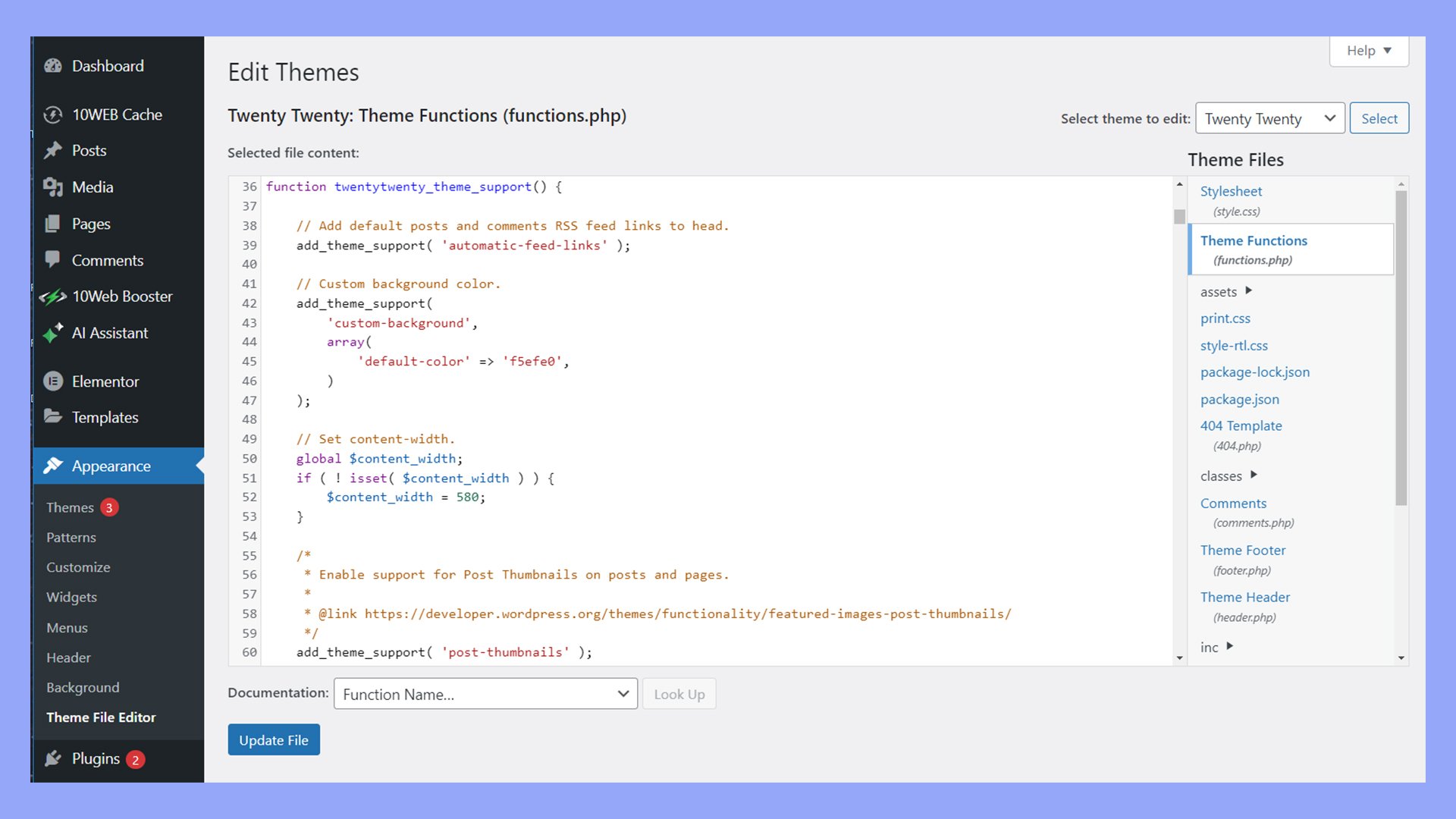
First, open your web browser. Enter your website’s URL. Add “/wp-admin” at the end. This will take you to the login page. Enter your username and password. Click the “Log In” button. Now you are in the WordPress Dashboard. This is where you control your website. You can change settings here. You can also manage your site content.
On the left side, see the menu. Look for “Appearance”. Click on it. This opens more options. You can now see “Themes”. Clicking it will show you the themes you have installed. Here, you can change your site’s look easily.
Installing A New Theme
The WordPress Theme Directory is a great place to find new themes. First, go to your WordPress dashboard. Next, click on Appearance. Then, choose Themes. You will see many options. Use the search bar to find a theme you like. Click on Preview to see how it looks. If you like it, click Install. After that, activate the theme. Now, your website has a new look!
Sometimes, themes come from outside the directory. Download the theme as a .zip file. Go to the WordPress dashboard. Click Appearance and then Themes. Select Add New and choose Upload Theme. Browse for your .zip file. Click Install Now. After installation, activate your theme. Your site will use the new theme. This way, themes can be unique and special.
Credit: themeisle.com
Activating Your New Theme
Open your WordPress dashboard. Look for the “Appearance” tab on the left. Click on it to find “Themes”. You will see a list of available themes. Choose your new theme by clicking on the “Activate” button. This will change your site’s look immediately. Make sure to preview your theme before activating. This helps to ensure everything looks right. Check if the menus and widgets are in place. If not, adjust them accordingly. Themes can change your site layout. So, it’s important to review the changes. Remember, a new theme can affect your site’s speed. Always test your site after activating a new theme.
Customizing Your Theme
The WordPress Customizer is a great tool. It helps change themes easily. First, go to the dashboard. Click on Appearance. Then select Customize. This opens the customizer screen. Here, you can see changes live. Adjust colors, fonts, and layouts. Save changes by clicking the Publish button.
Custom CSS lets you style your site. Open the WordPress Customizer. Find the Additional CSS section. Click to open it. Enter your CSS code here. Changes show instantly. Make sure to save your work. Use CSS to make your site unique.
Testing Your New Theme
Checking Site Functionality is very important. Make sure all links work. Click on every button. Check if images load properly. Ensure all forms are sending data. Test comment sections too. Look at your site’s speed. A fast site is good for users. Use tools to check speed.
Ensuring Mobile Responsiveness is crucial. Many people use phones to browse. Open your site on a phone. See if it looks good. Check if text is readable. Make sure buttons are easy to click. Check images on mobile too. They should not look weird. Use tools to test mobile view. Your site should work well on all devices.
Troubleshooting Common Issues
Changing your theme on self-hosted WordPress can sometimes lead to common issues. Troubleshoot by checking compatibility, clearing cache, and ensuring plugins are updated. Adjust settings carefully to maintain your website’s functionality and appearance.
Resolving Plugin Conflicts
Plugins sometimes cause problems. Deactivate all plugins first. Then, reactivate them one by one. This helps find the problem plugin. Update or replace the conflicting plugin. Always check for new plugin updates. Keep your plugins compatible with your theme. This can prevent future conflicts.
Fixing Display Errors
Display errors can be annoying. Clear your browser cache. This might fix the issue. Check your theme settings. Sometimes, a small setting change helps. If the error continues, switch to a default theme. Compare how each theme displays. This shows if the theme is causing the problem. Contact the theme support team. They can help fix display errors.
Credit: www.wpzoom.com
Frequently Asked Questions
How Do I Change My WordPress Theme?
To change your WordPress theme, go to your admin dashboard. Navigate to Appearance, then select Themes. Browse the available options, or upload a new theme. Once you find the desired theme, click ‘Activate’. Always preview the theme before activation to ensure it fits your website’s needs and aesthetics.
Can I Customize A WordPress Theme?
Yes, you can customize a WordPress theme. After activating a theme, go to the Customizer under Appearance. Here, you can modify colors, fonts, and layouts. Some themes offer more customization options than others. It’s essential to check theme documentation for specific customization capabilities.
Is Changing Themes Safe For My Site?
Changing themes is generally safe if done correctly. Always back up your site before making changes. Ensure your new theme is compatible with existing plugins and content. Test the theme on a staging site first to prevent any unforeseen issues.
This helps maintain your site’s functionality and appearance.
Will Changing Themes Affect My Seo?
Changing themes can impact SEO if not handled carefully. Ensure the new theme has clean code and fast loading speeds. Maintain consistent URL structures and meta tags. Check for proper heading usage and mobile responsiveness. Regular SEO audits can help preserve rankings during theme transitions.
Conclusion
Changing themes on WordPress can be easy. Follow the steps mentioned, and your site will look new. Always choose a theme that matches your style and needs. Check compatibility with your plugins. Make sure it loads fast and looks good on all devices.
Customize it to reflect your brand. Keep backups to prevent any loss. Regular updates keep your site secure. Experiment with different themes until you find the right fit. Your unique theme makes your site stand out. Enjoy the new look and feel of your website!


