
Are you looking to customize your WordPress site without the fear of losing your changes with every update? Creating a child theme might be the perfect solution for you.
Imagine having the freedom to tweak your website’s design and functionality while keeping the original theme intact. This not only safeguards your customizations but also ensures your site stays up-to-date. In this guide, you’ll discover how simple and rewarding it can be to create a child theme.
Whether you’re a seasoned WordPress user or a beginner, understanding this process can give you more control over your website. Ready to unlock your site’s full potential? Let’s dive in and explore how you can start creating a child theme on WordPress today.
What Is A Child Theme?
A Child Theme is a special theme in WordPress. It gets styles and features from another theme, known as the Parent Theme. It is like a copy of the Parent Theme but with changes. You can change the look and feel without touching the Parent Theme. This keeps your changes safe during updates.
Using a Child Theme is smart. It allows you to customize your website. You can add new designs or functions. All without breaking the original theme. It’s perfect for beginners and experts alike.
To make a Child Theme, you need a new folder. Inside it, add a style.css file. This file tells WordPress that it’s a Child Theme. Then, you can add more files if needed. Always test your changes to ensure everything works well.

Credit: wedevs.com
Benefits Of Using A Child Theme
A child theme keeps your site safe when updating. It protects your work. You can change designs without losing updates. This gives you freedom. You can try new looks easily. No fear of breaking the main theme.
Child themes help with customization. They are great for making changes. You can add new features. Your site stays unique. Easy to make updates. It is good for beginners and experts alike.
Using a child theme is smart. It saves time. Keeps your site neat and organized. You get the best of both worlds. Use the main theme and add your own style. It is a simple way to make your site special.
Prerequisites For Creating A Child Theme
Begin by understanding the basic structure of a WordPress theme. The parent theme must be installed first. Check that the parent theme is active. Ensure you have FTP access to your site’s files. A code editor like Sublime or Notepad++ is helpful. Familiarize yourself with CSS and PHP basics. You need to create a style.css and functions.php file. These files are essential for the child theme. Make sure you have backup of your site. This keeps your data safe.
Setting Up A Child Theme Folder
Start by opening your WordPress directory. Find the folder named wp-content. Inside, locate the themes folder. Create a new folder here. Name it after your child theme. For example, mytheme-child.
Inside this new folder, create two files. First, a style.css file. Second, a functions.php file. These files are essential for your child theme. The style.css file holds the design rules. The functions.php file can add new features.
Double-check that your folder and files are correctly named. This ensures your child theme works well. Each file should be empty for now. You will add content later.
Creating The Style.css File
The style.css file is the first step. This file tells WordPress about the theme. Start by creating a new folder. Name it your child theme’s name. Inside this folder, create a file called style.css. This is where you add essential code. Begin with a comment block at the top. This block includes theme name, description, author, and version. Keep it simple for easy understanding.
Essential Code Structure
The code structure is important. First, add a comment block. Use this format:
| Item | Description |
|---|---|
| Theme Name | Your child theme name |
| Template | Parent theme directory name |
| Description | Short description of the theme |
| Version | Version number of the child theme |
Enqueuing Parent Styles
Enqueuing parent styles is needed. Add code to the functions.php file. This file manages how styles load. Use the wp_enqueue_style function. This ensures your child theme uses parent styles. This step helps in keeping your website look consistent. Remember to use the correct template name. This links your child theme to the parent theme. Follow this method to avoid style conflicts.
Credit: www.cloudways.com
Creating The Functions.php File
The functions.php file is like a toolbox. It helps add extra features to your theme. This file can change how your website works. It is a key part of a child theme. Without it, some features might not work. It is important to keep it simple and clean. Too many codes can make it slow.
Custom functions are special codes. They make your website unique. You can add them to the functions.php file. These codes can add new features. They can also change old ones. Always test your codes. Testing makes sure everything works well. Small mistakes can cause big problems. So, be careful when adding codes.
Copying Template Files
Copying template files is easy. First, find the template file you need. It is in the main theme folder. Copy it to the child theme folder. This keeps the original safe. Make sure the file name stays the same. This step is important for WordPress to find it. Use this method to change header, footer, or other parts. You can now edit without harm.
When To Copy Templates
Copy templates when you want to change design. Also, when you need a special layout. Do not change the main theme files. Always use the child theme for changes. This way, updates will not break your site. It’s a safe way to customize. You will have peace of mind.
Modifying Template Files
After copying, start editing. Open the file in a code editor. Change the code as needed. Keep changes simple and clear. Test your site after changes. Make sure everything works well. If something breaks, check the code again. Fix any mistakes. This helps keep your site running smoothly.
Testing The Child Theme
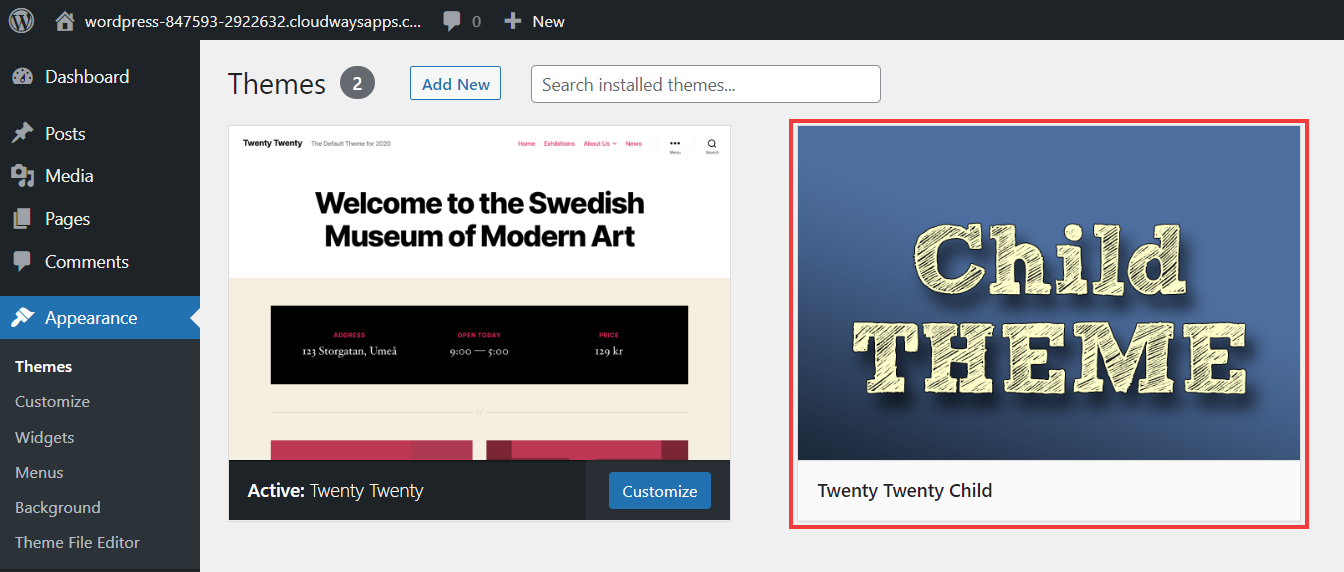
Activate your child theme from the WordPress dashboard. Go to Appearance and click Themes. Find your new child theme and click Activate. Make sure it’s showing as the active theme.
Visit your website after activation. Look for any missing styles or broken parts. If something looks wrong, check your functions.php and style.css files. Errors here can cause problems. Ensure all code is correct and files are linked properly.
Common Mistakes To Avoid
Many struggle with creating a WordPress child theme. Mistake one is not naming the child theme folder correctly. Always check spelling. Another issue is forgetting to include a style.css file. This file is crucial. Third mistake is not using a functions.php file. This file helps link styles and scripts. Skipping updates can break your site. Always update themes and plugins. Avoid editing the parent theme files directly. Changes might get lost during updates. Make sure to test changes in a safe environment. Use staging sites. Backup your site regularly to avoid data loss. Remember these tips to make a successful child theme.
Credit: www.cloudways.com
Best Practices For Child Themes
Child themes are like helpers for your main theme. They let you make changes without touching the original theme. This keeps your website safe during updates. Always make a backup before starting. Mistakes can happen.
Keep files in order. Use folders to separate styles, scripts, and images. This helps find things easily. Name files clearly. It avoids confusion later. Use style.css for designs. functions.php for extra features.
Check your theme on different devices. Make sure it looks good on phones and computers. Test links and buttons. See if they work properly. Always ask someone else to look at it too. Fresh eyes catch mistakes.
Frequently Asked Questions
What Is A Child Theme In WordPress?
A child theme in WordPress is a theme that inherits the functionality and styling of another theme, called the parent theme. It allows developers to modify or add to the existing design without altering the parent theme’s files. This ensures updates to the parent theme don’t overwrite customizations.
Why Use A Child Theme In WordPress?
Using a child theme in WordPress is recommended for customizing the appearance or functionality of a theme. It prevents modifications from being lost during theme updates. This method keeps the parent theme untouched, maintaining its compatibility and security while allowing personalized adjustments.
How To Create A Child Theme In WordPress?
To create a child theme in WordPress, first create a new directory in your themes folder. Add a style. css and functions. php file to this directory. Include the necessary header information in style. css. Import the parent theme’s stylesheet, then activate the child theme from your WordPress dashboard.
Can A Child Theme Be Used With Any Theme?
Yes, a child theme can be used with any WordPress theme. It relies on a parent theme to function properly. Ensure the parent theme is installed and activated before activating the child theme. This compatibility allows for flexible customization across different WordPress themes.
Conclusion
Creating a child theme on WordPress ensures your website stays flexible. It allows you to customize without affecting the main theme. Easy to update, easy to manage. You can keep your design while updating safely. No risk of losing changes when the parent theme updates.
This process enhances your control. Beginners can do it with patience and attention. Start small, learn as you go. With child themes, you protect your site’s style. Enjoy the creativity and security it offers. Happy designing!


