
Are you looking to give your WordPress site a fresh look by adjusting its width? Whether you’re aiming for a sleek, minimalist design or a bold, expansive layout, knowing how to change the width of your WordPress theme can make a significant impact.
This guide is here to simplify the process for you. Imagine your website standing out with the perfect width that aligns with your brand’s personality. It not only enhances the visual appeal but also improves user experience, keeping visitors engaged longer.
Get ready to learn simple steps that will transform your site without needing to dive into complicated coding. Curious about how easy it can be? Let’s get started!
Choosing The Right Theme
Themes are like clothes for your website. Some fit better. Some do not. Check if the theme is flexible. Can you change its layout? Does it let you adjust the width? Look for themes that offer customization. Many themes have options to change sizes and colors. A flexible theme is like a malleable tool. It can adapt to your needs.
A website should look good on all devices. Phones, tablets, and computers. Check if the theme is responsive. This means it changes size nicely. It should fit small screens and big screens. A responsive theme makes sure your content is always readable. Test the theme on different devices. Ensure it looks great everywhere. This keeps visitors happy.
Credit: support.pipdig.co
Using Customizer For Width Adjustments
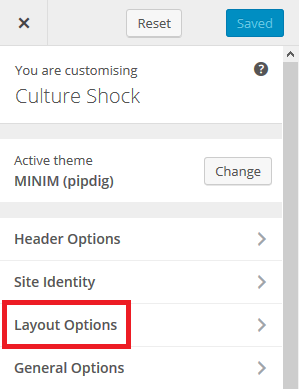
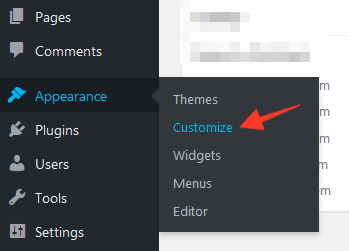
Begin by opening your WordPress dashboard. Next, navigate to Appearance and select Customize. This will open the theme customizer. Here, you can make changes to your theme’s look.
Inside the customizer, search for the Layout or Design section. Some themes have specific Width settings. Others might offer a Custom CSS option. Explore these settings to find width controls.
Once you find width settings, adjust the slider or input a specific number. Some themes might allow percentages or pixels. Make sure your changes fit your screen. Preview your adjustments before saving.
Editing Css For Precise Control
Adjusting the width of a WordPress theme involves editing CSS for precise control. Locate the theme’s stylesheet and search for elements like “. content” or “. container”. Modify the width values to achieve the desired layout, ensuring consistency across different devices.
Understanding Css Structure
CSS helps style your website. CSS rules guide how things look. Each rule has a selector and properties. Selectors choose which part to style. Properties set the style, like color or width. To change the width, find the width property. It’s often in pixels or percentages.
Identifying Width Attributes
Look for elements with a width setting. Check for classes or IDs. They tell you what the element is. Use the browser’s inspect tool. It shows the width properties. Note any width values you find.
Applying Custom Css
Open the WordPress Customizer. Go to the Additional CSS section. Type your new CSS rules there. Change the width with new values. Save your changes to see the effect. Preview the changes on your site. Make sure it looks good.

Credit: wordpress.com
Using Page Builders
Page builders like Elementor, Beaver Builder, and Divi are quite popular. They help in changing the layout of a WordPress theme. These builders offer many tools. You can drag and drop these tools easily. This makes it simple to design your site.
Creating your own layout is fun. You can add sections and columns. Adjust their size to fit your content. This makes your website look neat and organized. Builders have many pre-made templates. Choose one that suits your needs best.
Changing the width is easy with builders. Look for width settings in the options. You can set the width to full or boxed. Sometimes, you can even set the width in pixels. This helps your site look just right on any screen.
Child Themes For Safe Modifications
A child theme is a copy of your original theme. It allows you to make changes safely. You create it without changing the main theme. This keeps the original files safe. First, make a new folder in your theme directory. Next, create a style.css file in this folder. Add the code to link it to the parent theme. Now, you can start making changes.
Modify theme files in the child theme folder. Do not change files in the original theme folder. This helps keep your site safe. Copy the file you want to change. Paste it into your child theme folder. Change the code in the copied file. This way, the original files stay the same.
Updates can overwrite your changes. Using a child theme protects your changes. The main theme updates don’t affect the child theme. This keeps your changes safe. Always update the main theme. It provides new features and security. Your child theme will keep its changes.
Credit: support.pipdig.co
Plugins For Enhanced Functionality
Many plugins can help change the theme width. Some are free, others paid. Check plugin reviews and ratings. Choose one with good feedback. Make sure it is updated often. Compatibility with your theme is key. Research before you decide.
After installing, find the settings. Usually in the dashboard. Look for the width option. Adjust the slider or input box. Enter your desired width. Save changes. You may need to experiment with different widths. Get it just right.
Refresh your website. Check if the width is correct. Look on different devices. Mobile and desktop views matter. Ask a friend to check too. Feedback helps. Make sure everything looks good. Adjust if needed.
Troubleshooting Common Issues
Layout breaks can be frustrating. Themes may not fit well. Elements might overlap or disappear. Check your CSS styles. Make sure they are correct. Adjust the width values. Use percentages for flexible designs. Test your changes. Review every page. Fix all broken parts. It can be tricky. Be patient. Keep trying. Success will come.
Responsiveness is key. Websites must work on all devices. Use media queries in your CSS. They help with different screen sizes. Check your theme settings. Some themes have built-in options. Test your site on phones and tablets. Ensure everything looks good. Adjust as needed. Your site should be easy to view everywhere.
Browser compatibility matters. Websites should work on Chrome, Firefox, and more. Test your site in different browsers. Look for any issues. Some CSS features might not work everywhere. Use cross-browser techniques. Avoid fancy effects. Stick to basics. Your site must look right on every browser. People use many browsers. Make sure your site is ready for them all.
Frequently Asked Questions
How Do I Change Theme Width In WordPress?
To change your WordPress theme’s width, navigate to Appearance > Customize. Then, go to Additional CSS. Add custom CSS code to adjust width settings. Use percentages or pixels to define the desired width. Always preview changes before publishing to ensure optimal appearance.
Can I Adjust WordPress Theme Width Without Coding?
Yes, you can use WordPress plugins like Elementor or WPBakery. These page builders allow you to adjust the theme width visually without coding. Install the plugin, select the page, and customize the width using the drag-and-drop interface. Ensure the plugin is compatible with your theme.
Why Is My WordPress Theme Not Responsive?
A theme may not be responsive if it lacks responsive design features. Check if the theme is outdated and update it. Ensure custom CSS doesn’t conflict with responsiveness. Consider switching to a modern, responsive theme to enhance mobile compatibility and improve user experience.
Is There A Plugin To Change Theme Width?
Yes, plugins like CSS Hero allow you to customize theme width. CSS Hero provides a user-friendly interface to tweak your theme’s CSS. Install the plugin, select the element, and adjust its width. Ensure the plugin supports your theme for seamless integration and functionality.
Conclusion
Changing your WordPress theme width can enhance your site’s appearance. It’s straightforward and adjusts your design to fit your needs. Start by exploring theme settings and check customization options. If needed, use CSS for precise control. Always preview changes to ensure they look right.
This ensures your site is both functional and visually appealing. Remember, consistency is key for a great user experience. By following these steps, your WordPress site will be tailored to your vision. Enjoy the benefits of a customized website that stands out.
Happy designing!


