
Are you looking to give your WordPress site a fresh look? Changing the text color in your WordPress theme can make all the difference.
It’s a simple tweak, yet it can completely transform the aesthetic of your site and draw your visitors’ attention where you want it most. Whether you’re eager to highlight important information or align your site’s style with your brand colors, mastering this skill is a must.
In this guide, you’ll discover how easy it is to customize text colors in WordPress, even if you’re not a tech wizard. Ready to make your website pop? Let’s dive in and explore how you can effortlessly revamp your site’s appearance.
Credit: wpdatatables.com
Theme Customizer
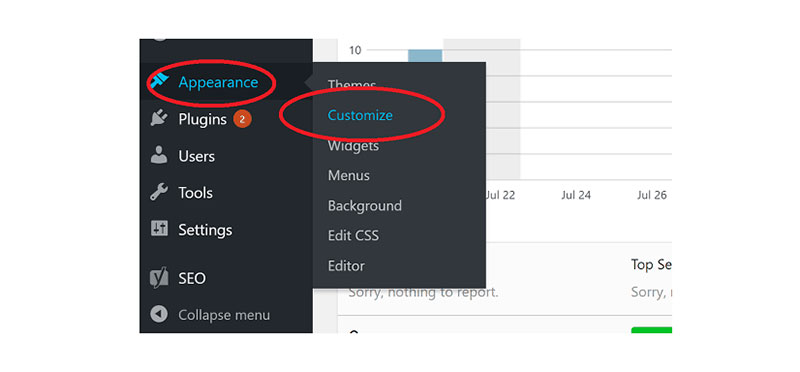
Accessing the Theme Customizer is simple. Log in to your WordPress dashboard. Look for the “Appearance” section on the left menu. Click on “Customize” to open the Theme Customizer. Here, you can change colors, fonts, and more. It’s a friendly tool for beginners. No coding skills needed. Explore the options available to you. Each theme may have different settings.
For advanced changes, use Additional CSS. Find the “Additional CSS” option in the Customizer. Write your CSS codes here to change text color. For example, use color: blue; to make text blue. Always preview changes before saving them. This ensures you like the look. If unsure, seek help from online tutorials.

Credit: stackoverflow.com
Editing Theme Files
Locating Stylesheet: The stylesheet is like a map for your theme. You can find it in the WordPress dashboard. Go to Appearance and click on Theme Editor. There, you will see many files. Look for the one named style.css. This is your stylesheet. It holds all the rules for how things look.
Modifying CSS for Text Color: CSS helps change text colors easily. Inside the style.css file, find the color property. This property controls the text color. You can change it by writing a new color code. Like color: blue; to make text blue. Save your changes to see the new color on your site. Always keep a backup of your original file. This way, you can restore it if needed.
Using Page Builders
Many page builders are available for WordPress. Some popular ones are Elementor, Beaver Builder, and Divi. These tools help you change text color easily. You can make your text red, blue, or any color you like. Just open the page builder and select the text. Look for the color option. Click it to choose a new color.
These page builders are simple to use. They have drag-and-drop features. This means you can see changes instantly. No coding is needed. This makes it easy for everyone to use. With these tools, your website can look colorful and attractive.
Plugins For Color Change
Changing text color in WordPress is easy with plugins. One great plugin is the Simple Custom CSS and JS. This plugin lets you add your own CSS code to change colors. Another popular choice is the Yellow Pencil. It offers a user-friendly interface to edit colors visually. The CSS Hero plugin is also recommended for beginners. It allows you to change colors by clicking on elements. Always choose plugins that are updated regularly. This ensures compatibility with your WordPress theme.
To install a plugin, go to your WordPress dashboard. Click on “Plugins” and then “Add New”. Search for your desired plugin. Click “Install Now” and then “Activate”. Configuration is usually straightforward. Follow the plugin’s instructions. Most plugins have a settings page. Here, you can adjust colors and other options.
Best Practices
Changing text color in a WordPress theme enhances your site’s look. Navigate to the customizer, find the typography section, and adjust colors to fit your design. Experimenting with contrasting shades ensures readability, making your content appealing and user-friendly.
Choosing Color Schemes
Colors can change how your site looks. Pick colors that match your theme. Use colors that don’t hurt the eyes. Bright colors might look cool, but can be hard to read. Soft colors are easy on the eyes. Stick to two or three main colors. This keeps things neat and nice. Do not use too many colors. It can look messy and confuse visitors.
Ensuring Readability
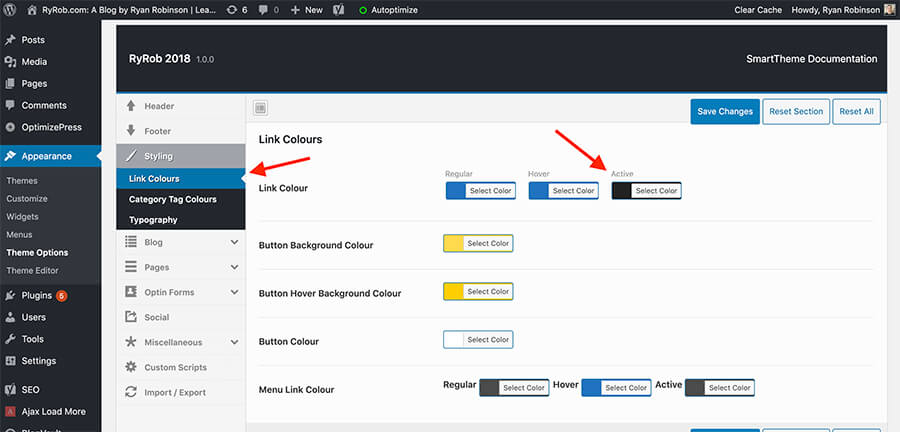
Text should be easy to read. Use dark text on a light background. Light text on dark background works too. Do not use colors that blend. People need to see text clearly. Choose a font that is simple. Avoid fancy fonts. Fancy fonts can make text hard to read. Keep font size big enough. People should not squint to read. Check text on different screens. Make sure it is readable everywhere.
Credit: www.ryrob.com
Frequently Asked Questions
How Can I Change Text Color In WordPress?
To change text color in WordPress, access the theme editor. Navigate to Appearance > Customize > Additional CSS. Add custom CSS code to alter text color. Alternatively, use the WordPress Block Editor. Click on the block, select the color settings, and choose your preferred text color.
Can I Use Plugins For Text Color Changes?
Yes, you can use plugins to change text color. Plugins like “Advanced Editor Tools” offer easy text color customization. Install the plugin, and you’ll find additional color options in the editor. This method is user-friendly and doesn’t require coding knowledge.
Is Custom Css Necessary For Text Color Changes?
Custom CSS is not always necessary for text color changes. WordPress themes often provide built-in color options. Use the theme customizer to modify text colors. For more specific changes, custom CSS offers greater control over design elements.
Do All Themes Support Text Color Changes?
Most WordPress themes support text color changes. However, functionality may vary between themes. Check the theme’s customization settings for color options. If unavailable, consider using plugins or custom CSS for added flexibility. Always choose themes that offer comprehensive customization features.
Conclusion
Changing text color in a WordPress theme is simple. Follow these steps to customize your site. Choose colors that match your brand. Ensure readability for your audience. Use WordPress tools wisely for best results. Experiment with different shades and styles.
Test changes on various devices. This keeps your site looking great everywhere. Refresh your theme regularly to keep it modern. A well-designed site attracts more visitors. So, take time to perfect your text colors. Your website will become more engaging and user-friendly.
Happy designing!


