
Have you ever stumbled upon a WordPress website and thought, “I wish my site looked exactly like this”? You’re not alone.
Many website owners and developers find themselves captivated by a theme’s design, functionality, or both. The good news is, replicating a WordPress theme from a website is not as daunting as it may seem. In this guide, you’ll discover the simple steps to copy a WordPress theme, allowing you to recreate that captivating design on your own site.
Imagine the satisfaction of transforming your website into a polished masterpiece that reflects your unique style. Ready to dive in and unlock the secrets of theme replication? Let’s get started.
Understanding WordPress Themes
WordPress themes are like clothes for your website. They change how your site looks. Each theme has its own design. Colors, fonts, and layouts are all different. Themes help your site look nice and work well. Some themes are free. Others cost money. Picking the right theme is important. It affects your site’s feel. Some themes are easy to use. Others may need more work. Always choose a theme that fits your needs. Your site will look better. And, it will be easier to use. Themes can be changed anytime. So, feel free to explore.
Legal Considerations
Copying a WordPress theme might breach copyright laws. Each theme is often protected by these laws. Developers spend time crafting unique designs. Their work deserves respect. Violating copyright can lead to legal trouble. It’s crucial to understand these risks. Always check if the theme permits copying or usage. Some themes allow free use, while others don’t. It’s wise to research before copying. Doing so keeps you safe legally.
Websites have their own terms of service. These rules dictate what you can or can’t do. Reading them is important. Ignoring these terms can lead to penalties. Some sites strictly forbid copying. Others may allow it under specific conditions. Always check these conditions first. Following the rules keeps you out of trouble. Respecting terms shows you value the site and its creators.
Tools Needed
Browser extensions help find a website’s theme. Wappalyzer is a popular choice. It shows technology used on a website. WhatRuns is another tool. It detects themes and plugins. These tools are easy to use. Install them on your browser. Click the icon to see the results. Simple and quick. Perfect for beginners.
WordPress plugins can help too. Theme Detector is a good option. It finds out what theme a site uses. IsItWP is another plugin. It is simple and useful. These plugins work by scanning websites. They find theme details fast. No need for expert skills. Just install and activate. Easy for anyone to use.
Identify The Theme
Find the theme by checking the website’s source code. Right-click on the page and select “View Page Source”. This opens a new window with lots of code. Look for the word “wp-content/themes”. The name after this will tell the theme name. This is a simple way to identify the theme.
Online tools can help identify themes. Some websites detect WordPress themes easily. Simply enter the website URL in these tools. They will show the theme name and details. Popular tools include What WordPress Theme is That and WPThemeDetector. These are easy and quick to use.
Accessing Theme Files
Copying a WordPress theme from a website involves inspecting the site’s source code. Look for the theme name in the code. Use tools like web browsers’ developer tools to identify and download the theme files.
Using Ftp Clients
FTP clients help you reach WordPress files. Download an FTP program like FileZilla. Connect it to your website. You need the FTP server details. They are in your hosting account. Enter the username and password. Click “Quickconnect”. Wait for the connection.
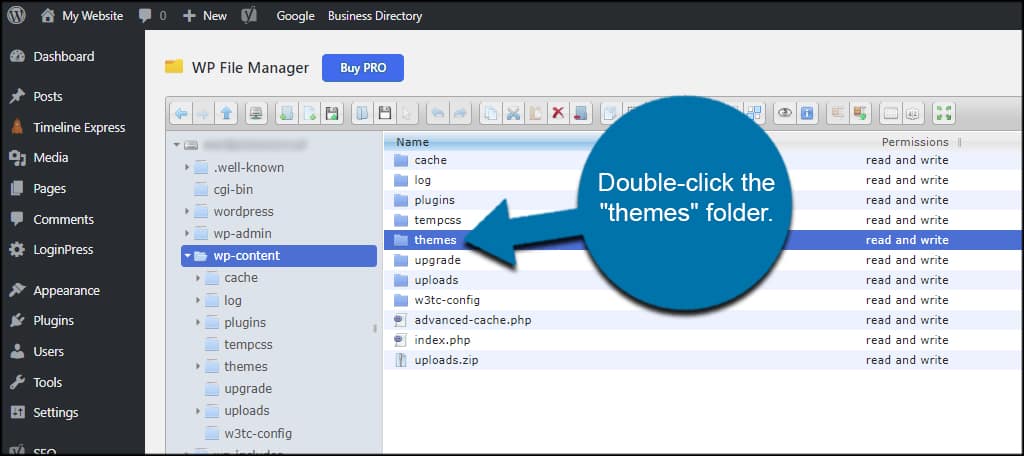
On the left, see your computer files. On the right, see website files. Open the “wp-content” folder. Find the “themes” folder. Copy it to your computer. Now you have the theme.
WordPress Dashboard
Log into your WordPress dashboard. Go to “Appearance”. Click on “Themes”. Find your active theme. Click “Theme Editor”. Look for theme files. Save them one by one. Use “Ctrl + S” to save each file. You need to copy all files. This helps you have the full theme.

Credit: www.youtube.com
Copying The Theme
Find the website you like. Use the right-click menu. Choose “View Page Source”. Look for the style.css file. This file has the theme’s name. Copy the URL of the style.css file. Paste it in your browser’s address bar. Press enter. The file will open. Save the file to your computer.
Customizations make a theme unique. Go to the website’s dashboard. Look for the Customizer or Theme Options. Write down settings like colors and fonts. Some websites use plugins for customizations. Check the plugins installed. Note their names and settings. Save all this information. You can use it later.
Installing On Your Site
Start by logging into your WordPress dashboard. Find the “Appearance” tab on the left menu. Click on it. You will see the “Themes” option. Click on “Themes.” Next, click the “Add New” button at the top. Choose the “Upload Theme” option. This allows you to upload a file. Select your theme file from your computer. It should be a .zip file. Once selected, click “Install Now.” After installation, click “Activate” to use the theme.
First, connect to your website using an FTP client. FileZilla is a popular choice. Enter your FTP details to connect. On the server, go to wp-content/themes folder. Upload your theme folder here. Make sure it is unzipped. Once uploaded, return to your WordPress dashboard. Go to “Appearance” and then “Themes.” You will see your new theme listed. Click on “Activate” to start using it.
Customizing The Theme
Discover how to copy a WordPress theme from a website with ease. Follow simple steps to explore and customize themes for your site. Transform your web design by learning these straightforward techniques.
Changing Layouts
Change the layout by going to the theme’s settings. Select a new layout style. Try different styles to see what fits best. Use grid layouts for neat rows. Choose a single column for a clean look. Adjust margins and padding to make space. Change font sizes to match your content.
Modifying Css
Edit CSS to change the theme’s style. Open the WordPress editor. Find the custom CSS section. Use CSS codes to alter colors and fonts. Add styles for links and buttons. Make the header bold with CSS. Adjust the footer size for balance. Test changes on different screens. Ensure the theme looks good everywhere.
Testing And Compatibility
Copying a WordPress theme involves ensuring it works well on different devices. Testing and compatibility checks are crucial to avoid errors. These steps help in delivering a seamless user experience, regardless of device or browser.
Cross-browser Testing
Websites must work on all browsers. Different browsers can show a website differently. Test your site on Chrome, Firefox, Safari, and Edge. This helps find any problems. Use tools like BrowserStack for this. Fix any issues you find. Make sure the site looks the same everywhere. This keeps users happy.
Mobile Responsiveness
Many people use phones to browse the web. Your site should work well on all devices. Check how it looks on tablets and phones. Use a responsive theme to help with this. Google has a tool to test mobile-friendliness. Make sure buttons are easy to click. Text should be easy to read. This keeps visitors on your site longer.
Troubleshooting Common Issues
Error Messages can appear when copying a WordPress theme. These messages often show problems with file permissions. Ensure your files have correct permissions. Check server settings too. They can block theme copying. Sometimes, error messages relate to missing files. Double-check all theme files are present. Missing files can stop theme working.
Theme Conflicts happen when new themes clash with existing plugins. This can break site functions. Disable all plugins temporarily. Activate one by one to find conflicts. Theme conflicts can also occur with custom scripts. Test scripts with the new theme. Remove or modify scripts if necessary. Updating all plugins and themes helps reduce conflicts.
Best Practices
It’s important to back up your site often. A backup keeps your data safe. You can use a plugin for this. A plugin is a tool for your site. It helps save everything. This includes files, themes, and settings. Make sure to check your backup. Ensure it works well. This way, you protect your work. If things go wrong, you can easily restore it.
Keep your site updated. Updates are important. They fix problems. They make your site safe. WordPress often has new updates. Themes and plugins need updates too. Check for updates weekly. Update them to the latest version. This helps prevent security issues. It also makes your site run better.

Credit: wpfactory.com
Credit: www.greengeeks.com
Frequently Asked Questions
How Can I Duplicate A WordPress Theme?
To duplicate a WordPress theme, you can use a child theme. A child theme inherits styles and functions from the parent theme. This allows you to make modifications safely without affecting the original theme. Tools like FileZilla or WordPress plugins can assist in creating and customizing child themes.
Is It Legal To Copy A WordPress Theme?
Copying a WordPress theme without permission can violate copyright laws. Many themes are licensed, and copying them without authorization is illegal. Always check the theme’s licensing terms or contact the developer. If a theme is open-source or has a GPL license, you may modify it legally.
What Tools Help In Copying Themes?
Several tools can aid in copying WordPress themes. FileZilla helps access server files, while plugins like Duplicator or WP Clone assist in theme migration. These tools simplify the process of copying and deploying themes on different websites. Always ensure you have the necessary permissions before using these tools.
Can I Copy A Theme Without Coding Skills?
Yes, you can copy a WordPress theme without coding skills. Use plugins like Duplicator or WP Clone for theme migration. These plugins offer straightforward interfaces that simplify the process. They handle the technical aspects, making it easy for non-developers to duplicate and deploy themes.
Conclusion
Copying a WordPress theme requires patience and precision. Follow steps closely for success. Ensure you respect copyright rules. Always back up original files first. Use tools that simplify theme extraction. Practice makes perfect, so don’t rush. Review your copied theme thoroughly.
Test it on different devices. Make tweaks if needed for a seamless look. Stay informed about theme updates. Keep learning to improve your skills. A well-copied theme enhances your site. Be ready to solve any issues promptly. Enjoy your new, personalized WordPress look.
Your website deserves it.


