
Are you looking to transform your Twitter Bootstrap theme into a dynamic WordPress site? You’re in the right place!
This process might seem daunting, but with the right guidance, you can seamlessly convert a static Bootstrap design into a fully functional WordPress theme. Imagine the satisfaction of seeing your sleek Bootstrap layout brought to life with the robust features of WordPress.
You’ll not only maintain the aesthetic appeal of your website but also enhance its functionality, offering your visitors an engaging and interactive experience. Stick with this guide, and you’ll discover how to effortlessly blend the best of both worlds, boosting your site’s appeal and your skills. Ready to dive in and unlock the potential of your website? Let’s get started!

Credit: themeforest.net
Understanding Bootstrap Themes
A Bootstrap theme is a pre-designed template. It uses the Bootstrap framework. It helps in building web pages quickly. The theme includes layouts, styles, and ready-made components. It saves time and makes websites look neat. Many developers like using these themes.
Bootstrap has many cool features. It is responsive. This means it works on phones and computers. It has a grid system. This helps in arranging items neatly. There are many built-in components like buttons and forms. It uses CSS and JavaScript. This makes websites interactive. Bootstrap is also customizable. You can change colors and styles easily.
Basics Of WordPress Themes
A WordPress theme is like a puzzle. Each piece fits in a place. The structure includes a header, footer, and sidebar. Every part has a role. The header appears at the top. The footer is at the bottom. The sidebar sits on the side. These parts help create a full picture.
WordPress themes need certain files. The style.css file is one. It controls how things look. The index.php file is another. It is the main file. The functions.php file adds special features. Each file has a job. Without them, the theme will not work well.
Setting Up Your Development Environment
You need a few tools to start. First, install a code editor. Options like VS Code or Sublime Text work well. Next, make sure Node.js and npm are set up on your computer. These help manage packages. Git is also useful. It keeps track of changes in your files. Lastly, you need Bootstrap files. Download them from the official site. These files are important for your theme. With these tools, you are ready to begin.
A local server is helpful. It lets you test your theme safely. First, download and install XAMPP or MAMP. These programs create a server on your computer. After installing, start the server. Then, create a new folder for your project. Place your theme files here. Access your server by typing “localhost” in your browser. This shows your project. Now, you can see your work live. This setup makes testing easy and safe.
Analyzing The Bootstrap Theme
Bootstrap themes have many parts. These include navigation bars, footers, and content areas. Each part has a purpose. Look at the theme’s HTML and CSS. Find where these parts are defined. Make a list of them. This helps you know what to change later. Understanding these parts is very important. It makes the conversion process easier.
WordPress themes use PHP. Bootstrap uses HTML and CSS. Match each Bootstrap part to a WordPress part. This includes headers, footers, and sidebars. Use WordPress functions for this. These functions help display parts correctly. The goal is to make the theme look the same on WordPress. Attention to detail is key here. Small mistakes can cause big problems. So, be careful.
Building The WordPress Theme Structure
Start by making a new folder in your WordPress themes directory. Name it after your theme. This folder will hold all theme files. Inside, you’ll have more files and folders. Each has a special job. Keeping them organized helps you find things fast.
Create a file called style.css in your theme folder. This file tells WordPress about your theme. Add a comment at the top with details like theme name. Next, create an index.php file. This file is essential. It controls how your homepage looks. Keep these files simple at first. You can add more later.
Integrating Bootstrap Into WordPress
First, enqueuing is important. It helps load Bootstrap styles and scripts. Use the `functions.php` file in WordPress. Write a function to add Bootstrap. This prevents conflicts with other scripts. Always load Bootstrap CSS before custom styles. Use `wp_enqueue_style` for this. For scripts, use `wp_enqueue_script`. Make sure to list dependencies.
Begin by examining the Bootstrap HTML. Look for parts like navbars and footers. Convert these into WordPress template parts. Use header.php and footer.php files. WordPress uses loop for posts. Wrap the loop with Bootstrap grid classes. This keeps the layout consistent.
Customizing WordPress Templates
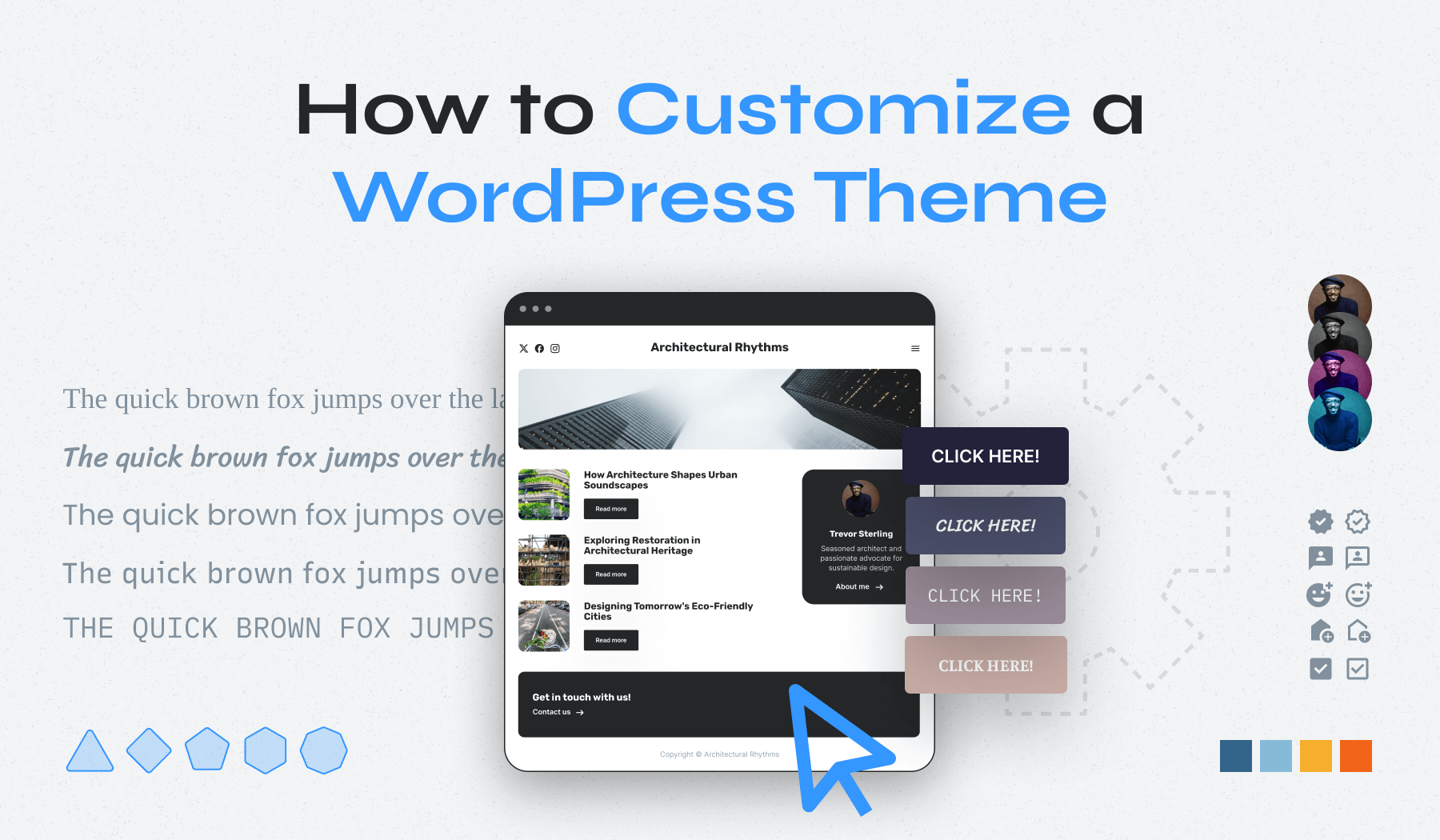
Transforming a Twitter Bootstrap theme into a WordPress theme involves several steps. Begin by slicing the HTML template into WordPress-friendly files. Integrate Bootstrap components using WordPress functions for a seamless blend of style and functionality.
Creating Header And Footer Templates
Begin by crafting the header and footer templates. These parts are vital. The header is the top section. It often contains the logo and menu. The footer is the bottom section. It usually has contact info and links. Use HTML and CSS to style these areas. Save these files as header.php and footer.php. Place them in your theme’s folder. Connect them to your main template using PHP functions. This makes sure they load on each page.
Building Page And Post Templates
Each page and post needs a unique template. Create separate files for them. Name them page.php and single.php. Add essential Bootstrap classes for styling. Use PHP to display content dynamically. You can add sidebars or widgets. This helps in arranging the content neatly. Customize each section as needed. Make sure to test everything. Adjust styles and layouts until satisfied.
Credit: www.wpzoom.com
Implementing WordPress Features
Widgets make themes more dynamic. They add new areas on your site. Use functions.php to add widget areas. Register new widgets with register_sidebar(). Menus help users find stuff easily. Add menu support using register_nav_menus(). Create menus in the WordPress admin. Place them anywhere in your theme.
Hooks make themes flexible. They let you add or change features. Use action hooks to add new functions. Use filter hooks to change existing ones. Functions like add_action() and add_filter() are vital. They make your theme work well with WordPress. They help keep your theme updated and fast.
Testing And Debugging
Converting a Twitter Bootstrap theme into a WordPress theme involves careful testing and debugging. Ensure compatibility by checking each feature and layout. Debug any errors to maintain functionality and user experience.
Ensuring Cross-browser Compatibility
Browsers can show websites differently. It’s important to test your theme on many browsers. Use popular ones like Chrome, Firefox, and Safari. This way, your website looks the same everywhere. Check for any layout or style issues. Fix them quickly so users have a smooth experience.
Checking For Responsiveness
Websites should work well on all devices. Phones, tablets, and desktops. Resize your browser to see if your theme looks good. Use tools that simulate different screen sizes. Make sure buttons and links are easy to tap. This improves user satisfaction. A responsive site keeps visitors happy.
Deploying The Theme
Convert a Twitter Bootstrap theme into a WordPress theme by integrating HTML, CSS, and JavaScript files into WordPress’s structure. Customize functions and templates to fit the WordPress ecosystem, ensuring smooth functionality and responsive design. This transformation enhances the website’s adaptability and user experience.
Uploading To A WordPress Site
First, compress your theme into a zip file. Go to your WordPress dashboard. Click on ‘Appearance’. Then click ‘Themes’. Choose ‘Add New’. Select ‘Upload Theme’. Choose your zip file. Click ‘Install Now’. Wait for the upload to finish. Once done, activate your theme. Your site will now use the new theme. Check your site for any errors. Fix any issues you see. Make sure everything looks good.
Final Adjustments And Tweaks
Open the WordPress Customizer. This is where you can make changes. Adjust colors and fonts. Check the menus and widgets. Ensure everything matches your design. Test your site on different devices. Make sure it looks good everywhere. Fix any alignment issues. Check links and buttons. Ensure they work properly. You might need to add some CSS. This will help with styling. Save all changes before closing. Your theme is now ready.
Credit: themeforest.net
Frequently Asked Questions
How Do I Start Converting Bootstrap To WordPress?
Begin by setting up a WordPress environment. Install WordPress on your server. Then, choose a Bootstrap theme and start customizing. You’ll need to convert Bootstrap components into WordPress PHP templates. This involves editing HTML, CSS, and PHP files to match WordPress structure.
Can I Use Bootstrap With WordPress?
Yes, you can integrate Bootstrap with WordPress seamlessly. Use Bootstrap’s CSS and JavaScript files in your WordPress theme. You can enhance your website’s design and responsiveness using Bootstrap components. Ensure compatibility by adjusting Bootstrap classes according to WordPress requirements.
What Tools Help In Theme Conversion?
Several tools can assist in conversion. Use WordPress Theme Development Frameworks like Underscores. Code editors like Sublime Text or Visual Studio Code are helpful. Online tutorials and documentation can guide you through the process. These resources streamline the development and customization process.
Is Coding Knowledge Necessary For Conversion?
Basic coding knowledge is essential for converting themes. Familiarity with HTML, CSS, PHP, and JavaScript is helpful. Understanding WordPress theme structure and functionality is crucial. While some tools simplify the process, coding skills ensure better customization and troubleshooting.
Conclusion
Transforming a Twitter Bootstrap theme into a WordPress theme is simpler than it seems. Follow the steps closely. You will have a customized theme ready. Your website will be unique and responsive. This process boosts your skills and creativity. Don’t hesitate to experiment with different designs.
Personalization enhances your site’s appeal. Make sure your theme is functional and user-friendly. A well-converted theme strengthens your brand’s presence online. Keep learning and improving your WordPress skills. Enjoy creating and customizing your site!


