
Your website’s logo is like the face of your brand. It tells visitors who you are and what you stand for at a glance.
But what happens when you need to refresh that face? Whether you’re rebranding or just updating your look, changing the logo in your WordPress theme is a task you might find yourself facing. The good news? It’s easier than you think, even if you’re not a tech whiz.
Imagine the satisfaction of seeing your new logo proudly displayed, giving your site a fresh, polished look. You’ll discover a step-by-step guide to changing your logo, making sure you don’t miss a beat. Ready to give your site a new identity? Let’s dive in and make it happen!
Credit: wpengine.com
Choosing The Right Logo
Logos come in different sizes. It’s important to choose the right size. A large logo may not fit well. A small logo might not be clear. Check the theme’s settings. Find the recommended size. Measure your logo. Use a tool if needed. Compare it with the recommended size. Make sure it fits. A well-sized logo looks nice. It also loads faster. This helps your site a lot.
Logos can be in different file formats. PNG is a popular choice. It supports transparency. JPEG is another option. It’s good for complex images. SVG is best for scaling. It keeps the quality high. Always choose a format that suits your needs. Check if your theme supports it. Some themes have limits. Pick the right format for a clear logo.
Preparing The Logo File
Design tools help make a logo. Adobe Photoshop and Illustrator are great. They offer many features. Canva is simpler. It is good for beginners. Save the logo in PNG or JPEG format. These formats work well with WordPress. Keep the logo size small. This helps in faster loading.
A clear logo looks better. High resolution is important. It keeps the logo sharp. Check the colors. They should match the theme. Use image compression tools. They reduce file size. This keeps the website fast. Test the logo on different screens. Make sure it looks good everywhere.
Accessing The WordPress Dashboard
First, open your web browser. Type your website URL. Add “/wp-admin” to it. Press enter. The login page will appear. Enter your username. Then, enter your password. Click the “Log In” button. Now you are in the WordPress Dashboard.
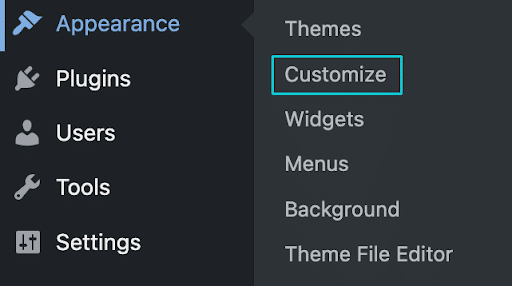
Look at the left sidebar. Find “Appearance” there. Click on it. A menu will drop down. Choose “Customize” from the menu. This will open the Theme Settings. Here, you can change the logo. Click on “Site Identity”. Find the logo option. Click on “Change Logo”. Upload your new logo. Save the changes. Now, your website shows the new logo.

Credit: gretathemes.com
Changing The Logo In Theme Customizer
Open your WordPress dashboard. Find the Appearance tab on the left. Click on it. Then, select Customize. This opens the Theme Customizer. In the Customizer, look for the Site Identity section. It’s often near the top. Click on it. You’ll see the logo options here.
In the Site Identity section, find the Logo option. Click on it. A new window will open. Here, you can upload your new logo. Choose the Select Logo button. Upload the file from your computer. Adjust the size if needed. Save changes by clicking the Publish button. Your new logo will now appear on your site.
Replacing The Logo Via Theme Options
Most themes have unique settings for logos. Check your WordPress dashboard for a “Theme Options” tab. This tab lets you change the logo easily. Some themes use the “Customizer” tool. Look for a section called “Site Identity”. Click it to find logo settings.
After uploading your logo, adjust how it looks. You can change the size or position. Some themes allow logo resizing directly in the dashboard. Use sliders or text boxes to make your logo fit. Centering the logo often makes it look neat. Ensure your logo is clear and visible. This helps your site look professional.
Using A Child Theme For Logo Changes
A child theme keeps your site safe. Updates won’t break your changes. This is important for keeping your site stable. Child themes make it easy to edit. You can try new ideas without fear. Changes in the parent theme won’t affect you. This saves a lot of time and effort. It also allows for easy rollback if mistakes happen. A child theme is like a safety net. It catches errors before they affect your live site. Keep your design fresh while staying secure.
Start by making a new folder. This folder is for your child theme. Name it something simple. Next, create a style.css file. This file holds the child theme’s information. Add a few lines of code in it. Don’t forget the Template line. It should match the parent theme’s folder name. Finally, activate the child theme in the WordPress dashboard. Now you can safely make changes. Always remember to backup your work.
Troubleshooting Common Issues
Changing a logo in a WordPress theme often involves accessing the theme customizer. Navigate to Appearance, then Customize, and select the Site Identity option. Upload your desired logo and save changes to update your website’s visual identity.
Logo Not Displaying
Make sure the logo file is uploaded correctly. Check the file path in the theme settings. Sometimes, the logo might be hidden due to CSS settings. Inspect the page using the browser’s developer tools. Look for display or visibility properties. Also, ensure the media library permissions are set to allow access. An incorrect file format can also cause issues. JPEG and PNG files usually work well. Finally, clear the cache to see recent changes.
Incorrect Logo Size
A logo might appear too big or too small. Start by checking the theme’s documentation. There might be recommended dimensions for logos. Resize the image in a photo editing tool. Upload the new logo file again. Some themes have customization options to adjust the logo size. Look for these in the theme settings. Consider using CSS to set a specific size. Use properties like width and height. Remember to maintain the logo’s aspect ratio for a better look.
Ensuring Responsiveness
Use a phone and a tablet. Check the logo on both. Make sure it looks good. It should not be too big or too small. If it looks off, you may need to adjust. Different devices can show logos differently. Try using tools that show how your site looks on many screens.
Many people use phones to browse. Your logo should fit well on mobile. Use WordPress settings to change size. Make sure the logo is clear and easy to see. Sometimes, you might need a smaller logo for phones. A good logo should load fast and not block other content.
Customizing Logo Placement
Using CSS helps in adjusting the logo’s position. You can move it left, right, or center. This is done with simple CSS rules. Just add them in the customizer. The command to move the logo is margin. This helps to put the logo where you want. Ensure it aligns with your design.
Aligning with Header Design needs careful planning. The logo should fit the header style. Check the size and colors. Make sure the logo doesn’t clash. It should look neat. Consistency in design is key. Use tools to preview changes. Adjust until it looks good.

Credit: cyberchimps.com
Frequently Asked Questions
How Do I Change My WordPress Theme Logo?
To change your WordPress theme logo, access your WordPress dashboard. Navigate to Appearance > Customize. Select the “Site Identity” section. Here, you can upload a new logo. Save your changes and publish. The new logo will replace the old one on your site.
Can I Use Any Image As A Logo?
Yes, you can use any image as a logo. However, ensure it’s clear and professional. Check the recommended dimensions in your theme settings. Using the right dimensions ensures the logo fits perfectly. A high-quality image enhances your site’s appearance.
Do All WordPress Themes Support Logo Changes?
Most modern WordPress themes support logo changes. However, some older themes might not. Check your theme’s documentation or support forum. If unsupported, consider using a child theme. This allows you to customize your logo without altering the original theme.
What File Formats Are Best For Logos?
The best file formats for logos are PNG, JPEG, and SVG. PNG is great for transparent backgrounds. JPEG works well for detailed images. SVG is ideal for scalability without losing quality. Choose a format based on your needs and theme requirements.
Conclusion
Changing your WordPress theme logo is simple and rewarding. A new logo gives your site a fresh look. It enhances your brand’s visibility and appeal. Follow the steps outlined earlier for a smooth process. Always back up your site before making changes.
This ensures you can restore it if needed. Experiment with different logos to find the best fit. Your logo reflects your brand’s identity. Make sure it aligns with your site’s message. Enjoy creating a unique presence online. Happy customizing your WordPress site!


