
Have you ever marveled at the seamless design of a WordPress theme and wished you could replicate it across multiple sites effortlessly? You’re not alone.
Whether you’re managing a network of blogs or a collection of e-commerce stores, knowing how to clone a theme for a multi-site WordPress setup is a game-changer. Imagine the time you could save and the consistency you could maintain across your brand.
In this guide, you’ll uncover the step-by-step process to duplicate a theme with ease. We’ll break down the technical steps into simple tasks, ensuring you feel confident and in control. By the end, you’ll not only understand how to clone a theme but also why this skill is essential for scaling your online presence efficiently. Ready to streamline your WordPress management? Let’s dive in!
Understanding Multisite WordPress
Multisite is a cool feature in WordPress. It lets users create many websites. All from one WordPress installation. Each site can have its own theme and plugins. But they all share the same WordPress base. This saves time and space. It is great for schools, businesses, or big blogs. Easy to manage and update.
There are many benefits. You can manage multiple sites from one dashboard. This makes updates simple and fast. It saves time. Also, there is shared user access. One login for all sites. Easy for users and admins. It saves server space. Using one WordPress setup for many sites. This reduces costs and resources.
Theme Cloning Basics
Theme cloning means copying a theme’s design. You use it on many sites. It saves time and keeps styles the same. Think of it like making a copy of a drawing. This copy helps in building similar websites quickly.
Cloning a theme helps in keeping the look the same. It ensures all sites match. With cloning, changes are easy. You can adjust one theme, and all sites update. It also saves time and effort. No need to design from scratch each time.
Preparing For Theme Cloning
Backup your site before you start cloning. This keeps your data safe. Use a reliable backup plugin for this task. Store your backup in a secure place. It’s like having an extra copy of your favorite book. If something goes wrong, your site stays safe. This step is very important.
Check the theme license before cloning. Some themes may not allow cloning. Read the terms of use carefully. This ensures you follow the rules. If you break the rules, it can cause trouble. Always play by the rules. It’s the right thing to do. Keep your website legal and safe.
Choosing The Right Tools
To clone a theme in WordPress, some plugins are very helpful. Duplicator is one of them. It helps in creating backups. All-in-One WP Migration is another good plugin. It makes migration easy. It also works well with multisite setups.
Good software can make theme cloning smooth. Bitnami offers a local environment. This makes testing easy. Local by Flywheel is also popular. It is user-friendly and fast. Both are great for beginners.
Step-by-step Theme Cloning
First, find the theme folder. It’s in the WordPress directory. Copy all the theme files. Paste them in a new folder. This new folder will hold your clone theme. Make sure every file is copied. Missing files cause problems later.
Open the style.css file. It’s in the cloned folder. Change the theme name. Choose a new name for your theme. Check other details like author and version. Change them if needed. Save the changes before exiting.
Activate the cloned theme in WordPress. Navigate to the appearance section. Make sure the theme looks right. Test different pages and features. Ensure everything works as expected. Fix any errors you find.

Credit: kinsta.com
Managing Cloned Themes
Cloning a theme in WordPress for a multi-site setup simplifies managing multiple sites with consistent design. Start by duplicating your theme files and renaming them. Next, upload the cloned theme to your WordPress network. This approach ensures each site maintains a uniform appearance, while allowing individual customization as needed.
Updating Cloned Themes
Cloning a theme helps when you have many sites. Keeping these themes updated is very important. Updates fix bugs and add new features. Always use the latest version of WordPress. This keeps your theme safe. Check for theme updates often. Use tools like FTP to update. Or, use the WordPress dashboard. Always back up your site before updates. This helps if something goes wrong.
Handling Theme Conflicts
Sometimes themes can have conflicts with plugins. This can break your site. To avoid this, test new themes in a safe place. Use a staging site for testing. Disable plugins one by one. This finds which one causes problems. Keep both themes and plugins updated. This often solves conflicts. Always use themes from trusted sources. This reduces the chance of problems.
Common Issues And Solutions
Cloning a theme can cause some errors. These may include missing files. Also, you might see broken links. Check your file paths carefully. Ensure all files are in the right folders. This can solve many problems quickly. Use a debugging tool if you face unknown errors. A tool can show where the issue is. Fixing these errors will make the theme work properly.
Themes may not work with all plugins. This can cause the site to break. Always test new themes on a staging site. This helps find issues before going live. Update plugins to their latest versions. This can fix many problems. Check for any conflicts between the theme and plugins. Sometimes, changing a small setting can help. Always keep a backup before making changes.
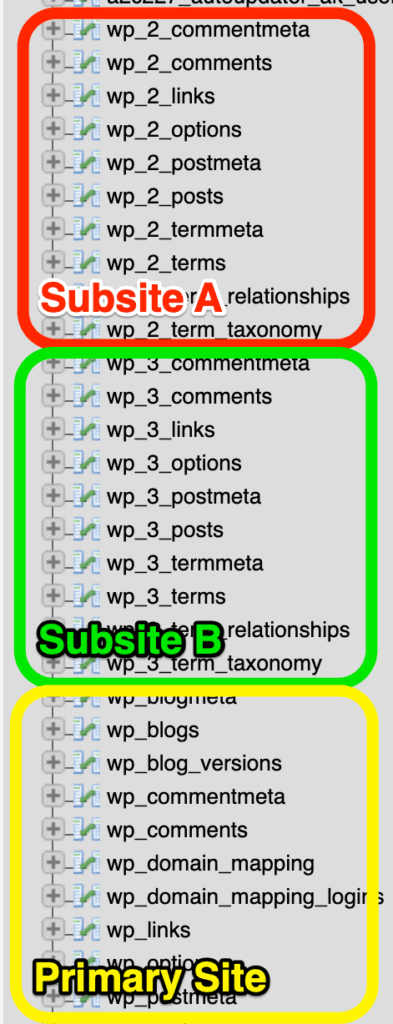
Credit: wpengine.com
Best Practices For Theme Cloning
Maintaining theme integrity is very important. Always keep the original files safe. This helps if you make a mistake. Use a backup before starting the cloning process. This can save time and effort later. Also, check the theme’s license. Some themes have strict rules about copying.
Ensuring performance optimization is the next step. A slow theme can make users unhappy. Always test the cloned theme for speed. Use tools to measure the load time. Make sure to check on different devices. Optimize images to make the theme faster. Remove unused plugins and scripts. This keeps the site light and quick.
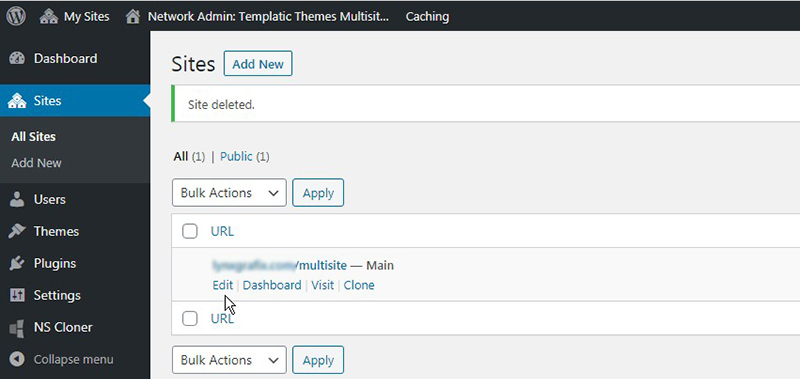
Credit: templatic.com
Frequently Asked Questions
How Can I Duplicate A WordPress Theme?
To duplicate a WordPress theme, access your site’s file manager or FTP. Locate the theme directory and copy it to a new folder. Rename the new folder to avoid conflicts. Activate the duplicated theme in your WordPress dashboard. Ensure all settings and customizations are intact for seamless integration.
Is Cloning A Theme Safe For Seo?
Cloning a theme won’t directly impact SEO if done correctly. Ensure your new site uses proper SEO settings and practices. Duplicate content or issues in the theme’s code can affect rankings. Always verify SEO configurations and optimize content to maintain your site’s visibility in search engines.
What Tools Help Clone WordPress Themes?
Several tools can assist in cloning WordPress themes effectively. Plugins like Duplicator or WP Clone facilitate easy duplication. These tools back up files and databases, making site replication seamless. Manual methods using FTP or file managers are also effective for advanced users familiar with WordPress structure.
Can I Clone Themes Without Coding Skills?
Yes, you can clone WordPress themes without coding skills. Use plugins designed for theme duplication, such as Duplicator. These plugins offer user-friendly interfaces and automate the process. Follow step-by-step guides available online to ensure successful theme cloning and site deployment.
Conclusion
Cloning a theme in WordPress multisite is straightforward. Start by understanding your site’s needs. Backup your data to avoid losses. Use cloning plugins for a smoother process. These tools save time and effort. Customize the cloned theme to fit each site.
Test thoroughly before going live. Ensure everything works correctly. Regular updates keep themes secure. Stay informed about new tools and practices. This helps in maintaining your sites efficiently. With these steps, cloning themes becomes manageable. Your multisite network stays organized and functional.
Enjoy the benefits of a streamlined WordPress multisite setup.


