
Have you ever stumbled upon a beautifully designed WordPress site and wondered what theme it uses? You’re not alone.
Discovering the theme behind a stunning website can provide valuable insights and inspiration for your own projects. Whether you’re a blogger, developer, or just curious, knowing how to identify a WordPress theme can unlock a world of design possibilities. In this guide, we’ll walk you through simple steps to uncover the theme of any WordPress site.
Get ready to satisfy your curiosity and enhance your web design toolkit with our easy-to-follow tips and tricks. Stick around, because what you’ll learn could transform the way you see and build websites.
Credit: www.inmotionhosting.com
Identifying WordPress Themes
WordPress themes have unique features. These help in spotting them. Look for a distinct design and layout. Many themes have custom logos. Also, check for unique color schemes. Some sites have special fonts that stand out. Another clue is the header style. It may be fixed or sticky. Check for sliders or carousels on the homepage. Themes often include these.
Visual clues are helpful too. Look at the menu style. Is it simple or mega? Check the footer. Does it have widgets or links? The sidebar may have special widgets. Each theme has a unique layout. Compare with other sites to spot differences. These clues help identify the theme in use.

Credit: www.wpbeginner.com
Using Online Tools
Many websites help find out a site’s theme. These sites are called theme detectors. They are easy to use. Simply enter the website URL. The detector will show the theme name. Some popular detectors are WPThemeDetector and What Theme. They are free and quick. You can learn more about a site’s design this way. It is useful for bloggers and web designers. It helps in choosing a new theme. It also helps to check competitors’ sites.
Browser extensions can identify themes too. These tools are handy. Install them on your browser. They work with Chrome and Firefox. After installing, visit any site. Click the extension icon. It shows the theme details. Extensions like Wappalyzer are popular. They show theme and plugin info. It saves time and effort. Easy for kids and beginners. Perfect for people who love to explore.
Inspecting Page Source
Open the website you want to inspect. Right-click anywhere on the page. Select “View Page Source” from the menu. A new tab with the page’s source code will open. This code shows the website’s HTML structure. You can see how the site is built.
Look for the word “theme” in the code. Press “Ctrl + F” to open a search box. Type “theme” and hit enter. This helps you find the theme’s name quickly. It is usually in the header section. The theme’s name often appears as a folder name. This folder contains the theme files. Knowing the theme helps you learn more about the site.
Checking Css Stylesheets
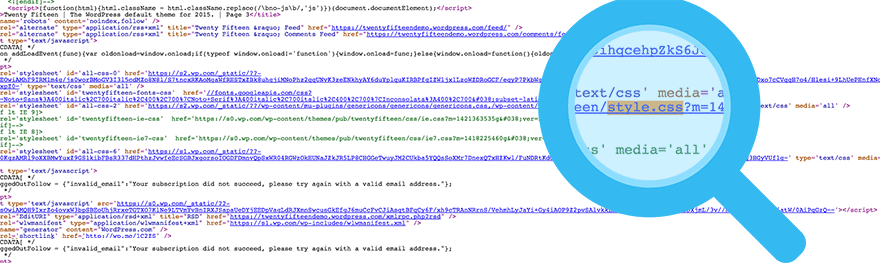
Find the stylesheet files for a website. Right-click on the page. Select “View Page Source” or press Ctrl+U. Look for links ending with .css. These are the stylesheet files. You might see names like style.css or theme.css. These files contain the design rules for the website. They are usually in the header section of the code.
Open the stylesheet file by clicking on it. Check the comments at the top. They often tell the theme name and version. You might see a Theme Name or Author. This helps to know more about the theme. The design and layout of the site rely on these files.
Exploring WordPress Dashboard
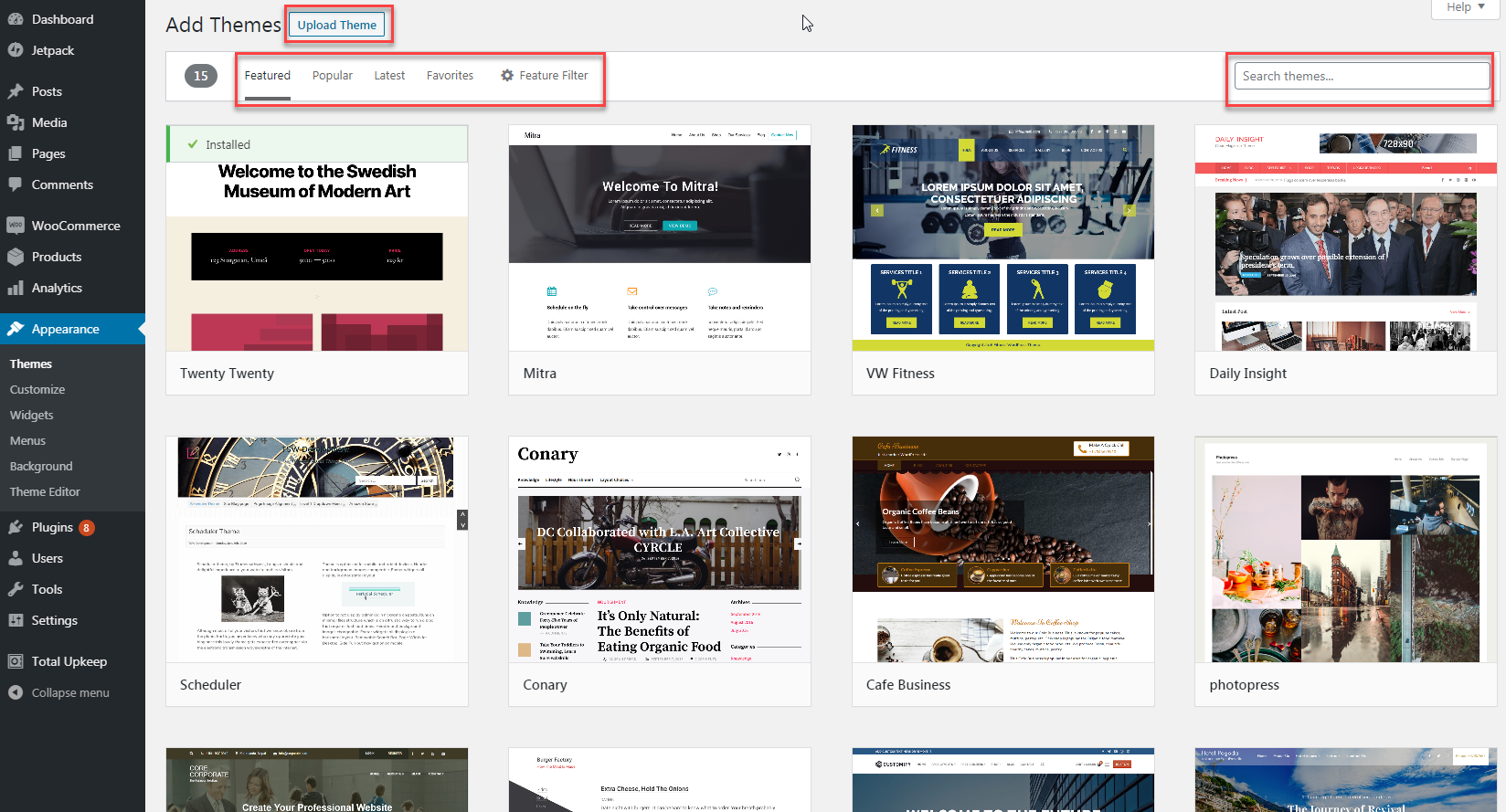
Start by logging into the WordPress admin panel. Use your username and password. You will see the dashboard. It has many options. Look for the “Appearance” tab. Click on it. It will show you the theme options. You can see the active theme here. The name of the theme is displayed. It is usually at the top.
The theme name is important. It helps you find more details. Click on “Themes” under the “Appearance” tab. All installed themes are shown. The active theme has a small description. This description has useful information. Look for the “Details” or “Info” link. Click it to learn more. You will see features and the version. Note these details for future reference.
Credit: winningwp.com
Consulting The Website Owner
Contacting the website owner can be helpful. Start with a friendly email. Introduce yourself and state your interest. Politely ask about the WordPress theme used on their site. Owners often share information. Explain why you want to know. Maybe for a school project or personal interest. Be polite and respectful.
Some owners may not reply. Don’t be discouraged. Try contacting through social media. Use platforms like Twitter or Facebook. Some owners are more active there. Always remain respectful.
In your message, mention your curiosity about the site’s design. Ask if they can share the theme name. Sometimes they might mention plugins too. This could be useful. They may even suggest similar themes. Respond promptly if they reply. Thank them for their time. This shows appreciation.
Remember, not everyone will respond. That’s okay. Try reaching out to other sites. Be patient and polite in your approach.
Utilizing Developer Tools
Open the website in your browser. Right-click on any part of the page. Select Inspect from the menu. A panel will appear at the bottom or side. This is the Developer Tools panel. Look for the word “theme” in the code lines. This often shows the theme name. Check in the head section of the HTML. The theme name is often there.
Find the style.css file link in the panel. Click on it to see details. The top lines in this file show the theme name. Also, the theme author’s name and theme URL may be there. These clues help trace the theme origin. Sometimes, theme makers put their details here. It’s a good way to learn more.
Frequently Asked Questions
How Can I Identify A WordPress Theme?
To identify a WordPress theme, use online tools like WPThemeDetector. Enter the site URL, and it’ll reveal the theme name. Alternatively, check the site’s source code for theme information. Look for “/wp-content/themes” in the code to discover the theme directory.
Are There Tools To Check WordPress Themes?
Yes, there are tools like WPThemeDetector and What WordPress Theme Is That. Enter the website URL, and these tools identify the theme used. They also provide information on plugins and theme popularity, aiding in understanding the site’s design and functionality.
Can I Check WordPress Theme Via Source Code?
Yes, you can check via source code. Right-click on a webpage and select “View Page Source. ” Search for “/wp-content/themes” to find theme details. This method shows the theme directory and helps in identifying the theme without using third-party tools.
Is It Possible To Detect Theme Manually?
Yes, detecting a theme manually is possible. Inspect the website’s source code and search for theme-related information. Look for “/wp-content/themes” to find the theme directory name. This method requires basic knowledge of HTML and coding practices.
Conclusion
Finding the WordPress theme of a site is simple. Use online tools to uncover it quickly. These tools help identify themes in seconds. Pay attention to theme details for better insights. Check plugin compatibility with the theme. Knowing the theme aids in website design inspiration.
Understanding these basics enhances your WordPress skills. Keep exploring and learning about different themes. This knowledge boosts your confidence in managing websites. Always stay curious and informed. Happy theme hunting!


