
Are you using the Kale theme on WordPress and feeling like your hyperlinks need a fresh look? Customizing the hyperlink color can significantly enhance the visual appeal of your site, making it more engaging and user-friendly.
It’s a simple tweak that can capture your visitors’ attention and improve their browsing experience. Imagine the impact of a well-chosen color that aligns with your brand identity, making your content pop in just the right way. In this guide, you’ll discover step-by-step instructions to effortlessly change hyperlink colors in the Kale theme, ensuring your site stands out and leaves a lasting impression.
Ready to give your website the vibrant touch it deserves? Let’s dive in!
Understanding Hyperlink Colors
The Kale Theme uses standard colors for links. They usually appear blue or purple. This helps users know which text is a link. Blue is for new links. Purple shows links you have clicked. These colors make it easy to understand which links are visited.
Changing link colors can make your site unique. It helps match your brand’s look. Different colors can make links stand out. Bright colors catch attention quickly. It improves user experience and keeps readers interested.
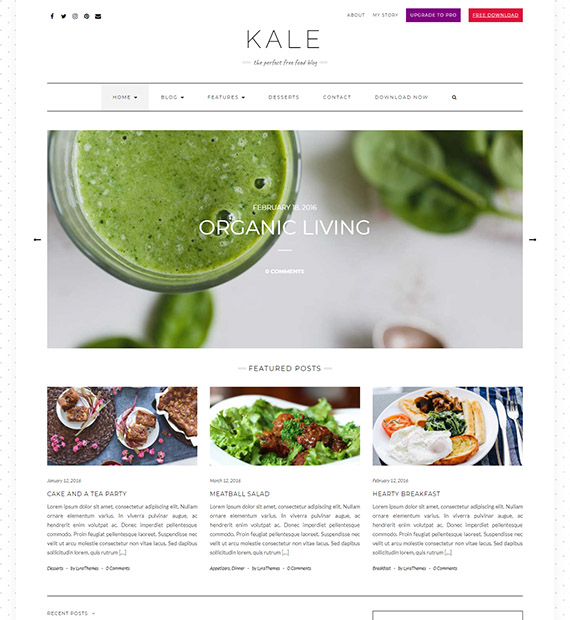
Credit: beautifulthemes.com
Accessing Theme Customizer
First, log into your WordPress Dashboard. You’ll see a menu on the left side. Click on Appearance to find the Customizer. This is where you can make changes to your theme.
The Customizer lets you change your site’s look. Click on Customize under Appearance. You will see different options to edit your site. Choose the one that helps in changing the hyperlink color. Adjust the color to fit your style.
Using Additional Css
Easily change hyperlink colors in the Kale Theme on WordPress by using Additional CSS. Access the theme customizer, add your desired CSS code, and update the link color to match your style. This simple tweak enhances your website’s look and user experience.
Locating The Additional Css Section
First, go to your WordPress dashboard. Click on Appearance in the left menu. Next, choose Customize. Look for the Additional CSS option. It is usually at the bottom. Click on it to open a text box. Here, you can add your custom CSS. This section allows you to change styles. No need to edit theme files directly. Always be careful. CSS changes affect how your site looks.
Writing Css For Hyperlink Colors
In the Additional CSS box, type a { color: #yourcolorcode; }. Replace #yourcolorcode with your desired color. For example, use #ff0000 for red.
To change hover color, use a:hover { color: #yourhovercolor; }. Choose colors that match your theme. This makes your site look nice.
After writing the code, click Publish. Now, check your site. Links should show new colors. If not, refresh the page.
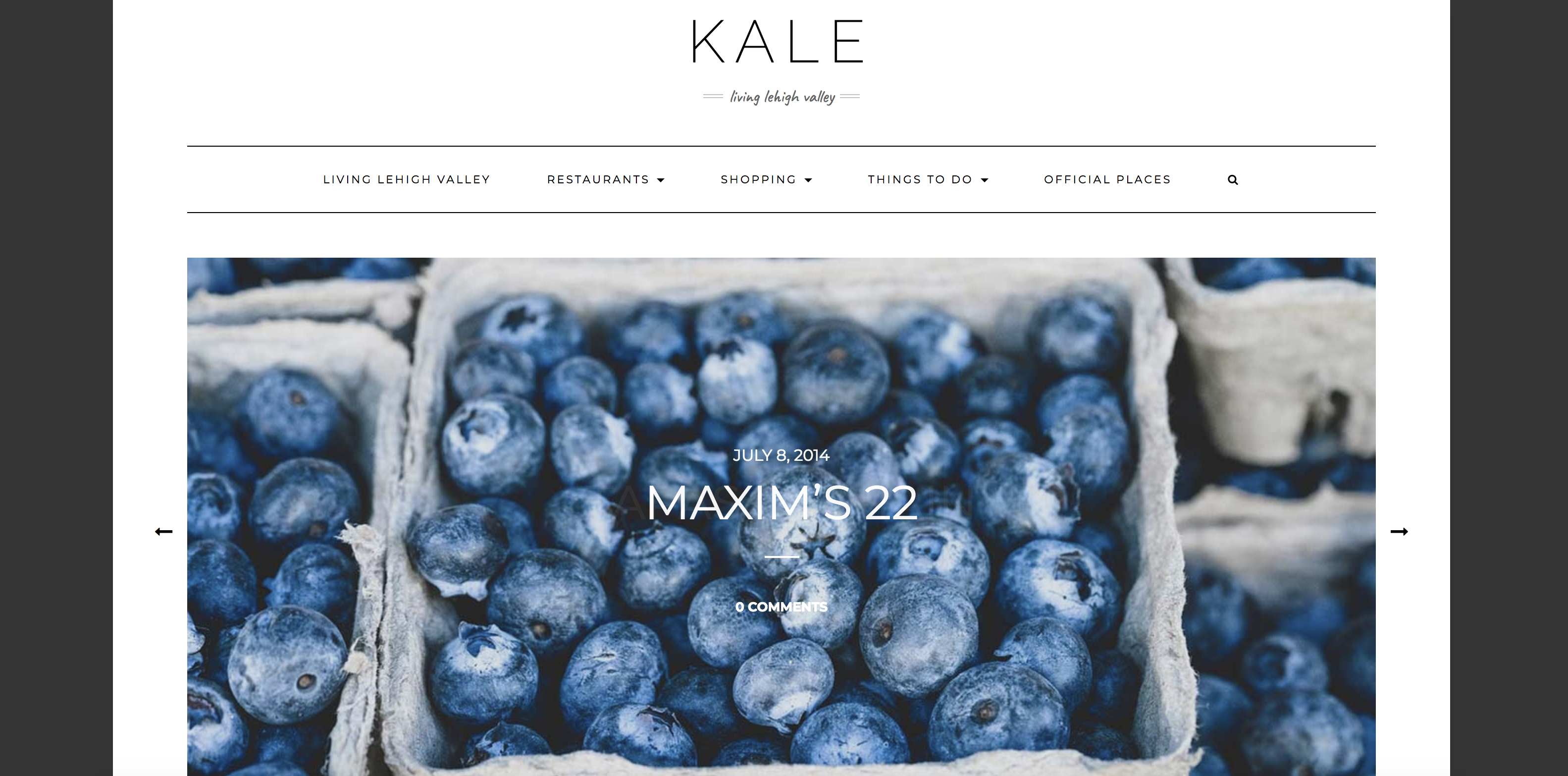
Credit: sites.lafayette.edu
Changing Colors Via Theme Options
Kale theme makes it easy to change link colors. Start by visiting the WordPress dashboard. Next, find the Appearance tab. Click on it. Then, select Customize from the list. Here, you will see many options.
Look for the Colors section in the settings. Click on it to open more choices. You can change the hyperlink color here. Pick a color you like. Make sure it stands out. This helps users notice links easily.
Once done, click Save & Publish. This makes sure your changes are live. Now your links have a fresh look. Enjoy your new link colors!
Implementing Custom Css
CSS is a style sheet language. It describes how HTML elements are displayed. The basic syntax includes a selector, a property, and a value. The selector points to the HTML element. The property is the style attribute you want to change. The value is the new style. For example, color: blue; changes text color to blue. Each statement ends with a semicolon. This tells the browser the rule is complete.
Hover effects make your website interactive. To change a link’s color on hover, use the :hover pseudo-class. For example, a:hover { color: red; } turns the link red on hover. This makes links stand out. It improves user experience. Always test your changes. Make sure they work on different devices.

Credit: mhthemes.com
Testing Changes
Adjusting hyperlink colors in the Kale Theme for WordPress can refresh your site’s look. Navigate to the theme’s customization options and find the color settings. Select the desired color for links to enhance visibility and user experience.
Previewing Adjustments
Check your website for any color changes to hyperlinks. Make sure they match your design. Look for any unusual colors or effects. These could confuse your visitors. Always test on the same device where you edited.
Ensuring Cross-browser Compatibility
Open your site in different web browsers. This includes Chrome, Firefox, and Safari. Look at the hyperlink colors in each browser. Colors might look different across browsers. It’s important to fix these issues. This way, your site looks the same for everyone. Test on phones and tablets, too.
Troubleshooting Common Issues
Changing hyperlink color in Kale Theme on WordPress involves adjusting CSS code. Access the WordPress dashboard, navigate to Appearance, then Customize, and add custom CSS to change the hyperlink color. Ensure the color enhances readability and aligns with your site’s design.
Css Not Reflecting
Sometimes, changes to CSS might not show up. This can be frustrating. First, clear your browser cache. Cached data may prevent new styles from appearing. Refresh the page after clearing. If this doesn’t help, check the CSS file paths. Ensure they are correct. Incorrect paths can stop updates. Try using the Inspect tool to see if the CSS is linked. This tool shows active styles. It helps in identifying issues.
Conflicts With Other Plugins
Other plugins can cause issues too. They might override your CSS changes. Disable plugins one by one. Check if the problem resolves. This helps find which plugin causes conflict. Sometimes, a plugin has its own styles. These can clash with your theme. Try using a Child Theme. It keeps your changes safe from plugin updates. Always back up your site before making changes.
Best Practices For Link Colors
Changing hyperlink colors in the Kale Theme on WordPress enhances user experience. Access the Customizer, navigate to Colors, and adjust link settings. This simple tweak makes your site more engaging and user-friendly.
Choosing Accessible Colors
Selecting colors that everyone can see is very important. Blue is a common choice for links. It is easy to spot. But not all can see blue well. Think about people with color blindness. Use contrast to make links stand out. Dark colors on light backgrounds work well. Test your colors to check visibility. Tools online can help with this. Accessibility is key for good design.
Maintaining Brand Consistency
Keep your brand colors in mind. Links should match your brand’s look. Consistency makes your website look nice. Use the same colors across all pages. This builds trust with users. Think of logos and main colors. Don’t use too many colors. Stick to two or three colors for links. Too many colors can confuse users. Keep it simple for easy reading.
Frequently Asked Questions
How To Access Kale Theme Settings?
To change hyperlink color, go to the WordPress dashboard. Navigate to Appearance > Customize. Here, you’ll find Kale theme settings. Explore Typography options to customize hyperlink colors easily. This section allows you to adjust various style elements to suit your website’s design preferences.
Can I Use Custom Css For Links?
Yes, you can use custom CSS to modify hyperlink colors. In the WordPress dashboard, navigate to Appearance > Customize > Additional CSS. Add your custom CSS code to change the link color. This approach gives you greater control over styling options for hyperlinks on your site.
Are There Predefined Color Options?
Kale theme provides predefined color schemes that simplify customization. Visit Appearance > Customize > Colors to explore available options. You can select a predefined color scheme or create a custom palette to match your branding. This feature ensures consistent styling across your website effortlessly.
Will Changing Link Color Affect Seo?
Changing hyperlink color does not directly impact SEO. However, ensure links remain visible and distinguishable to users. Proper styling enhances user experience, which indirectly supports SEO. Prioritize usability and accessibility when customizing link colors to maintain effective navigation on your site.
Conclusion
Changing hyperlink colors in the Kale Theme is simple. Follow the steps outlined above. Customize links to match your style. Enhance your site’s visual appeal effortlessly. This small change can impact user experience. Make your blog look more professional. Visitors appreciate a cohesive design.
Experiment with different colors. See what works best for your audience. Keep testing and refining your choices. Your website should reflect your unique brand. Stay consistent with your theme’s aesthetics. Enjoy the process of customizing your WordPress site. Happy blogging!


