
Have you ever found a WordPress theme that perfectly fits your vision, but you’re unsure how to replicate it for your own website? You’re not alone.
Many website owners and developers face this challenge. Whether you’re aiming to preserve a theme for future use or simply want to make a few tweaks without losing the original design, knowing how to copy a WordPress theme using File Manager is an invaluable skill.
Imagine having the power to duplicate your favorite themes effortlessly, keeping your design options open and ensuring you never lose that perfect layout. This article will guide you step-by-step, making the process as straightforward as possible. Stay with us, and you’ll soon master this essential technique, empowering your creativity and enhancing your WordPress experience.
Credit: www.wpzoom.com
Preparation Steps
Copy a WordPress theme using File Manager by first locating the theme folder in your hosting account. Download the entire theme directory to your computer for backup. Finally, upload the theme files to the new WordPress installation via File Manager, ensuring the theme is copied correctly.
Accessing The File Manager
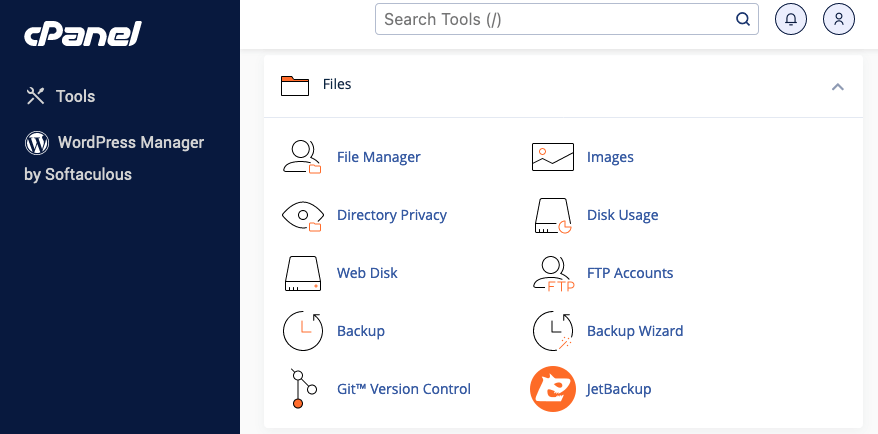
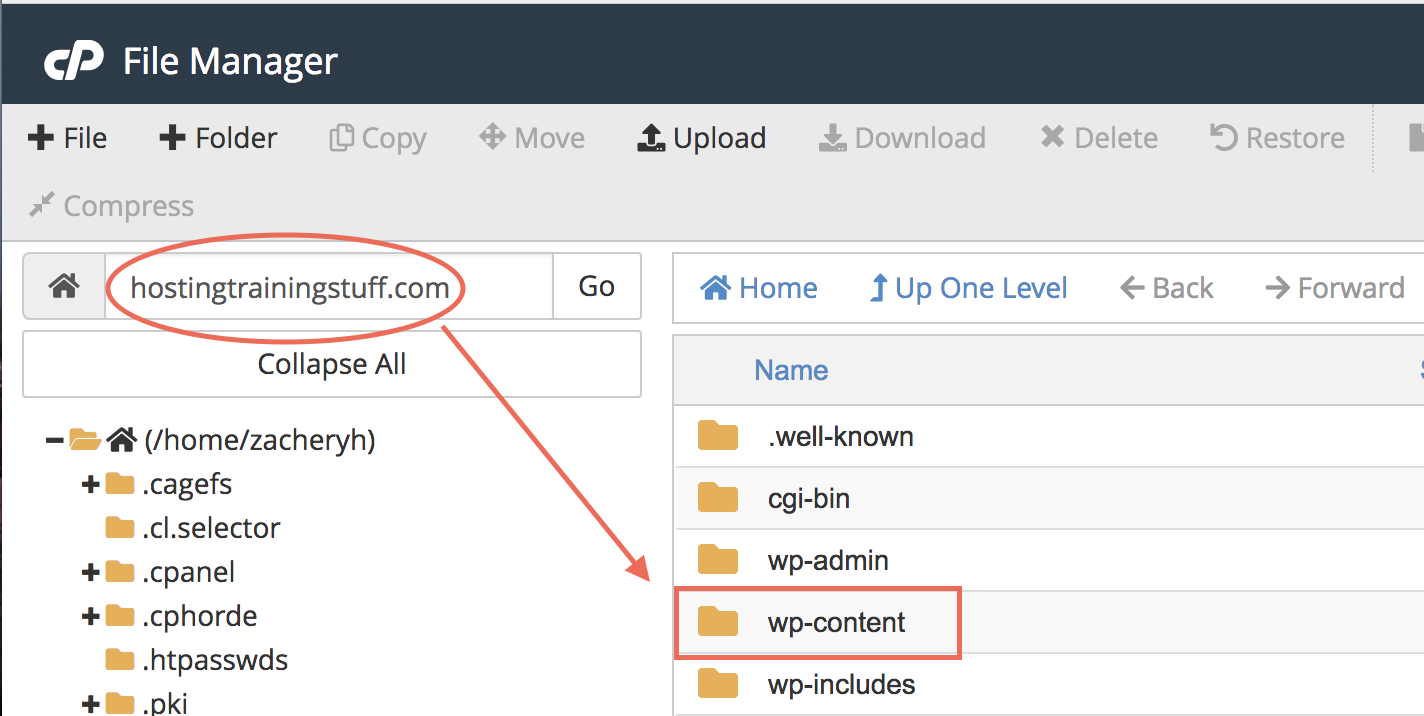
Log into your web hosting account. Locate the File Manager tool. It’s usually found in the control panel. Click on it to open. Find your website’s root directory. Look for folders named wp-content, themes, and others. The theme files are in the themes folder. Double-click to open it. You can see a list of theme folders. Identify the one you want to copy. Remember its name for later.
Backing Up Your Website
Backing up is very important. It keeps your data safe. Begin by opening the File Manager. Locate the public_html folder. Inside, find the wp-content folder. Right-click on it. Select the Download option. This action saves a copy to your computer. It may take a while. Wait patiently. Ensure you have enough storage space. Keep the backup file safe. It can help in emergencies.
Locating The Theme Files
Open your File Manager. Find your website’s root folder. It might be named public_html or something similar. Inside, locate the wp-content directory. This directory holds crucial files. Themes, plugins, and uploads are stored here. Double-click to enter the wp-content directory. You will see several folders.
Inside wp-content, find the folder named themes. This folder contains all theme files. Each theme has its own folder. Look for the theme you want to copy. It’s usually named after the theme. Themes often have subfolders and files. These include templates, style sheets, and scripts. Make sure you select the right theme folder.
Copying The Theme
Open your WordPress dashboard. Navigate to the Appearance section. Click on Themes. A list of installed themes will appear. Look for the theme you want to copy. Make sure you have chosen the correct theme. It is important to select the right one. Only then proceed to the next step.
Access your File Manager. Locate the wp-content/themes folder. This folder holds all your theme files. Find the folder with your selected theme. Right-click on the theme folder. Choose the copy option. Paste it into the same directory. Rename the copied folder. This will create a duplicate of your theme. Now you have two themes. One original, one copy.
Verifying The Theme Copy
Checking the Copied Theme in the Dashboard is simple. Open your WordPress dashboard. Go to Appearance, then click on Themes. Look for the theme you copied. It should be visible in the list. If it is not there, check the file paths. Ensure all theme files are in the right folders.
Testing for Functionality and Appearance is important. Activate the copied theme. Visit your website to see the changes. Look at the layout and colors. Make sure everything works well. Test buttons and links. Check images and text. If something is broken, review the theme files. Fix any issues you find. This ensures your site looks good and works well.
Troubleshooting Common Issues
Copying a WordPress theme using File Manager is straightforward. Navigate to the theme directory, select the theme folder, and download it to your computer. This method helps to easily backup or duplicate themes for customization or troubleshooting.
Resolving File Permission Errors
File permission errors can be tricky. They stop access to important files. Check file permissions to see if they are correct. Use your file manager for this task. Permissions like “755” or “644” are common. Change them if needed to allow access. Sometimes, you need to contact your host. They can help fix permission issues. Always be careful when changing permissions. Wrong settings may cause problems.
Addressing Compatibility Problems
Compatibility problems occur with some themes. Themes may not work with your version of WordPress. Check the theme’s requirements first. Make sure your WordPress is updated. Update plugins for better compatibility. Older plugins can cause issues. Try disabling plugins one by one. This helps find the conflicting plugin. Contact theme support for help if problems persist. Sometimes, changing themes is the only solution.
Credit: wordpress.org
Best Practices For Theme Management
Keeping your WordPress theme safe is very important. Always make regular backups of your theme files. This keeps your data safe if something goes wrong. Use a plugin or a file manager for this. Regular backups protect against unexpected issues.
It’s also smart to update your theme often. Updates fix bugs and add new features. They also keep your site secure. Always have a backup before updating. This way, you can restore your site if needed.
A child theme helps keep changes safe. It lets you change your theme without losing updates. Create a child theme if you want to customize. This is a safe way to tweak your design. The parent theme stays untouched and updates are easy.
Credit: www.name.com
Frequently Asked Questions
How Can I Copy A WordPress Theme Using File Manager?
To copy a WordPress theme with File Manager, access your hosting control panel. Navigate to the ‘wp-content/themes’ directory. Select the theme folder you want to copy. Use the ‘Copy’ function to duplicate the theme. Ensure you rename the copied folder to avoid conflicts.
Is Copying A WordPress Theme Legal?
Copying a WordPress theme is generally legal if you own it. If it’s a premium theme, check the license agreement. Free themes are usually under GPL, allowing modifications and distribution. Always ensure compliance with licensing terms to avoid legal issues.
What Precautions Should I Take Before Copying A Theme?
Before copying a theme, back up your website. This prevents data loss during modifications. Check the theme’s compatibility with your WordPress version. Ensure you have proper rights or licenses. Always test the copied theme on a staging site before implementing it live.
Can Copying A Theme Affect My Website’s Performance?
Copying a theme can affect website performance if done improperly. Ensure the copied theme is optimized and compatible with plugins. Avoid duplicating unnecessary files that can slow down your site. Regularly monitor your website’s speed and functionality post-copying.
Conclusion
Copying a WordPress theme using File Manager is straightforward. First, locate the theme folder. Next, download the necessary files. Finally, upload them to your new site. This method saves time and effort. No coding skills are needed. Beginners can easily follow these steps.
Always back up your files beforehand. This ensures your data stays safe. Regularly check theme compatibility. Updates may require adjustments. Successful theme copying enhances your site’s design. It offers flexibility in customization. Explore other themes too. Experimentation leads to better choices.
Keep learning and improving your WordPress skills.


