
Are you tired of the same old look on your WordPress site? Changing the theme can breathe new life into your online presence, making it more engaging and appealing to your audience.
Imagine your website with a fresh design that perfectly reflects your brand’s personality and captivates your visitors from the very first glance. In this guide, you’ll discover how simple it is to change the theme in WordPress, transforming your site into a visually stunning platform that stands out in the digital crowd.
Whether you’re a seasoned WordPress user or just starting out, this step-by-step process will empower you to easily customize your website’s appearance. Get ready to unlock the potential of your site and keep your visitors coming back for more.
Accessing WordPress Dashboard
First, log into your WordPress dashboard. This is the control center. Look for the login page. It usually ends with /wp-admin. Enter your username and password. Now, you are inside the dashboard.
You will see many options on the left. These options help you manage your site. Find the Appearance tab. Click on it. This is where you can change the theme.
Always check you are on the right page. The dashboard is easy to use. Just follow the steps. Changing the theme is simple from here.
Credit: wpengine.com
Navigating To Appearance Settings
Find the dashboard after logging in. Look for the left-hand menu. Click on Appearance. This opens up more options. Choose Themes from the list. You can see all available themes here. Pick the theme you like. Hover over it and click Activate. This changes your website’s look. You can also preview themes before activating. This helps you decide.
The customize option allows further changes. You can edit colors and fonts. Make sure to save your changes. This keeps your site looking fresh. Try different themes. Find the best one for your site. Always check the compatibility with plugins. Some themes might not work well. Keep your site responsive. This ensures it looks good on all devices.
Exploring Available Themes
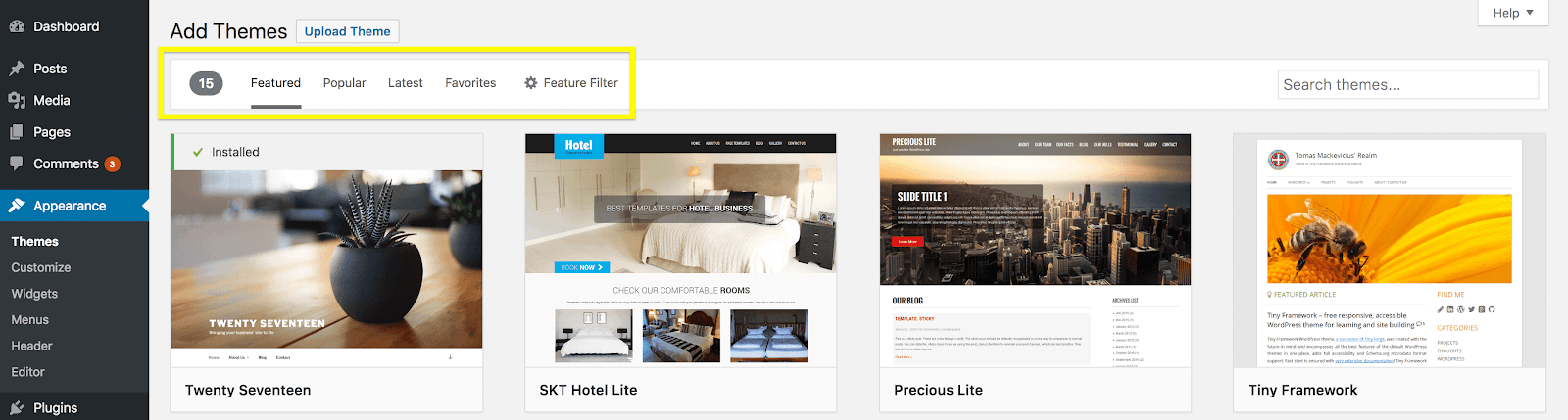
WordPress offers many themes for your website. Visit the Theme Library to see them all. Each theme has a different look and feel. You can view a preview of each theme. This helps you decide which one you like.
Click on a theme to learn more about it. Read the details to know its features. Look for themes that fit your website’s style. Make sure it matches your brand’s color and layout.
Use the search bar to find themes quickly. Type in keywords like “blog” or “portfolio” to narrow down your choices. This helps in finding a theme that suits your needs.
The search function also helps find themes by their name. If you know a theme’s name, search it directly. This saves time and effort. Always pick a theme that is easy to use.

Credit: www.templatemonster.com
Previewing Themes
Changing themes in WordPress is fun. First, go to your WordPress dashboard. Click on “Appearance” and then “Themes”. You will see many theme options. Find one you like. Click on it to see a preview. This shows how your site will look. If you like it, you can activate it.
Sometimes the preview may not look right. This is okay. Themes might need some tweaks. Check if the theme is mobile-friendly. Most users browse on phones. Make sure your theme looks good on all devices.
Take your time. Try different themes. Each theme gives your site a new look. You can always change it later.
Installing A New Theme
Changing the theme in WordPress is simple. Begin by logging into your dashboard, then navigate to ‘Appearance’ and select ‘Themes’. Choose a new theme and click ‘Activate’ to give your site a fresh look.
Automatic Installation
Changing the theme in WordPress is easy. First, go to your dashboard. Click on Appearance, then Themes. You’ll see a button that says Add New. Click it. You can browse through many themes. Some are free, others cost money. Once you find a theme you like, click Install. After installation, click Activate. Your site will now have a new look. It’s that simple!
Manual Upload
Sometimes, themes are downloaded as a file. This is often a .zip file. You need to upload it manually. Go to the dashboard. Click on Appearance, then Themes. Click the Add New button. Look for Upload Theme. Click it. Select your .zip file from your computer. Then click Install Now. After that, click Activate. Your theme is ready!
Activating The New Theme
To change a theme in WordPress, start by accessing the dashboard. Select “Appearance,” then click on “Themes. ” Choose a new theme from the library or upload one. Click “Activate” to apply it to your site.
Step-by-step Guide
First, log in to your WordPress dashboard. Look on the left side menu. Find and click on Appearance. Then, select Themes.
You will see your installed themes. To activate a new one, hover over the theme you like. Click on the Activate button. This will apply the new theme to your site.
Always check your website after changing a theme. Ensure everything looks right. Sometimes you may need to adjust settings.
Themes can change how your site looks. Choose a theme that fits your style. Enjoy your new website look!
Customizing The Theme
The Customizer helps change your theme easily. You can find it under Appearance in the dashboard. It allows you to adjust colors, fonts, and layouts. You can also add a logo and background image. Each change shows a live preview. This helps you see how your site will look. Save changes by clicking Publish. It’s simple and quick.
Widgets add content to your site’s sidebar. You can manage them under Appearance. Drag and drop to rearrange them. Menus help visitors find pages easily. Create menus in the Menu section. Add pages and links to your menu. Save changes with the Save Menu button. Both widgets and menus make your site user-friendly.

Credit: jetpack.com
Testing The New Theme
Ensure your new theme works well with your plugins. Some themes might not be compatible. This can cause issues on your site. Check if your site loads without errors. Test each page to see if they look right. If something looks strange, it might be a compatibility issue. Also, test important features like contact forms. They should work smoothly.
Responsive themes change size based on the device. Check your site on a phone and a tablet. See if it looks good on all screens. Make sure text is easy to read. Images should fit the screen well. A responsive site is important for users. It helps keep visitors happy. Also, search engines like Google prefer responsive sites.
Troubleshooting Common Issues
Sometimes, themes can cause problems. A new theme might not work well. This can make your website look bad. To fix this, switch to a default theme. This will show if the new theme is the problem. If yes, contact the theme maker. They can help with updates or fixes. A simple plugin can also help. It checks for theme conflicts. Always keep backups. They save time if things go wrong.
Changing back to an old theme is easy. Go to your dashboard. Click “Themes” under “Appearance”. Find your previous theme. Click “Activate”. Your old theme will come back. Check your site to see if everything is okay. If something is missing, use your backup. A backup helps restore lost data. Always make backups before changing themes. This keeps your site safe.
Best Practices For Theme Changes
Updating a WordPress theme requires careful planning. Backup your site before making changes to avoid data loss. Test new themes in a staging environment to ensure compatibility.
Backing Up Your Site
Before changing a theme, it’s important to back up your site. This protects your data. You can use plugins for backups. Some plugins are free. Others may cost money. Make sure you save your files. Check your database too. Backups save time if something goes wrong.
Consider SEO impacts during theme changes. New themes can affect search rankings. Some themes load faster. Others may slow down your site. Speed affects SEO. Choose a theme that loads quickly. Check if your new theme is mobile-friendly. Google likes mobile-friendly sites.
Test your site after changing themes. Look for broken links or missing images. Fix these issues quickly. Keep your site user-friendly. A good theme makes your site look nice. It helps users find what they need.
Frequently Asked Questions
How Do I Switch Themes In WordPress?
To switch themes in WordPress, go to your dashboard. Click ‘Appearance,’ then ‘Themes. ‘ Choose your desired theme and click ‘Activate. ‘ Ensure your theme is compatible with your plugins and WordPress version to avoid functionality issues.
Can Changing Themes Affect My Site’s Seo?
Yes, changing themes can impact your site’s SEO. A poorly coded theme may reduce site speed and affect rankings. Always choose a theme optimized for SEO with clean code, responsive design, and fast loading times.
What Should I Do Before Changing Themes?
Before changing themes, back up your site and check theme compatibility. Review your current customizations to ensure they can be transferred. Test the new theme on a staging site to avoid issues on your live site.
Will I Lose Content When Changing Themes?
No, changing themes won’t affect your content like posts and pages. However, customizations and widgets might be altered or lost. Review your site’s layout and settings post-switch to ensure everything is correctly displayed.
Conclusion
Changing your WordPress theme is simple. Start by exploring different themes. Choose one that matches your style. Install and activate your new theme. Customize it to fit your needs. Regularly update your theme for security. Check how it looks on mobile.
This ensures a great experience for visitors. Don’t forget to back up your site. A backup keeps your content safe. Experiment with layouts and colors. Make your site unique and appealing. With these steps, your WordPress site will shine. Enjoy your new design journey!


