
Changing the homepage of your WordPress theme can seem like a daunting task, especially if you’re not a tech wizard. But what if I told you it’s simpler than you think?
Imagine transforming your site’s look and feel with just a few clicks. Your homepage is the face of your website; it’s the first thing visitors see and it sets the tone for their entire experience. Whether you want to boost engagement, improve aesthetics, or simply showcase your latest content more effectively, knowing how to change your WordPress theme homepage is key.
In this guide, I’ll walk you through each step, ensuring you’ll have the confidence to customize your site just the way you want it. Ready to make your website shine? Let’s dive in!
Choosing The Right Theme
Think about what your site needs. Is it for a blog or shop? List your main goals. This helps in picking the right theme. If you want a shop, you need a store-friendly theme. For a blog, go for simple and clean. Make a list of what is important for you. This helps in making a choice.
Many themes are available. Look at free and paid options. Check the theme store on WordPress. Read reviews and ratings. This helps find good themes. Also, look at theme demos. This shows how your site may look. Pick a few themes you like. This makes deciding easier.
Look at theme features. Is it easy to use? Does it have customizable options? Check for mobile-friendly design. This is important for users on phones. Look for SEO features too. These help your site get seen. Compare themes side by side. This helps see which one is better.

Credit: www.youtube.com
Installing A New Theme
The WordPress repository is easy to use. First, go to your dashboard. Click on Appearance and then Themes. You will see a button called Add New. Click it. Now you can browse themes. Choose one and click Install. Wait for the theme to install. It might take a few seconds. When finished, it will show a message. The theme is ready to be activated.
Sometimes themes come as files. To upload, go to your dashboard. Click on Appearance, then Themes. Find the Add New button and click it. At the top, you will see Upload Theme. Click on it. Select your theme file. Make sure it’s in .zip format. Click Install Now. Wait for it to upload. You will see a message once done. Your theme is ready.
Activating a theme is simple. After installing, click the Activate button. You will find it next to your theme name. Your site will use the new theme. Check your homepage. It should look different now. If you want to switch, repeat these steps. Always choose a theme that fits your style. Themes make your site look nice. They are easy to change. Give them a try.
Customizing The Home Page
Begin by logging into your WordPress dashboard. Navigate to Appearance and click on Customizer. This tool lets you make changes to your theme’s home page. Look for options to edit colors, fonts, and images. Each theme has unique settings. Make sure to explore all available options.
The layout of your home page is essential. You can change the design by selecting different templates. Choose a layout that suits your content. Adjust the column number and width. You can also personalize the header and footer. A good design helps visitors navigate easily.
Widgets and plugins add useful features. Drag and drop widgets into your home page. Popular widgets include menus, search bars, and social media links. Plugins offer extra functionality. Install plugins from the WordPress Plugin Directory. Remember, too many plugins can slow down your site.
Setting A Static Front Page
First, you need to create a new page. Go to your WordPress dashboard. Find the Pages option on the menu. Click on Add New. Give your page a name. You can name it Home or something you like. After naming, click on Publish. Now, your new page is ready.
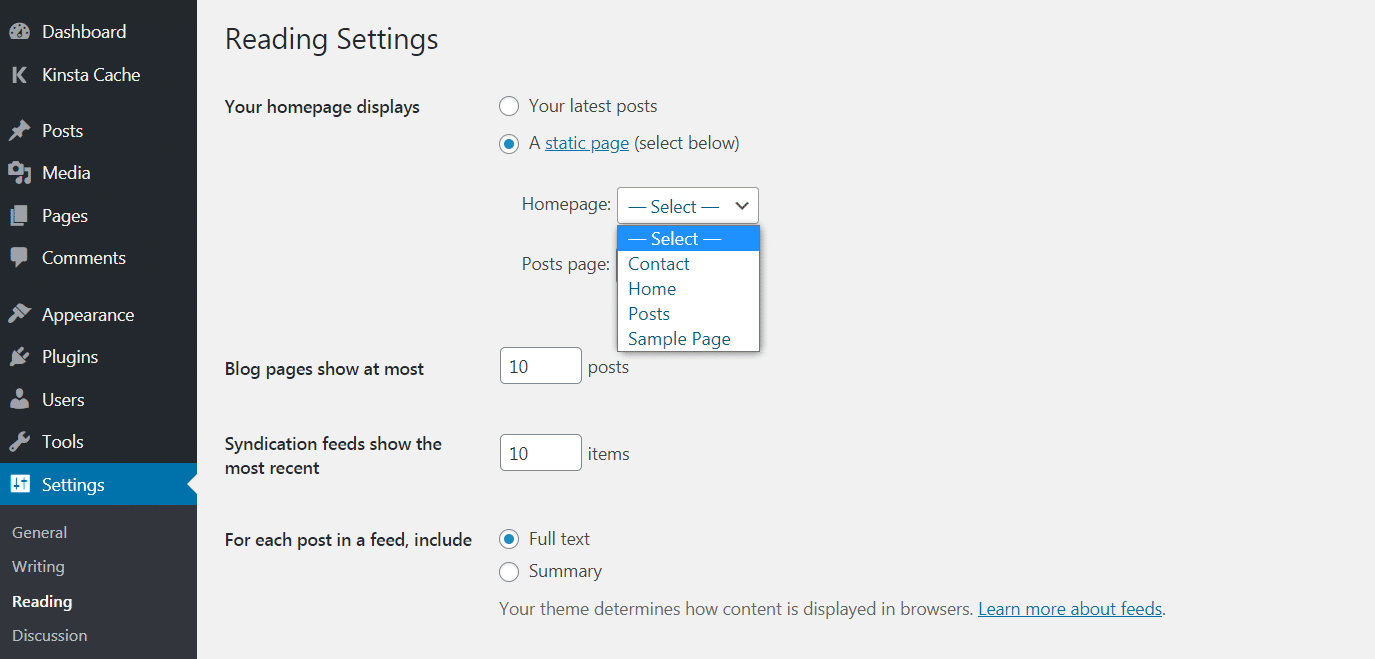
Next, set this page as your home page. Go to Settings in the WordPress dashboard. Click on Reading. You will see an option for Static Page. Select your new page from the dropdown. This will make it your home page. Don’t forget to click Save Changes.
Now, decide where to show your blog posts. You can create another page for this. Go to Pages and add a new one. Name it Blog or any name you like. Return to Settings and Reading. In the Posts Page option, select this new page. Click Save Changes to finish.
Optimizing For Performance
Faster pages make users happy. Use lightweight themes. Choose themes with fewer scripts. Minimize image sizes. Compress images before uploading. Enable caching plugins. Caching speeds up loading times. Avoid heavy plugins. Too many plugins slow your site. Use a content delivery network (CDN). CDNs distribute content faster.
Many users browse on phones. Choose a mobile-friendly theme. Responsive themes adjust to screen sizes. Test your site on different devices. Check buttons and menus. Make sure they work well. Avoid tiny text. Use readable fonts. Mobile-friendly sites rank better. Google likes responsive designs.
SEO helps users find your site. Use themes with clean code. Clean code improves SEO. Add alt text to images. Alt text describes images to search engines. Use headers for structure. Headers guide search engines and users. Include keywords naturally. Keywords help search engines understand your content. Avoid keyword stuffing. Too many keywords can hurt SEO.

Credit: jetpack.com
Testing And Launching
Testing and launching are key steps in changing a WordPress theme home page. Ensure all elements display correctly and function as expected. This guarantees a smooth experience for your visitors.
Previewing Changes
Preview changes before launching the new theme. Check how the home page looks. Ensure all elements are in place. Make sure the content is visible and clear. Test on different devices. Verify responsiveness and layout. Ensure no errors or broken links. Previewing helps catch mistakes early. This saves time and effort later.
Gathering Feedback
Feedback is important. Ask friends or colleagues for their opinions. Listen to their thoughts. They might spot issues you missed. Consider user experience suggestions. Feedback leads to improvements. Use it to enhance your site. Gather feedback before finalizing the theme.
Finalizing The Launch
Once changes are reviewed, prepare for launch. Double-check all settings. Ensure everything is ready. Confirm site functionality. The home page should be perfect. Launch when you feel confident. A smooth launch builds trust. Finalizing ensures the theme works well.
Credit: kinsta.com
Frequently Asked Questions
How To Set A New WordPress Theme?
To set a new WordPress theme, navigate to the “Appearance” section in your dashboard. Click on “Themes” and choose “Add New. ” Browse or search for a theme you like, then click “Install. ” After installation, click “Activate” to apply the theme to your website.
Can I Customize My WordPress Theme Home Page?
Yes, you can customize your WordPress theme home page. Use the “Customize” option under “Appearance” in your dashboard. This tool allows you to modify layout, colors, fonts, and other elements. Depending on your theme, additional customization options might be available through custom widgets or page builders.
How To Change The Homepage In WordPress?
To change the homepage in WordPress, go to “Settings” and then “Reading. ” Choose “A static page” and select your desired page from the dropdown menu. Make sure to save changes. This allows you to set any page as your homepage, different from the blog posts page.
What To Do If Theme Change Breaks Site?
If changing your theme breaks the site, switch back to your previous theme immediately. Check for plugin conflicts or missing dependencies. Ensure your new theme supports your site’s features. Consider using a staging site to test changes before applying them live to avoid disruptions.
Conclusion
Changing your WordPress theme home page is simple and rewarding. Begin by selecting a theme that fits your vision. Customize the settings to match your brand style. Use widgets and plugins to enhance functionality. Test the changes to ensure they display correctly.
Keep your content organized and easy to navigate. Regular updates keep your site fresh and engaging. With these steps, your WordPress home page will look professional and welcoming. Enjoy the process and watch your site grow! Readers will appreciate the effort you put into making their experience enjoyable.


