
Are you tired of that outdated WordPress theme that just doesn’t reflect your brand anymore? Or maybe you’ve noticed your site slowing down and suspect your old theme could be the culprit.
Whatever your reason, completely removing a theme from WordPress can feel a bit daunting. But don’t worry—you’ve landed in the right place. In this guide, you’ll discover the simple, step-by-step process to not only remove but completely erase any lingering traces of an unwanted theme.
Imagine the freedom of a faster, more streamlined website, just waiting for a fresh look. Ready to give your site the makeover it deserves? Let’s dive in and transform your WordPress experience.
Backup Your Site
Backups are very important. They keep your website safe. If something goes wrong, you can fix it. Without a backup, you might lose everything. Losing data can be very bad. It’s like losing a treasure. Always have a backup plan. This way, your work stays safe.
Many tools help with backups. Plugins are a great choice. Some popular ones are UpdraftPlus and BackupBuddy. They are easy to use. Just a few clicks, and you’re done. You can also use hosting services. Many offer automatic backups. Check with your provider. Choose a tool that suits you best. Keep your data secure.
Credit: totalwptheme.com
Deactivate The Theme
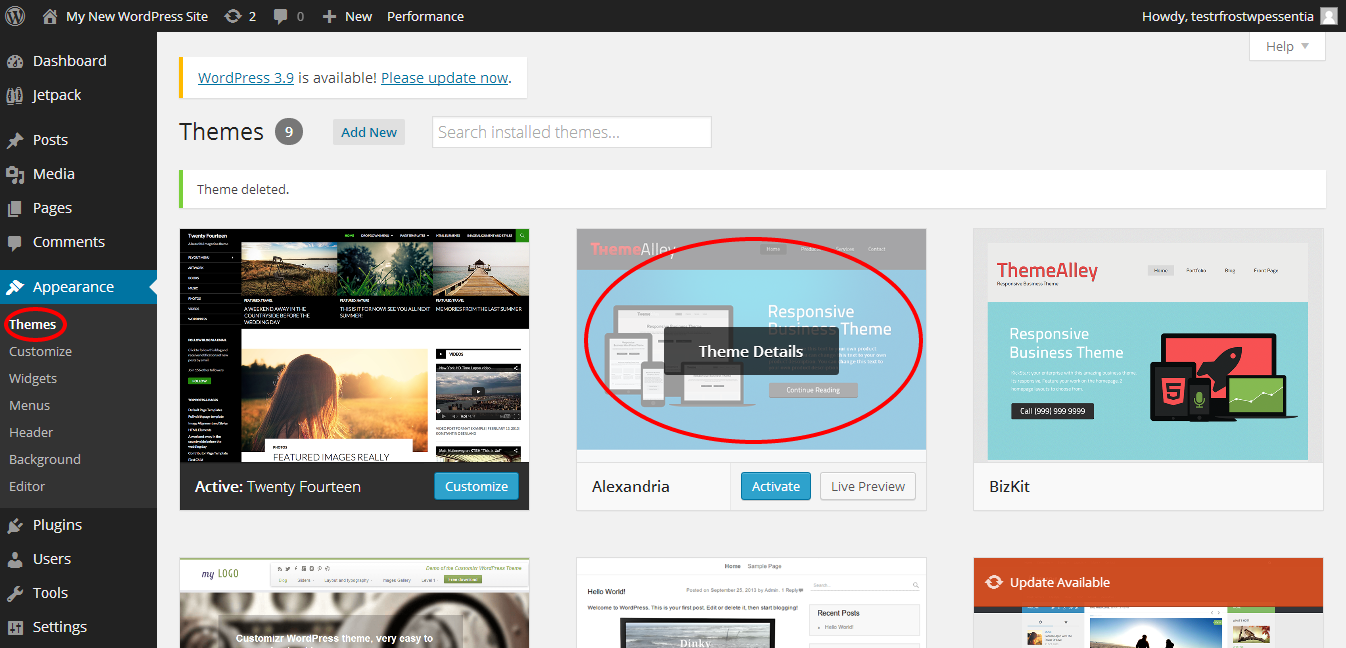
First, go to your WordPress dashboard. Click on Appearance. Find Themes and select a default theme like Twenty Twenty-One. This theme is simple and safe. Activate it to replace your current theme. This step prepares your site for theme removal.
Some plugins need your old theme. These plugins may stop working if the theme is gone. Look for plugins linked to the theme. Disable these plugins before you remove the theme. This keeps your site safe and working well.
Delete The Theme Via Dashboard
Start by logging into your WordPress dashboard. Find the Appearance tab on the left menu. Click on Themes under Appearance. This section shows all installed themes. Choose the theme you want to remove. Make sure it’s not active.
Click on the theme to open its details. Look for the Delete button at the bottom right corner. Click it to remove the theme. Confirm the deletion when prompted. It’s good to remove unused themes. This keeps your site clean and fast. You can always install new themes later. Removing themes also saves server space.

Credit: wpmanageninja.com
Remove Theme Files Via Ftp
First, open your FTP client. Enter your website’s FTP credentials. These include your host, username, and password. Click on connect to access your website’s files.
Once connected, find the public_html folder. Inside, look for the wp-content folder. Click on it to open. Now, find and open the themes folder.
Inside the themes folder, locate the theme you want to delete. Right-click the folder. Choose the delete option. Confirm that you want to delete. This will remove the theme completely.
Clear Theme-related Database Entries
Removing a theme from WordPress requires deleting theme-related database entries. Access your WordPress database through phpMyAdmin. Locate tables with your theme’s name and delete them for a complete removal. Ensure to back up your database before starting this process to avoid accidental data loss.
Identify Theme Options In Database
Find theme options in the database. Look for theme names or slugs. This helps locate entries to remove. Use search tools in your database for ease.
Use Sql Commands To Clean Up
Use SQL commands to clean unwanted data. DELETE or DROP commands can help here. Be careful with these commands. Always back up your database first.
Check For Residual Files
Old themes can leave files in the uploads folder. These might include images and media. Check the media library for leftover theme assets. Remove these to free up space. This helps in keeping the site neat and tidy.
Look for theme files left in the themes directory. Sometimes, old themes leave behind scripts or styles. These can slow down your site. Identify and delete these files carefully. Make sure not to remove important ones. Doing this keeps your site running smoothly.
Test Your Website
Remove a theme from WordPress by accessing the dashboard and navigating to the “Appearance” section. Select “Themes,” then choose the unwanted theme and click “Delete. ” Ensure backups are made before proceeding, as theme removal affects site appearance and functionality.
Verify Functionality
Check each page to see if it works. Click on all links. Make sure they go to the right places. Look at images and videos. They should show up correctly. If something looks wrong, it might need fixing. Sometimes, a theme change causes problems. It’s important to catch these early.
Ensure Consistency Across Pages
Each page should look similar. Colors and fonts need to match. This helps visitors feel comfortable. It makes the site look neat and tidy. Compare pages side by side. Notice any differences? Fix them to keep things the same. This helps the website feel whole and together.
Credit: www.domain.com
Optimize Site Performance
Clear cache regularly to keep your website fast. Cached files can slow down your site. Remove them using a cache plugin. This helps to load pages quickly. Visitors enjoy faster browsing. Faster sites rank better on search engines.
Optimize database for better performance. Delete old and unused data. This includes old drafts and spam comments. Use a plugin to clean your database. A clean database makes your site run smoothly. It also uses less server resources. Your website stays healthy and efficient.
Frequently Asked Questions
How Do I Uninstall A WordPress Theme?
To uninstall a WordPress theme, go to the “Appearance” section in your dashboard. Click on “Themes,” then select the theme you want to remove. Choose “Delete” to uninstall it completely. Ensure you have a backup before deleting, as this action is irreversible.
Can I Remove Theme Without Ftp Access?
Yes, you can remove a theme without FTP access. Navigate to your WordPress dashboard, click on “Appearance,” then “Themes. ” From there, select the theme you wish to delete. Click “Delete” to remove it. This method works if you have admin privileges.
What Happens If I Delete Active Theme?
Deleting an active theme will revert your site to the default theme. Make sure to activate another theme before deletion. If no theme is active, WordPress will automatically switch to one of its default themes, ensuring your site remains functional.
Is Deleting Theme Safe For My Site?
Deleting a theme is safe if it’s not active. Ensure you have a backup before proceeding. Removing unused themes can improve site performance and security. Always check if the theme contains any customizations you might need before deletion.
Conclusion
Removing a WordPress theme can seem tricky, but it’s manageable. Follow the steps carefully, and ensure backups are made. This keeps your site safe. Always choose a theme that suits your needs. Keep your WordPress dashboard clean and organized. Regular updates are essential for security.
Experiment with new themes cautiously. Avoid clutter by removing unused themes. This boosts site performance. A tidy dashboard helps manage your site efficiently. Stay informed about WordPress updates and best practices. Your website deserves the best care. Enjoy a streamlined, efficient WordPress experience.


