
Are you feeling limited by sticking to just one theme on your WordPress site? Imagine the creative possibilities if you could blend the best elements of two themes, crafting a unique website that stands out from the crowd.
Combining two WordPress themes might sound complex, but it’s a game-changer for customizing your online presence. With the right guidance, you can harness the power of multiple designs to create a site that reflects your vision perfectly. You’ll discover simple steps to seamlessly merge two themes, unlocking a world of customization that can elevate your website to new heights.
Keep reading to uncover how this technique can transform your WordPress experience and captivate your audience.
Choosing Compatible Themes
First, check the features of both themes. See if they have similar options. Look for customization choices. This makes it easier to combine them. Some themes have special features. These might not work well together. Pick themes with common elements. This helps in making them compatible.
Consistent design is very important. See if the colors match. Also, check the fonts and layout. A mismatch can look messy. Keep the design style similar. This ensures the site looks neat and professional. If designs clash, choose another theme. Good design makes a big difference.

Credit: colorlib.com
Creating A Child Theme
A child theme helps you keep your changes safe. Updates won’t break your customizations. Changes in the parent theme won’t affect your site. It’s a safe way to tweak designs. You can add new features easily. Custom CSS can be added without worry. Child themes are easy to create. They help in learning WordPress theme development.
- Create a new folder in the themes directory.
- Make a style.css file in the folder.
- Add a Template line in the CSS file.
- Create a functions.php file.
- Enqueue the parent theme styles in functions.php.
- Activate the child theme in WordPress.
Merging Theme Styles
CSS helps in blending different themesstyle.css file for each theme. This file holds all the styling rules. Identify key elements like fonts, colors, and layout structures. Combine these rules carefully. Test each change on your site. Ensure it appears as expected. Use browser developer tools. They show you how changes impact your site. Avoid conflicts in styling.
Conflicts occur when two themes share the same CSS selectors. Resolve this by using more specific selectors. Add class names or IDs. Target specific elements with precision. This helps in maintaining the visual integrity of both themes. Override default styles with caution. Always test after modifying the CSS. Check on multiple devices. Ensure that your site remains responsive and user-friendly.
Integrating Theme Functions
Start by listing all the important functions of each theme. Core functions include widgets, sidebars, and custom menus. These are the building blocks of a theme. Be sure to note all the unique features that each theme offers. This helps in understanding what each theme brings to the table. Comparing lists can help you see overlapping functions. This step is crucial for smooth integration.
Look for functions that do the same job in both themes. Overlapping functions can cause errors. Disable one of the duplicates to avoid problems. Always back up your themes before making changes. This keeps your work safe. Testing the site after changes is important. Check that everything works as expected. Fix any issues you find to ensure a smooth user experience.
Customizing Theme Templates
Template hierarchy is a guide for WordPress themes. It helps you understand which template files control your site. Each part of a theme has its own file. For example, the header has a header.php file. WordPress looks for files in a certain order. If it can’t find one, it uses the default file. This is how the system works. Knowing this helps you customize themes easily.
To change a theme, you need to edit template files. First, make a child theme. This keeps your changes safe during updates. Open the file you want to change. Use a simple text editor. Add your code carefully. Save the file and check your website. Small changes can make a big difference. Always back up your site before starting. This keeps your data safe.
Testing The Combined Theme
Every browser shows websites a bit different. Check your site on Chrome, Firefox, and Safari. Make sure everything looks good. Fonts should be clear. Colors should match. Images must load properly.
Websites should fit all screens. Test on phones, tablets, and desktops. Make sure text is readable. Buttons should be easy to tap. Pages must load quickly. Fix any layout issues. Use tools to help check responsiveness. Adjust settings if needed.
Maintaining The Combined Theme
Blending two themes in WordPress enhances design flexibility and functionality. Select compatible themes to ensure seamless integration. Use a child theme for customizations, maintaining updates and security.
Handling Theme Updates
Updating themes can be tricky. Always back up your files first. This ensures that you don’t lose important data. Check the update notes. They tell you what changes are coming. Some updates might break your combined theme. Test updates in a safe area. This is called a staging site. It helps find problems before going live. Keep a record of changes you make. This helps if you need to fix something later.
Troubleshooting Common Issues
Sometimes, themes don’t work well together. Check if plugins are causing trouble. Turn them off one by one. See if the problem stops. Look at your site’s code. Errors can hide in the code. Use tools to find these errors. Search online for help if stuck. Many people have similar problems. They often share solutions on forums. Always have a backup plan. It keeps your site safe from big mistakes.
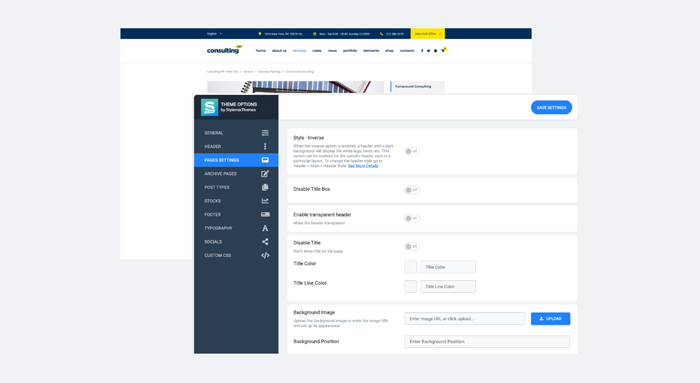
Credit: stylemixthemes.com

Credit: www.greengeeks.com
Frequently Asked Questions
Can You Merge Two Themes In WordPress?
Yes, you can combine two themes in WordPress using child themes. Create a child theme of your primary theme. Then, incorporate styles and functionalities from the secondary theme. This method ensures customizations are preserved during updates. Always backup your site before making changes to avoid data loss.
Is It Safe To Mix WordPress Themes?
Mixing themes can be safe if done correctly. Use child themes to ensure your customizations are preserved. Avoid conflicts by checking compatibility between themes. It’s essential to test changes in a staging environment first. Regular backups can prevent data loss during theme modifications.
How Do I Customize Theme Styles?
Customize theme styles by editing the CSS files in your child theme. Use the WordPress Customizer for basic changes without coding. Advanced users can add custom functions via the functions. php file. Always preview changes to ensure they work correctly across different devices.
Can Theme Mixing Affect Website Speed?
Yes, theme mixing can affect speed if not optimized. Ensure both themes are lightweight and well-coded. Use caching plugins to enhance performance. Minimize the use of excessive scripts and styles. Regularly monitor your site’s speed using tools like Google PageSpeed Insights.
Conclusion
Combining two themes in WordPress is easier than you think. Start small. Explore various design elements. Experiment with colors and layouts. Always back up your site first. Use child themes to avoid risk. Testing is key. Check compatibility to prevent errors.
Stay updated with WordPress changes. This keeps your site fresh and secure. With patience, your site will reflect your unique vision. Enjoy the process. The result can be a stunning, tailored website. Perfect for your needs and style. Embrace creativity.
Transform your online presence today.


