
Is your WordPress site in need of a fresh look? Changing the header image can make a striking difference, capturing your visitors’ attention and setting the tone for your brand.
But if you’re unsure how to do it, don’t worry. You’re not alone. Many WordPress users find the process a bit daunting at first. The good news? It’s simpler than you think! By following just a few straightforward steps, you can transform your site’s header into a powerful visual statement.
Imagine the impact of a captivating header image that speaks directly to your audience, enhancing their experience and keeping them engaged. Ready to give your website the makeover it deserves? Let’s dive in and unlock the full potential of your WordPress theme.
Accessing The WordPress Dashboard
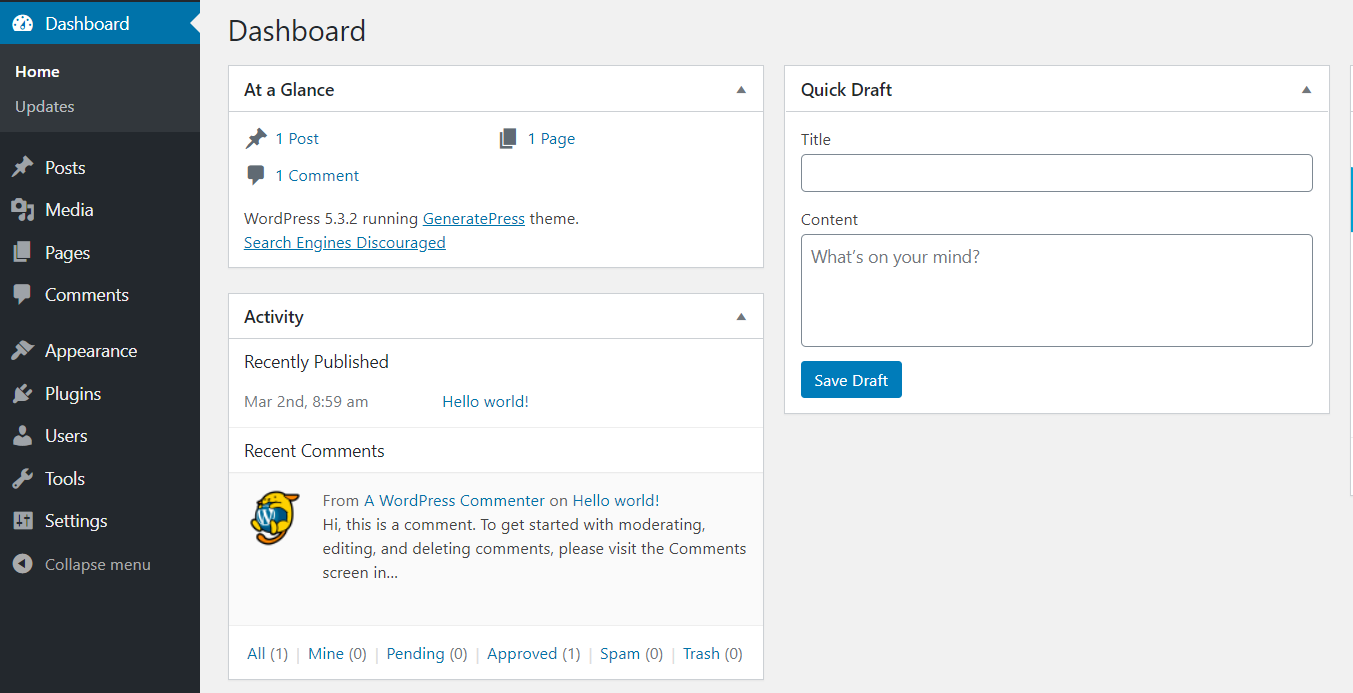
Log into your WordPress site. Use your username and password. Once logged in, you’ll see the dashboard. This is the main control center. Locate the sidebar on the left. It has many options. Click on Appearance. Then, select Customize. This will open the theme customizer.
In the customizer, you can make changes. Find the Header Image section. Click on it to change your image. Upload a new image from your computer. Or choose one from your media library. Click Save to apply changes. Now your header image is updated.
Credit: quadlayers.com
Navigating To Appearance Settings
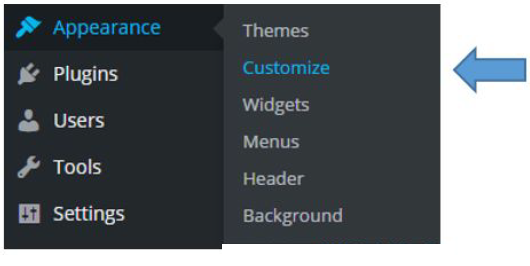
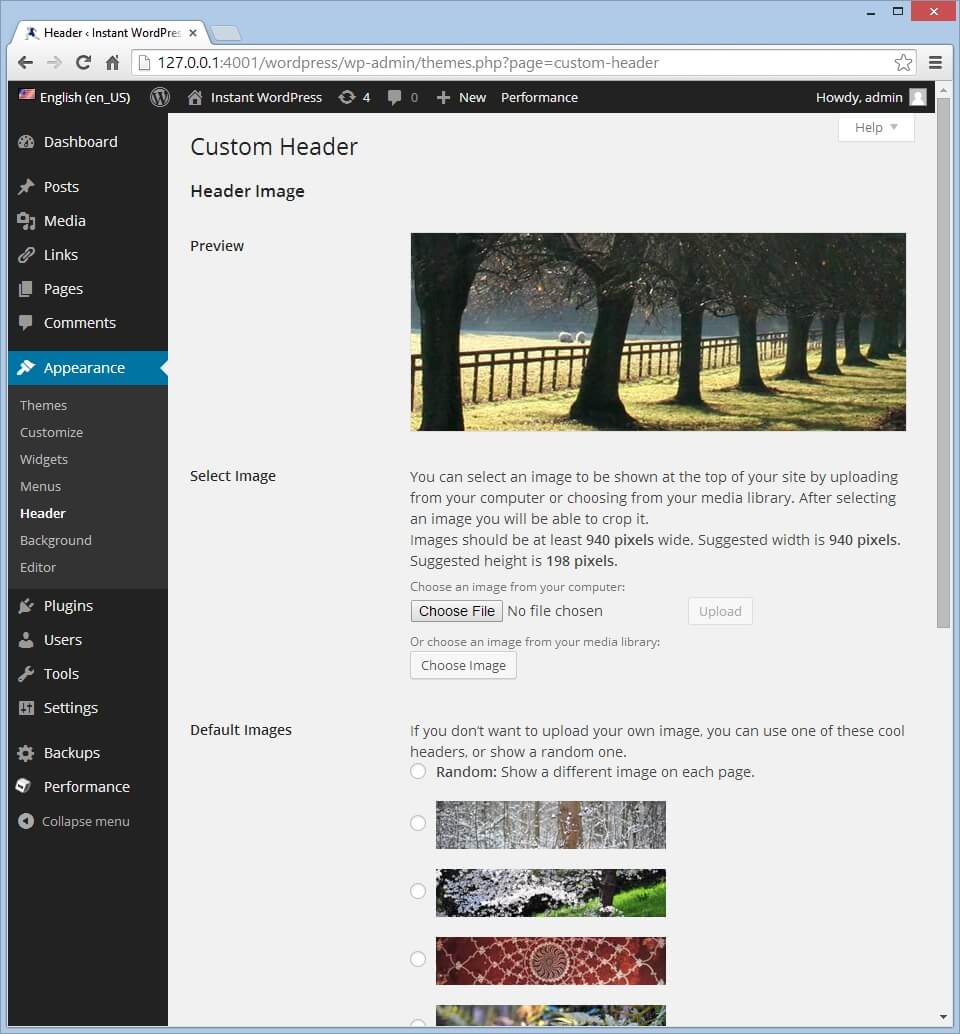
First, find the Dashboard in WordPress. Click on the Appearance tab. It is on the left side. A menu will appear. Find the Header option. Click on it. You will see the current header image.
To change it, click on the Add New Image button. Choose an image from your computer. Make sure it fits well. You can also select an image from the media library. Adjust the size if needed. Click Save when you are done.
Your header image will now be updated. Refresh the page to see the change. It’s easy to customize your site. Try different images to make it unique. Enjoy creating your own style!
Choosing The Header Section
First, find the customize option in your WordPress dashboard. Click on it to open the customizer. Look for the header section in the menu. Some themes may label it as “Header Image” or “Header Media”. Choose the section that fits your needs.
Click on the header option. You will see an option to add a new image. Select an image from your media library or upload a new one. Ensure the image size is correct for your theme.
Once uploaded, you can crop or adjust the image. Preview your changes to see how it looks. Finally, hit the publish button to make it live. Now, your header image is updated.
Credit: www.library.illinois.edu
Uploading A New Header Image
First, go to the WordPress dashboard. Find the Appearance tab on the left. Click on it. Then, choose Header. Look for the section to upload a new image. Click Add New Image. A window will open. Here, you can choose your image file.
Click Select Files. Choose an image from your computer. Make sure the image is clear. It should look nice on your site. Once selected, click Open. Your image will start uploading. Wait for it to finish.
After upload, you might need to adjust the size. WordPress will show the image preview. Use the crop tool if needed. Ensure it fits well in the header space. Then, click Save & Publish. Now, your new header image is live!
Customizing Header Display Options
Choose the right spot for your header image. The center often looks balanced. Left-side alignment can be good for logos. Right-side can add a unique touch. Experiment with different positions. See what feels best for your site. Adjust until it looks perfect. Alignment matters for visual appeal.
Titles should be clear. They tell visitors about your site. Taglines add more info. Keep them short and catchy. Use words that describe your site well. Bold phrases to make them stand out. A good title or tagline can attract more visitors. Ensure they fit your header image style.
Previewing Changes
Previewing changes in your WordPress theme is important. It helps see how your site looks. Go to the Customize section in your WordPress dashboard. Find the Header area. Here, you can upload a new image. Choose the image that fits your theme. After uploading, check the preview. Make sure the image looks good. If it doesn’t, try another image. Adjust the size if needed. The preview shows changes without affecting the live site. This ensures everything is perfect before going live.
Saving And Publishing
Make sure you click Save after changing the header image. The save button is usually at the top. It keeps your changes safe. No one can see your new header image yet.
Next, click the Publish button. It is often near the save button. This lets everyone see your new header image. Your website will have a fresh look.
Check your website after publishing. Look for the new image. It should appear at the top. If not, try saving and publishing again. Sometimes, it takes a few tries.
Troubleshooting Common Issues
Image Not Displaying: Sometimes the header image does not show. Check your theme settings first. Ensure the image is uploaded correctly. Verify the image format. WordPress supports JPEG, PNG, and GIF. Check if your theme supports custom headers. Some themes have specific requirements. Clear the browser cache and refresh the page. This might solve the issue.
Incorrect Image Size: Images may not fit the header. Check the theme’s recommended dimensions. Resize your image using editing tools. Upload the image again. Avoid stretching the image. It may look blurry. Use exact dimensions for a perfect fit. Some themes auto-crop images. This might change the appearance. Always preview changes before saving. Adjust if necessary.
Exploring Alternative Methods
Custom CSS can change your WordPress header image. It’s simple and fun. First, find the CSS code for the header image. Next, add your own code to change it. Open the WordPress Customizer. Click on “Additional CSS”. Paste your CSS code there. Save the changes. Your header image will change now. This method is easy. No need for coding skills.
Plugins make tasks easier. Install a header image plugin from the WordPress store. It’s simple to find one. After installation, activate the plugin. Go to the plugin settings. Upload your new header image there. Save the changes. The plugin updates the image for you. No need to edit any code. Simple and effective.
Credit: www.theblogstarter.com
Frequently Asked Questions
How Do I Change The Header Image In WordPress?
To change the header image, go to your WordPress dashboard. Navigate to ‘Appearance’ and select ‘Customize. ‘ Click on ‘Header Image. ‘ Upload a new image or choose from the media library. Save changes to update your header image instantly.
Can I Use My Own Image As A Header?
Yes, you can use your own image as a header. In the ‘Customize’ section, select ‘Header Image. ‘ Click ‘Upload’ to add your image from your computer. Ensure your image meets any size requirements for optimal display.
What Size Should A WordPress Header Image Be?
The ideal size for a WordPress header image is usually 1200 x 600 pixels. This ensures your image displays correctly across devices. Check your theme’s recommended dimensions in the ‘Customize’ section for best results.
Are Header Images Theme-specific In WordPress?
Yes, header images can be theme-specific. Different themes have varied layout options and size recommendations. Review your theme’s documentation for specific guidelines on header images to ensure compatibility and visual appeal.
Conclusion
Changing the header image in WordPress is simple. Follow the steps outlined. You’ll find it easy to customize your site. A fresh header image can enhance your theme. Make your website look unique and attractive. Experiment with different images. See what fits your brand best.
Regular updates keep your site engaging. Visitors appreciate fresh content. Make sure images are high-quality. They should reflect your style. Keep exploring WordPress features. Always aim for a personal touch. Happy blogging and designing!


