
Are you tired of seeing the same old copyright footer on your WordPress Highlight theme? You’re not alone.
Many website owners feel the need to personalize every detail of their site, and the footer is no exception. Changing the copyright footer not only enhances your site’s uniqueness but also strengthens your brand identity. Imagine your visitors scrolling down and seeing your custom message or brand signature—it leaves a lasting impression.
And the best part? It’s easier than you think to make this change. In this guide, you’ll discover straightforward steps to customize your footer, giving your WordPress site the personal touch it deserves. Let’s dive in and transform that overlooked space into a powerful branding tool.
Backup Your Site
Backing up your site is very important. It keeps your data safe. Mistakes can happen during changes. With a backup, you can restore your site easily. Use a plugin to backup your site. Many plugins are free and easy to use. They save a copy of your site on your computer or cloud. This way, you do not lose your hard work.
Make sure to backup your site regularly. You can set a schedule for automatic backups. This keeps your site updated and safe. Remember, a good backup plan is like a safety net. It helps you bounce back if something goes wrong.

Credit: www.hostinger.com
Access WordPress Dashboard
Start by logging into your WordPress. Enter your username and password. Click the login button. You will see the WordPress Dashboard. It is the main area where you manage your site.
Look for the Appearance section. It is usually on the left side. Click on it. A new menu will show up. Find and click Editor. This opens up the theme files. You can edit them here.
Be careful when editing. Small changes can affect your site. Always save a copy before you change anything. This helps if something goes wrong.
Navigate To Theme Editor
First, log in to your WordPress dashboard. On the left menu, find Appearance. Click on it. Next, select Theme Editor. This area lets you change theme files. Be careful here. Any wrong changes might break the site.
In the editor, look for footer.php in the right panel. The footer file usually holds the copyright text. Check for lines with © or copyright. Change the text to your own. Make sure to save changes by clicking Update File at the bottom.
Locate Footer File
First, go to your WordPress dashboard. Click on “Appearance” in the left menu. Then, select “Theme Editor”. You will see a list of theme files on the right side. Look for “footer.php”. This is the file you need. Click on it to open. You can now edit the footer text. Be careful while editing. Wrong changes can break your site. Always make a backup before you start.
Edit Copyright Text
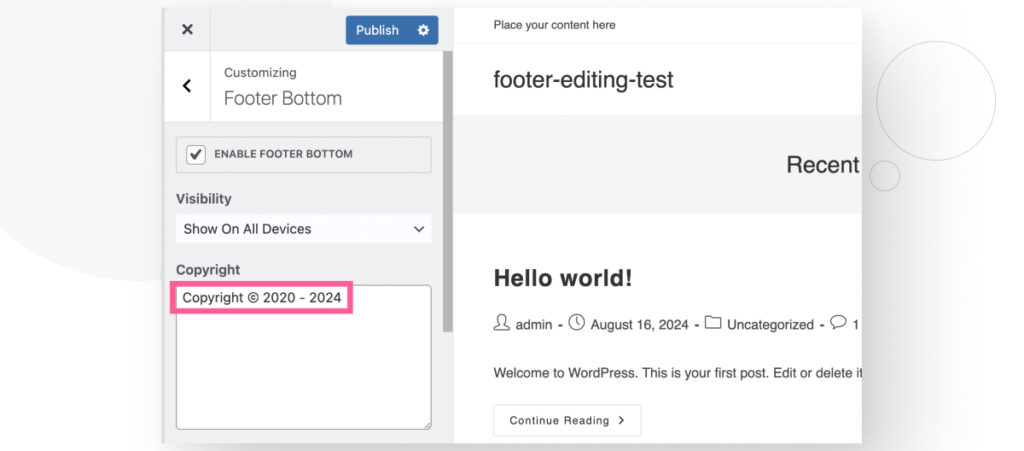
Start by logging into your WordPress dashboard. Go to Appearance and then click on Customize. This will open the theme customizer. Look for a section named Footer or something similar. Click on it to edit the copyright text.
If you can’t find it, use a plugin like Theme Editor. Go to Appearance then Editor. Find the file named footer.php. Here, you can change the text. Save changes to see the update.
Credit: wcanvas.com
Save Changes
Click the Save Changes button after editing your footer. This will keep your changes safe. Check the footer on your website. Make sure it looks good and shows the new text. If the changes do not show, refresh the page. A simple refresh often fixes display issues.
Sometimes, you might need to clear your browser cache. This helps in seeing the new footer. Use the options in your browser settings for clearing cache. Be careful not to delete important data.
After clearing cache, check your site again. The footer should display correctly. If the problem persists, review your steps. Ensure all settings were done properly. This ensures your footer changes are visible to all.
Verify The Update
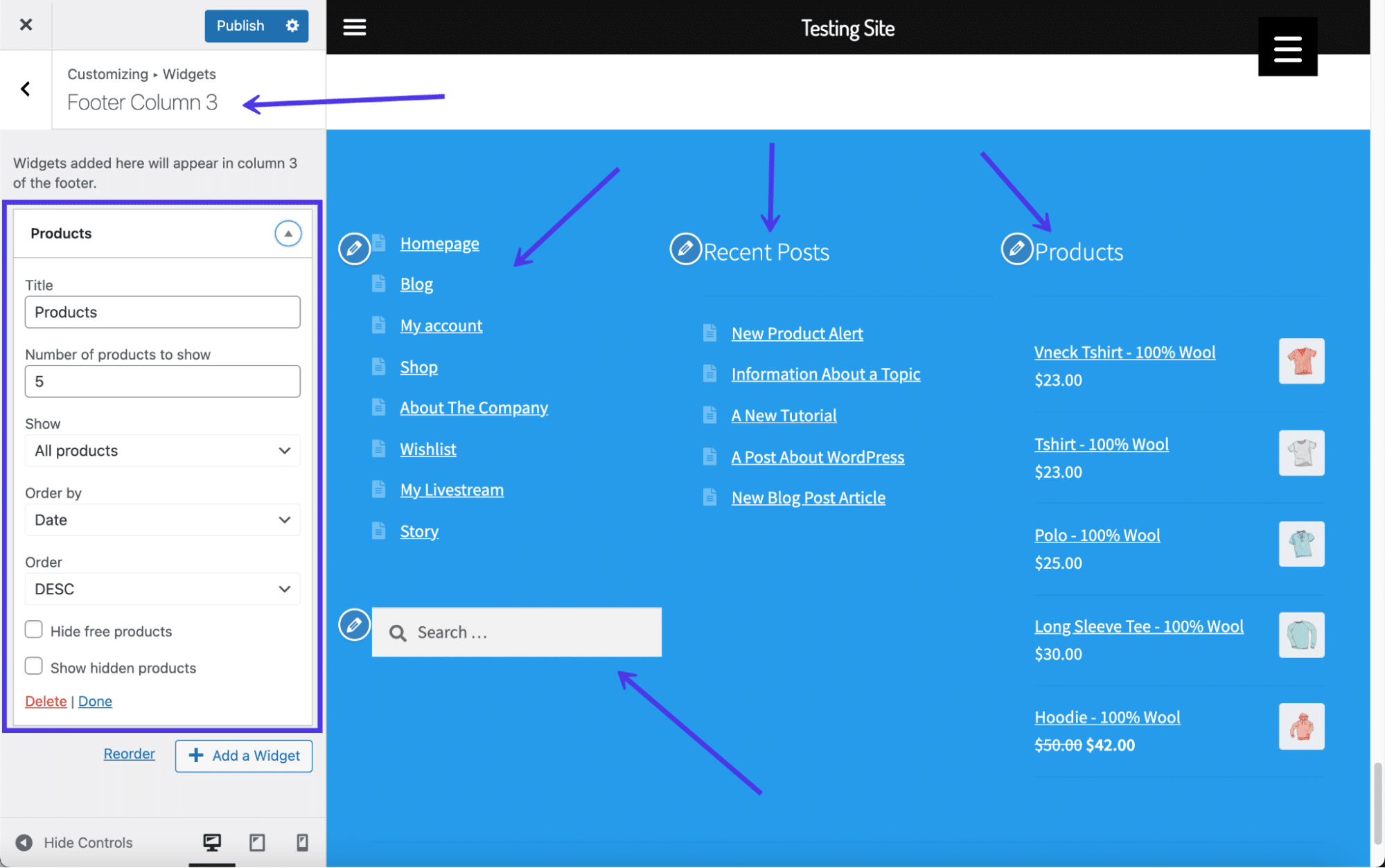
Check if the copyright footer has changed. Go to your WordPress site. Look at the bottom of the page. You should see the new text. If it’s not visible, refresh the page. Sometimes changes need a refresh. Make sure your browser’s cache is cleared. This helps to show the latest updates. If the text is still old, check your settings again. Ensure all steps were followed. Look for any saved drafts. They might hold old information. Double-check the theme customizer settings. Make sure the footer section is updated. Sometimes, plugins might cause issues. Deactivate them one by one. See if the problem fixes. If nothing works, ask for help. Your theme’s support team can assist.
Credit: kinsta.com
Use A Child Theme
First, make a new folder in the WordPress themes directory. Name it like your parent theme, but add “-child” at the end. Inside this folder, create a style.css file. This file should have some basic info about your theme. Add this code:
        /
        Theme Name: Highlight Child
        Template: highlight
        /
Next, make a functions.php file. This file tells WordPress to use the parent theme’s style. Add this code:
php
        function my_theme_enqueue_styles() {
            wp_enqueue_style('parent-style', get_template_directory_uri() . '/style.css');
        }
        add_action('wp_enqueue_scripts', 'my_theme_enqueue_styles');
        ?
Copy the footer.php file from the parent theme. Paste it in the child theme folder. Open this file and find the text you want to change. Edit the text as you like. Save the file. Your child theme will now use this new footer.
Employ A Plugin
Finding the best plugin is important. Look for a trusted plugin. Check user reviews for feedback. Make sure it has good ratings. It’s important the plugin is compatible with your theme. This ensures smooth performance. Free plugins can be a good option. Some paid ones offer more features.
Go to the WordPress dashboard. Click on Plugins. Choose Add New. Search for your plugin choice. Click Install Now. After installing, click Activate. This will enable the plugin on your site. Activation is necessary for the plugin to work. Without this step, the plugin remains inactive.
Head to the plugin settings area. Each plugin has its own settings. Look for the option to edit the footer. Enter your desired text. Make sure to save changes. Check your site to see the new footer. Always review settings for other features. These can enhance your site further.
Troubleshooting Tips
Modify the copyright footer in the WordPress Highlight Theme by accessing the Theme Editor. Search for ‘footer. php’ file. Edit the text within the PHP code to customize the footer message. Save changes to update your site.
Common Errors
Sometimes errors happen. Wrong code can break your site. Footer might not change. Always check your changes. Look for missing brackets or semicolons. These small mistakes cause big problems. Check your theme settings. Sometimes settings revert back. Make sure you save changes.
Restore From Backup
Backups are important. They save your site from errors. Always have a recent backup. If things go wrong, restore the backup. It brings back your old settings. Easy and quick. It’s like a time machine. You return to when things worked.
Frequently Asked Questions
How Do I Change Footer Text In Highlight Theme?
To change footer text in the Highlight Theme, navigate to Appearance > Customize in your WordPress dashboard. Then, look for Footer settings. You can edit the copyright text directly from there. Remember to save your changes to update the footer on your website.
Can I Use A Plugin For Footer Changes?
Yes, you can use plugins like “Insert Headers and Footers” to modify the footer in WordPress. These plugins allow you to insert custom code into your site’s header and footer without directly editing theme files. This method is user-friendly and doesn’t require coding skills.
Why Is My Footer Not Updating?
Your footer might not update due to caching issues. Clear your browser cache or use a plugin to clear your site cache. Also, ensure you’ve saved your changes in the Customizer. If issues persist, check for theme or plugin conflicts that might hinder updates.
Is Editing The Footer Safe For Seo?
Editing the footer is safe for SEO if done correctly. Ensure the footer includes relevant and clean code. Avoid keyword stuffing or using irrelevant links. A well-edited footer can enhance user experience and contribute positively to SEO by providing essential information.
Conclusion
Changing the copyright footer in the Highlight theme is easy. Follow these steps for a personalized touch. Start by accessing your WordPress dashboard. Locate the theme editor and find the footer file. Make your edits and save the changes. Refresh your site to see the new footer.
Customizing the footer adds a personal touch. It enhances your site’s appearance. Always remember to back up before making changes. With these steps, your site will reflect your unique brand. Enjoy your newly customized footer! It’s a simple yet effective improvement.


