
Are you looking to give your WordPress website a fresh new look? Changing the theme font can make a significant difference in how your site is perceived.
Whether you’re aiming for a sleek, modern vibe or a more classic, elegant feel, the right font can transform your website’s appearance and enhance readability. You might think that tweaking your theme font is complex or time-consuming, but it’s simpler than you might expect.
You’ll discover easy steps to change the theme font on WordPress, ensuring your website stands out and truly reflects your brand’s personality. Stick with us, and you’ll be ready to give your site the makeover it deserves in no time!
Accessing WordPress Dashboard
Start by logging into your WordPress account. Use your username and password. Find the Dashboard on the left side. It looks like a list. Click on it to enter. This is your main control area. You can change your site from here.
Look for the Appearance option. It’s usually near the bottom. Click on it to see more choices. You will find the Themes section here. This is where your site’s look can change. Fonts, colors, and designs are here.
Pick the Customize option next. This is where you can adjust fonts. Make sure to save any changes. Your new font will show on your site. Easy and quick!
Locating The Theme Customizer
Find the Appearance tab on your WordPress dashboard. Click on it to open. You will see the Customize option. Click on Customize. This opens the Theme Customizer. The Theme Customizer lets you change many things. Look for the Typography or Fonts section. Sometimes, it is inside another section. Explore the settings if you cannot find it. Here, you can pick a new font. You can also adjust the size. Preview the changes before saving. It helps you see how it looks. Make sure to save your changes.
Navigating To Typography Settings
First, log in to your WordPress dashboard. Look at the left side. You will see a menu. Find the option called Appearance. Click on it. A drop-down will appear. Select Customize. Now, a new page opens. This is the Customizer page.
On this page, find Typography. Click on it. Here, you can change fonts. Choose the font you like. Save your changes. Now, your theme has a new look. This makes your site unique.
Credit: www.greengeeks.com
Selecting A Font Style
WordPress themes offer default fonts for users. These fonts are easy to use. Beginners can start with them. Popular choices include Arial, Times New Roman, and Georgia. These fonts are known for their readability. They make content look professional. Choosing a font depends on your style. Some fonts look modern. Others look classic. Always consider your audience. They should find the text easy to read. Experiment with different fonts. See which one fits your theme.
To explore fonts, go to the WordPress dashboard. Click on Appearance, then Customize. Here, you can see the Font Options. Choose from the list of available fonts. Preview them on your site. Make sure the font matches your content. Keep it simple. Overly fancy fonts can be hard to read. Stick to basics for better readability.
To add custom fonts, use a plugin. Plugins like Google Fonts or Typekit are popular. Install the plugin from the WordPress store. Once installed, activate it. Go back to the Customize section. Find the font settings. Choose your custom font. Save your changes. Custom fonts add a unique touch. They make your site stand out. Always check readability. Your audience should enjoy reading your content.
Applying Font Changes
Changing the theme font on WordPress is easy. Start by accessing your WordPress dashboard. Click on Appearance, then select Customize. Look for the Typography section. Here, you can choose different fonts. Select a font that suits your style. Preview the changes to see how they look. If you like it, click Publish to save. Make sure your new font is easy to read. This ensures visitors enjoy your site.
Some themes may not have typography options. In this case, you might need a plugin. Plugins help add more font choices. Install a plugin like Easy Google Fonts. After installing, activate the plugin. Go back to the Customize section. You will see more font options now. Try different fonts until you find the right one. Change font size if needed. Save your changes and refresh your site. Enjoy your new look!
Credit: themeisle.com
Saving And Publishing
After changing the font, it’s time to save. Look for the save button in the theme options. This button keeps your changes. Make sure to click it. If you don’t, your changes will be lost. Once saved, it’s time to publish. Find the publish button. This button makes your changes live. Everyone will see the new font. Always check your site after publishing. Ensure it looks the way you want. If not, go back and edit. It’s easy to fix things.
Using Css For Font Customization
Easily change your theme font on WordPress using CSS for customization. Access the customizer, navigate to “Additional CSS,” and input desired font style codes. Enhance your site’s look with tailored typography.
Accessing Additional Css
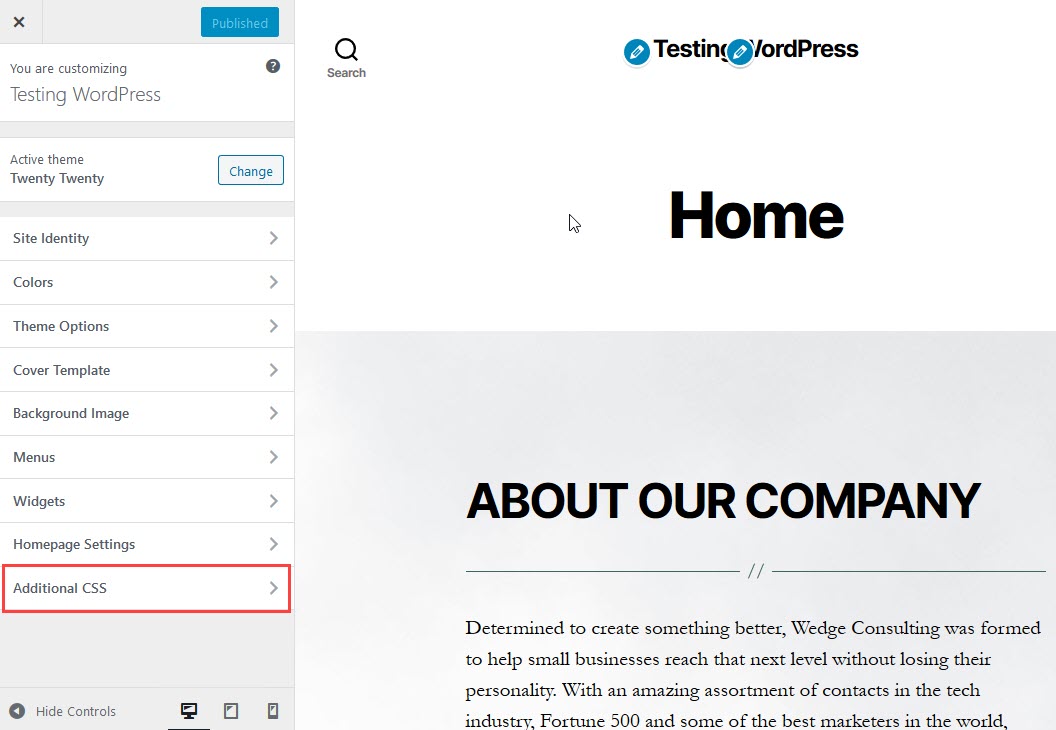
To change the font, first go to your WordPress dashboard. Navigate to Appearance and click on Customize. You will find the Additional CSS option here. Click on it to access the CSS editor. It’s a simple area to add your custom codes. Make sure the codes are correct before saving changes. A small mistake can break the site design.
Writing Custom Css Code
To change the font, write custom CSS code. Use the selector for the element you want to change. For example, use h1, h2, h3 { font-family: 'Arial'; } to change headers to Arial. Always test the code first. Preview changes before publishing. This ensures everything looks right. Changing fonts is easy with CSS. You can make your site look unique.
Utilizing Plugins For Font Changes
Easily change theme fonts on WordPress using plugins. Explore options like Easy Google Fonts or Fontsy. Customize your website’s appearance with just a few clicks and enhance readability.
Installing Font Plugins
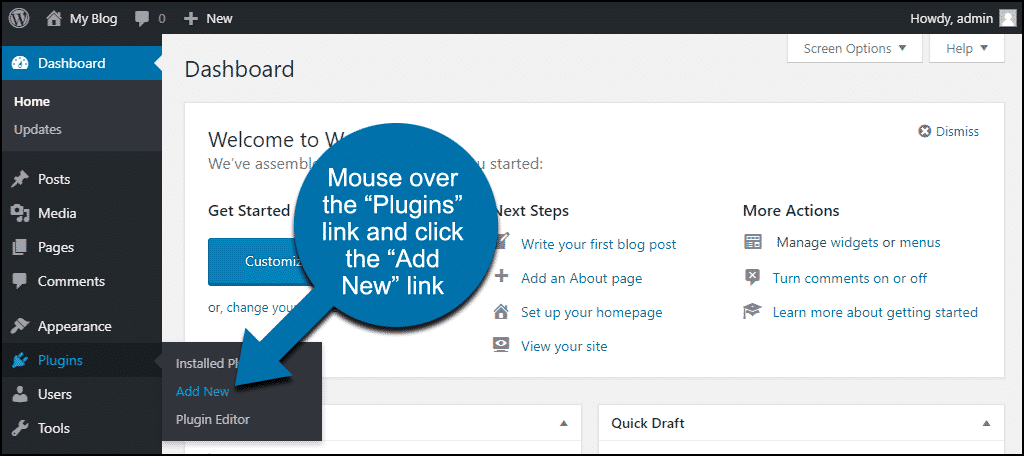
First, go to your WordPress dashboard. Click on “Plugins” and then “Add New”. In the search bar, type “font plugin”. Choose a plugin you like. Click “Install Now” and then “Activate”. Now your plugin is ready to use.
Configuring Plugin Settings
After activation, find the plugin in your dashboard. Click on it to open settings. You can see many options. Select the font you want. Adjust the size and color if needed. Save your changes. Check your site to see the new fonts.
Troubleshooting Common Issues
Fonts can be tricky on WordPress. Sometimes, the new font does not appear. This can happen due to caching issues. Clear your browser cache first. Also, check the theme settings. Make sure they are saved properly.
Another problem might be with the font file itself. It should be uploaded in the correct format. Formats like TTF or WOFF are usually best. Ensure the file path is correct too. That can help solve display issues.
Sometimes, changing fonts can cause issues. You may want to go back to the original font. Start by visiting the theme customizer. Find the font settings. Click on the reset or default button. This will bring back the original font.
If this does not work, check the theme’s documentation. It may have specific instructions for resetting. Always save changes after resetting. This ensures the default font displays correctly.
Credit: www.inmotionhosting.com
Best Practices For Font Selection
Choosing the right font is important. Fonts should be easy to read. Simple fonts are best. Avoid fancy and complex styles. Big letters help. Make sure letters are not too close. Space between lines is good. Color is important too. Dark text on a light background works well.
Fonts should match your brand. Think about your brand’s feel. Is it fun or serious? Fonts can show personality. A font can be strong or gentle. Colors matter here too. Keep them consistent. Your brand’s colors should match the font. This keeps the look uniform and professional.
Frequently Asked Questions
How Can I Change The Font In WordPress?
To change fonts in WordPress, access the theme customizer under Appearance. Navigate to ‘Typography’ settings. Here, you can select new fonts for headings and body text. Save your changes to apply them. Some themes may offer limited options, so consider using custom CSS for more control.
Is A Plugin Needed For Font Changes?
No, you don’t always need a plugin. Many themes have built-in typography settings accessible via the customizer. However, if your theme lacks font options, plugins like Google Fonts or Easy Google Fonts can offer more customization. These plugins provide a broader range of font choices and styles.
Can I Use Google Fonts In WordPress?
Yes, you can easily use Google Fonts in WordPress. You can add them via the theme customizer if supported. Alternatively, use plugins like Easy Google Fonts for integration. This method enhances your site’s typography without manual coding, ensuring a professional look with diverse font options.
Are Custom Fonts Supported By All Themes?
Not all themes support custom fonts directly. Some themes provide extensive typography options, while others are limited. If your theme doesn’t support custom fonts, consider using custom CSS or a plugin. Plugins can enhance font choices and provide more flexibility, allowing you to achieve your desired style.
Conclusion
Changing your WordPress theme font is simple. Follow the steps above to personalize your site. A unique font can make your website stand out. It can also improve readability for your visitors. Experiment with different fonts until you find one that fits.
Remember to check compatibility with your theme. Some fonts may not display correctly. Regularly updating fonts keeps your site fresh. With practice, you’ll gain confidence in customizing your site. Don’t hesitate to explore WordPress plugins for more font options. Your efforts will enhance the overall look and feel of your website.


