
Are you ready to take your WordPress site to the next level with a personalized touch? Creating your own theme can transform your website from a generic template into a unique digital space that reflects your style and vision.
Whether you’re a blogger, a business owner, or someone with a passion project, crafting a custom WordPress theme can set you apart and captivate your audience. Imagine having complete control over every element, ensuring your site not only looks stunning but also functions seamlessly.
In this step-by-step guide, you’ll discover how to create a theme in WordPress that’s uniquely yours, without needing to be a tech wizard. Get ready to unlock the secrets to designing a site that keeps visitors engaged and eager to explore more. Dive in, and let’s make your WordPress site truly yours!
Credit: smashballoon.com
Getting Started
WordPress Requirements are important before you start. Make sure your host meets them. WordPress needs PHP 7.4 or greater. Also, MySQL version 5.6 or higher is required. Your server should support HTTPS. Check these before you proceed.
Development Environment Setup involves some tools. You need a text editor like VS Code or Sublime Text. Install a local server like XAMPP or MAMP. This helps you test themes on your computer. Use a version control system like Git. It tracks changes in your code. These tools make theme development easier. Set up your environment carefully.
Credit: www.wpzoom.com
Theme Structure Basics
A WordPress theme has many folders. These folders help organize files. The main folder is the theme folder. Inside, there are subfolders. One subfolder is the CSS folder. This holds style sheets. Another is the images folder. It stores pictures for the theme. JavaScript files go in the JS folder. Each folder has a special job. Keeping files in right folders makes work easier.
Themes have important files. The style.css file is key. It makes the theme look pretty. The index.php file shows main content. The functions.php file adds features. It can make special functions. The header.php file shows the top part of the site. The footer.php file shows the bottom part. Each file has a role. Together, they make the theme work well.
Creating A Style Sheet
Designing a theme in WordPress involves creating a style sheet. Begin by accessing the WordPress dashboard. Navigate to Appearance, then Theme Editor. Here, you can edit the CSS file to define your theme’s look. Adjust colors, fonts, and layout to match your vision.
Save changes and preview the theme.
Adding Theme Information
Start by creating a file named style.css. This file will hold your theme’s style. At the top, you must add theme information. This includes the theme’s name, author, and version. Here is a simple example:
/
Theme Name: My Awesome Theme
Author: Your Name
Version: 1.0
/
This information helps others know about your theme. It is important to include it.
Basic Css Setup
Next, you need to set up basic CSS rules. Start by resetting the default styles. This makes sure your theme looks the same in all browsers. Use CSS to style different parts of your theme. For example, you can style the body, headers, and links. Make sure to test your styles. This ensures your theme looks good and works well for everyone. Happy styling!
Building The Header
Start with a basic HTML structure. It should have a tag. The menu often uses an
list. Each link is a item. This makes the header look clean and organized. It is easy to style with CSS later.
WordPress tags make your theme dynamic. Use php bloginfo(‘name’); ? to show the site name. The tag php bloginfo(‘description’); ? displays the site tagline. These tags help in keeping content updated. The tag php wp_nav_menu(); ? will show your menu. It fetches items from the WordPress dashboard. Use these tags wisely for a better theme.
Developing The Footer
Creating a WordPress theme involves developing the footer as a crucial step. The footer enhances website navigation and adds essential links. Ensure it reflects the site’s style and provides easy access to important information.
Essential Elements
The footer is an important part of any WordPress theme. Consistency is key for a professional look. Include contact information like email or phone. Adding social media links helps users connect. Copyright notices protect your work. Navigation links improve user experience. They guide users to important pages. Privacy policy links reassure visitors. You can also add a newsletter signup. This keeps users engaged.
Enabling Widgets
Widgets enhance the footer functionality. Drag and drop widgets to the footer area. Add a text widget for custom messages. Use a recent posts widget to show latest articles. Display a search widget for easy navigation. Widgets make the footer dynamic. They provide extra features to users. Simple steps make widgets easy to use. Experiment with different widgets for best results.
Crafting The Index Page
The loop is key in WordPress themes. It helps display blog posts on the index page. Each post shows title, date, and content. Use PHP code to start the loop. Add php if ( have_posts() ) : while ( have_posts() ) : the_post(); ?. This checks for posts.
Integrate posts with HTML and PHP. Start with a header tag for titles. Use php the_content(); ?php the_title(); ?
php endwhile; endif; ?. This completes the post display.
Designing Single Post Templates
WordPress follows a template hierarchy. This means it chooses templates in a specific order. The most specific template matches first. For example, single.php shows a single post. But single-{post-type}.php can show a specific type of post. Understanding this helps in designing themes. Templates are chosen based on need. This makes customization easy.
Content display can be customized using template tags. These tags help in showing different parts. You can show the title, author, or date. Template tags are simple to use. They make posts look unique. Adding custom fields is possible too. This gives extra information in posts. Each template can have its own style. This makes your website special.
Configuring Sidebar
Set up your sidebar by going to the WordPress dashboard. Customize widgets to fit your theme’s style. Adjust settings for a personalized look.
Using Widgets
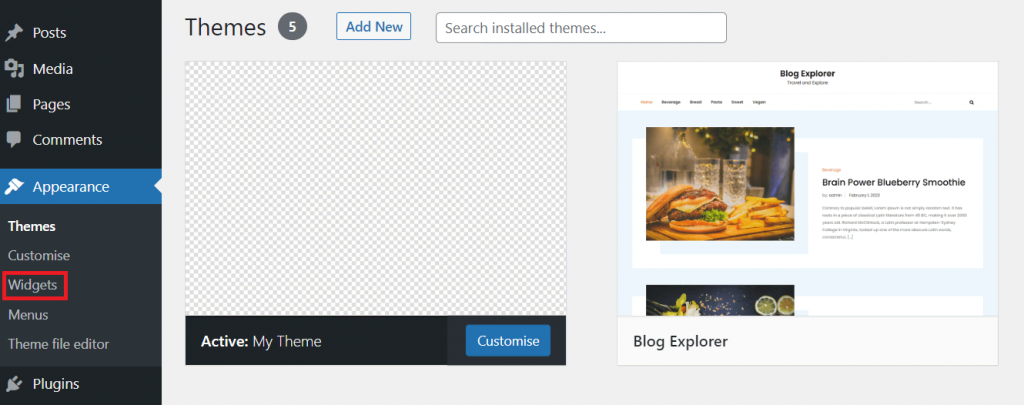
Widgets are small tools for your WordPress sidebar. They help add features easily. To use widgets, go to the WordPress Dashboard. Click on Appearance, then Widgets. You will see a list of available widgets. Drag and drop them to the sidebar area. This will add the widget to your site. You can add text, images, or even social media links. Customizing widgets is simple and fun. Click on the widget title to change its settings. Save your changes before you exit. This makes your sidebar look unique and useful.
Customizing Appearance
Make your sidebar match your site’s style. Go to the Appearance menu. Click on Customize. Here, you can change colors, fonts, and layout. This helps your site look good. Try different styles to see what you like. You can preview changes before saving. This way, you know how it will look. Don’t be afraid to experiment. A good-looking site attracts more visitors. Keep it simple and clean for easy reading.
Enhancing With Functions
Creating a WordPress theme involves enhancing with functions for added features. Start by setting up a basic theme structure. Then, use functions to add custom menus, widgets, and styles for a personalized look.
Creating Functions.php
The functions.php file is like a toolbox. It helps your theme work better. Add useful features here. Start by opening a text editor. Create a new file named functions.php. Save it in your theme folder. This file lets you add custom functions. These functions can change how your theme behaves. You can add features like menus, widgets, or custom logos. Just add the code snippets you need. These snippets make your theme more special.
Adding Theme Support Features
Your theme needs support features to work well. These features are like helpers for your theme. Open the functions.php file again. Add code to enable theme support. For instance, you can add support for post thumbnails. This feature lets you add images to posts. Another feature is custom headers. This helps you change the header image. Use the add_theme_support() function for this. With theme support, your site looks and works better.
Testing And Debugging
Creating a WordPress theme involves testing and debugging to ensure smooth functionality. Identify issues by previewing changes and checking browser compatibility. Fix errors using debugging tools for a seamless user experience.
Checking Compatibility
Test your theme on different browsers. Check if it works on Chrome, Firefox, and Safari. Make sure it looks good on mobile devices. Use tools like BrowserStack to help. Verify that your theme supports plugins. Some plugins might not work well. Check WooCommerce and Elementor compatibility. This ensures your theme is flexible.
Troubleshooting Common Issues
Sometimes themes break. Fix common issues quickly. If the layout is wrong, check CSS. Look for missing semicolons or brackets. Slow load times can annoy users. Optimize images and scripts for speed. Plugins can conflict. Deactivate one by one to find the problem. Use the WordPress debug mode. It shows errors and warnings. Update your theme regularly. Updates fix bugs and improve security.
Customizing Theme Options
Customizing theme options transforms a WordPress site. Begin by accessing the dashboard, exploring the appearance section, and adjusting settings. This process allows personalizing colors, fonts, and layouts to match your vision.
Setting Up Theme Customizer
The Theme Customizer lets you change your site’s look. It’s easy to use. Go to the WordPress Dashboard. Find the Appearance menu. Click on Customize. Now, you see different options. You can change colors, fonts, and more. Each change shows up in real-time. This helps see what works best. Try different settings. Make the site look unique.
User-Friendly Options are a part of the Customizer. These options help make changes simple. Change the background color or add a new logo. Adjust the menu style. Each option is easy to find. No need to know coding. Just click, change, and see the result. This makes the site better for everyone.
Credit: www.hostinger.com
Frequently Asked Questions
What Are The Steps To Create A WordPress Theme?
Creating a WordPress theme involves several key steps. Start by setting up a local development environment. Then, create essential files like style. css and index. php. Utilize WordPress functions to customize theme features. Test your theme thoroughly before deploying it.
Finally, upload your theme to your WordPress site.
Can I Create A Theme Without Coding Skills?
Yes, you can create a WordPress theme without coding. Use theme builders like Elementor or Divi. These tools offer drag-and-drop functionality, allowing you to design visually. Start with a basic theme template and customize it to your liking. You can achieve a professional look without writing any code.
How Do I Test My WordPress Theme?
Testing your WordPress theme is crucial for performance and compatibility. Use a local development environment for testing. Check responsiveness on different devices and screen sizes. Ensure compatibility with popular plugins. Validate HTML and CSS to eliminate errors. Finally, test speed and optimize for fast loading times.
What Tools Help In Theme Development?
Several tools can aid in WordPress theme development. Use a local server like XAMPP or MAMP for testing. Code editors like Sublime Text or Visual Studio Code are essential. Utilize theme frameworks like Underscores for a head start. Browser developer tools help in debugging.
These tools streamline your development process.
Conclusion
Creating a WordPress theme can be a rewarding experience. It’s about turning ideas into a functional design. Follow each step carefully. Choose a clear layout. Think about the user experience. Select the right colors and fonts. Test your theme on different devices.
This ensures it works well everywhere. Adjust and refine based on feedback. Make sure your theme is easy to navigate. Keep it simple yet effective. Your unique theme reflects your style. With practice, you’ll improve. Enjoy the process and the results.
Your WordPress journey starts now. Dive in and create something amazing.


