
Are you tired of cluttered WordPress themes slowing down your site or not quite matching your vision? If you’ve ever tried to swap out a theme, you know it’s not always a straightforward process.
Unused themes can linger in the background, taking up valuable space and potentially leaving your site vulnerable to security risks. But don’t worry, you’re not alone. Many WordPress users face the same challenge. The good news is, there’s a solution.
In this guide, you’ll discover a step-by-step approach to completely removing a WordPress theme, ensuring your website stays sleek, secure, and speedy. By the end, you’ll have all the tools you need to maintain a clean and efficient site, ready to impress your visitors. Stay with us, and let’s dive into making your WordPress experience smoother and more effective!

Credit: themelooks.com
Backup Your Site
Safeguarding your site is crucial before removing a WordPress theme. Start by backing up files and database. Use FTP or hosting provider tools to delete the theme safely. Ensure no residual files remain to prevent conflicts and keep your site running smoothly.
Importance Of Backing Up
Backing up your site is very important. It helps protect your data. Mistakes happen, and backups are a safety net. They keep your files safe. You can restore your site if something goes wrong. Losing data can be sad. Backups make sure you don’t lose important things. It’s smart to backup before big changes.
Recommended Backup Plugins
Some plugins make backing up easy. UpdraftPlus is a popular choice. It is easy to use. BackupBuddy offers many features. It’s great for beginners. Duplicator helps copy and move sites. These plugins make backups simple. Choose one that suits your needs. Always keep your backups updated.
Credit: www.domain.com
Deactivate The Theme
Switching to a Default Theme is the first step. Go to the WordPress dashboard. Find “Appearance” on the left menu. Click “Themes.” Choose a default theme like “Twenty Twenty-One.” Click “Activate” to switch. This ensures the old theme is not active. The site uses a basic theme now. Simple, but effective.
Checking for Compatibility Issues is crucial. Some plugins might not work with the new theme. Check your site’s functionality. Test important features like contact forms. Ensure everything loads correctly. If issues occur, troubleshoot them. Fixing these ensures smooth operation. Keep your site user-friendly.
Delete The Theme Via Dashboard
Log into your WordPress dashboard. Click on “Appearance” in the menu. Find the “Themes” option. This section shows all your themes. Choose the theme you want to remove. Make sure it’s not the active theme. You cannot delete an active theme. Switch to another theme first. Then, click on the theme details.
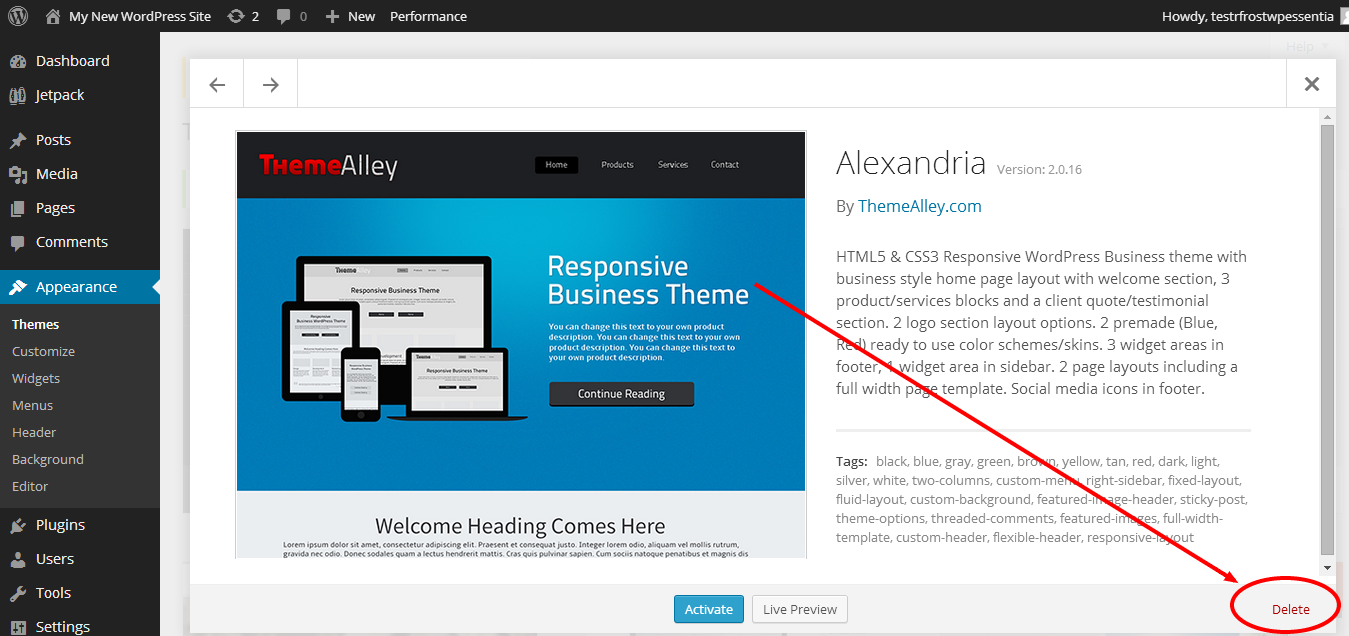
Once in the theme details, look for the “Delete” button. It’s usually at the bottom right. Click on it to remove the theme. A pop-up will ask to confirm. Press “OK” to proceed. The theme will be deleted from your site. This action cannot be undone. Make sure you want to delete it. Always have a backup just in case. This keeps your site safe.
Remove Theme Files Manually
Start by opening your FTP client. Connect it to your website. You need your server details for this. Enter your username and password. Click on the “Connect” button. Wait for the connection. Once connected, look for the wp-content folder. Inside, you will find a folder named themes.
Locating Theme Files
Open the themes folder. You will see a list of theme folders. Each folder has the name of a theme. Find the theme you want to remove. Right-click on the theme folder. Select the “Delete” option. Confirm the deletion. The theme files are now gone from your server.
Clean Up The Database
Removing a WordPress theme completely involves cleaning the database thoroughly. Delete the theme files via FTP, ensuring no traces remain. Check the database tables for leftover entries, and remove them to prevent clutter and enhance site performance.
Identifying Orphaned Tables
Old themes can leave behind orphaned tables. These tables are not needed. They clutter the database. Check your database for such tables. Look for names that match the old theme. This helps find orphaned tables. Use a database tool for this search. Make sure you don’t delete needed tables. Double-check each table before removal. Always back up your database first.
Using Plugins For Cleanup
Plugins can help clean up your database. Some plugins find orphaned tables easily. They make the job quicker and safer. Use trusted plugins for this task. Check plugin reviews before installing. Be sure the plugin is compatible with your WordPress version. Follow the plugin instructions carefully. Plugins often offer one-click solutions. This makes cleanup easier for everyone.
Clear Caches
Websites store files in your browser. This makes pages load faster. To make sure changes show up, clear the browser cache. Go to your browser settings. Look for the option that says “Clear Browsing Data”. Choose to clear cache. This helps your site display the most recent changes.
Sometimes, servers save files to speed up sites. This is called server-side caching. Clear these caches to see updates. Use your hosting control panel. Find the cache settings. Click the button to clear cache. This will ensure your site reflects the latest changes.
Check For Residual Files
Scan your WordPress site for leftover files. Deleted themes may leave extra files. Use a plugin to find these files. Plugins like WP Reset or Advanced Database Cleaner work well. Check directories like /wp-content/themes. Some files hide in /wp-content/uploads. Remove these files manually. Or, use a plugin to clean them.
Unused media takes up space. Find and delete these files. Use plugins like Media Cleaner. It scans for unused images. Images linked to removed themes must go. Keep your media library tidy. It helps in site speed. A clean library makes backups easy. Regular cleaning is a good habit. It keeps your site healthy.

Credit: wpmarmite.com
Test Your Site
Discover simple steps to fully remove a WordPress theme. Start by deactivating the theme from your dashboard. Then, delete it entirely through the Appearance menu. Ensure no leftover files remain by checking your server. Clear and concise actions make this process straightforward.
Verify Functionality
Make sure your site works well. Check if pages load quickly. Ensure images display correctly. Test forms to see if they send data. Try logging in and logging out. Confirm buttons do what they should. Look for missing content or errors.
Check For Broken Links
Broken links can frustrate users. They can hurt your site’s rank. Use a tool to find bad links. Fix or remove them quickly. Check all pages and posts. Click on each link to ensure it works. Make this a regular task to keep your site healthy.
Frequently Asked Questions
How Do I Uninstall A WordPress Theme Completely?
To completely uninstall a WordPress theme, first switch to another theme. Then, navigate to Appearance > Themes, find the unwanted theme, and click ‘Delete’. This ensures all theme files are removed. Check your site’s folders via FTP for leftover files to ensure complete removal.
Can Unused WordPress Themes Affect Website Performance?
Yes, unused WordPress themes can slow down your site. They occupy server space and can conflict with active themes or plugins. It’s good practice to delete unused themes to streamline your website’s performance and enhance security by reducing potential vulnerabilities.
Are There Plugins To Remove WordPress Themes Safely?
Yes, plugins like WP Reset and Advanced Database Cleaner can help. These tools ensure that themes are removed safely without leaving residual files. They can also optimize your database, enhancing site performance and security by removing unused files and settings.
What Precautions Should I Take Before Theme Removal?
Before removing a theme, back up your website to prevent data loss. Ensure you have an alternative theme activated. Verify that no child themes are dependent on the theme you’re removing. Double-check your site’s functionality after deletion to confirm everything works correctly.
Conclusion
Removing a WordPress theme requires careful steps. Start with a backup. Deactivate the theme first. Delete it from the themes section. Check for leftover files. Use plugins for a deeper clean. Ensure your site runs smoothly. This process boosts website performance.
Choose a new theme wisely. Consider your site’s needs. Keep it simple and efficient. Regular updates keep your site secure. Proper theme management improves user experience. Follow these steps for a cleaner, faster site. Enjoy your streamlined WordPress experience!


