
Are you tired of your current WordPress theme and eager to give your website a fresh new look? Changing themes can breathe new life into your online presence, but what if you can’t access the WordPress dashboard?
Don’t worry; you can still switch themes using FTP. This method might sound technical, but with the right guidance, it’s a straightforward process. Imagine the excitement of unveiling a new design without any hitches or downtime. We’ll walk you through the step-by-step process of changing your WordPress theme via FTP, ensuring you maintain control and creativity over your site’s appearance.
Ready to transform your website? Let’s dive in!
Credit: www.wpbeginner.com
Reasons To Change Themes Via Ftp
Changing themes via FTP is often a safe choice. Sometimes, a broken theme can crash your site. Using FTP helps to fix this. It is also useful when you cannot access the dashboard. FTP gives you direct access to files. This method is reliable and direct. It allows you to make quick changes without logging into WordPress. FTP is a handy tool for advanced users. It offers more control over the site. This method is also useful during theme conflicts. It provides a backup plan if the regular method fails.
Credit: gloriathemes.com
Preparing For Theme Change
Always backup your website. This is very important. Mistakes happen. Backups protect your data. Use a plugin or download files. Store them safely. Backups save time and stress. Avoid losing your hard work.
Choose a new theme carefully. Pick a theme that fits your style. Make sure it works well. Check for responsive design. Look at ratings. Read user reviews. The right theme makes your site look great. Test the theme first. See how it looks on different devices. This helps avoid surprises.
Accessing Ftp Server
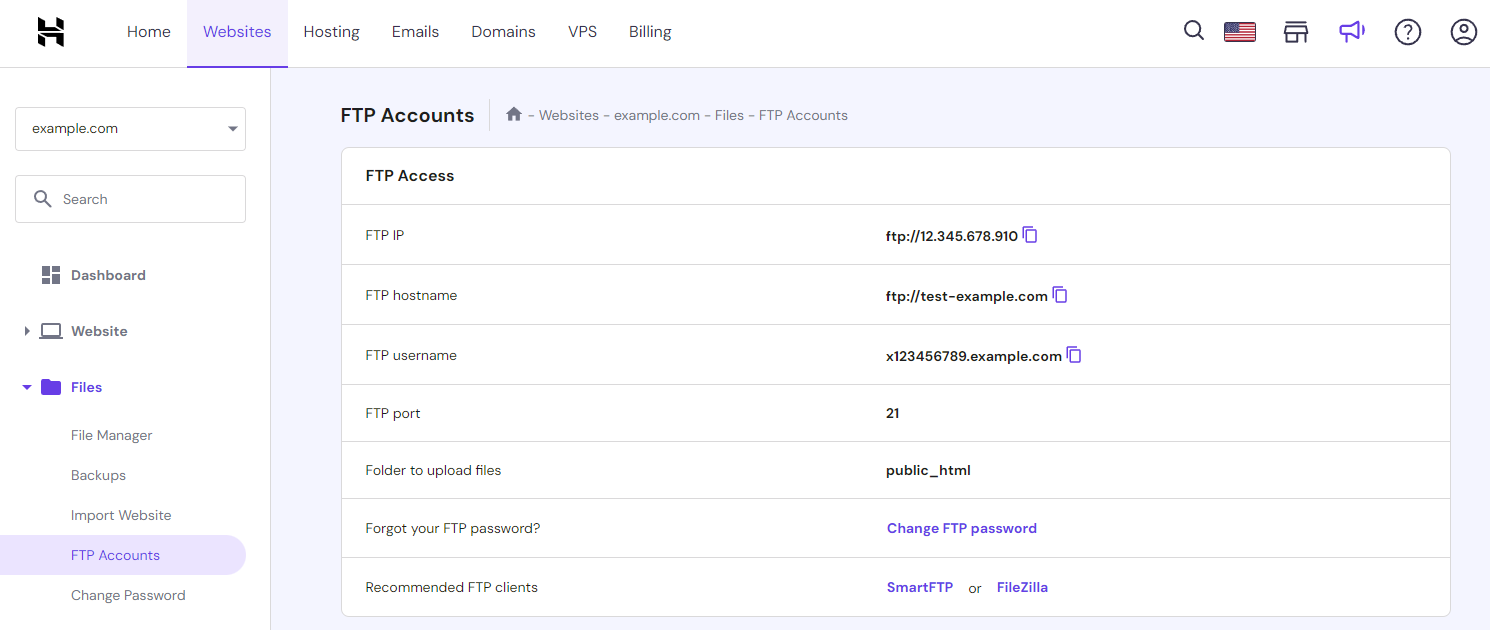
First, you need your FTP credentials. These are your username, password, and host address. You can find these in your web hosting account. Sometimes, they are in an email from your host. Keep them safe and secure.
An FTP client helps you connect to the server. Popular choices are FileZilla and Cyberduck. They are easy to download and use. Install one on your computer. Use it to log in with your FTP credentials. Always choose a client that suits your needs best.
Uploading The New Theme
Download the theme files from a trusted source. Ensure they are safe and compatible with your WordPress version. Save them to your computer.
Connect to your FTP server using an FTP client like FileZilla. Enter your website’s FTP details. These include your host, username, and password. Click to connect to your server.
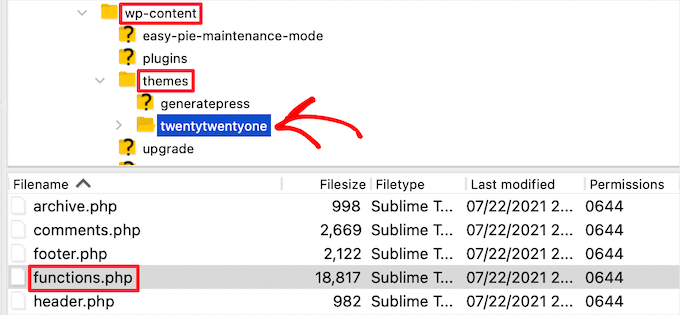
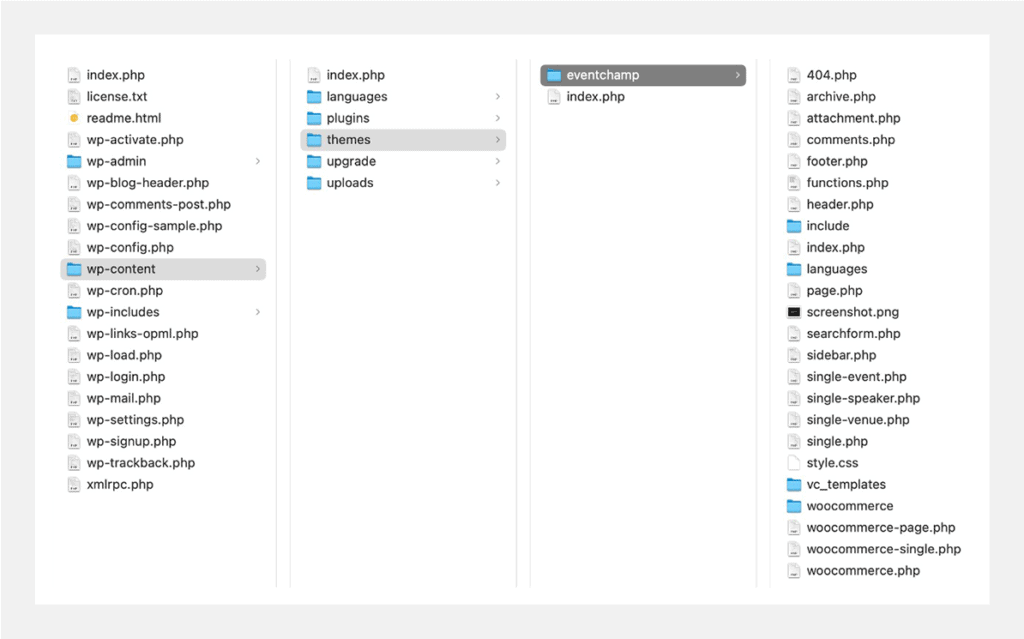
Once connected, navigate to the theme directory. This is usually in the “wp-content/themes” folder. Here, you will see a list of current themes. Drag and drop the new theme folder from your computer to this directory. Wait for the upload to complete. Now, the new theme is ready to be activated in WordPress.
Activating The New Theme
Switching WordPress themes via FTP can be straightforward. First, access your website’s files through an FTP client. Then, navigate to the ‘themes’ folder and upload the new theme. Finally, activate it from your WordPress dashboard. Simple steps can lead to a fresh look for your site.
Rename Existing Theme Folder
First, go to the wp-content/themes folder in FTP. Find the folder of the current theme. Rename it to something else. This step is important. It will help WordPress know to use a new theme. Always be careful when renaming folders. Mistakes can cause problems.
Upload New Theme Folder
Next, upload the new theme folder. Use the FTP client for this. Make sure the folder goes into wp-content/themes. Double-check the folder name. It should not have extra spaces or characters. This could cause errors later.
Verify The Activation
After uploading, log into the WordPress dashboard. Check the themes under Appearance. Your new theme should be there. Click on Activate to use it. Visit your site to see the changes. Everything should look new and fresh.
Troubleshooting Common Issues
Connection problems can be frustrating. First, check your internet connection. It should be stable. Next, ensure your FTP details are correct. Double-check the username and password. If issues persist, try a different FTP client. Sometimes, firewalls block connections. Disable them temporarily to see if it helps. Ensure the FTP port is open. Commonly, it’s port 21.
Resolve Connection Problems
Fixing a broken layout is important. Start by clearing your browser cache. Sometimes old data causes issues. Next, ensure your theme files are complete. Missing files can break layouts. If the problem persists, switch to a default theme. This helps identify if the issue is theme-specific. Check for updates. Outdated themes might not work well. Finally, contact the theme developer for support.
Fix Broken Layouts
Best Practices For Theme Management
Backing up your website is very important. Always keep a copy of your site. This ensures you don’t lose any data. Use a tool or plugin for this. You can also save the backup on your computer. It’s like having a safety net. So, if something goes wrong, you can easily fix it. A backup makes you feel safe.
Keeping your theme up-to-date is crucial. Updates fix bugs and improve security. New updates may add cool features too. Always check for the latest updates. Before updating, remember to backup your theme. This way, you can restore it if needed. Updating keeps your website running smoothly.
Credit: www.hostinger.com
Frequently Asked Questions
How Can I Change Themes Via Ftp?
To change themes via FTP, access your server using an FTP client. Navigate to `/wp-content/themes/`. Upload the new theme folder. Ensure it’s properly unzipped. Once uploaded, deactivate the current theme and activate the new one via the WordPress dashboard under “Appearance”.
Is It Safe To Change Themes With Ftp?
Changing themes using FTP is safe if you follow the correct steps. Ensure you back up your site before making changes. This minimizes risks and protects your data. Always check theme compatibility to avoid issues with your site’s functionality.
What Tools Do I Need For Ftp Theme Change?
You’ll need an FTP client like FileZilla to access your server. Obtain your FTP login credentials from your hosting provider. You’ll also need the theme files, preferably unzipped. These tools allow you to manage files efficiently and change themes smoothly.
Can I Revert Theme Changes Via Ftp?
Yes, you can revert changes via FTP. Simply delete the new theme folder and restore the previous one. Ensure you have a backup of the old theme. This way, you can seamlessly switch back if needed.
Conclusion
Changing WordPress themes via FTP is simple with these steps. Follow the guide carefully for a smooth transition. Backup your site first. This prevents data loss. Ensure the new theme is compatible with your plugins. Compatibility ensures better performance. Access your FTP client and navigate to the themes folder.
Upload the new theme folder and activate it in WordPress. Test your site thoroughly after activation. This helps identify any issues. Always keep your site updated for security. By following these steps, you can change themes confidently. Enjoy your new WordPress look!


