
Unlocking the full potential of your WordPress site often means diving into the realm of custom fields. You might be wondering why this matters to you.
Well, imagine having the power to add unique, personalized touches to your content that make your site stand out. Custom fields allow you to do just that, giving you the flexibility to enhance your pages and posts with extra data.
But how do you check these custom fields in your WordPress theme? Don’t worry; it’s simpler than you think. You’ll discover the straightforward steps to identify and utilize custom fields, transforming your site into a dynamic and engaging platform for your audience. Stay with us, and you’ll soon see how easy it is to elevate your WordPress experience and captivate your visitors.
Credit: www.advancedcustomfields.com
Understanding Custom Fields
Custom fields add extra data to your posts. They let you store details. Like an author’s name or a product price. This data is not shown by default. You can use it in templates or plugins. It helps in making a site unique. Custom fields make content more dynamic and interactive. They are key in WordPress for developers.
Many websites use custom fields. Blogs might use them for author bios. Online stores use them for product details. Event sites use them for dates and venues. They help in making sites more informative. They keep data organized. They make website management easy.
Accessing WordPress Dashboard
Start by logging into your WordPress dashboard. Use your username and password. Once inside, look for the left menu. This menu helps you find things. It is your main tool here. You will see many options to choose from.
Find the Custom Fields option. It is under the Settings menu. Click on Settings first. Then scroll down to find Custom Fields. Click on it to see details. You can add or edit fields here. It is easy to manage fields using this area.
Identifying Custom Fields In Theme
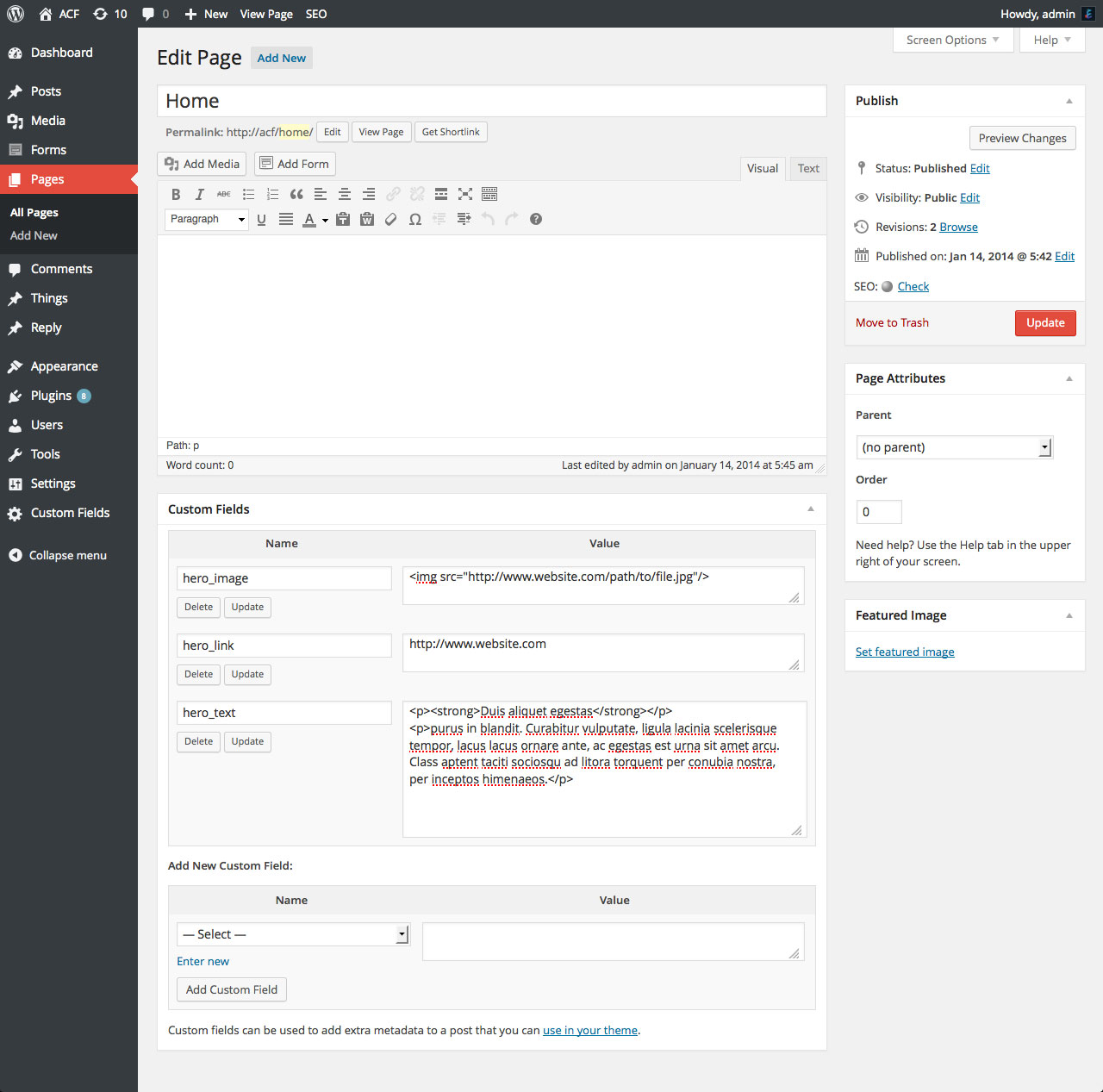
Custom fields can change how your site works. Finding them is the first step. Start by going to your WordPress dashboard. Next, open a post or a page. Scroll down to see if custom fields are visible. Sometimes, you need to enable them. Click on the ‘Screen Options’ at the top. Tick the ‘Custom Fields’ box. Now, you will see the custom fields section below.
Some themes may not show custom fields. Check if your theme supports them. Look in the theme settings. Some themes hide these fields by default. Contact support if you can’t find them. Some plugins can also help reveal these fields.
Credit: www.wpdownloadmanager.com
Using Plugins For Easy Access
Discovering custom fields in a WordPress theme becomes effortless with plugins. These tools simplify the process, allowing users to easily access and manage custom fields without digging into complex code. Enhance your WordPress experience by integrating plugins for seamless field customization.
Popular Plugins For Custom Fields
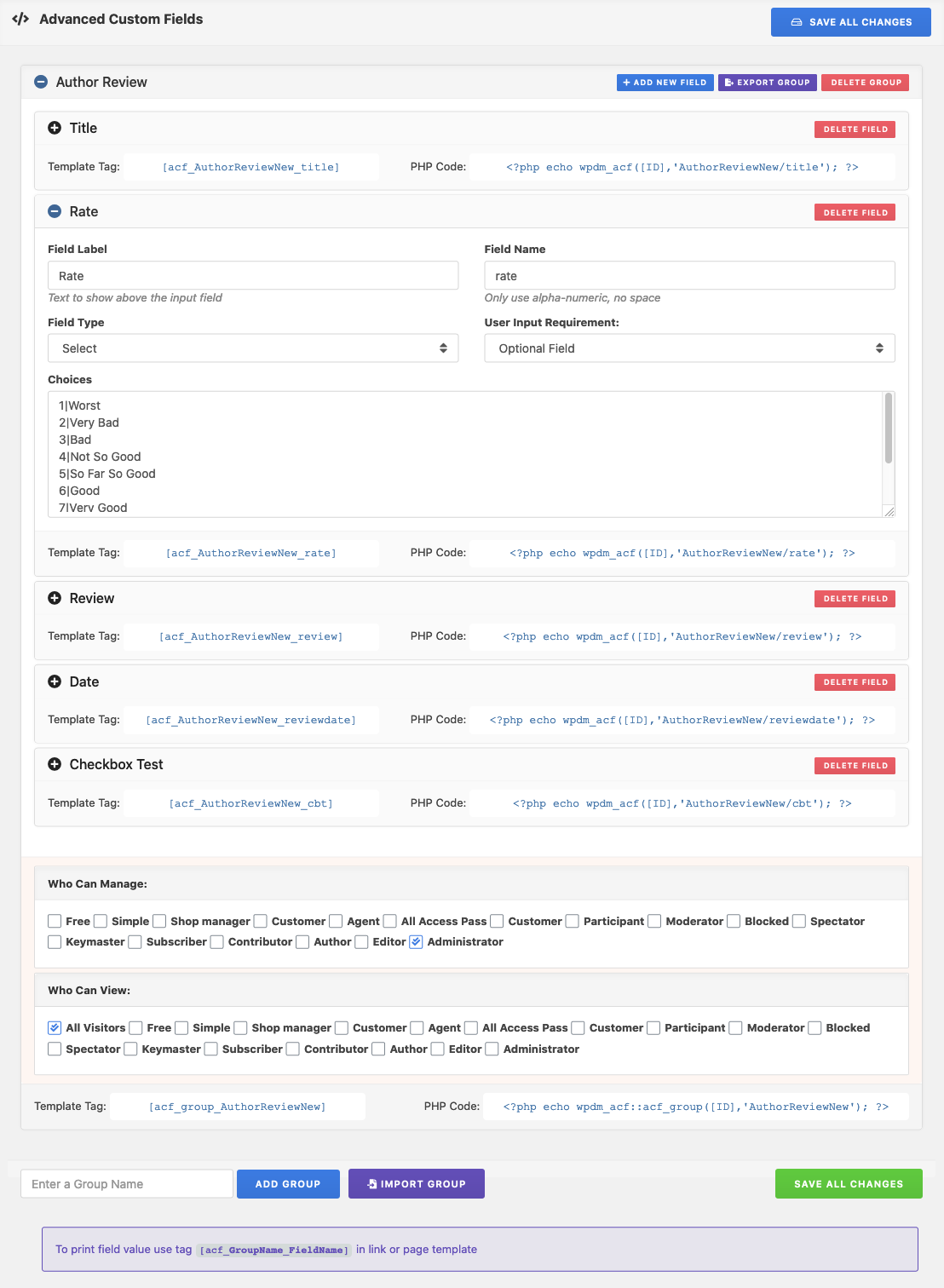
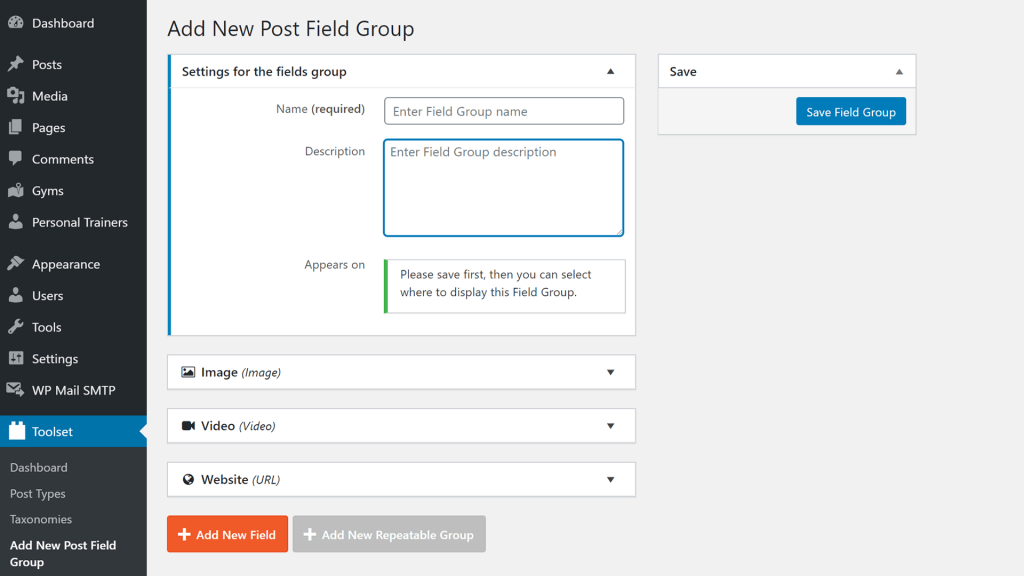
There are many plugins to help with custom fields. Advanced Custom Fields is a favorite. It is easy to use and very popular. Pods is another option. It is flexible and offers many features. Meta Box is also a good choice. It is lightweight and powerful. These plugins make custom fields easier to handle. They are all free to use. Most have a premium version with extra features.
Installation And Setup
Installing plugins is simple. Go to your WordPress dashboard. Click on Plugins, then Add New. Search for the plugin you want. Click Install Now and then Activate. Setup is usually quick. Follow the plugin instructions. Create custom fields in minutes. Enjoy the ease of using plugins for custom fields.
Checking Custom Fields In Code
Inspect the theme files first. Open your WordPress theme folder. Look for files with names like functions.php or single.php. Custom fields often hide in these files. Use a text editor to open them. Search for get_post_meta. This function fetches custom fields. Note the keys used. They identify each field.
PHP helps to show custom fields. Use get_post_meta() function in your code. This function needs two things: post ID and field key. Retrieve the field value by passing these. Place this code in the right spot. The theme files like single.php are good places. Make sure the post ID matches the current post. This ensures the correct field displays.
Troubleshooting Common Issues
Sometimes, custom fields don’t show up. This can be confusing. First, check if they are enabled. Go to the screen options at the top. Make sure custom fields are checked. If still missing, it might be a plugin conflict. Disable plugins one by one. See if the fields appear. This helps find the problem.
Fields might not display correctly. Check your theme’s code. Make sure it calls the fields properly. Look for errors in the template files. Sometimes, a small typo can cause issues. Correct the code and refresh the page. If errors continue, consult the theme’s documentation. It might have specific instructions.
Best Practices For Managing Custom Fields
Organize custom field data with care. Group related fields together. Use clear names for each field. This helps users find them quickly. Store data in a logical order. This makes updating and reading easier. Avoid unnecessary fields. Too many fields confuse users. Limit fields to what’s needed. Use categories if fields are many. This helps in sorting data.
Good performance means faster loading times. Minimize database queries. Use caching for frequently used data. Keep field data light. Avoid storing huge data in custom fields. Large data slows down the site. Clean up unused fields. Remove fields not in use. This reduces database size. Test site speed regularly. Identify slow areas and fix them. Faster sites keep users happy.
Credit: toolset.com
Frequently Asked Questions
How To Find Custom Fields In WordPress?
To find custom fields in WordPress, navigate to the post editor. Click “Screen Options” at the top-right corner. Check the “Custom Fields” box. This reveals the custom fields section below the editor. You can view, edit, or add new fields there.
Can I Edit Custom Fields In WordPress Themes?
Yes, you can edit custom fields in WordPress themes. Access the theme’s PHP files via Appearance > Editor. Locate the relevant template file where custom fields are integrated. Modify the code to suit your requirements. Ensure you back up files before editing.
What Plugins Help Manage Custom Fields?
Several plugins help manage custom fields. Advanced Custom Fields and Meta Box are popular choices. They offer user-friendly interfaces for creating and managing custom fields. These plugins enhance functionality without needing extensive coding knowledge.
Are Custom Fields Visible On Front-end?
Custom fields are not automatically visible on the front-end. You need to integrate them into your theme’s template files. Use PHP functions to display the fields where desired. This requires some coding knowledge and understanding of the theme structure.
Conclusion
Custom fields enhance your WordPress site’s flexibility. They allow unique content display. Checking them ensures your theme supports personalization. Follow the steps shared to view them. This helps you make the most of your site’s functionality. Using custom fields can improve user experience.
They provide extra information and organization. Remember, understanding your theme is key. It helps you customize effectively. This knowledge empowers your website management. Keep learning and exploring WordPress features. Make your site stand out with tailored content. Happy customizing!


