
Are you tired of the same old look of your WordPress website? Changing your theme can breathe new life into your site, making it more appealing to your audience.
Whether you want a sleek, modern design or something more traditional, updating your theme is the way to go. But how do you do it without losing your content or messing up your settings? Don’t worry, you’re not alone in this.
Many website owners like you are looking to refresh their online presence. In this guide, we’ll walk you through the simple steps to change your WordPress theme, ensuring a smooth transition and a stunning new look for your site. Keep reading to discover how easy it is to give your website the makeover it deserves.
Credit: www.wpzoom.com
Choosing A Theme
Picking the right theme is important. It affects your site’s look and feel. Speed is a key factor. A fast theme keeps visitors happy. Design matters too. Choose a theme that matches your brand. Think about customization options. Some themes are more flexible than others. Compatibility is another factor. Ensure the theme works with your plugins. And don’t forget support. It’s good to have help if needed.
There are many places to find themes. WordPress.org has free themes. They are safe and popular. ThemeForest offers premium themes. You will find many styles there. Elegant Themes is known for Divi. It’s a flexible and powerful choice. StudioPress is for those who like Genesis. It offers clean and simple themes. Always check reviews and ratings before choosing.
Credit: wpengine.com
Installing A New Theme
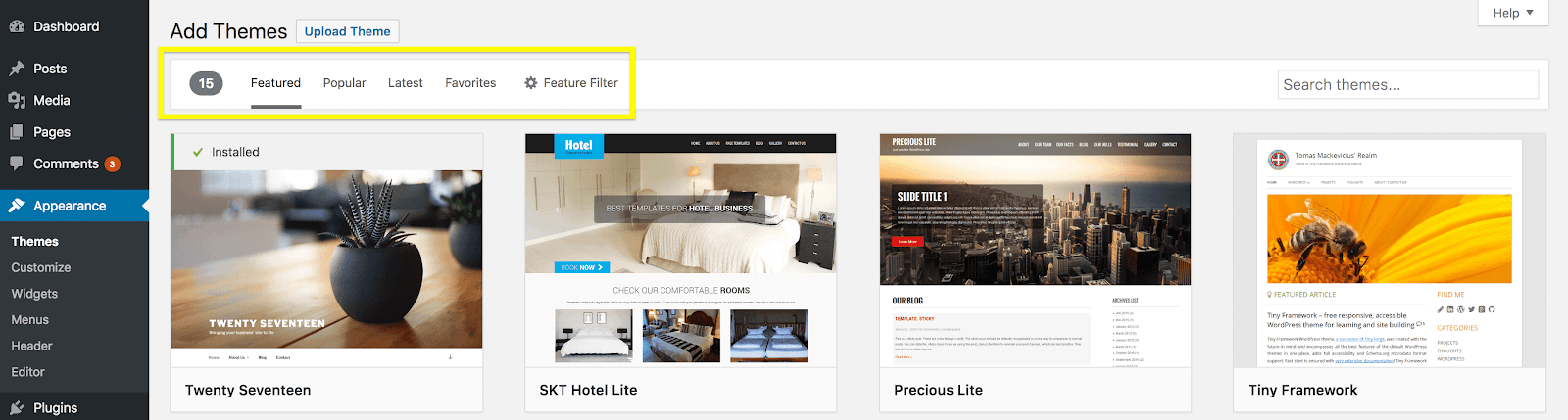
Open your WordPress Dashboard. Click on Appearance on the left sidebar. Choose Themes from the drop-down menu. You will see many options. Find the Add New button at the top. Click it to explore themes. Browse through the many free themes. You can search by color, layout, and features. There is a Preview option. See how the theme looks before installing. Click Install when you find a theme you like. Press Activate to make it live. Your new theme is now ready.
Have a theme file on your computer? You can upload it. Go to your Dashboard. Click Appearance and then Themes. Press the Add New button. Now click Upload Theme. Choose the file from your computer. Click Install Now. Wait for the upload to finish. Press Activate to use the theme. Your website has a fresh look.
Activating The Theme
Visit your WordPress dashboard. Click on Appearance, then choose Themes. You see many themes here. Hover over a theme you like. A Preview button will appear. Click it. This shows how your site will look. You can check layout and colors. This helps you decide. You don’t need to activate now. Previewing is safe. No changes will happen until you activate. It’s a smart way to make choices.
Found a theme you love? It’s time to set it. Go back to the Themes page. Hover over the theme. Click the Activate button. Your site now uses this theme. Refresh your website to see it live. If you don’t like it, change again. You can activate another theme anytime. Themes give your site a new look. It’s fun and easy to switch. Just a few clicks, and you’re done!
Customizing The Theme
The Customizer Tool is easy to find. It helps you change your WordPress theme. You can see changes live. No need to worry about mistakes. The tool lets you adjust colors and fonts. You can also add a logo. Menus and widgets can be moved easily. The tool is user-friendly. Even kids can use it. Make sure to save changes. The tool is located in the dashboard. Click ‘Appearance’. Then choose ‘Customize’. It’s simple and fun to use.
Editing settings can change your site’s look. Start by going to the dashboard. Click on ‘Appearance’. Then choose ‘Theme Options’. You can change the layout. Add or remove features. Some themes have more settings. Check the theme’s guide for help. Always save changes. This ensures your edits are kept. It’s easy once you try it. You’ll get the hang of it quickly.
Testing The New Theme
Check site functionality after changing the theme. Ensure all buttons work. Navigate through pages. Verify links go to the right places. Test forms to see if they send data correctly. Look at the images. Ensure they load properly. Check text alignment on each page.
Checking Site Functionality
Open the site on different devices. Test on desktop computers. Use tablets and mobile phones too. See if everything displays correctly. Make sure the site doesn’t break. Check if menus appear as expected. Look for missing elements. Fix any broken parts quickly.
Ensuring Mobile Responsiveness
Mobile responsiveness is key. Many users browse on phones. Make sure the theme adjusts well. Check for font size and readability. Ensure images resize properly. Test buttons for touch functionality. Review how menus behave. Confirm that scrolling works smoothly.

Credit: jetpack.com
Troubleshooting Common Issues
Switching themes in WordPress can cause issues. Ensure compatibility with plugins and backup your site first. Check theme settings to avoid losing customizations during the change.
Resolving Compatibility Problems
Themes might not work with all plugins. This can cause errors. Try disabling plugins one by one. Check if the theme works after each one. This helps find the problem. Update both themes and plugins regularly. This ensures they stay compatible. A backup is a good idea before making changes. It protects your work.
Fixing Layout Discrepancies
Sometimes, a theme might change how your site looks. This can be frustrating. Check the theme settings first. They might have options to fix the layout. Look for custom CSS settings too. This can adjust specific parts of your site. If problems continue, reach out to the theme’s support team. They can offer guidance. Remember, patience is key. Changes take time to settle.
Frequently Asked Questions
How Do I Change My WordPress Theme?
To change your WordPress theme, log in to your dashboard. Navigate to Appearance, then Themes. Click on ‘Add New’ to browse and select your desired theme. Once chosen, click ‘Install’ and then ‘Activate’ to apply the new theme. Always preview before activating to ensure compatibility.
Can I Switch WordPress Themes Without Losing Content?
Yes, switching themes doesn’t affect your content. Posts, pages, and media remain intact. However, theme-specific settings, widgets, and menus might require reconfiguration. Always back up your site before making changes to avoid any potential data loss.
What Happens To My Widgets After A Theme Change?
Widgets may need reconfiguration after changing themes. Some themes support different widget areas, causing widgets to move. Navigate to Appearance, then Widgets, to adjust them. Always check your widget settings after activating a new theme to ensure everything is displayed correctly.
Is It Safe To Change WordPress Themes Frequently?
Changing themes frequently is generally safe, but can affect your site’s appearance and functionality. Always backup your site before switching themes. Ensure the new theme is compatible with your plugins and WordPress version to avoid potential issues.
Conclusion
Changing your WordPress theme is simple. Follow the steps outlined above. Begin by accessing the dashboard. Navigate to the Appearance section. Choose Themes from the list. Browse available options. Preview each theme to see its look. Select the theme that fits your style.
Click Activate to apply. Ensure your site looks great with the new theme. Regularly check for updates. Stay informed about new features. This keeps your site fresh and functional. Changing themes can enhance your website’s appeal. Enjoy customizing your WordPress site to reflect your unique vision.


