
Are you looking to enhance your WordPress theme by adding the admin bar? Maybe you’ve noticed how this handy tool streamlines your workflow, but it just doesn’t appear when you switch to your custom theme.
Don’t worry, you’re in the right place! In this guide, you’ll discover the simple steps to integrate the WordPress admin bar into your theme, ensuring you never miss out on its powerful features. Imagine the convenience of accessing your dashboard, editing posts, and managing your site directly from the front end.
By the end of this article, you’ll have the tools and knowledge to make your WordPress experience smoother and more efficient. Ready to dive in and unlock the full potential of your theme? Let’s get started!

Credit: www.peeayecreative.com
WordPress Admin Bar Basics
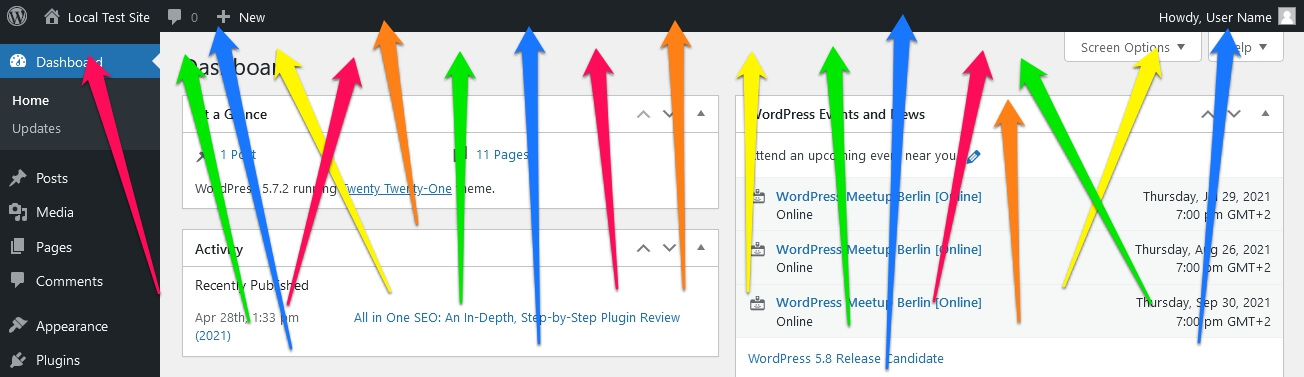
The WordPress Admin Bar is a helpful tool. It appears at the top of your site. It makes site management easier. You can quickly access the dashboard. You can also visit the theme customizer. This bar is visible only to logged-in users. Admins, editors, and authors can see it.
Adding the admin bar to your theme is simple. Use the wp_head() function. Place it in your theme’s header file. This ensures the bar loads correctly. Always check after adding the code. Make sure it appears as expected.
Customize the bar to fit your needs. Use plugins or code snippets. Choose the best option for your site. Make the admin bar work for you.
Benefits Of The Admin Bar
The WordPress Admin Bar helps users access tools quickly. It appears at the top of the screen. Users can find links to important areas. It saves time for admins. They do not need to visit the dashboard often.
With the Admin Bar, users can add new posts easily. They can also edit pages. The bar helps with site management. It is useful for all site tasks. Users can view comments quickly. They can also check updates.
Regular users benefit too. They find the bar helpful. It lets them see their profile. They can log out with one click. The Admin Bar makes the site easy to use. It enhances the user experience.
Preparing Your Theme For Customization
Always make a backup of your theme. This keeps your work safe. Use a plugin or download files manually. Save them on your computer. It’s smart to have a copy. Mistakes can happen. A backup helps you fix them. It’s like having a safety net. Don’t skip this step. It’s very important.
Create a child theme for your changes. It protects the original theme. Start by making a new folder. Name it with your theme’s name and “-child”. Add a style.css file inside. Include a few lines of code. This connects your child theme to the parent. Use this theme to make changes. It keeps the parent theme safe. Updates won’t affect your work. It’s a smart way to customize.
Accessing Theme Files
Adding the WordPress Admin Bar to a theme involves editing theme files. Locate the `functions. php` file in your theme directory. Add a simple code snippet to enable the admin bar for logged-in users. This enhances the user experience by providing quick access to the dashboard.
Using The WordPress Dashboard
Find the WordPress Dashboard. Log in with your details. Once inside, look for Appearance on the left menu. Click it. Then select Theme Editor. You will see theme files on the right. Be careful here. A small change can break your site. Always back up before editing. Backups keep your work safe.
Via Ftp Or File Manager
Use an FTP client or a File Manager. Connect to your server. You need server details for this. Find the folder named wp-content. Inside, see themes. Open your theme folder. Look for functions.php. This is the file you may edit. Again, remember to back up. It’s crucial to keep a backup. Mistakes happen easily.
Adding Code To Display Admin Bar
Start by finding the functions.php file. It lives in your theme folder. Open this file using a text editor. This file controls many settings. Make sure to save a backup. Errors can break your site.
Copy the code snippet for the admin bar. Paste it into the functions.php file. Place it before any closing tags. This code makes the admin bar visible. Save changes to the file. Refresh your website to see the admin bar. If it does not appear, check for errors in the code.
Customizing The Admin Bar
Move the admin bar to fit your theme’s style. Change the position from top to bottom. Use simple CSS code to make this change. The code is easy to find online. Ensure it matches your theme’s color. This helps the bar blend well. Check the changes on different devices. Sometimes it looks different on phones. Testing helps keep everything neat.
Add or remove links to make the bar useful. Use functions in WordPress to do this. You can add links that matter most. Remove links that you don’t need. This keeps the bar clean and focused. Make sure to save changes. Refresh the page to see updates. A well-organized bar saves time. It helps find what you need faster.
Troubleshooting Common Issues
Easily add the WordPress admin bar to your theme by editing the functions. php file. This helps improve navigation for administrators. Ensure you have a backup before making changes to avoid potential issues.
Admin Bar Not Appearing
Sometimes, the WordPress admin bar is missing. This can be frustrating. One common reason is CSS conflicts. Themes or plugins might hide it. Check your theme’s style.css file. Look for display: none. This might hide the admin bar.
Another issue is with user roles. Admin bar appears for certain roles. Ensure you’re logged in with the correct role. Next, verify the settings. Go to your profile settings. Ensure the admin bar is enabled. It should be ticked.
Plugins can also cause problems. Disable plugins one by one. This helps find the conflicting plugin. If the admin bar appears, you’ve found the problem. CSS conflicts are common, but they can be fixed easily.
Credit: github.com
Testing Your Changes
Integrating the WordPress admin bar into a theme allows quick access to backend features. Enable the admin bar by editing the theme’s functions. php file. This customization enhances user experience, offering convenient navigation for site management tasks directly from the frontend.
Checking Across Different User Roles
WordPress sites have many user roles. Each role has its own permissions. Admin, editor, and author roles. Each role must show the admin bar correctly. Log in as each user role. Check if the admin bar appears. Ensure it works as intended. Admin role must see all options. Editor role must see fewer options. Author role sees basic options only. This ensures every user sees what they need. Testing each role is important. It prevents role-based issues later.
Ensuring Compatibility With Plugins
WordPress plugins change site functions. Some plugins might hide the admin bar. Others might alter its look. Test your changes with active plugins. Check if the admin bar is visible. Make sure plugins do not affect the bar’s function. Disable plugins one by one. This identifies any conflicting plugin. Fix any issues found. Ensure plugins and the admin bar work together. This keeps the site stable and user-friendly.
Advanced Customizations
Enhance your WordPress site by adding the admin bar to your theme. This feature provides quick access to vital tools. Boost efficiency and streamline site management with this simple customization.
Adding Custom Menu Items
Adding custom menu items to the WordPress admin bar is easy. First, you need to hook into the admin_bar_menu action. Create a function and add your menu items there. Use the add_node method to add each item. You can specify the title, href, and parent. This way, you can organize your items neatly.
Styling With Css
Styling the WordPress admin bar helps it blend with your theme. Use CSS to change colors and fonts. You can target elements by their class names. For example, use .ab-top-menu to style the top menu items. Apply your styles in your theme’s stylesheet. This ensures they are always applied. Keep the styles simple for a clean look.
Maintaining Your Customizations
Always back up your theme before any updates. Use a child theme for changes. This keeps your customizations safe. New updates won’t delete your work. Choose plugins that support your theme. Check for compatibility. Test changes on a local server. Avoid direct changes to the main theme files. This practice protects your custom edits.
Write down every change made. Use a simple text file for logs. It helps track adjustments. Note the date and details of each change. Include reasons for changes. This log aids in troubleshooting. Review the log regularly. It can help find old errors. A change log keeps your work organized. It’s easy to update and manage.
Credit: torquemag.io
Frequently Asked Questions
What Is The WordPress Admin Bar?
The WordPress admin bar is a toolbar for quick access to admin functions. It appears at the top of your site when logged in. It provides shortcuts to various admin tasks, enhancing your workflow efficiency. You can customize its visibility in your theme for better user experience.
Why Add The Admin Bar To A Theme?
Adding the admin bar to a theme offers seamless admin access. It helps in quick edits and navigation. This integration enhances productivity by reducing clicks. It’s especially useful for developers and site administrators. Including it ensures efficient site management.
How Do You Enable The Admin Bar?
To enable the admin bar, ensure it’s not disabled in your profile settings. Use WordPress functions to add it to your theme. Verify the code in the theme’s header file. This ensures it’s visible when logged in.
Can The Admin Bar Be Customized?
Yes, the admin bar can be customized using WordPress functions. You can add, remove, or modify its items. Customization helps tailor the bar to specific needs. This enhances user experience by providing relevant shortcuts. Use plugins or custom code for advanced modifications.
Conclusion
Adding the WordPress admin bar to your theme enhances efficiency. It offers quick access to essential features. Customizing it is simple and boosts your workflow. This guide ensures smooth integration. Follow the steps carefully for best results. Your site management becomes faster and easier.
Enjoy the streamlined experience while working on your site. Adjust settings to suit your preferences. Troubleshoot any issues promptly for seamless operation. Keep experimenting to optimize your setup. Your WordPress experience improves significantly. Now, managing your site feels more intuitive.
Keep learning and refining for continuous improvement.


