
Have you ever wanted to customize your WordPress site without worrying about losing your changes with the next theme update? Creating a child theme is the perfect solution.
It allows you to tweak and tailor your site while keeping the original theme intact. And the best part? You can easily do this using a plugin, even if you’re not a coding expert. Imagine having the freedom to enhance your site’s appearance and functionality, just the way you envision it.
You’ll discover the step-by-step process to effortlessly create a WordPress child theme using a plugin. You’ll learn how to safeguard your customizations, ensuring your site remains unique and up-to-date. Dive in and unlock the potential of your WordPress site today!
Credit: happyaddons.com
What Is A WordPress Child Theme?
A WordPress Child Theme is like a copy of a main theme. It lets you change the look and feel of your site without changing the main theme files. This is important because updates to the main theme will not erase your changes.
Imagine your main theme as a parent. The child theme is the kid. The child theme can have its own styles and features. It uses the parent theme as a base. You can add new code or styles in the child theme. The main theme stays safe and sound.
Credit: ostraining.com
Benefits Of Using A Child Theme
A child theme helps you keep your site safe. Your changes won’t get lost when you update your parent theme. This is a big help for many users. You can play with the design and not worry. Your site will look how you want. You can also learn more by using a child theme.
It makes your site unique. You can add your own colors and style. This makes your site different from others. People will notice your site. They will remember it.
Using a child theme is easy. Plugins make it simple to create one. You don’t have to be a tech expert. You can do it with a few clicks. This saves you time and effort.
Choosing The Right Plugin
Picking the right plugin is vital. It makes the job easy. Look for plugins with good reviews. Reviews tell you if a plugin is good. Make sure the plugin is up-to-date. An updated plugin means fewer bugs. Check if the plugin is easy to use. Easy plugins save time. Look for a plugin with a user-friendly interface. A good interface helps you work fast.
Some plugins offer extra features. Features like custom styles and scripts. Choose one that fits your needs. More features are not always better. Check if the plugin has support. Good support helps fix problems fast. Free and paid plugins are available. Paid ones might offer more help.
Credit: happyaddons.com
Installing The Plugin
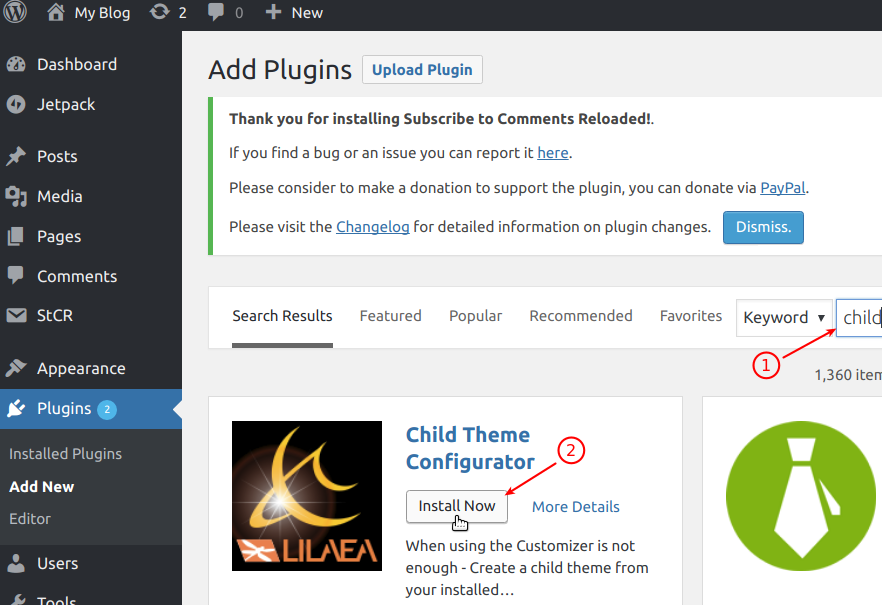
Begin by opening your WordPress dashboard. Look for the Plugins option on the left side. Click on it. Next, choose Add New. A search bar will appear. Type the name of the plugin you need. Use keywords like “Child Theme Creator.” Once you find the plugin, click Install Now. Wait a few seconds for it to download. After installation, hit the Activate button. This will turn the plugin on. Now, you are ready to make a child theme. The plugin will guide you through the steps. Follow its instructions carefully.
Creating A Child Theme With The Plugin
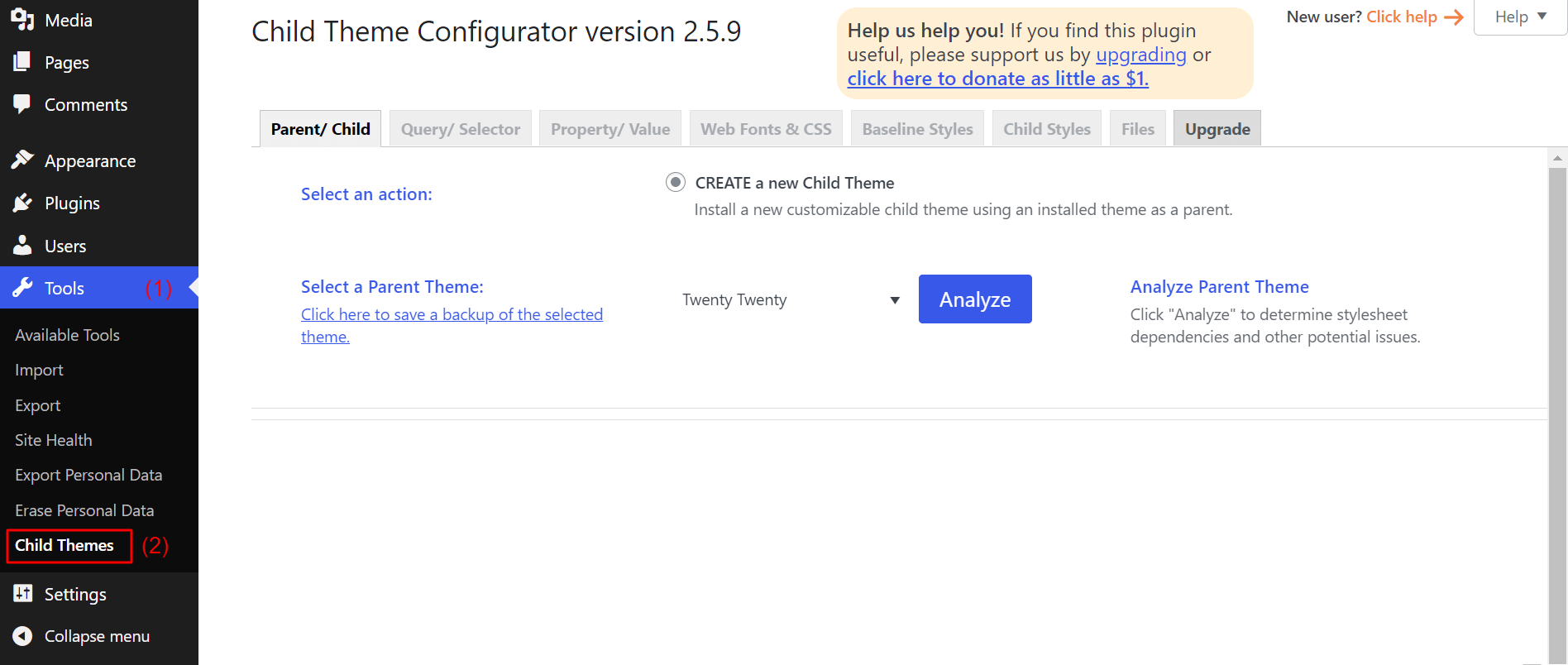
First, open your WordPress dashboard. Look for the Plugins section. You need to find and install a plugin for child themes. Choose one that is popular and has good reviews. Once installed, click activate to start using it. Access the settings by clicking on the plugin name. This will open the settings page.
In the settings, you can see many options. Choose your desired theme to base your child theme on. You might see options like colors, fonts, and layouts. Select the options you want to change. Click save to apply these settings. Each choice will make your site unique.
After saving, check your site. Look for any changes. Test if everything works as you want. If there are problems, go back to settings. Adjust until you are happy with the result. Once satisfied, your child theme is ready. Your site now has a new look.
Activating The Child Theme
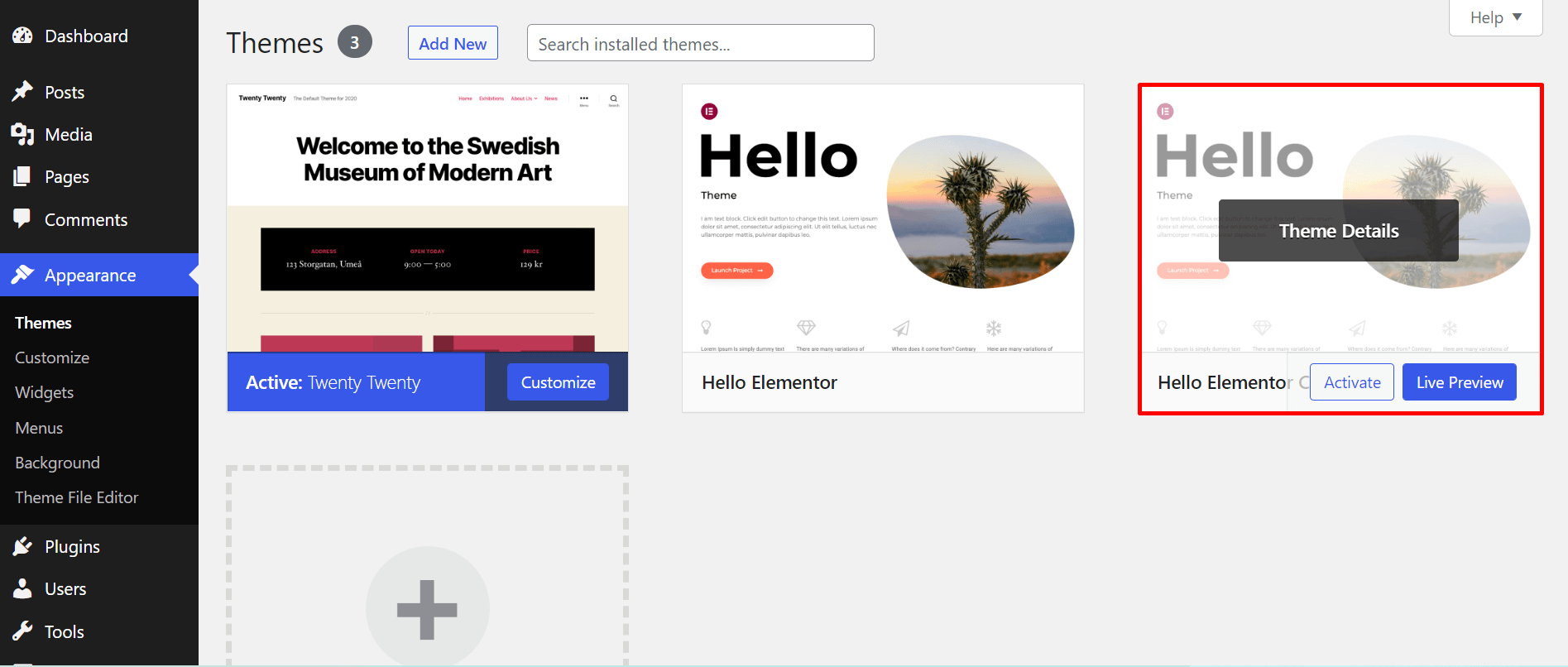
First, go to your WordPress dashboard. Find the Appearance tab. Click on it. Then select Themes. You will see a list of themes. Find your child theme in the list. Click on the Activate button below it. The child theme will now be active.
Check if your site looks right. Open your website in a browser. Make sure everything works well. If something looks off, go back to the dashboard. Check your settings again. Sometimes plugins might cause problems.
If you need help, ask in forums. WordPress has many helpful users. They can guide you. Remember to always save your work. This keeps your site safe.
Customizing Your Child Theme
Explore the ease of customizing WordPress child themes using plugins. Create unique designs without altering core files. Enhance your site’s appearance and functionality effortlessly.
Editing Styles And Templates
Begin by accessing your child theme’s style.css file. This file lets you change the look of your site. You can alter colors, fonts, and layouts here. Use a simple text editor for these changes. To edit templates, find the PHP files in your child theme folder. These files control your site’s structure. Copy the files you want to edit from the parent theme. Then, paste them into your child theme folder. Now, you can make changes without affecting the parent theme. This keeps your site safe during updates.
Adding Custom Functions
Add new features to your site using the functions.php file. This file lets you write custom code. Be careful when adding new code. Mistakes can break your site. Always back up your site before changes. Use a plugin like Code Snippets to test new functions. This way, you can fix errors easily. Keep your functions organized. This makes your code clear and easy to read.
Testing Your Child Theme
Creating a WordPress child theme with a plugin ensures your design changes remain safe during updates. Test the child theme to confirm functionality and appearance. This step verifies that your customizations work seamlessly without affecting the parent theme.
Verifying Theme Functionality
Activate your new child theme from the WordPress dashboard. Check if your site looks the same. Open different pages to see the layout. Ensure your custom changes are visible. Refresh your browser to update any cached files. If you see issues, revisit your code. Small errors can cause big problems. Fix them and test again.
Ensuring Compatibility
Check if plugins work with your child theme. Some plugins may not be compatible. Look for broken features or missing elements. Update plugins to their latest versions. If issues persist, contact plugin support. They might have solutions. You should also check your theme on different devices. Make sure it looks good on phones and tablets. Everyone should have a good experience on your site.
Maintaining Your Child Theme
Creating a WordPress child theme with a plugin simplifies customization. Install the plugin, choose the parent theme, and generate your child theme. This method ensures your changes stay safe during updates, keeping your website fresh and functional.
Updating The Parent Theme
Always keep your parent theme updated. This ensures your site stays secure. New updates fix bugs and add features. Use a plugin to safely update. This helps avoid errors.
Check your child theme after each update. Look for any broken parts. Fix them quickly to keep your site working well. Keep a backup of your site. This is important in case something goes wrong.
Adjusting Customizations
Make your site unique with custom changes. Use the WordPress Customizer. It lets you change colors and fonts. You can also add new features. Be careful with too many changes. They can slow down your site.
Test your changes often. Make sure everything works well. If something breaks, check your changes. Find and fix any problems.
Frequently Asked Questions
What Is A WordPress Child Theme?
A WordPress child theme is a sub-theme that inherits the functionality and styling of another theme, called the parent theme. It allows users to modify or add features to the parent theme without losing those changes when the parent theme is updated.
Why Use A Plugin For Child Theme Creation?
Using a plugin simplifies the process of creating a child theme. It automates tasks like generating necessary files and folders. This ensures accuracy and saves time, especially for beginners. Plugins also offer additional customization options, enhancing the child theme’s functionality.
Can I Customize A Child Theme Safely?
Yes, customizing a child theme is safe. Changes made to a child theme don’t affect the parent theme. This ensures that updates to the parent theme won’t overwrite your modifications. It’s a recommended practice for making theme customizations.
How Do Plugins Simplify Child Theme Creation?
Plugins simplify child theme creation by automating setup tasks. They generate essential files like style. css and functions. php. This ensures you follow WordPress standards, and they offer user-friendly interfaces for customization. This makes the process accessible even to beginners.
Conclusion
Creating a WordPress child theme with a plugin simplifies the process. You preserve your site’s design while enabling updates. This approach prevents losing changes during theme updates. Plugins make the task easier, even for beginners. Follow the steps, and you’ll have a child theme ready quickly.
Remember, child themes protect your customizations. They ensure your site remains fresh and secure. Experiment with designs safely. Embrace this method for hassle-free site management. With practice, you’ll gain confidence in theme customization. Enjoy exploring new designs and enhancing your site’s appeal.
Your WordPress journey just became easier!


