
Are you ready to transform your website with just a few clicks? Applying a new WordPress theme can dramatically change how your site looks and feels.
It’s like giving your digital presence a fresh coat of paint. Whether you want a sleek, modern design or something more traditional, the right theme can make all the difference. But if you’re not sure where to start, don’t worry.
You’re not alone, and this guide is here to help. We’ll walk you through the steps to seamlessly apply a WordPress theme, ensuring your website stands out. Imagine the impact a new design could have on your audience, potentially boosting engagement and enhancing your brand image. Stick with us to discover how easy it can be to give your website the makeover it deserves.
Choosing The Right Theme
Think about what your website should do. Will it be a blog or a shop? List your needs. Make sure you know what features you require. This helps in picking the best theme.
Visit the WordPress theme directory. Check out the popular themes. See what catches your eye. Read the reviews and ratings. Many themes are free, but some are paid. Choose what fits your budget and style.
Ensure the theme works with your plugins. Some themes don’t support all plugins. Check the theme’s description for compatibility info. Make sure it works with your WordPress version. This keeps your site safe and smooth.
Credit: www.namecheap.com
Installing A WordPress Theme
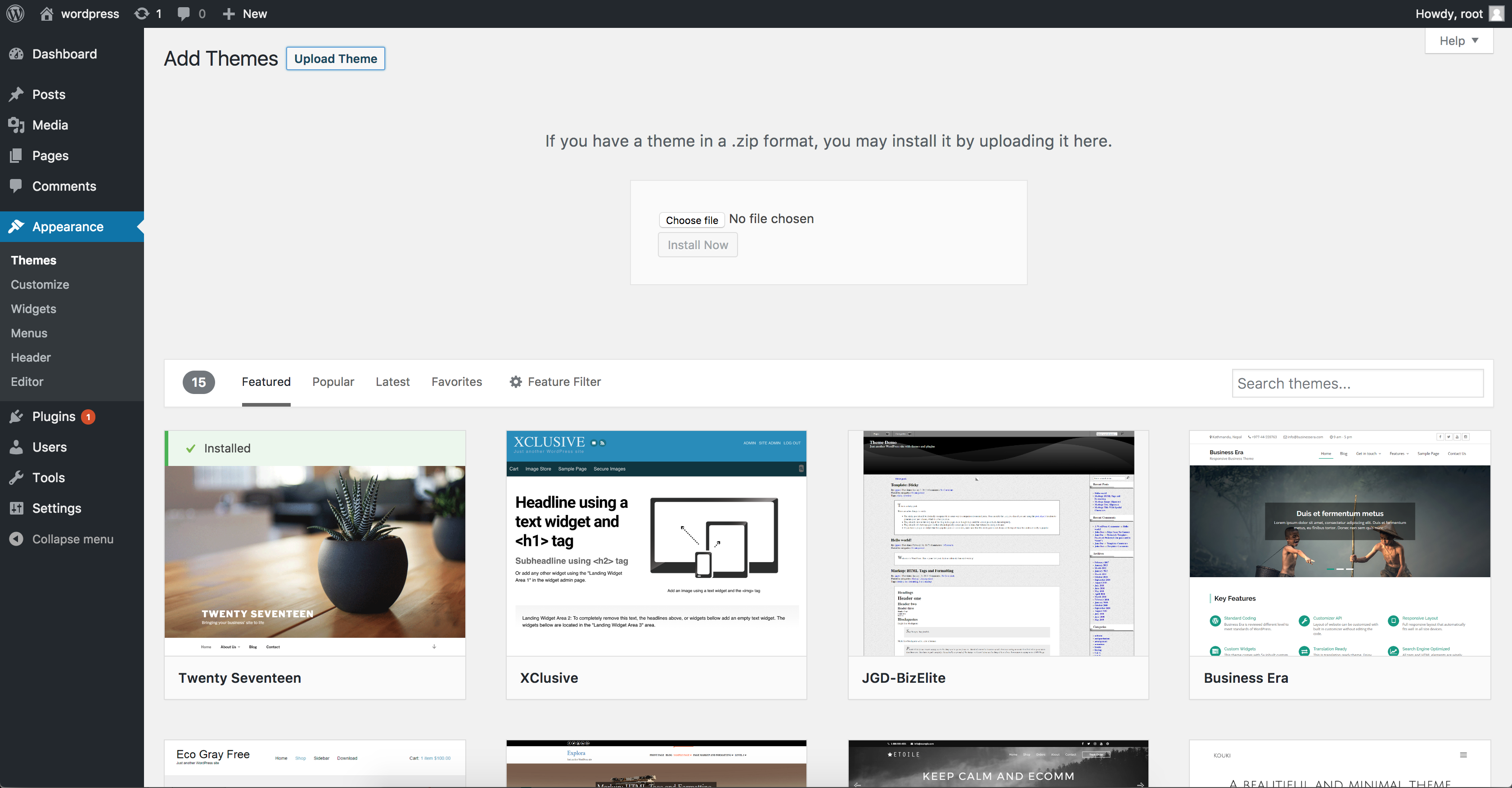
Start by logging into your WordPress site. Look for the Dashboard on the left. Click on Appearance then Themes. This is where you manage your themes.
Find the Add New button on the themes page. Use the search box to find themes. Click Install on your chosen theme. After installation, click Activate to use the theme.
Download a theme file to your computer. Click the Add New button on the themes page. Find the Upload Theme option. Select the theme file from your computer. Click Install Now. After installing, activate the theme.
Customizing The Theme
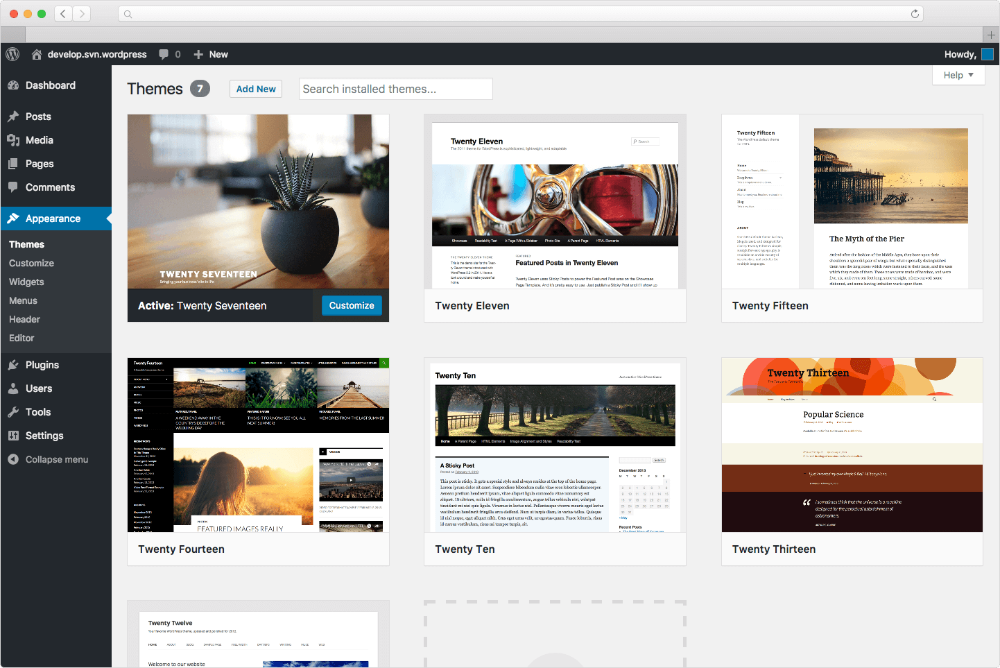
Choosing a WordPress theme shapes your website’s look and feel. Install a theme through the WordPress dashboard. Customize it to match your style using built-in options.
Use The WordPress Customizer
The WordPress Customizer lets you change the look of your website. You can adjust colors, fonts, and layout. See changes in real-time. It’s easy and fun. Just click and watch your site change.
Modify Theme Settings
Go to the theme settings to tweak features. You might want to enable or disable sidebars. Adjust the header and footer too. Make sure you save your settings after changes.
Add Custom Css
Use Custom CSS to make your site unique. Add special styles to elements. This can change how things look. Want a red background? Add a CSS rule. Try not to overdo it. Simple is better.
Credit: docs.presscustomizr.com
Ensuring Theme Responsiveness
Mobile compatibility is very important for your website theme. Most people use phones to browse websites. Make sure your theme looks good on small screens. Test your theme on different phones and tablets. This helps ensure everything looks right.
Try your theme on various devices and browsers. This ensures your site works well everywhere. All users should have a smooth experience.
Speed is key for a good website. Slow sites make visitors leave. Optimize images to load faster. Use plugins that boost speed. A fast site keeps users happy.
Updating Your Theme
Choose a theme that fits your website’s style. Download the theme file from the WordPress directory. Upload it to your site’s dashboard under “Appearance” and “Themes. ” Activate the theme to apply it immediately. Make sure to preview and customize settings for a perfect fit.
Understand Update Notifications
WordPress sends update alerts. These alerts help keep your site safe. Check your dashboard for notifications. Updates fix bugs and improve features. Always read the update details. Understand what changes will be made. Updates can enhance your site’s performance.
Backup Your Site
Backing up ensures data safety. Use plugins like UpdraftPlus. Store backups on cloud or external drives. Backups save your site from data loss. Backup before any major updates. Restoring backups is easy if something goes wrong.
Apply Theme Updates
Go to your WordPress dashboard. Click on ‘Appearance’ then ‘Themes’. Select the theme to update. Click ‘Update’ if an option appears. Updates make your theme better. They add new features. They fix old problems. Always update themes for security.
Common Theme Issues
Sometimes, themes don’t install right. This can be due to a corrupt file or server issue. Check the theme file size first. Make sure it matches the one on the theme’s website. If it’s too big, try downloading it again. Also, check your server settings. Some servers have limits that stop big files. Fixing these settings can help.
Your theme may not look right on the screen. This can be because of cache problems. Clear your browser cache to see changes. Sometimes, CSS conflicts cause display issues too. Look for custom CSS that overrides theme styles. Removing or fixing these can improve the look.
Plugins can cause theme issues. Deactivate all plugins first. Then, activate them one by one. This helps find the plugin causing trouble. Update your plugins regularly. Old plugins may not work with new themes. Keeping them updated can prevent conflicts.

Credit: blog.hubspot.com
Frequently Asked Questions
How Do I Install A WordPress Theme?
To install a WordPress theme, go to your dashboard. Navigate to “Appearance” > “Themes”. Click “Add New”, search for a theme, and click “Install”. Once installed, activate it to apply the theme to your site. Ensure it’s compatible with your WordPress version for seamless integration.
Can I Customize A WordPress Theme?
Yes, you can customize a WordPress theme using the “Customize” option under “Appearance”. This allows changes to colors, fonts, and layouts. For advanced customization, use child themes or custom CSS. Ensure you save changes to see updates live on your website.
What Is A Child Theme In WordPress?
A child theme inherits the functionality of a parent theme, allowing modifications without altering the original theme. It’s ideal for customization and updates without losing changes. Create a child theme to safely tweak design elements and features while maintaining the core integrity of the parent theme.
Are Free WordPress Themes Reliable?
Free WordPress themes can be reliable if sourced from reputable developers or the official WordPress repository. They undergo checks for quality and security. Ensure the theme is regularly updated and has positive reviews. Always test the theme in staging before applying it live for optimal performance.
Conclusion
Applying a WordPress theme is straightforward. Choose a theme that fits your style. Use the WordPress dashboard for easy installation. Customize it to match your brand. Ensure it’s mobile-friendly for better user experience. Regular updates keep your site secure and functional.
Test your theme before going live to catch any issues. Familiarize yourself with theme settings for more control. WordPress themes offer flexibility. Perfect for any website need. With practice, you’ll feel confident. Enjoy exploring creative possibilities for your site. Happy designing!


