
Are you looking to refresh your WordPress site and make it truly stand out? Changing your layout theme settings might be just the magic touch you need.
Whether you’re aiming for a sleek, modern look or a cozy, welcoming vibe, adjusting your theme’s settings can transform your site instantly. Imagine capturing your visitors’ attention at first glance and keeping them engaged. This guide is crafted just for you, to help you navigate the process easily and effectively.
With step-by-step instructions, you’ll learn how to tailor your WordPress theme to reflect your unique style and message. Don’t let your site blend into the background. Dive in and discover how simple tweaks can make a world of difference. Curious to see how your site can shine? Let’s get started!
Credit: www.elegantthemes.com
Accessing The WordPress Dashboard
First, log into your WordPress account. Use your username and password. You’ll see the WordPress Dashboard after logging in. The dashboard is your control center.
Find the sidebar on the left. Look for the Appearance option. Click on it to see more options. This is where you can change your theme settings.
Choose a new theme if you want. Preview it before you apply. This helps you see how it will look. Make sure you save changes. Your site will update with the new look.

Credit: visualmodo.com
Navigating To Theme Settings
Go to your WordPress dashboard. Click on Appearance in the left menu. You will see many options. Choose Customize. This opens the theme settings. Here, you can change colors, fonts, and layouts. Use the live preview to see changes. Don’t forget to save when you are happy.
Look for options to change the header and footer. These are important parts of your site. You might find background settings too. Change them to suit your style. Explore each option. Take your time to make your site look great.
Choosing A New Theme
WordPress has many themes to choose from. Visit the Theme Directory in your dashboard. Use the search bar to find themes you like. Look at the ratings and reviews. They help you choose the best theme. Some themes are free. Some themes cost money. Pick the one you like the most.
You can preview themes before using them. Click on the theme you like. Then click the Preview button. This shows how your site will look. Make sure everything looks good. If you like it, you can use it. If not, look at more themes.
After finding a theme, you need to install it. Click the Install button. Wait for the theme to download. Once done, click Activate. Your new theme is now live on your site. You can change settings to make it perfect.
Customizing Your Theme
The WordPress Customizer is a simple tool. It helps change your theme fast. You can see changes instantly. This makes editing easy. Find it in your dashboard. Look for “Appearance” and click “Customize”. Explore different options here. Make your site unique with ease.
Layout elements include headers and footers. You can change these easily. Drag and drop to rearrange. Widgets can also be added or removed. This changes the look of your site. Make sure to save your changes. It helps keep your design intact.
Colors and fonts set the tone of your site. Pick colors that fit your brand. Use fonts that are easy to read. The Customizer offers many choices. Preview your adjustments before saving. This ensures everything looks right. Keep your design simple and clean.
Working With Theme Widgets
Widgets make your site special. They add new features. Want to add a widget? Go to the Appearance menu. Click on Widgets. Drag the widget to your sidebar. It’s easy! Removing a widget is simple too. Just drag it away. Your changes will save.
Widgets live in special places. We call them widget areas. These areas can be sidebars or footers. You can change them. Choose where you want your widgets. Make your site look nice. It’s fun to try different settings. Experiment with styles and layouts.
Managing Menus
Menus help visitors find pages easily. Click on the “Appearance” tab in the dashboard. Then, select “Menus”. You can create a new menu by clicking on “Create a New Menu”. Give your menu a name. Add pages by checking the boxes next to them. Click “Add to Menu”. Drag and drop items to rearrange. Save your changes by clicking the “Save Menu” button.
Assigning menus is simple. Go to the “Manage Locations” tab. Choose a location for your menu. Use the dropdown to select your menu. Click on “Save Changes”. Now, your menu appears where you chose it.
Utilizing Child Themes
Child themes are safe for your site. They protect your original theme. Updates to the main theme will not affect your changes. Your designs stay intact. Child themes are easy to manage. They help keep your site secure. You can make custom changes without fear. This is great for beginners. It simplifies the process. You can try new designs easily.
First, create a new folder. Name it “child-theme”. Inside, make two files: style.css and functions.php. In style.css, add details like theme name and author. In functions.php, write a function to load the parent theme. Copy the template from the main theme folder. This makes it ready for changes.
Go to your WordPress dashboard. Find “Appearance” then “Themes”. Click on your child theme. Activate it with one click. Customize it using the WordPress editor. Change colors, fonts, and layout. Add widgets or menus. It’s simple and fun. Your site looks new without risk. Experiment with different styles. Watch your site transform safely.
Credit: slocumthemes.com
Troubleshooting Theme Issues
Themes can sometimes break. Pages may not display right. Styles might look strange. Compatibility issues can arise with plugins. Missing elements are also common. These problems can frustrate site owners. Ensure all plugins are updated. Check theme compatibility with the latest WordPress version.
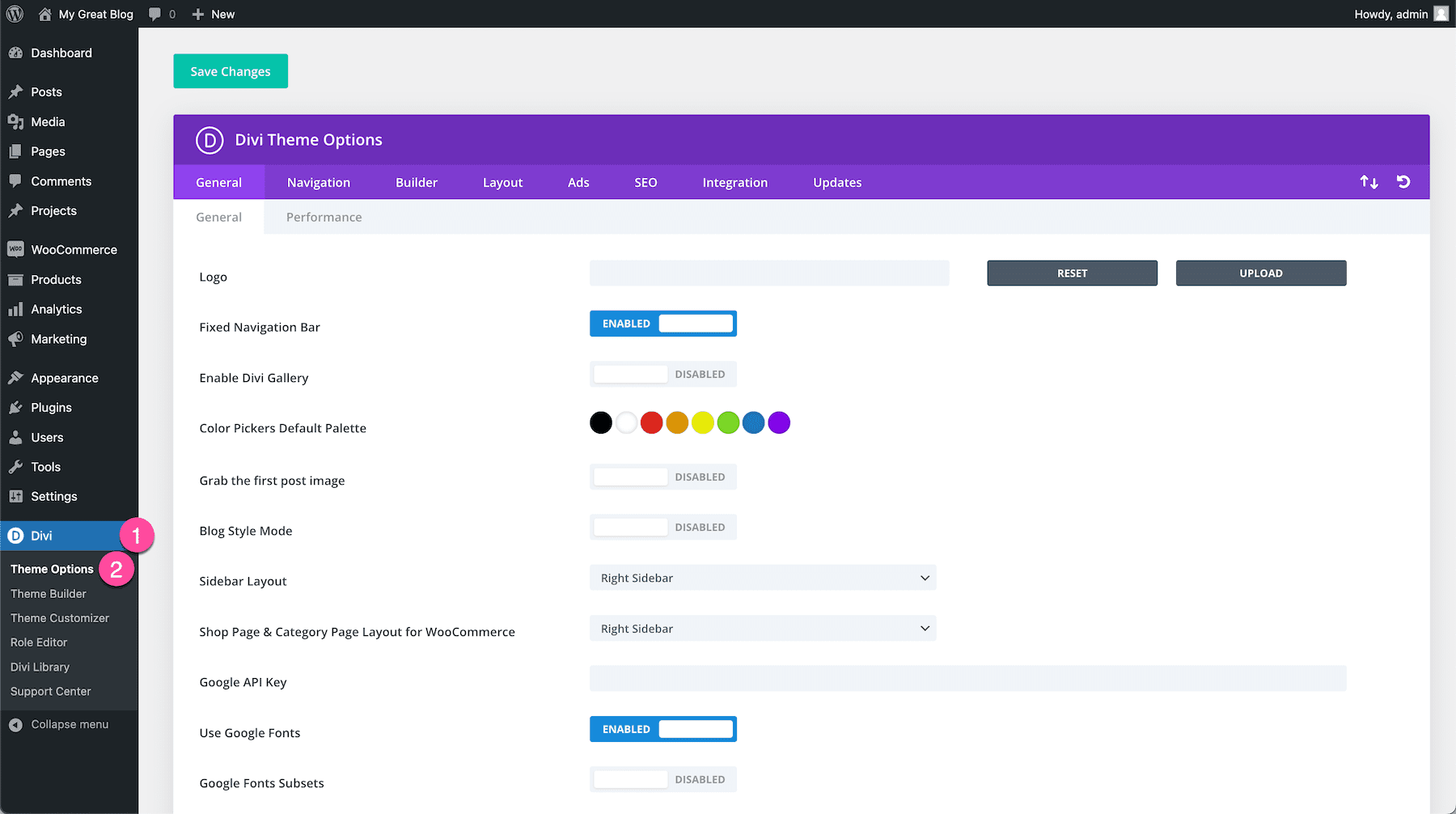
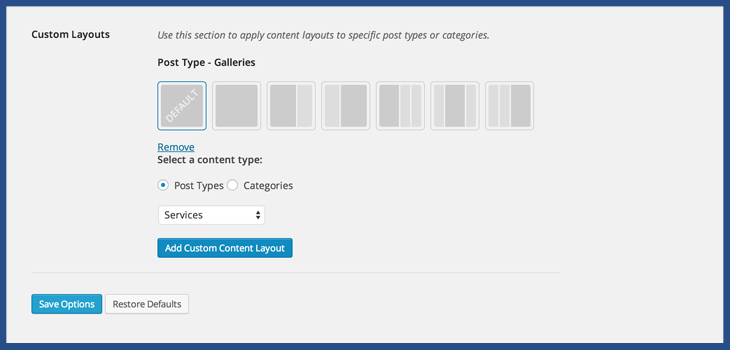
Restoring default settings can help. This action can fix many theme problems. Locate the reset button in theme options. Use it to revert changes. This process returns settings to their original state. Make sure to back up data first. It prevents losing important content.
Contact theme support for help. Many themes have dedicated support teams. They can provide solutions for issues. Check the theme provider’s website. Look for contact information or forums. User communities can also offer valuable advice. Don’t hesitate to ask for help.
Frequently Asked Questions
How Do I Access Theme Settings In WordPress?
To access theme settings, log into your WordPress dashboard. Navigate to “Appearance” and then click on “Customize. ” This will open the WordPress Customizer, where you can modify various theme settings, including layout, colors, and typography. Always remember to save changes before exiting.
Can I Change WordPress Theme Without Losing Content?
Yes, you can change your WordPress theme without losing content. Your posts, pages, and media files remain intact. However, theme-specific settings and widgets might require reconfiguration. Always back up your site before making significant changes to ensure data safety and a smooth transition.
What Is The Best Way To Customize WordPress Themes?
The best way to customize WordPress themes is by using the WordPress Customizer. Access it through “Appearance” > “Customize” in your dashboard. This tool provides a user-friendly interface to change layouts, colors, and fonts. For advanced customization, consider using a child theme or custom CSS.
Are WordPress Themes Mobile Responsive By Default?
Most modern WordPress themes are mobile responsive by default. They automatically adjust layouts to fit various screen sizes, providing an optimal viewing experience on smartphones and tablets. However, always test your chosen theme on multiple devices to ensure proper functionality and appearance.
Conclusion
Changing layout themes on WordPress is simple. Follow the steps for success. Explore different themes for unique designs. Adjust settings to fit your style. Make sure your site looks good on all devices. Test changes before publishing. Keep your audience in mind.
Regular updates keep your site fresh. Enjoy the process and creativity. WordPress offers endless possibilities. Your website can stand out with the right theme. Practice makes perfect. The more you experiment, the better you get. Start customizing today. Let your website reflect your vision.
Happy designing!


