
Are you struggling to make your WordPress site look just right? Sometimes, the font size can make all the difference.
Whether your text seems too small on mobile devices or too large on desktops, adjusting the font size can significantly improve readability and user experience. You might think this is a task for tech-savvy individuals, but it’s easier than you imagine.
In this guide, we’ll walk you through the simple steps to change the font size on your WordPress theme, ensuring your content is both eye-catching and easy to read. Stick around, and you’ll discover how a few tweaks can transform your website into a more engaging space for your visitors.

Credit: cyberchimps.com
Accessing The WordPress Dashboard
First, log into your WordPress dashboard. You need to use your username and password. The dashboard is where you can make changes. It is the main control panel for your website. You will see a menu on the left side. This menu has many options. Look for the option called “Appearance”. Click on it. Under “Appearance,” you will find the “Customize” option. This is where you can change how your site looks. It is a simple and easy way to make changes. You do not need to know any coding.
Locating Theme Customizer
Finding the Theme Customizer is easy. Start by logging into your WordPress dashboard. Look for the Appearance section on the left side. Click on it. A menu will appear. Find and click on Customize. This opens the Theme Customizer. It helps you make changes to your site. The Customizer shows a live preview. You can see changes as you make them. To change font size, look for Typography options. Some themes have this feature. If not, check other sections like Additional CSS. Make sure to save your changes. Click the Publish button to save. Now your site will show the new font size.
Using Additional Css
Change font size on WordPress by using Additional CSS. Access your theme’s customizer, then go to Additional CSS. Insert CSS code like `font-size: 16px;` to adjust text size. Save changes to see the effect. This method helps customize fonts without altering core files.
Finding Css Editor
First, go to your WordPress dashboard. Click on “Appearance”, then select “Customize”. Look for the “Additional CSS” option. It is usually at the bottom. This opens the CSS editor. You can see a blank space to add code. This is where changes happen. Make sure you are in the correct theme.
Adding Custom Css Code
To change font size, use CSS code. Type font-size: 16px; to set size. Change 16px to your preferred size. You can try different sizes. This makes text bigger or smaller. After typing, click “Publish” to save changes. View your site to see the new font size.
Credit: www.ryrob.com
Exploring Theme Options
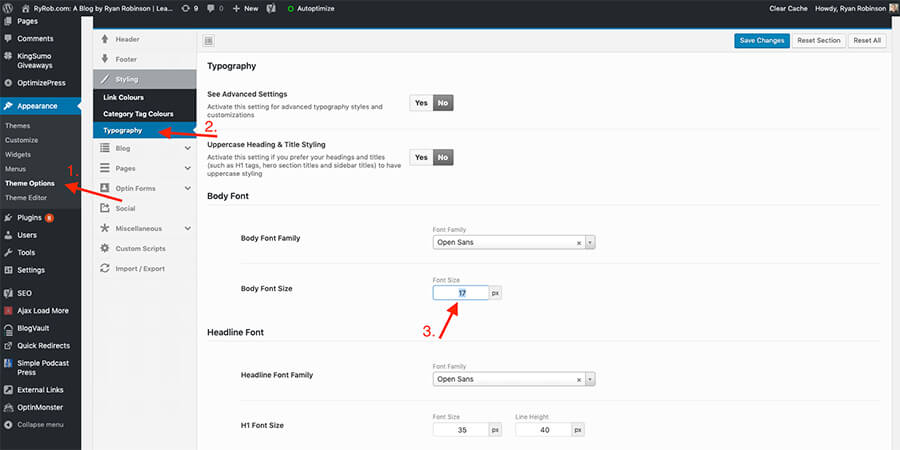
To change the font size, first explore the theme options. Each WordPress theme has different settings. Find the customization menu in your dashboard. Look for the appearance section. This is where you can start.
Identifying Typography Settings
In the customization menu, find typography settings. This section controls text styles. You might see options for font family and font size. Click on the typography option. It will show you more settings.
Adjusting Font Size
To adjust font size, look for the font size control. Use the slider or input box. Set the size you want. Check the preview to see changes. Make sure it looks good on your site. Save your settings. This will apply the changes to your theme.
Utilizing Page Builders
Page Builders simplify adjusting font sizes on WordPress themes. Choose a block, find font settings, and adjust size easily. This approach enhances readability and design without needing advanced coding skills.
Popular Page Builders
Page builders make changing font size easy. They offer simple tools for beginners. Elementor and Beaver Builder are popular. They have user-friendly interfaces. You can click to change text size. It is like magic!
Both builders offer customization options. You can pick any font size. Adjust it to your liking. The drag-and-drop features are helpful. This is great for those who love design. No coding skills needed.
Font Size Settings
Font size settings are usually found in the text editing section. Select your text first. Look for size options in the menu. Sizes range from small to large. Choose what suits your theme. If unsure, start with medium. Check the preview before saving.
Some builders have advanced settings. Explore these for more control. You can also change font color. These tools make your site unique. Enjoy your new design!

Credit: ultimateblocks.com
Installing Font Plugins
First, open your WordPress dashboard. Find and click on the Plugins section. Then select Add New. Here, you will see many font plugins. It’s important to choose the right one for your needs.
Choosing The Right Plugin
Some plugins offer more font choices. Others are easier to use. Read reviews and see ratings. Pick a plugin with good feedback. This helps ensure you get the best results.
Configuring Plugin Settings
After installing the plugin, click on Settings. Here, you can change the font size. You might also adjust the font style or color. Save your changes to see them on your site. These steps are simple and quick.
Testing And Previewing Changes
Adjusting font size on a WordPress theme involves accessing the theme customizer. Navigate to the “Typography” section. Use the available slider or input field to increase or decrease the font size. Preview changes to ensure the desired appearance before saving.
Previewing Customizations
Adjust the font size in WordPress. Use the customizer tool. This lets you see changes before they go live. Click on “Customize” in the theme menu. Find the font settings. Change the size. Look at the preview window. Check if the text looks right. If not, adjust again. Play with different sizes until happy. Preview helps avoid errors.
Ensuring Responsiveness
Make sure the font looks good on all screens. Phones, tablets, and computers. Check the site on different devices. Adjust the font size for each device. Use the responsive option in the customizer. This ensures text readability everywhere. Test the site on a phone. Does the text fit well? If not, tweak the settings. Responsive design makes the site user-friendly.
Troubleshooting Common Issues
Sometimes, plugins and themes can conflict. This can make font changes hard. First, check if plugins are causing problems. Disable one plugin at a time. See if the font size changes. If it does, that plugin is the problem.
Look at the theme settings too. Some themes have extra options. These can stop font changes. Go to your theme settings. Find the typography section. Make sure no settings are blocking changes.
Fonts might not change as planned. Reset your settings to start fresh. Go to your theme customizer. Look for a reset button. Click it to restore defaults. This can fix strange font issues.
Frequently Asked Questions
How Can I Adjust Font Size In WordPress?
To adjust font size in WordPress, navigate to the theme customizer. Select ‘Typography’ and choose the element you want to modify. Adjust the font size slider or input a specific value. Save changes to apply the new font size across your site.
What Plugin Helps Change WordPress Font Size?
Use plugins like ‘Easy Google Fonts’ to change font size easily. Install the plugin, then access its settings via the customizer. This allows you to adjust font sizes without altering theme code. It’s user-friendly and perfect for those unfamiliar with CSS.
Can Css Change Font Size In WordPress?
Yes, CSS can change font size in WordPress. Add custom CSS to your theme via the customizer or a child theme. Use the ‘font-size’ property to specify the size for elements. This method requires basic CSS knowledge but offers precise control over styling.
Is It Possible To Change Font Size In Posts?
You can change font size in posts using the block editor. Select the text block and adjust font size in the block settings. This allows customization without affecting global site typography. It’s ideal for emphasizing specific sections within your content.
Conclusion
Changing font size in WordPress is simple and essential. It enhances readability and user experience. Start by accessing your theme customizer. Adjust font size to suit your site’s design. Always preview changes before saving. This ensures a perfect fit. Regularly update your theme for best results.
Keep your site fresh and appealing. Remember, small tweaks make a big difference. Explore various font options for unique styles. Let your content shine with the right font size. Happy blogging and designing! Your WordPress site deserves the best look and feel.


