
Ever stumbled upon a WordPress site and thought, “Wow, I love this design!”? If you’re curious about discovering the theme name of a WordPress site, you’re in the right place.
Whether you’re looking to replicate the style for your own site or simply want to satisfy your curiosity, knowing how to check a theme name can be incredibly useful. Imagine being able to pinpoint the exact theme that caught your eye, without having to guess or rely on extensive research.
In this guide, you’ll uncover simple, effective methods to identify any WordPress theme. Stick around to unlock the secrets that even seasoned WordPress users might not know about. Your design aspirations are just a few clicks away!
Using WordPress Admin Dashboard
Discovering your WordPress theme name is simple through the admin dashboard. Navigate to “Appearance,” then select “Themes” to view the active theme name. This quick step ensures you always know which theme shapes your site’s design.
Locate Theme In Appearance
To find your theme, open the WordPress dashboard. Click on Appearance on the left menu. You will see a list of themes. The active theme will have a label. It is often called “Active”. Look for this label to know your current theme. You can also see a preview of the theme.
Identify Active Theme
Once you find the theme, note its name. The theme name is displayed under the theme preview. This name is important. You might need it for updates or support. Write it down or remember it. Themes help design your website. Each theme has unique features. Choose one that fits your needs.
Inspecting Website Source Code
Open the website in your browser. Right-click anywhere on the page. Select Inspect or Inspect Element from the menu. This will open the developer tools panel. Look for the Sources tab. Click on it. You will see folders with different names. Look for a folder named wp-content. Inside, find another folder named themes. The folder name usually matches the theme name.
Access Browser Developer Tools
Accessing developer tools is simple. Press F12 or Ctrl + Shift + I on your keyboard. This opens the developer tools panel. On a Mac, use Cmd + Option + I. Use the Elements tab to see HTML structure. Use the Sources tab for files. Explore these tabs to find theme details. Look for clues in the HTML and CSS files.
Find Theme Name In Css Files
Open the CSS files from the Sources tab. Look for comments at the top. Many themes have details here. You might see the theme name listed. It is often in the style.css file. This file is usually in the theme folder. Look for lines starting with /. These lines often contain theme information. Check carefully to find the theme name.
Using Online Theme Detection Tools
Start by finding a trustworthy tool to check the theme name. Many tools are available online. Pick one with good reviews. A reliable tool gives accurate results.
Open the tool in your web browser. Next, enter the website URL into the search box. Make sure the URL is correct. Click on the search or detect button. Wait for the tool to do its work.
The tool will display the theme name used on the site. Sometimes, it shows extra details too. Check if the theme name matches your expectations. Save the information if you need it for later.

Credit: basicwp.com
Checking Theme In WordPress Theme Directory
To find a theme, first open the WordPress Theme Directory. Look for a search bar at the top. Enter the theme name in this bar. Click the search button. A list of themes will appear. Find the one you want. Click on the theme to see details. You can check the author and version here.
Checking theme information is crucial. Click on the theme name. A new page opens. Here, find details about the theme. Look at the ratings and reviews. See if people like it. Check the number of downloads. More downloads mean it is popular. Always ensure the theme is updated. An updated theme works better and is safer.
Using A WordPress Plugin
Find the Theme Detector Plugin in your WordPress dashboard. Click “Plugins” and then “Add New”. Type “Theme Detector” in the search bar. Locate the plugin and press “Install Now”. Wait for the installation to finish.
After installation, click “Activate Plugin”. The plugin is now ready to use. Go to your site and find the “Theme Detector” option. Click it to start detecting themes. The plugin will show the theme name on your screen. You can check theme details too.

Credit: www.wpbeginner.com
Exploring Theme’s Style.css File
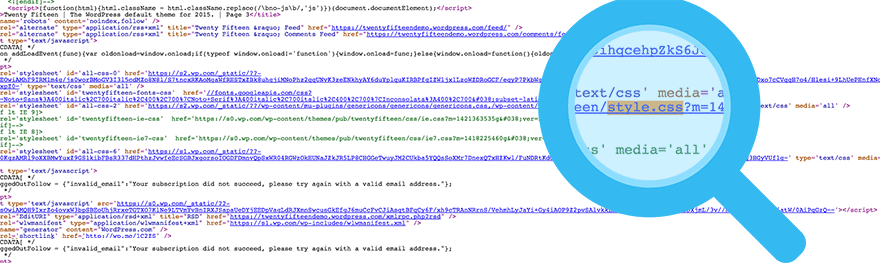
Discover the theme name in WordPress by exploring the style. css file. This file holds essential theme details. Open it through the WordPress dashboard or file manager. Look for the “Theme Name” line near the top. It’s a simple way to identify your active theme quickly.
Locate Theme Directory
First, go to the WordPress dashboard. Click on Appearance, then Theme Editor. This opens the theme files. On the right, you see a list of files. Find the style.css file. This file holds important information about the theme.
Read Theme Name In Style.css
Open the style.css file. Look at the top of the file. You see theme details here. The first line is usually the Theme Name. It tells you the name of the theme. This name helps you identify the theme quickly. Other details like version and author are also here. These details are helpful for understanding the theme better.
Credit: winningwp.com
Frequently Asked Questions
How Can I Find My WordPress Theme Name?
To find your WordPress theme name, navigate to your WordPress dashboard. Click on “Appearance” and then “Themes. ” Your active theme will be listed at the top. Alternatively, view the page source of your site and search for “wp-content/themes” to locate the theme folder name.
Can I Check Theme Name Without Logging In?
Yes, you can check the theme name without logging in. View your website’s page source by right-clicking and selecting “View Page Source. ” Search for “wp-content/themes” to find the theme folder name, which usually reveals the theme name used.
Is There A Plugin To Identify WordPress Theme?
Yes, plugins like “What WordPress Theme Is That” can identify themes. Install the plugin from the WordPress plugin repository. Once activated, it can display detailed information about your active theme, including its name, version, and author.
Does Theme Name Affect Seo?
While the theme name itself doesn’t directly affect SEO, the theme’s design and code quality do. A well-coded, responsive theme improves user experience and site speed, positively impacting SEO. Ensure your theme is optimized for mobile and follows best SEO practices for better rankings.
Conclusion
Finding the theme name in WordPress is simple. Use the methods mentioned to locate it quickly. Check the page source or use online tools for assistance. Knowing your theme can help with customization. This knowledge aids in optimizing your website.
Understanding your theme opens up new possibilities. Explore the theme’s features and improve your site’s look. Make informed decisions on theme selection. Enhance your WordPress experience by knowing your theme. Your website deserves the best theme fit. Keep learning and experimenting with WordPress themes.
Enjoy creating a beautiful and functional site.


